Where
POS → Customers → Statement runs
Or search "statement" from any screen.

Getting Started with Rundoo · Setup
Generate and send one customer's bill the moment they ask.
Your phone rings. It's one of your regulars on a charge account, and they need a copy of their statement right now. Good news: you don't have to wait for the end of the month. You can generate and send that one customer's statement on demand, and have it out the door in about two minutes. Here's the whole routine, start to finish.
Everything happens on the POS side. Open the Customers tab in the left nav, then click Statement runs at the top. This is the list of every run you've done, automatic or manual, with the period each one covered and whether it's been sent. A faster way in: type statement into the search bar at the top of any screen, and Rundoo takes you right here.
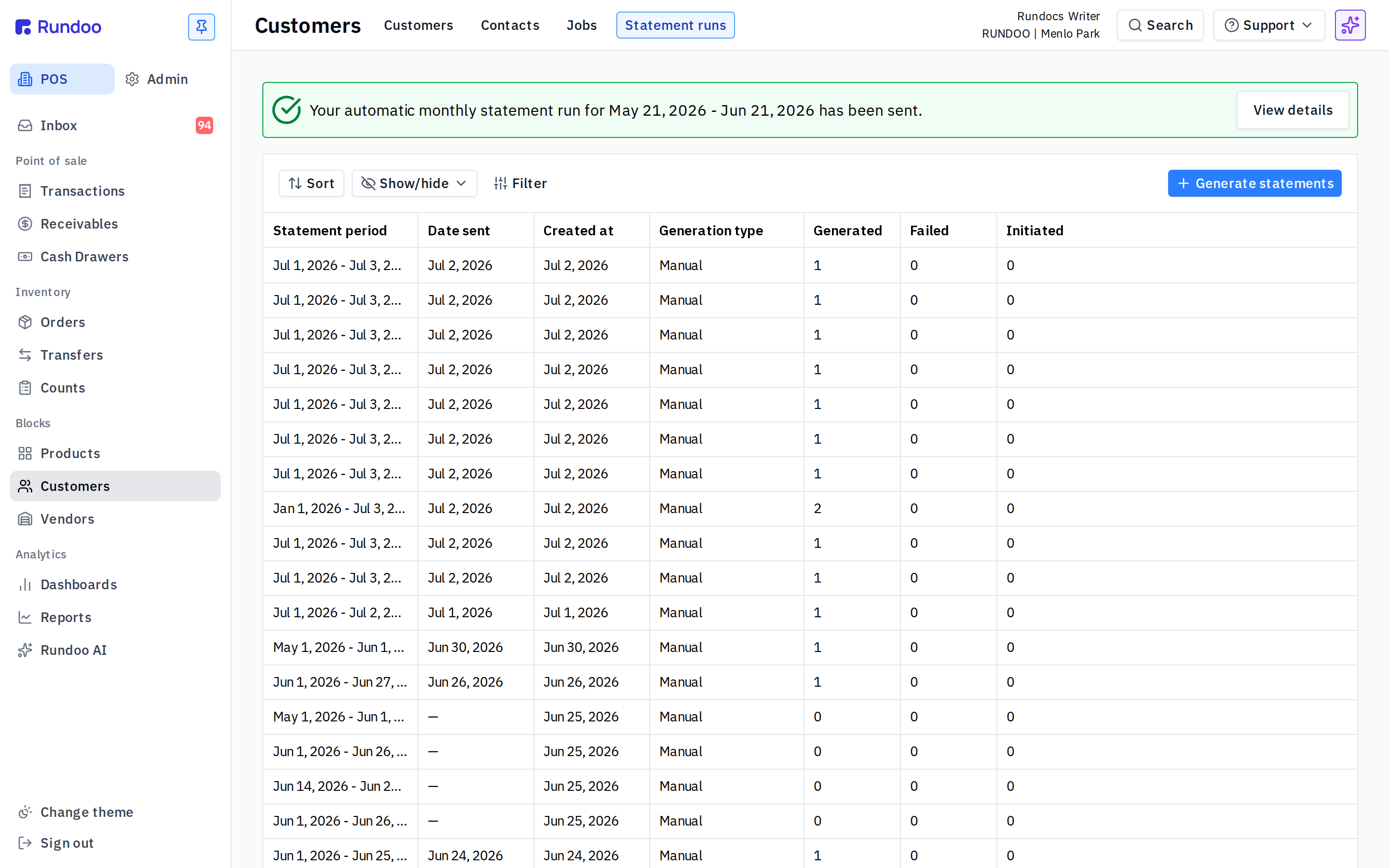
Click + Generate statements in the top-right corner. That opens the Generate statement page, where you'll pick the period and the customer.
Under Select statement period, click the Date picker and set the start and end of the period the statement should cover. One thing worth knowing: when you run a statement by hand like this, Rundoo does not add finance charges. Those are only assessed on your automatic monthly run.
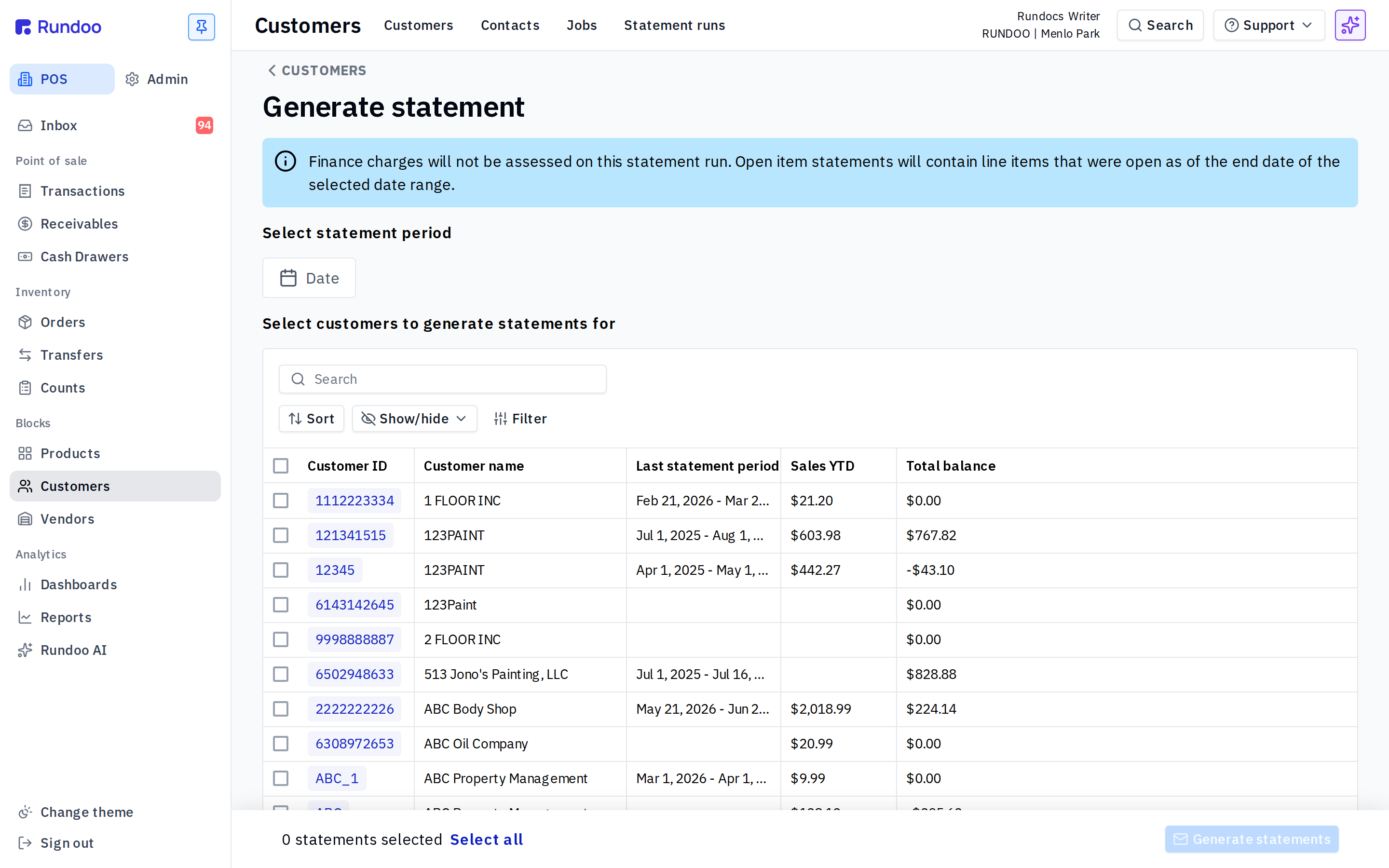
In the customer table, type their name into the Search box, then check the box next to their row. You could filter the list by finance term, or use Select all to bill a whole group, but for a one-off request, just this one customer is all you need.
Click Generate statements at the bottom-right. Rundoo builds the run and drops you back on the Statement runs tab. Your new run shows up at the top with a Generation type of Manual. It can take a moment to process, so hit the refresh icon if you don't see it right away.
This is the step folks trip on most. Building the run does not deliver anything to your customer. It's two separate actions: first you generate, then you send. Nothing has left your store yet.
Click into the run you just made, check the box next to your customer, and click Send selected statements. The Send statements window opens with two tracks: send by mail, or send by email. Either way, hit Preview first to eyeball the PDF. It's a good habit, and it takes two seconds.
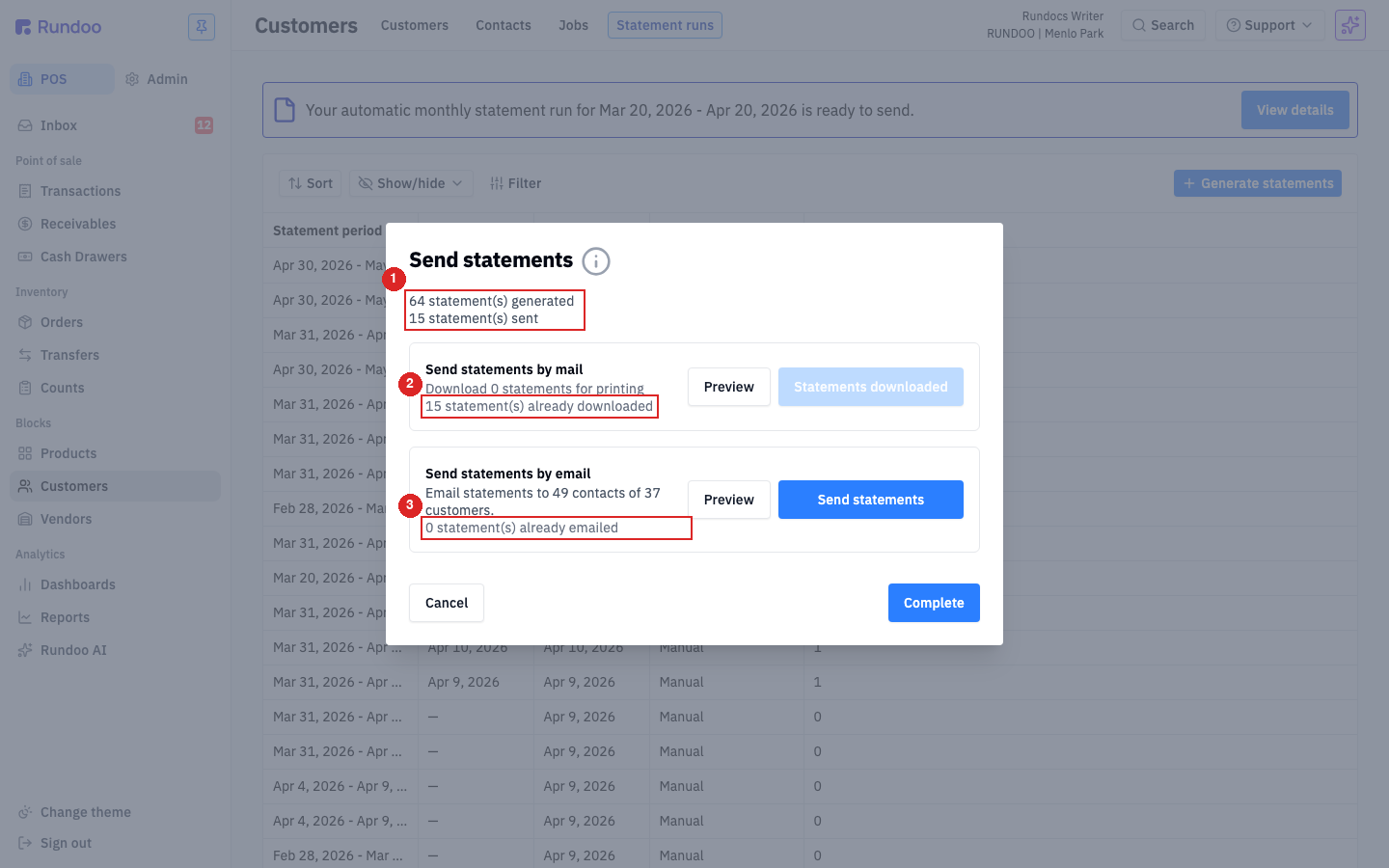
Since your customer is on the phone, email is the fast path: under Send statements by email, click Send statements and it goes straight to the contacts on their file. Prefer paper? Use Download statements under the mail track to save a PDF you can print and drop in an envelope.
Where
POS → Customers → Statement runs
Or search "statement" from any screen.
Two steps, always
Generate, then send
The run isn't delivered until you send it.
Finance charges
Not on a manual run
Those ride only on the automatic monthly run.
Delivery
Email or download to print
Preview the PDF before either one.
Good to know