The app
Rundoo POS (blue)
The black icon is your customers' app.

Getting Started with Rundoo · Unboxing
Look up products, check stock, and print labels without leaving the aisle.
You're out on the floor, helping a customer deep in an aisle. They have a question. Maybe "how many of these do you have?" or "what's my price on this?" In the old days that meant a long walk back to the counter and back. Not anymore. With the Rundoo POS app on your phone, the answer is right in your hand, wherever you're standing.
Search Rundoo in the App Store or Google Play and you'll see two apps. The black one is for your customers. The one for you and your team on the floor is the blue one, Rundoo POS. That's the one this guide walks through.

Open the blue app and tap Sign in using text. Enter your cell phone number, the same one that's on your staff account in Rundoo, then tap Send code. A six-digit code lands by text. Punch it in and you're in. Nothing to remember.
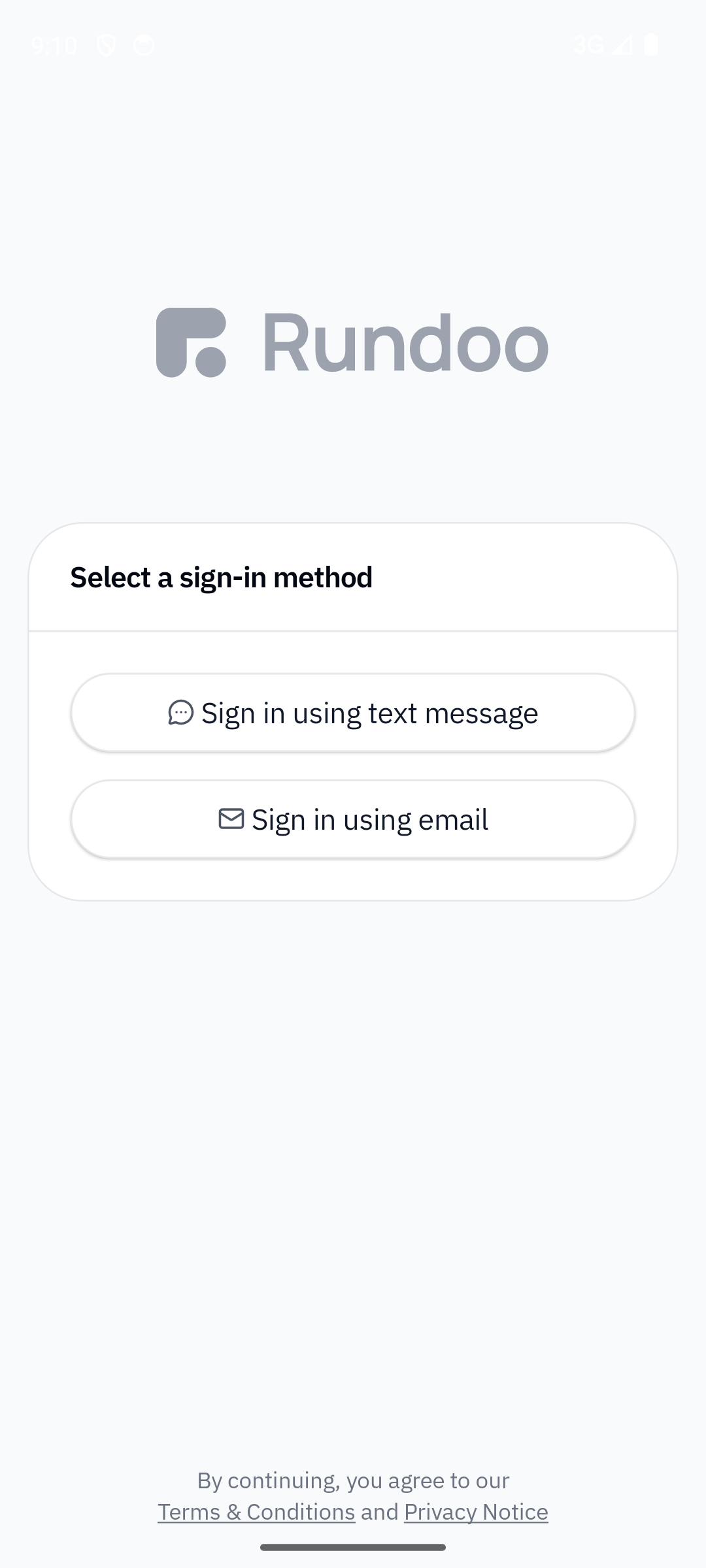
Along the bottom you'll see a few tabs. Transactions is today's sales and returns (where floor staff open by default). Orders is your purchase orders. Counts is where an inventory count in progress shows up. And More, the three dots, is where the rest lives, including Products and Customers. What you land on depends on your permissions, so a manager with analytics opens on a numbers screen instead.
Back to that customer. Tap More, then Products. Search by name, or tap the blue button to scan the item's label barcode. Open the product and you see it all on one screen: how many you have on hand, the bin location where they live in the store, and the price. You get the retail price, and if your customer has special pricing (say a contractor discount) you can confirm their price right there too.
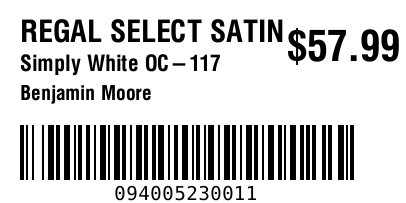
Notice a shelf tag that's missing or faded? Fix it right then. From that same product screen, tap Print label. As long as you're connected to one of the mobile Zebra printers, a fresh label prints out. No writing it down and hoping you remember later.
The app is just as handy for customer questions. If a regular asks about a past order, tap More, then Customers, and open their account to see their history. Want to flag something for the team back at the counter? Tap Add interaction, type your note, and save. It's attached right to their account for whoever helps them next.
The app
Rundoo POS (blue)
The black icon is your customers' app.
Sign in
Cell number + texted code
Same number that's on your staff account.
Print labels
Print label → Zebra printer
Needs a paired mobile Zebra printer.
Find anything
More → Products or Customers
Search by name, or scan the label barcode.
Good to know