Balance
Balance tab
Total outstanding matches what they owe.

Getting Started with Rundoo · Go-Live Data Check
Confirm each account's balance, terms, and credit limits came over right.
Of all the steps before you go live, this is the one worth slowing down for. Your customer accounts, what each one owes, the terms they buy on, and how much credit you've extended, coming over exactly right is what makes your first morning at the counter smooth instead of a scramble. The good news: this is a spot-check, not an audit. You open your top handful of accounts, confirm they look the way you'd expect, and flag anything that's off. You catch it, your Rundoo guide fixes it.
You don't need to open every customer. Sort your list, open the accounts you know cold (the ones whose balance you could recite from memory), and trust that if your biggest five or ten came over clean, the rest almost certainly did too.
And when something does look wrong, resist the urge to fix it yourself. Corrections get made in your old system so they survive the final data sync the night before go-live. The way you flag it is the Ask a question box right under this video in your Learning Journey. Type what you're looking at, send it, and it lands on your guide's short list of things to fix before the lights go on.
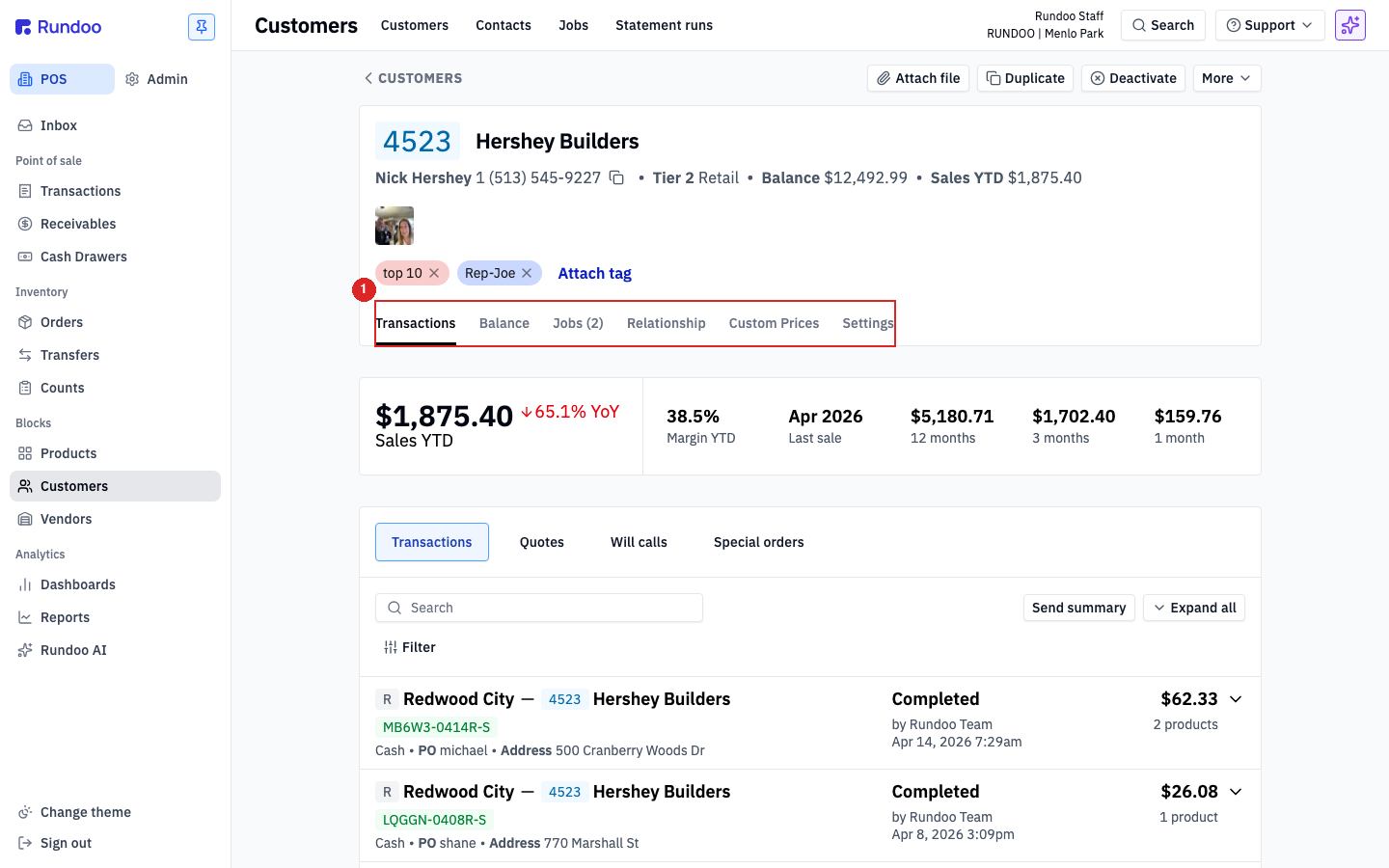
In the left sidebar, open Customers. Click the Sales YTD column header to sort your biggest accounts to the top, then open one of your main charge accounts.
One heads-up before you dig in: this preview is built from the data we've pulled over so far, so some numbers, like Sales YTD, will look low. That's expected. You're confirming each account came over right, not that the year's totals are complete.
Click the Balance tab. You'll see the account's total outstanding balance and the aging buckets underneath it. Confirm the total is what you'd expect that customer to owe.
Rundoo ages balances by the due date, not the invoice date. So if the buckets look a little different from your old system, that's usually why, and it's not a problem. As long as the total balance is right, this one's in good shape.
Click over to the Settings tab and scroll to the Financing section. Check that the Finance term matches what you have in writing (something like Net 30 Statement or 5/18 Net 30 EOM).
The finance term is also what makes an account a charge account in the first place. A customer on a Cash term carries no running balance by design, so if an account you expected to have a tab shows nothing on the Balance tab, the term is the first thing to look at.
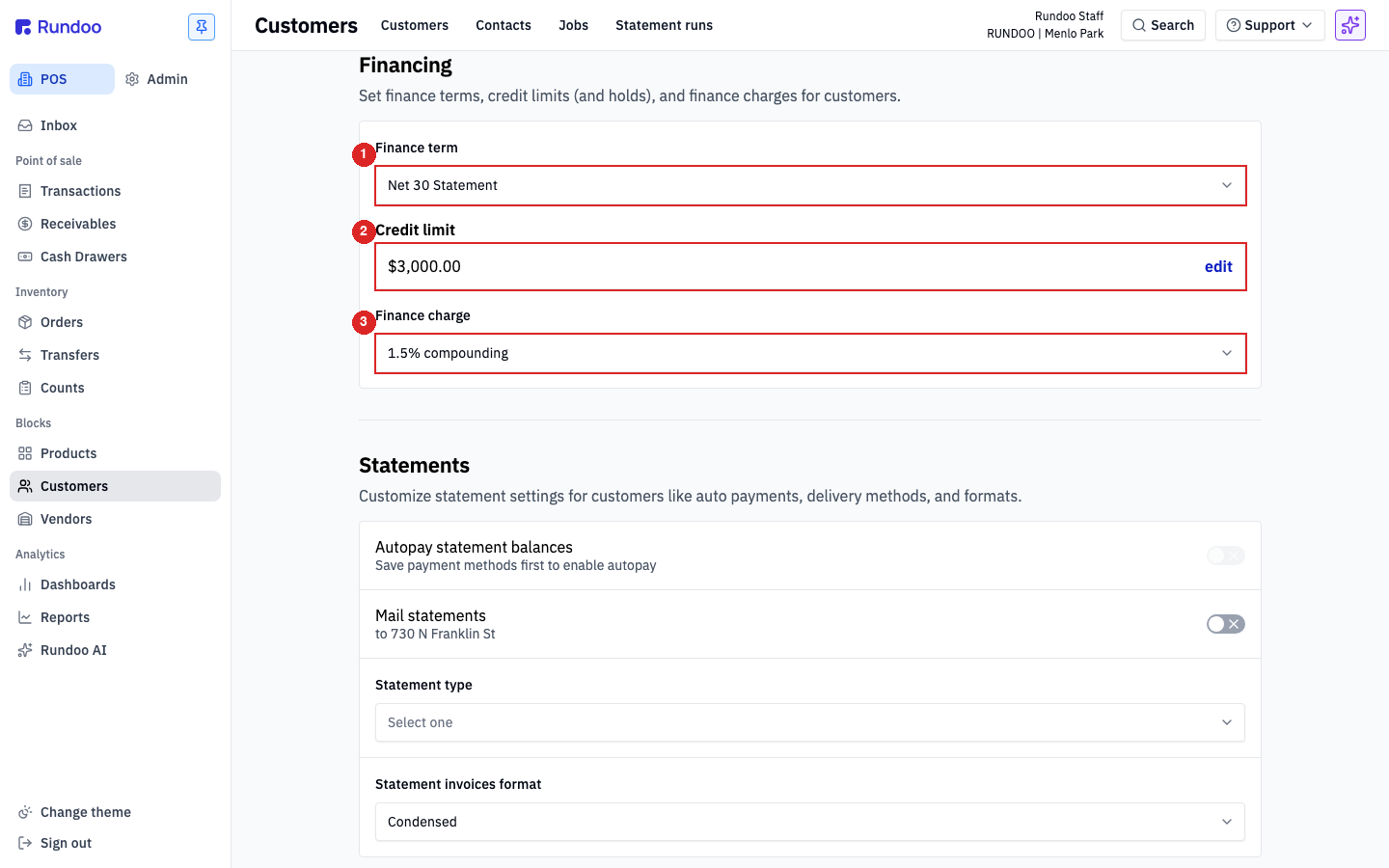
Right below the finance term, confirm the Credit limit. This one matters more than it looks: in Rundoo, the credit limit is a hard stop at the register. When a sale would push a customer past their limit, the Charge account tender is blocked until they pay some down. A limit that came over blank or far too low will surprise you at the counter, so it's worth a careful look.
Still on the Settings tab, scroll to the Tax exemptions section. For a tax-exempt account, the field that actually exempts them is Use custom tax rate (pinned to a rate like Tax exempt at 0.0%), not a simple checkbox. Confirm the customers who shouldn't be charged tax are pointed at that rate.
If a balance, term, credit limit, or tax status doesn't look right, don't touch it. Open the Ask a question box under this video and type exactly what you see: the account name, and what's wrong (for example, "this account's credit limit came over blank, and it should be higher"). Send it. That goes straight to your Rundoo guide, and the correction comes over with your final data sync.
Balance
Balance tab
Total outstanding matches what they owe.
Aging
Aged by due date
Buckets may differ from your old system.
Finance term
Settings → Financing
Matches what you have in writing.
Credit limit
Settings → Financing
Hard stop at the register. Watch for blanks.
Good to know