Where
POS → Receivables → Payment
No separate "issue credit" screen.

Getting Started with Rundoo · Transactions
Put a goodwill credit on a loyal customer's account.
Sometimes you just want to thank a good customer. Not for a return, not for an overpayment, just a plain gesture of goodwill: fifty dollars on their account, on the house. Rundoo doesn't have an "issue a credit" button, but the way you get there takes about ninety seconds once you know the path. You'll create the credit inside Receivables and tender it as a write-off, which sounds odd until you see it, so let's walk it through.
Credits live on the customer's account, and you build a fresh one from the bill-payment screen. In POS mode, open Receivables in the left menu and stay on the Payment tab up top. That's where every part of this happens. There is no separate credit screen to hunt for.
From the left menu, click POS, then Receivables, and make sure you're on the Payment tab. In the left panel, use Search accounts to find your loyal customer and attach them.
This is the part that trips people up, so do it first. Type the credit amount, say 50.00, into the Payment amount field. Leave every open invoice unchecked. That amount is what the write-off will tender in a moment. If you leave this field blank, the button at the bottom stays at Write off $0.00 and nothing will commit.
Scroll to the bottom and check the box for Credit to add, entering the same number, 50.00. Matching the two fields is what turns this into a single fifty-dollar credit rather than two. Then fill Credit notes, which Rundoo requires. Something specific like "Loyalty credit, thank you for your business" beats "credit" when you look back a year from now.
Down in the Payment section, select Write off as the payment type. You'll see a blue banner that says outstanding balances and finance charges will be cleared. Since you didn't check any invoices, that's harmless here. Nothing real gets written off. The write-off tender is simply what lets Rundoo record the credit with no money coming in.
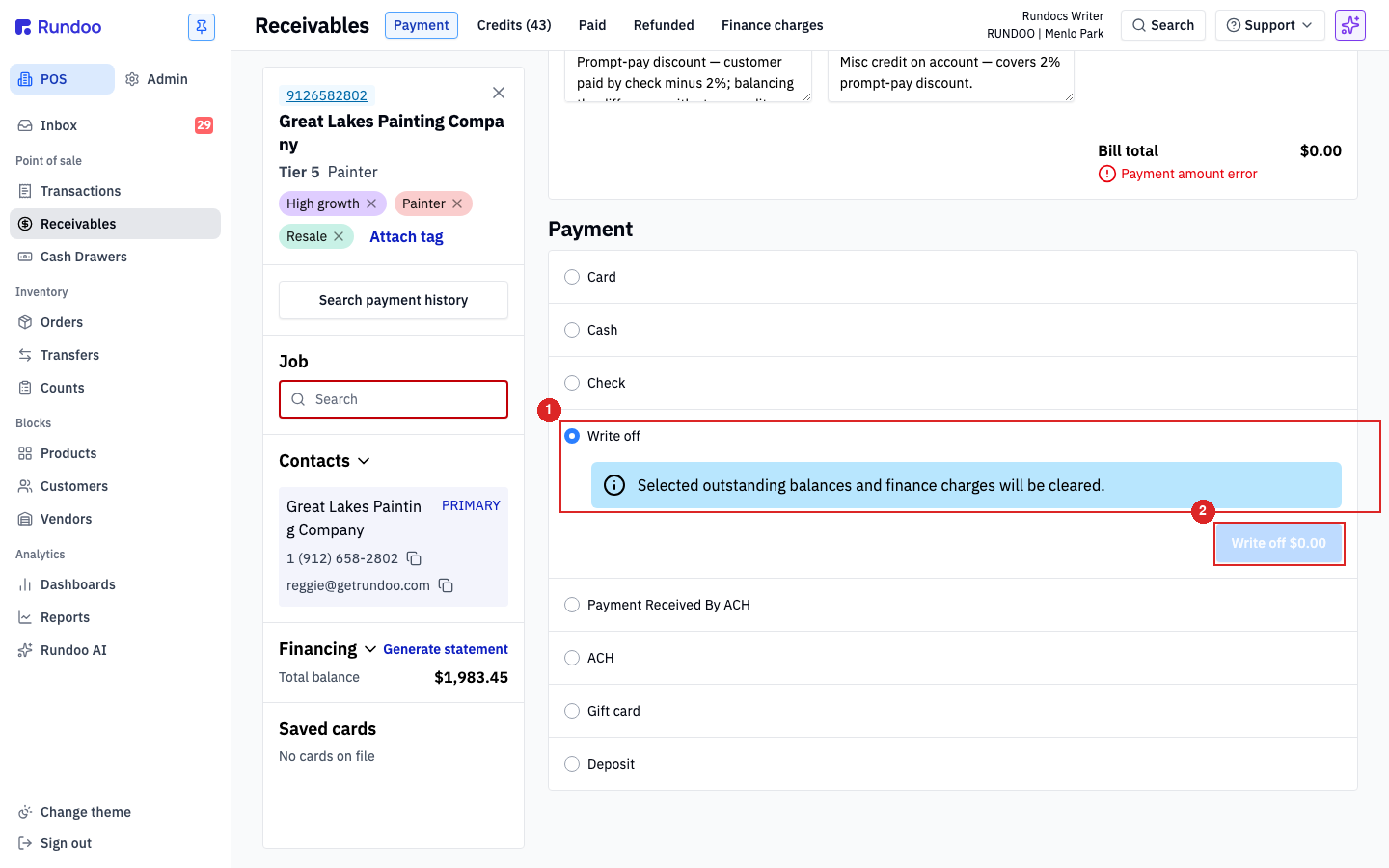
Rundoo asks for a second note in Bill payment notes, and yes, it's also required. It's a separate audit trail from the credit note, so write something real here too, like "Goodwill credit." Then click Write off $50.00 in the bottom-right to commit.
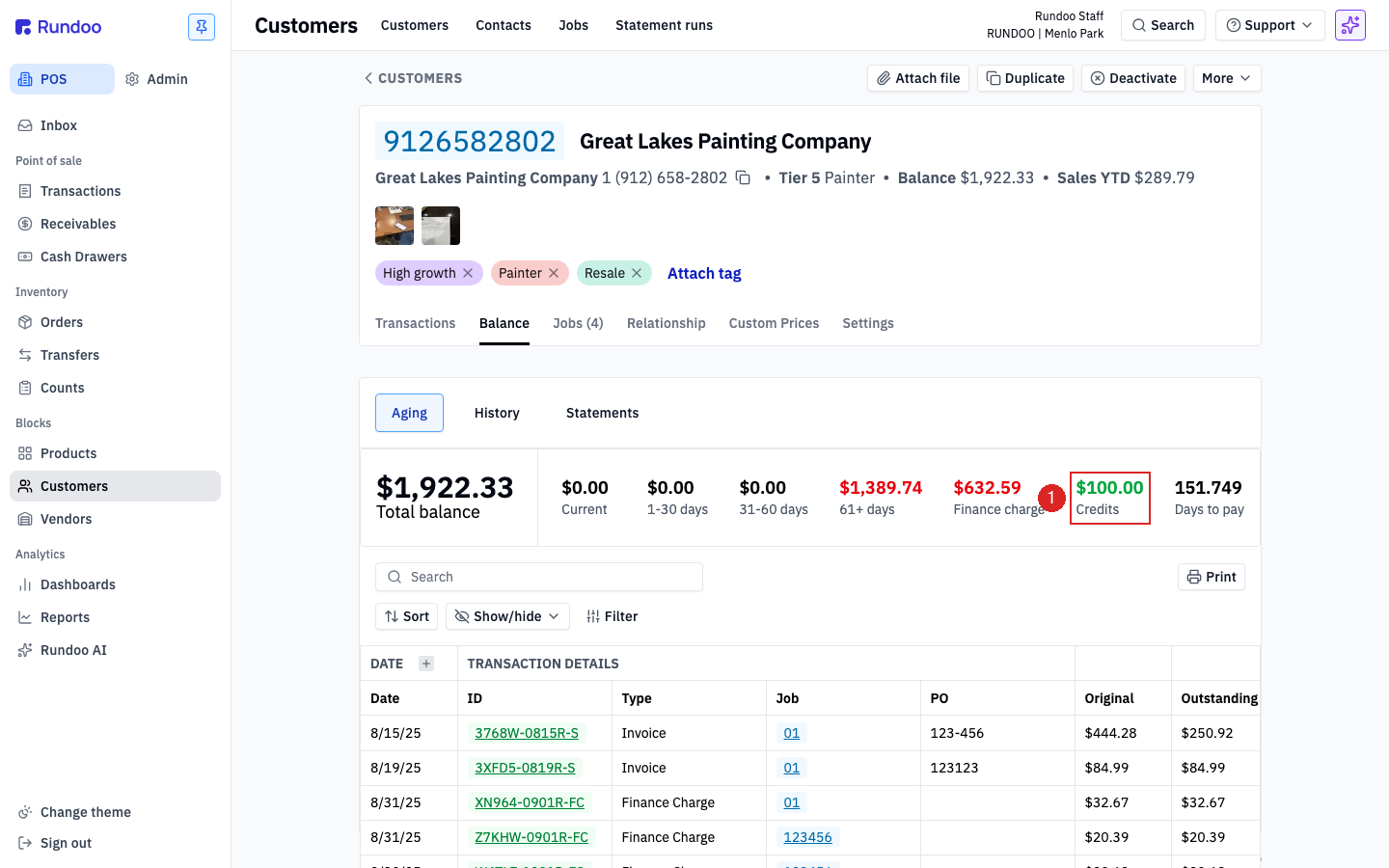
Open the customer from Customers, click the Balance tab, and look at the aging row. The Credits bucket on the far right now shows the stored value you just added, ready to apply automatically against their next bill.
Where
POS → Receivables → Payment
No separate "issue credit" screen.
The tender
Write off
No invoices checked, so no real debt is written off.
Two required notes
Credit notes + Bill payment notes
Separate audit trails. Write something specific in both.
To reverse it
Void the bill payment
Find it via the credit's "Created by Bill Payment" link.
Good to know