Right product
Matches what's in your hand
Same item, same size, not a look-alike.

Getting Started with Rundoo · Go-Live Data Check
Make sure every item rings up as the right product, price, and unit.
We've moved your products into Rundoo. Before you flip the lights on, there's one check worth more than any other: making sure everything rings up right at the counter. The trick is to test it the exact way you'll use it all day. Grab a handful of your everyday items, scan them at a sale, and confirm each one comes up correct. You are not auditing every SKU. You are spot-checking a dozen of your most common items so you walk into go-live morning knowing every ring is fast and right.
The best place to test your data is a live-style sale. Flip to Point of Sale mode, open the Transactions tab, and start a new sale, the same screen your cashiers live on. Then pick up your barcode scanner and start ringing your everyday items, exactly like a customer is standing there.
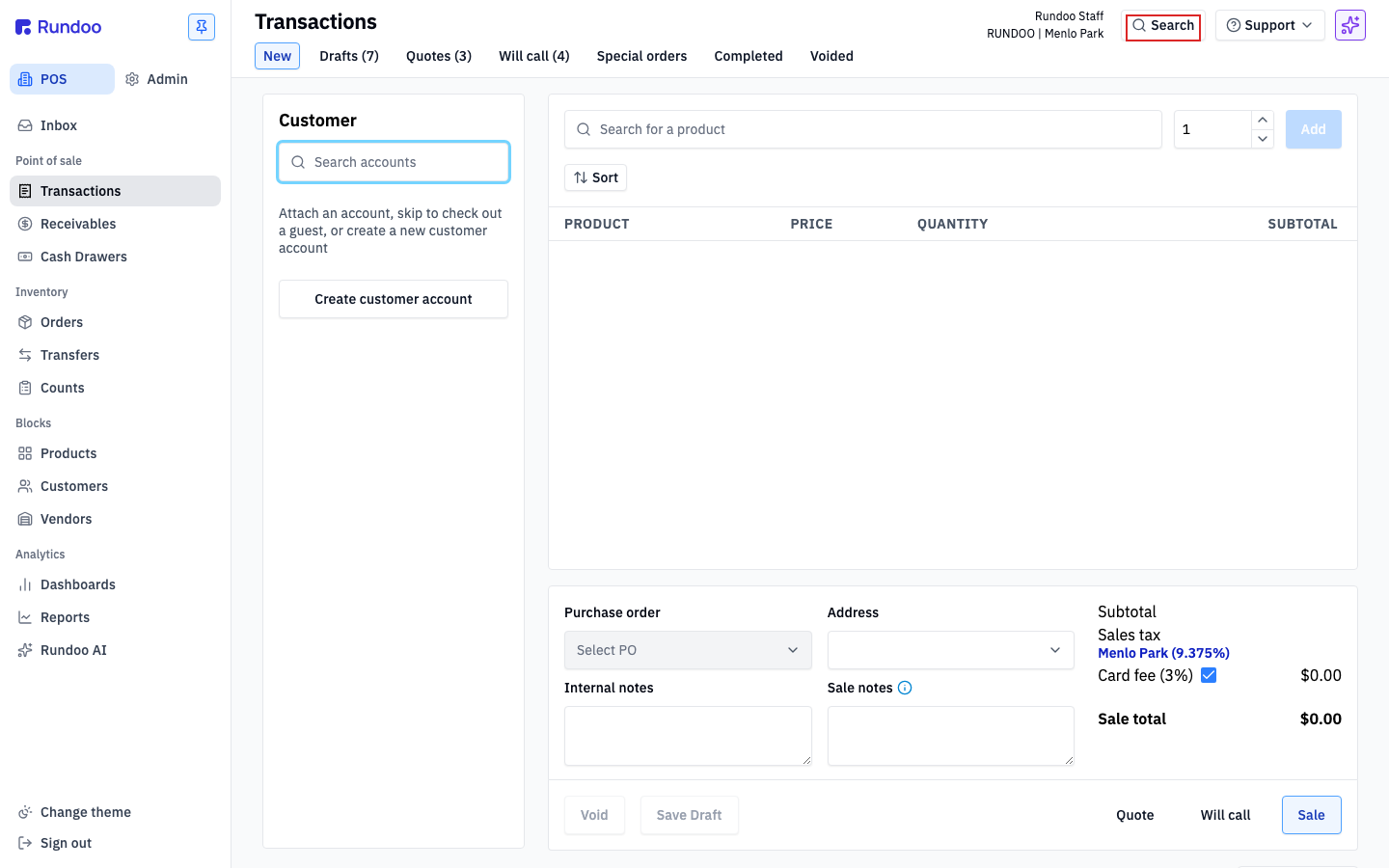
In Point of Sale, open Transactions and start a fresh sale. Keep a small stack of your most common items next to you, a mix across what you sell (paint, sundries, hardware), so the check reflects a real day.
Scan the barcode just like you would for a customer. The item should drop straight into the cart as a line. First thing to confirm: the right product came up. The name and picture on the line match the thing in your hand, not a look-alike or a different size.
Look at what the line rang at. Does the price match your shelf tag or what you expect to charge? A wrong price here is exactly the kind of thing to catch now, while there's still time to fix it before go-live.
Confirm the item rang in the right unit. This matters most for anything you sell in more than one size. If you sell caulk by the case and by the tube, scan the case barcode, then scan a single tube. Each should come up on its own line, with the right unit and the right price, so you know your case-to-each conversions are set.
Not everything in your store has a barcode. Think mixed-to-order paint, cut lumber, or items sold by the pound or the foot. For those, the check is a little different. Instead of scanning, use the product search on the sale to find the item by name, add it to the cart, and confirm it comes up at the right unit and the right price. If you can't find it, or the unit looks off, that's one to flag.
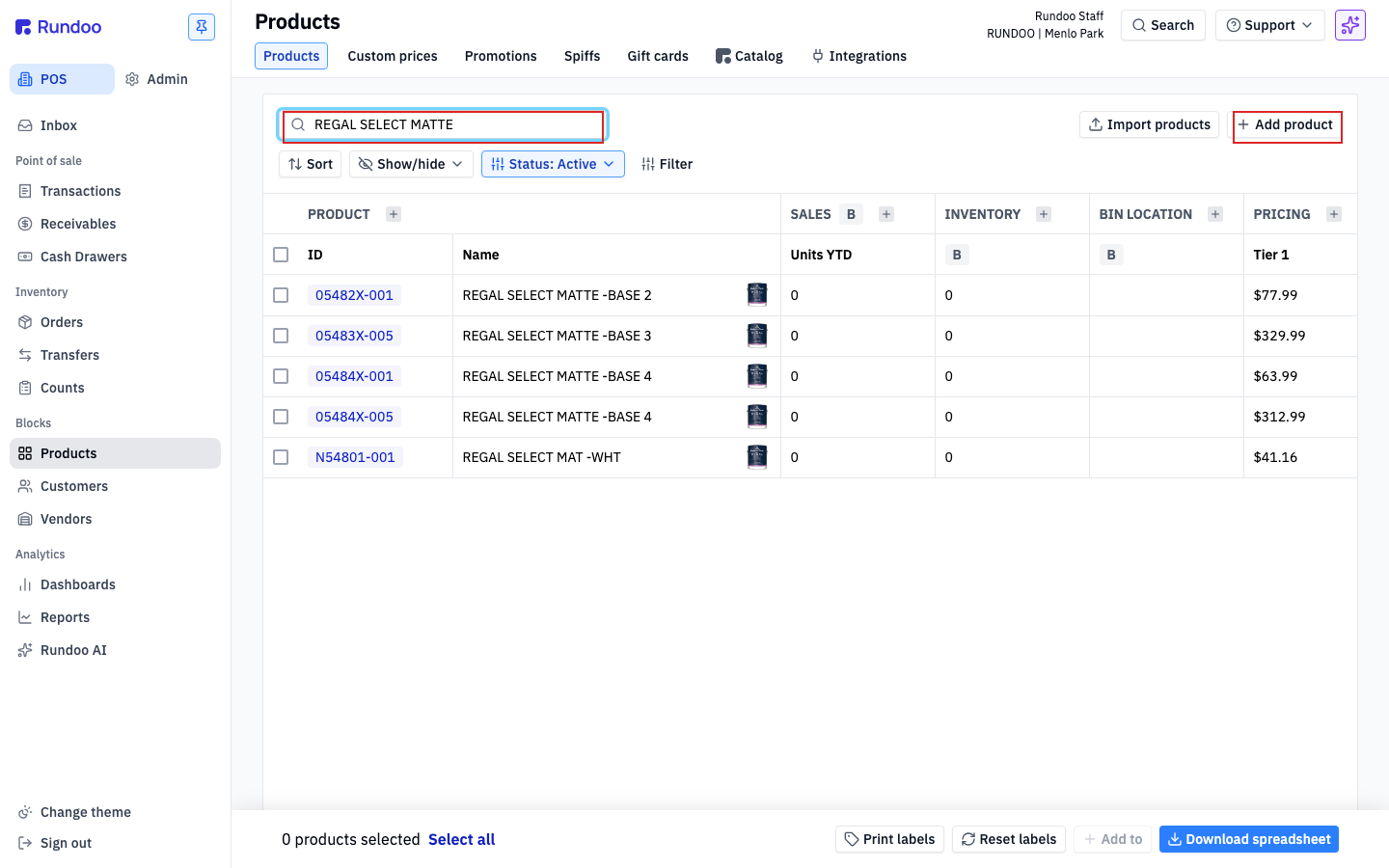
If a scan pulls up the wrong product, brings up nothing, or opens an Add product screen with the price sitting at zero, that item didn't come across clean. Do not add it or fix it yourself here. Note which item missed and what came up instead, then flag it to your Rundoo guide (the Ask a question box under the video goes straight to them). You flag it, they get it fixed before you go live.
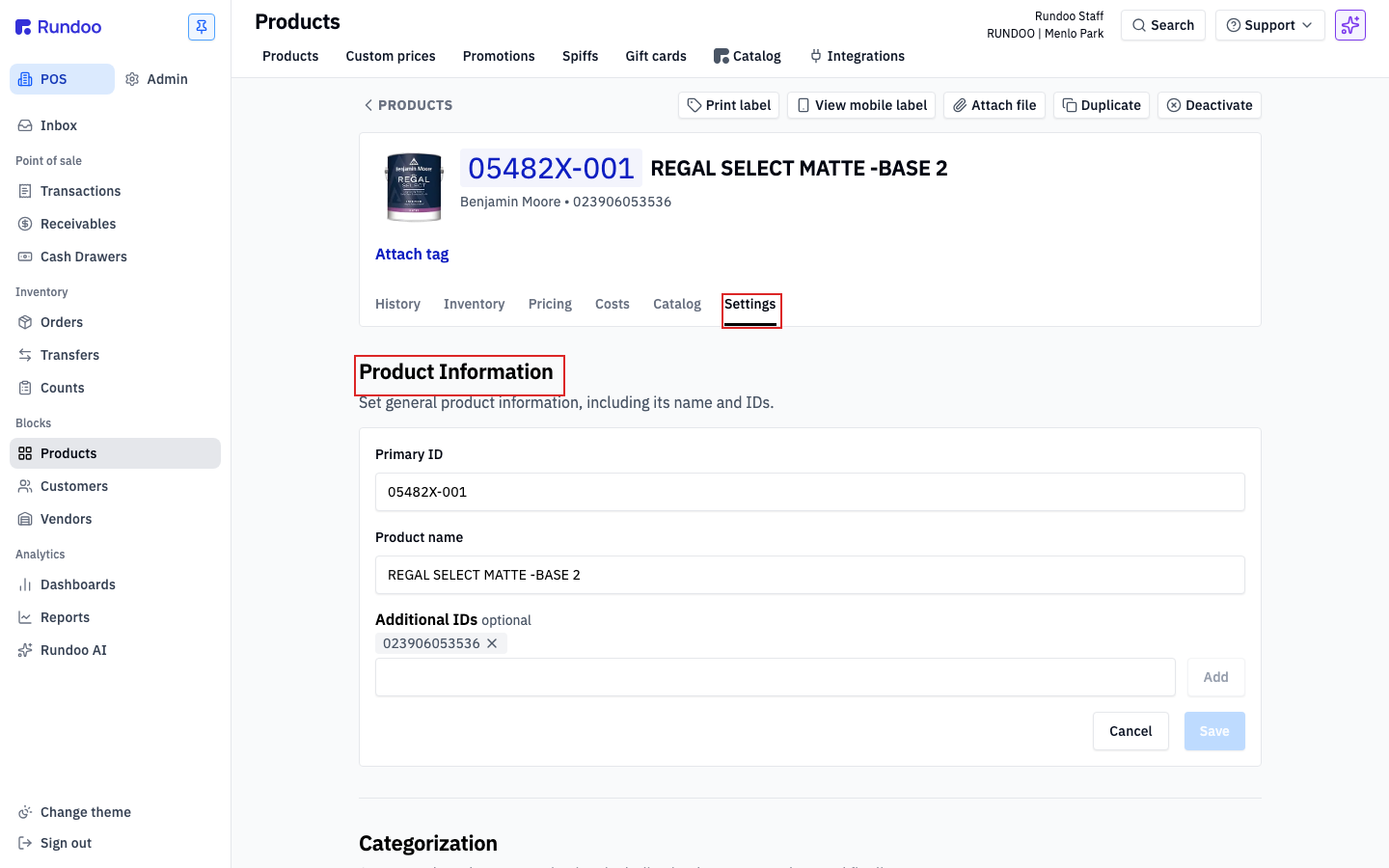
You don't need to touch any of this today, but it helps to know where it's kept. Open Products, click into any product, and go to its Settings tab. That's where a product's ID, its barcodes and additional IDs, and its units of measure all live. If you ever flag a bad scan, this is the page your guide corrects on Rundoo's side.
Right product
Matches what's in your hand
Same item, same size, not a look-alike.
Right price
Matches your shelf tag
A wrong price is worth catching now.
Right unit
Case rings as a case, each as each
Test anything you sell in two sizes.
No barcode?
Search by name, add to the sale
Mixed paint, cut lumber, sold by weight.
Red flags worth flagging