Draft
Save Draft
No customer, no hold. Just pauses the cart.

Getting Started with Rundoo · Transactions
How to save a sale to finish later.
Not every sale finishes at the counter right now. A contractor wants a price for a whole job. A regular asks you to set a few gallons aside for pickup this afternoon. Or you're halfway through ringing someone up and have to step away. Rundoo has a spot for each of those, so nobody has to start over. The one thing worth burning into memory: only a Will call actually holds your stock. A Draft and a Quote leave your shelves free.
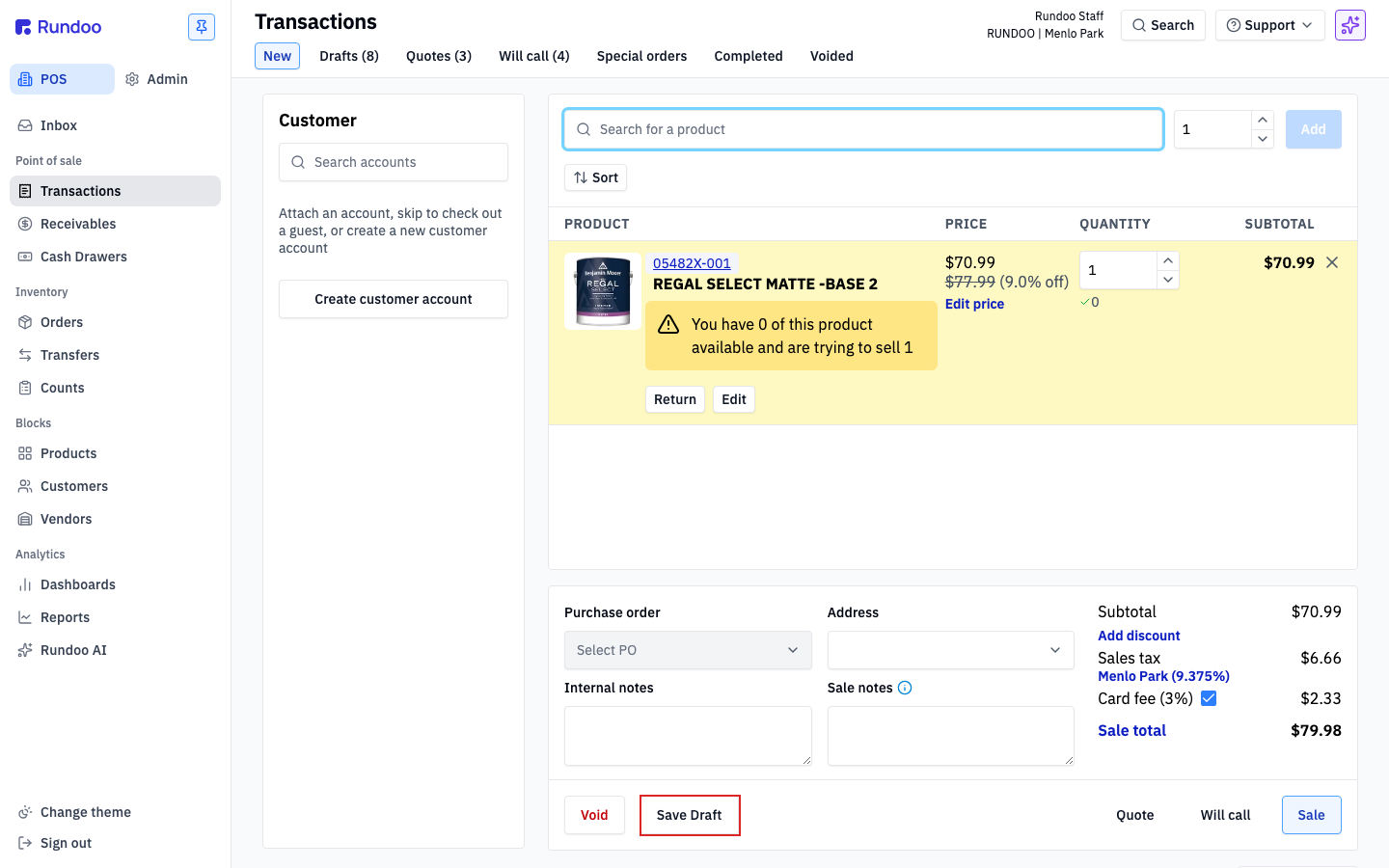
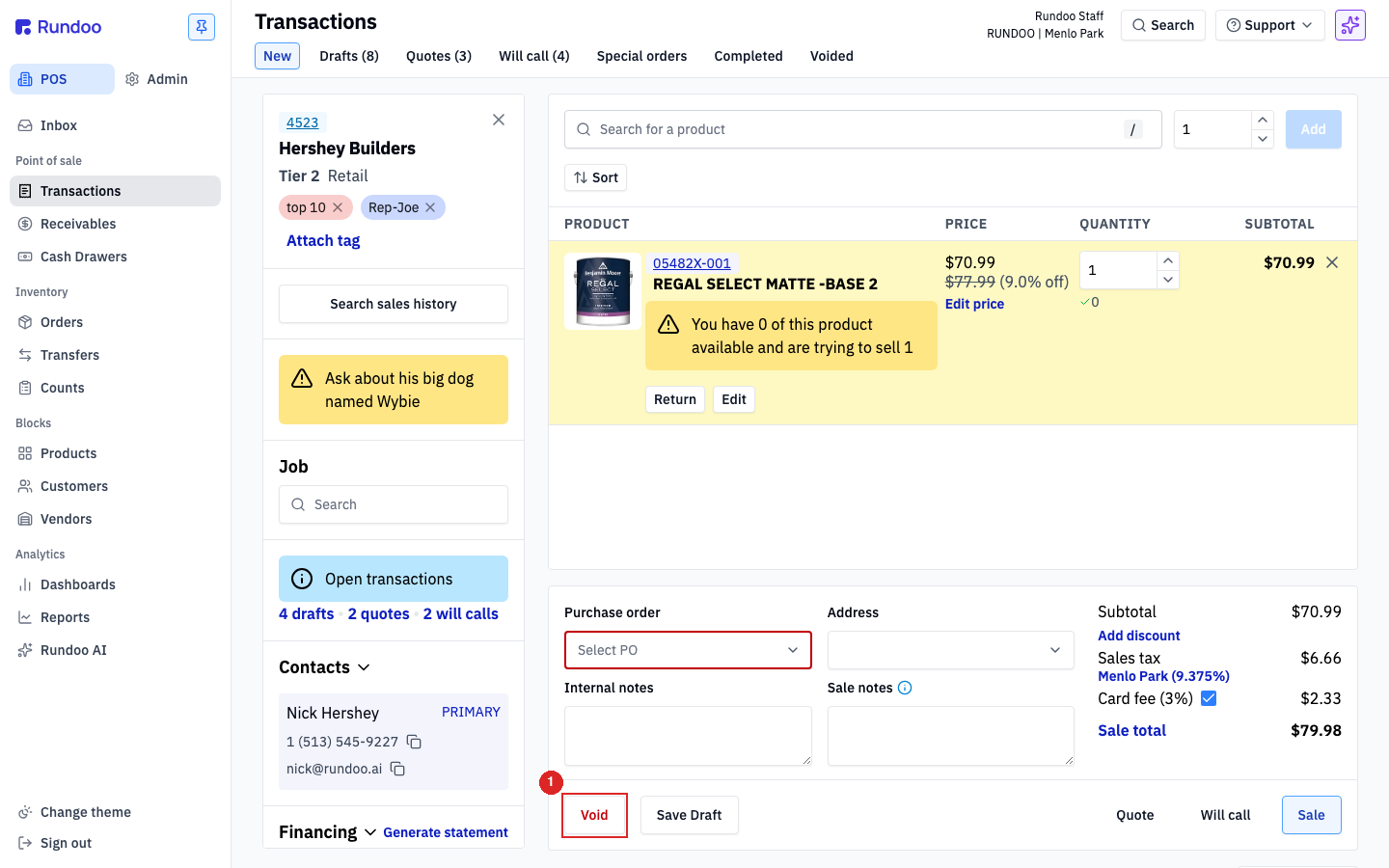
Everything here lives in POS → Transactions. Down in the action cluster at the bottom of the cart, next to Sale, you'll see a button for each way to hold a sale: Save Draft, Quote, and Will call (with Void on the far left). Each one parks the sale under its own tab in the top-tab strip, Drafts, Quotes, and Will call, and each tab carries a live count so you can see at a glance what's waiting.
A draft is the internal pause button. No customer needed, no inventory touched, nothing leaves the store. Build the cart as usual, then click Save Draft in the action cluster. The cart clears and the ticket lands under the Drafts tab, ready to reopen when your customer comes back with the rest of their list.
A quote is a priced offer you can hand a customer, on paper or by email, without reserving a thing. Build the cart, then attach a customer from the left panel (a quote has nowhere to go without one). Click Quote. A panel opens with an Expiration date and three choices: Save to keep it internal, Save & Print for a paper copy, or Save & Email to send it straight over.
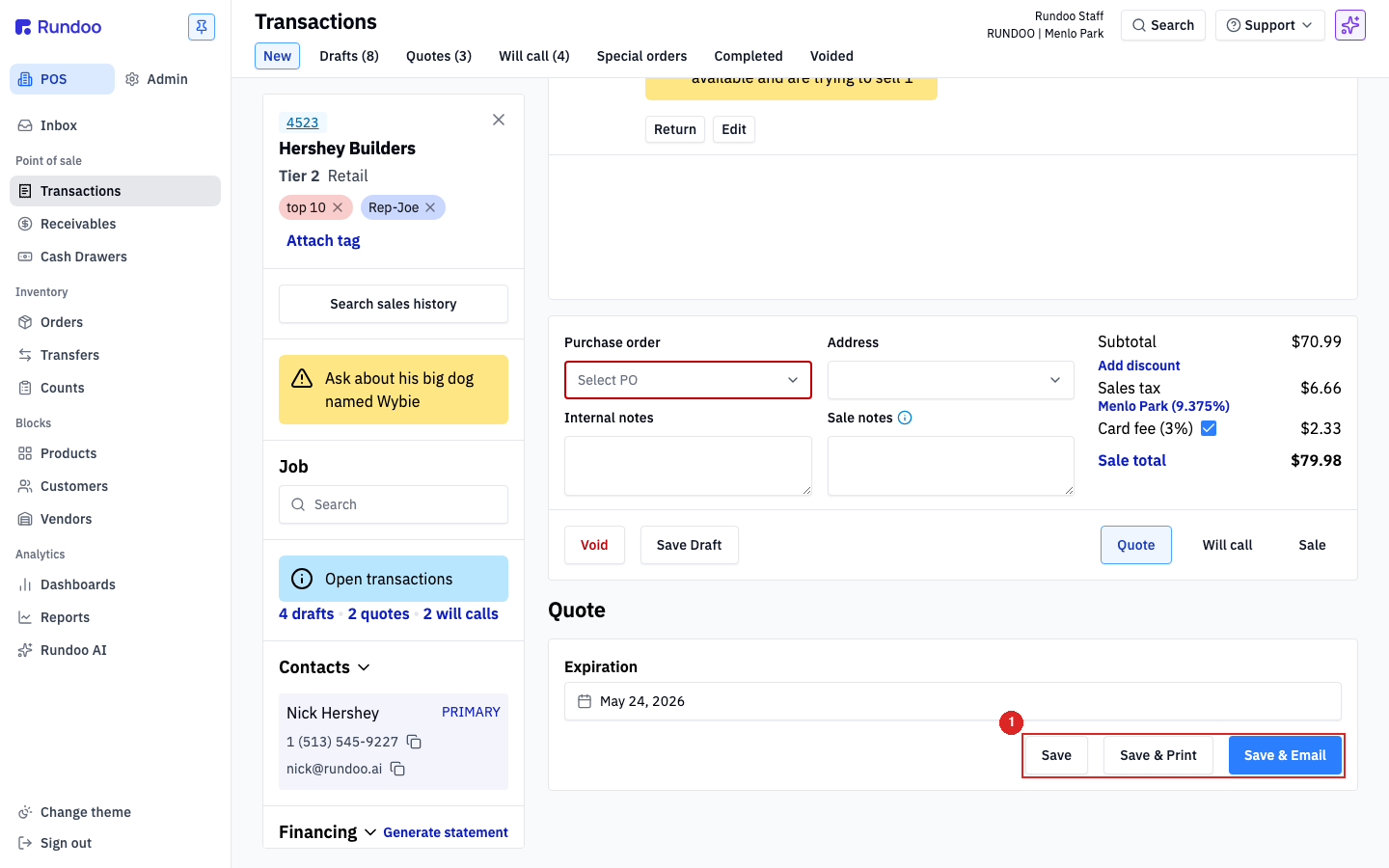
Attach the customer first. If you click Quote with no customer, Rundoo shows a red banner, "A customer account is required to send a quote," and greys out all three save buttons.
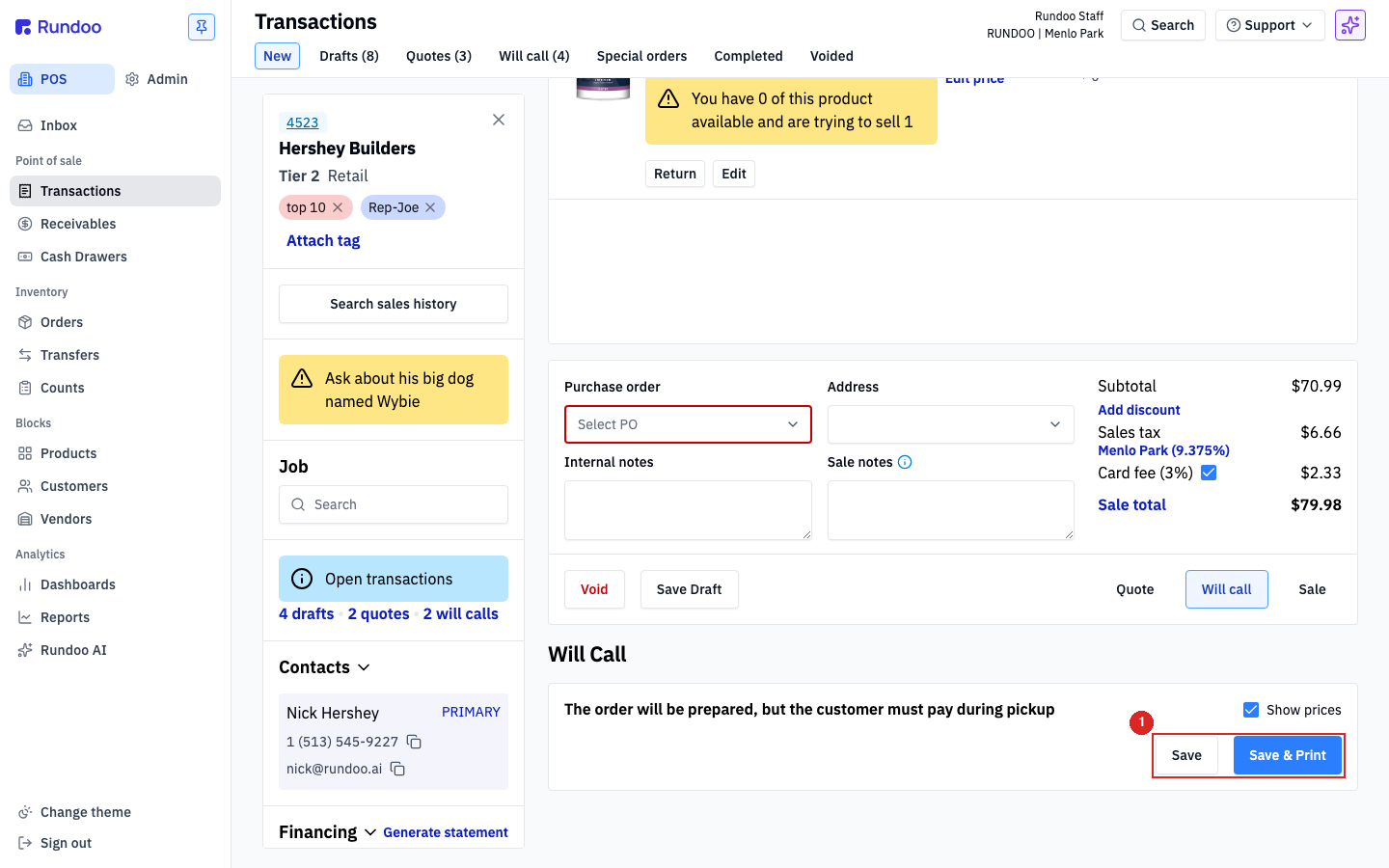
A will-call is the committed hold. This is the one that reserves inventory, so the quantity comes off what's available to sell and waits for your customer. Build the cart, attach a customer (required, since the hold ties to their account), and click Will call. A panel confirms, "The order will be prepared, but the customer must pay during pickup." Choose Save, or Save & Print to hand them a pickup slip.
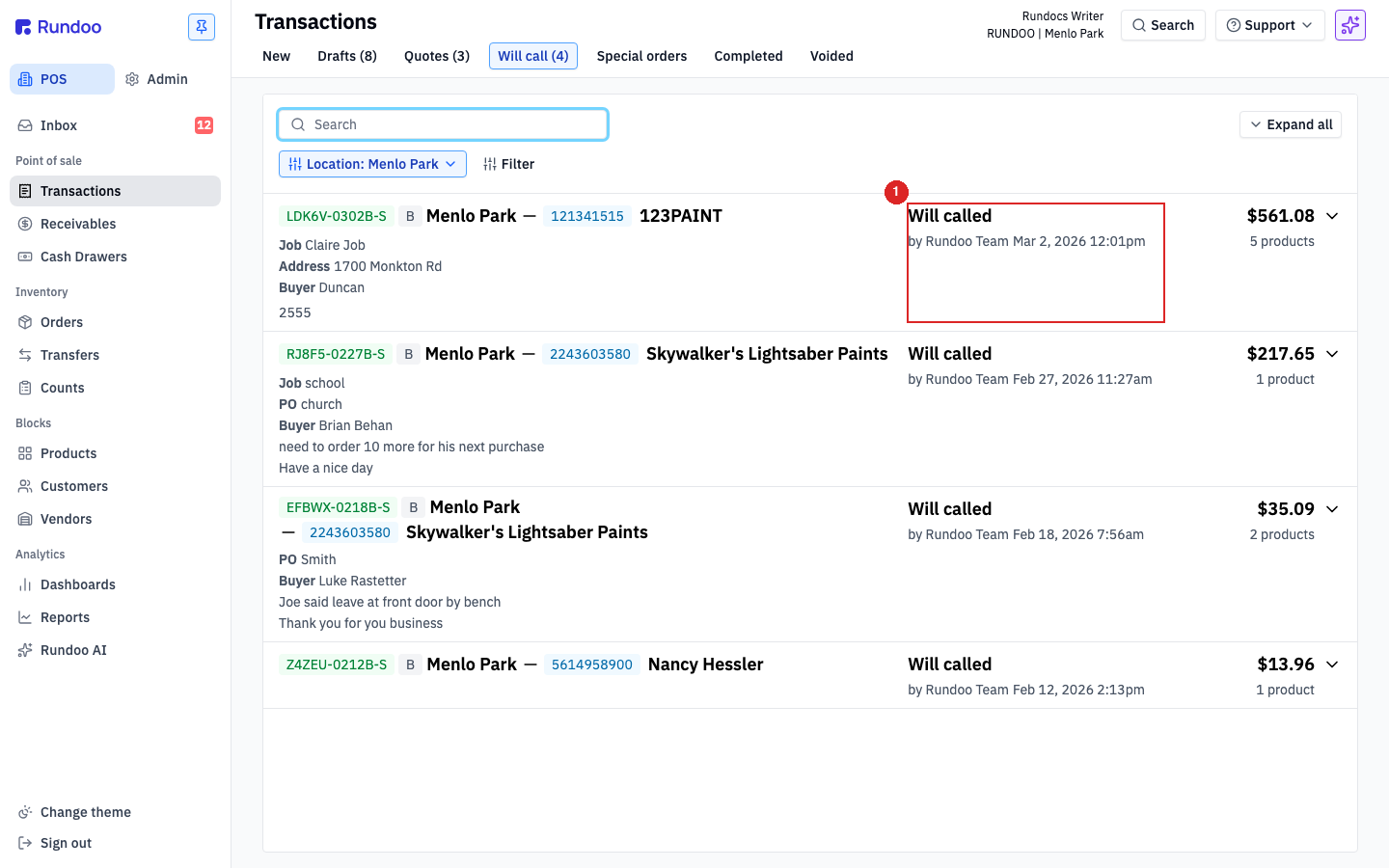
When your customer is back, click the tab where the sale is parked, then click its row. The cart reloads with the full action cluster available again. Click Sale to take payment (pick a tender like Charge account, then Charge) and the pickup is done. It works the same for a draft, a quote, or a will-call.
Cancelled order, or an old draft cluttering the tab? Open it from its tab so the cart loads, then click Void instead of Sale. It moves to the Voided tab for your records. There's no separate delete in Rundoo, so Void is how you retire a held sale. Void a will-call and the reserved stock goes right back onto your available shelf.
Draft
Save Draft
No customer, no hold. Just pauses the cart.
Quote
Quote
Customer required. Locks a price, stock stays free.
Will call
Will call
Customer required. Reserves the inventory.
Finish or clear
Open the row → Sale or Void
Same path for all three, from their tab.
Good to know