Build
Admin → Product → Additional fees
Name, amount or percent, Type, taxable, locations.

Getting Started with Rundoo · Setup
Delivery, eco, and PaintCare charges added automatically at checkout.
Your customers need things that aren't just what's on the shelf. A delivery. A core charge on a battery. Or a state-mandated environmental fee on a gallon of paint. Those extra charges are easy to forget at the counter, and forgetting them costs you real money over a year. In Rundoo they're called additional fees, and once you set one up it rings itself, every time, so your cashier never has to remember it.
You build fees in one place and attach them in another. You build them in Admin under the Product tab, in the Additional fees section at the top of the page. You attach them to a product on that product's Settings tab, where the very same feature is labeled Additional charges. Same thing, two labels, so don't let that trip you up.
Go to Admin and click the Product tab. The Additional fees section is the first thing on the page, a table of every fee you've built with its amount, its tax status, and where it applies. Click Add additional fee at the top right to build a new one.
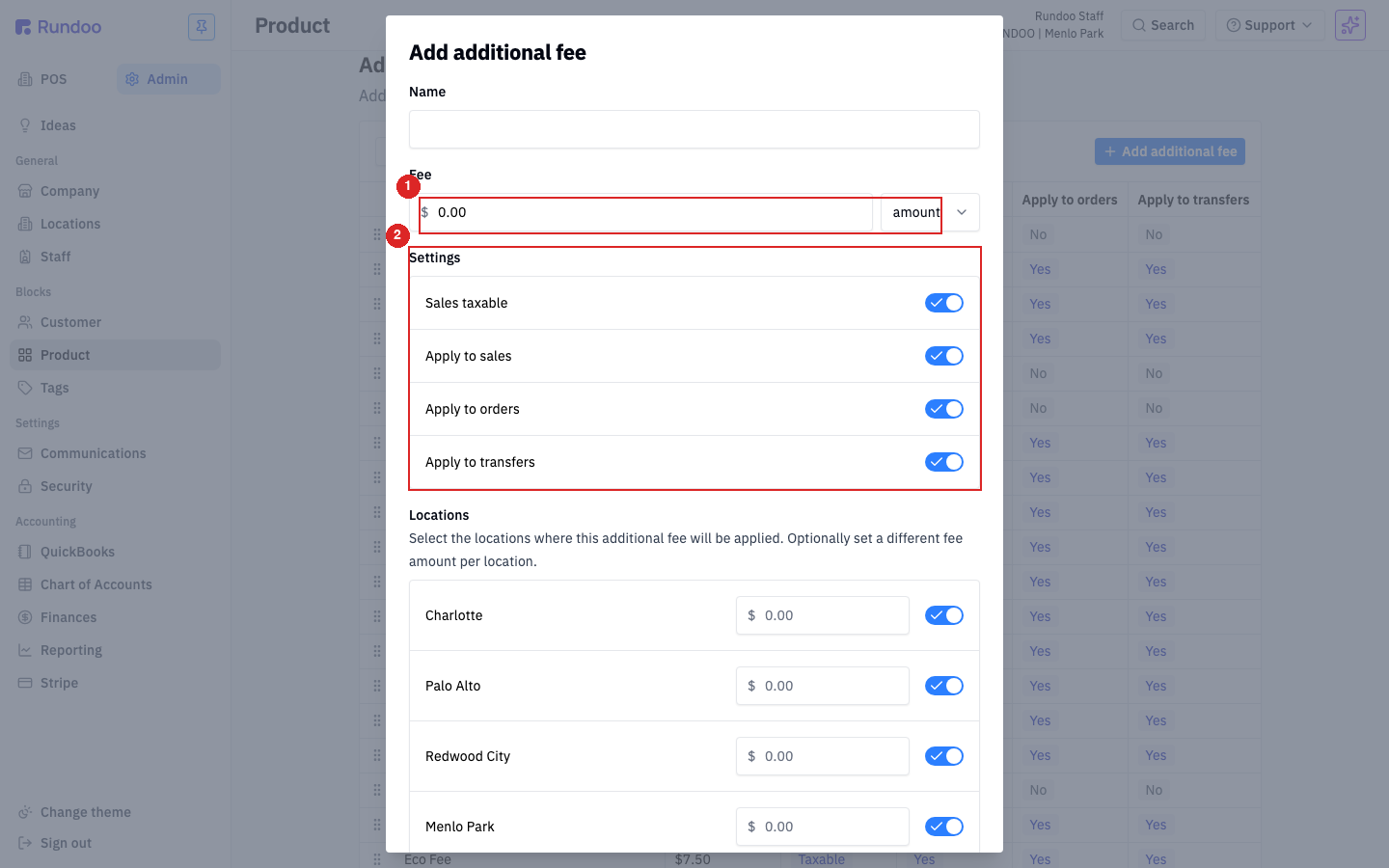
Give it a clear Name, because that name prints on the customer's receipt. Keep it short and plain: Delivery, Core Charge, Paint Care Fee. For the Fee, type the amount, then use the dropdown next to it to pick amount for a flat dollar charge or percent for a percent of the subtotal. Pick one and enter the value.
Set Type to Eco fee for a state-mandated environmental surcharge like PaintCare. For everything else, delivery, a core charge, a vendor surcharge, installation, leave it on Other.
Down in Settings there are four toggles. Turn on Sales taxable if your state charges sales tax on top of this fee. Service fees like delivery and installation usually are taxable; regulated eco fees usually are not. Turn on Apply to sales so it rings at the counter. Leave Apply to orders and Apply to transfers off unless you also want the fee on purchase orders or inter-location transfers.
The Locations rows let you turn the fee on or off per store and charge a different rate at any one of them (leave the override blank to use the amount you set above). Click Save and the fee is live on the next qualifying sale. Nothing posts to your books until you tell Rundoo which products carry it, which is the next step.
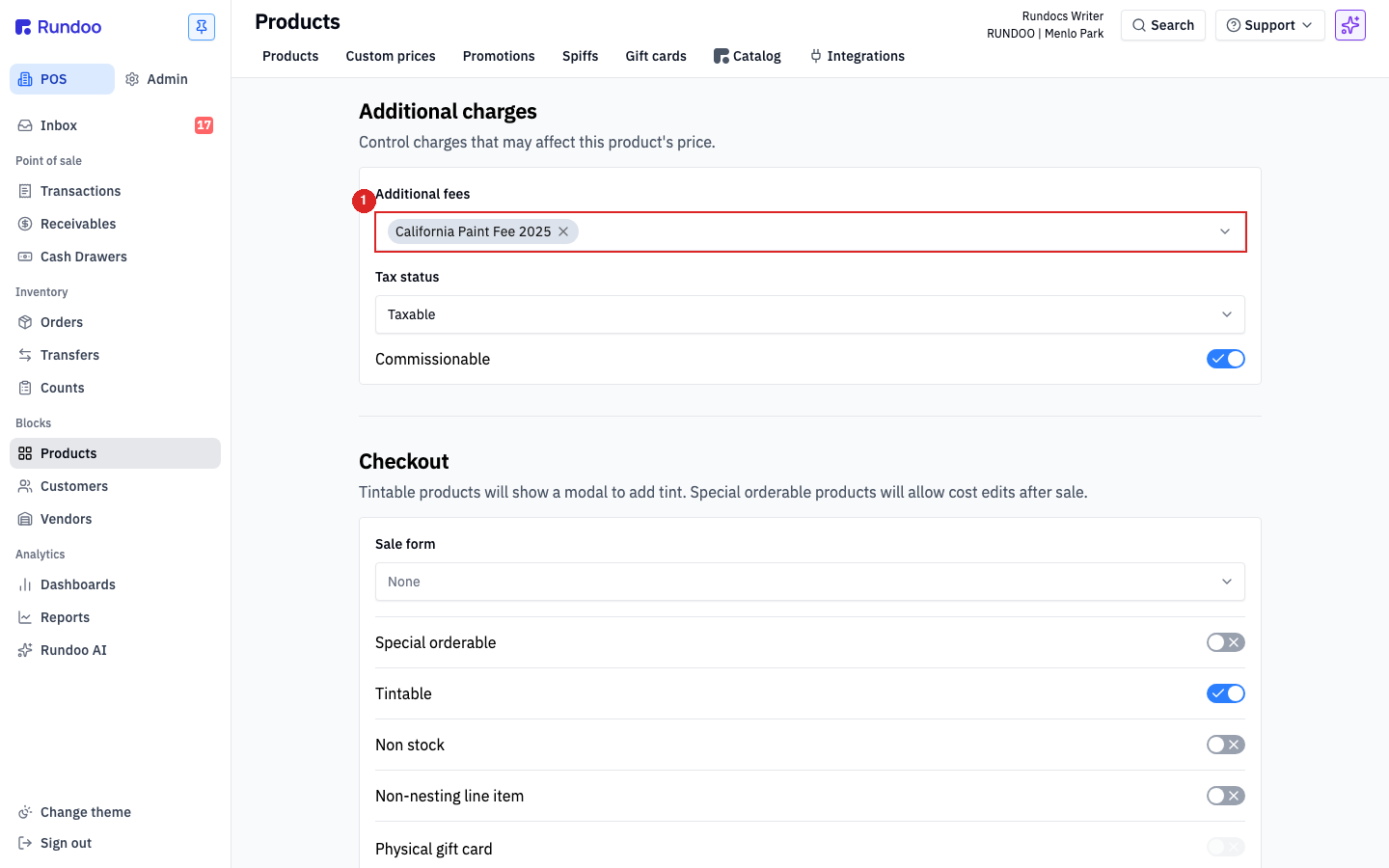
Head to POS → Products, open the product that should carry the fee (say a gallon of paint), and click the Settings sub-tab. Scroll to Additional charges and click the Additional fees field. Search for the fee by name and click it to add it as a chip. Attach as many as the product genuinely carries, an eco fee plus a delivery fee, for instance. Each one posts to its own line, so the math stays clean. Rundoo saves it to the product on its own, no Save button to hunt for.
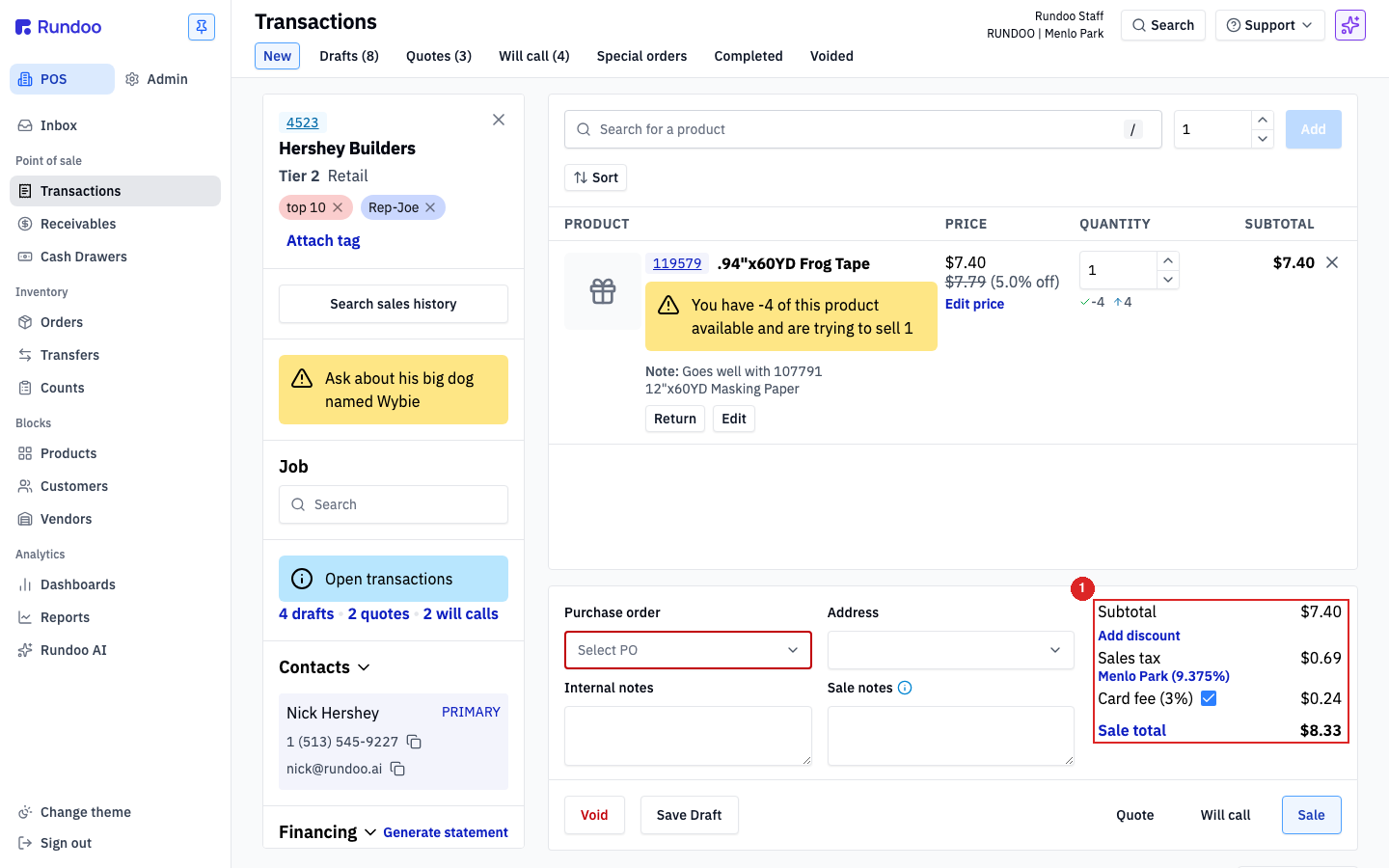
Now ring up that product in POS → Transactions. The fees appear on their own in the totals panel on the right, each on its own line between Subtotal and Sale total. Your cashier picks nothing and remembers nothing. The numbers are just correct, and every fee is itemized on the receipt.
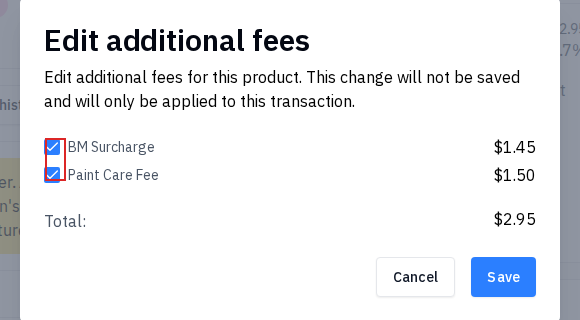
Say you're doing a good contractor a favor and waiving delivery this once. On the cart line, the product's fees show as a clickable chip (for example + $6.65). Click it to open the Edit additional fees window, which lists every fee on that line with a checkbox. Uncheck the one you're dropping, watch the total recalculate, and click Save. It's gone for this sale only. The fee stays attached to the product for the next customer.
PaintCare and other state eco fees are charged per container, and the rate is different for a quart than for a gallon than for a five. So build a separate Eco fee for each size, one for quarts, one for gallons, one for fives, and attach the right one to each product. Set Type to Eco fee and leave Sales taxable off, since these are non-taxable in every program state.
Every fee posts to the general-ledger account you've mapped for it over in Admin → Accounting, so your fee income lands in the right place without any extra work. When it's time to reconcile, run the Additional fees report under POS → Reports to see the whole breakdown, by fee and by location.
Build
Admin → Product → Additional fees
Name, amount or percent, Type, taxable, locations.
Attach
POS → Products → Settings
Same feature, labeled Additional charges here.
Waive once
Click the fee chip on the cart line
Uncheck, Save. This sale only.
Reconcile
POS → Reports → Additional fees
Full breakdown by fee and location.
Good to know