The app
Rundoo (black icon)
The blue icon is your staff app.

Getting Started with Rundoo · Unboxing
How customers check their balance and pay you in the app.
How many times a day does the phone ring and it's a contractor who just wants to know their balance? Or there's a line at the counter and someone wants to settle up their account before they head to the job. It's a real part of the business, but every one of those pulls you away from the customer standing right in front of you. The Rundoo customer app hands that back to your regulars. They check what they owe and pay you from their own phone, no call, no waiting on you.
Search Rundoo in the App Store or Google Play and two apps come up. The blue one, Rundoo POS, is for you and your staff. The black one, just Rundoo, is the one your customers download. Point your regulars to the black icon.

There is exactly one thing you have to do first: put your customer's cell phone number on their contact. Open the customer in Rundoo, go to the Contact tab, and make sure their cell is listed. The app signs people in by matching that number, so if it isn't on file, they can't get in. That's the whole setup on your side.
Here's the exact path your customer walks, so you can talk them through it on the phone or hand them a quick reference at the counter.
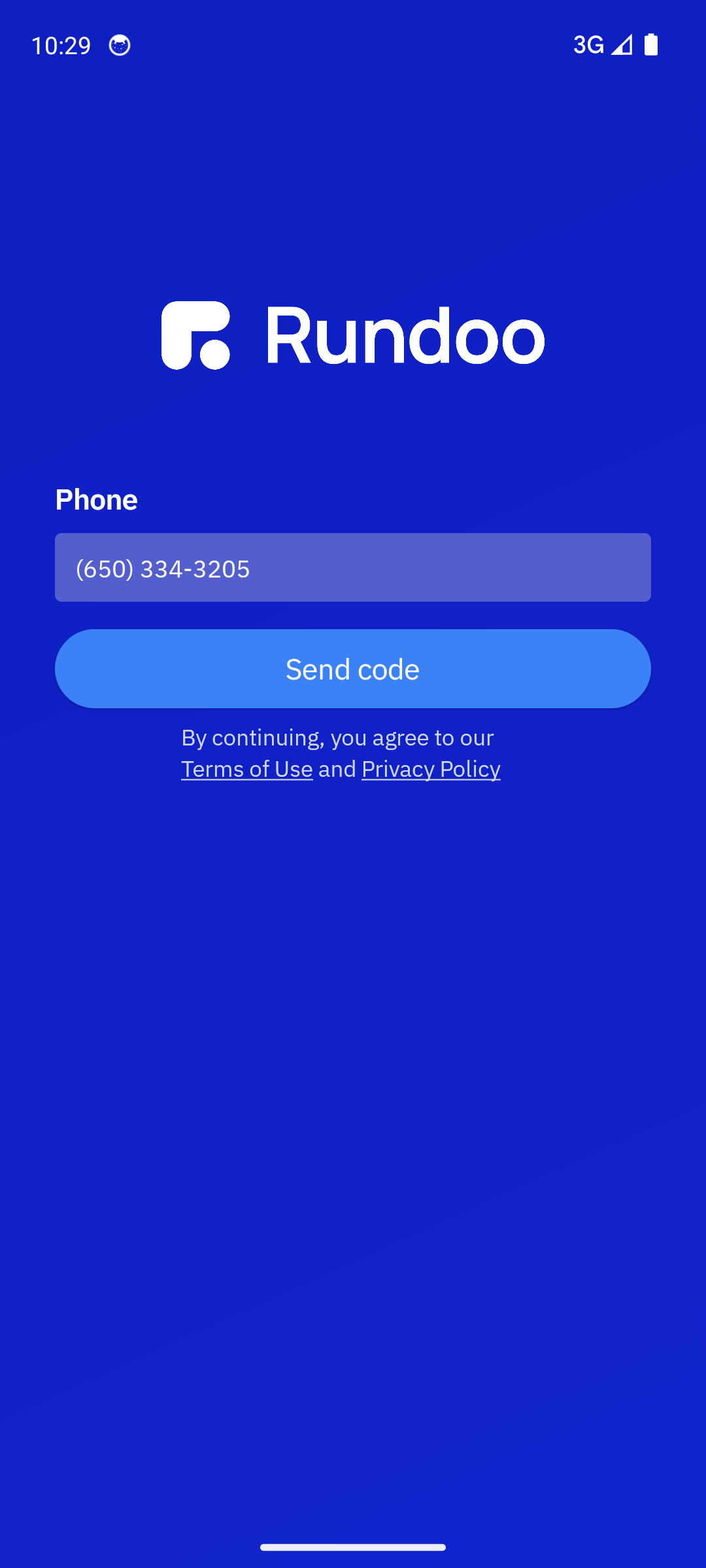
They open the black Rundoo app and enter the cell number that's on their record. Rundoo texts a six-digit code, they punch it in, and they're in. No password to forget.
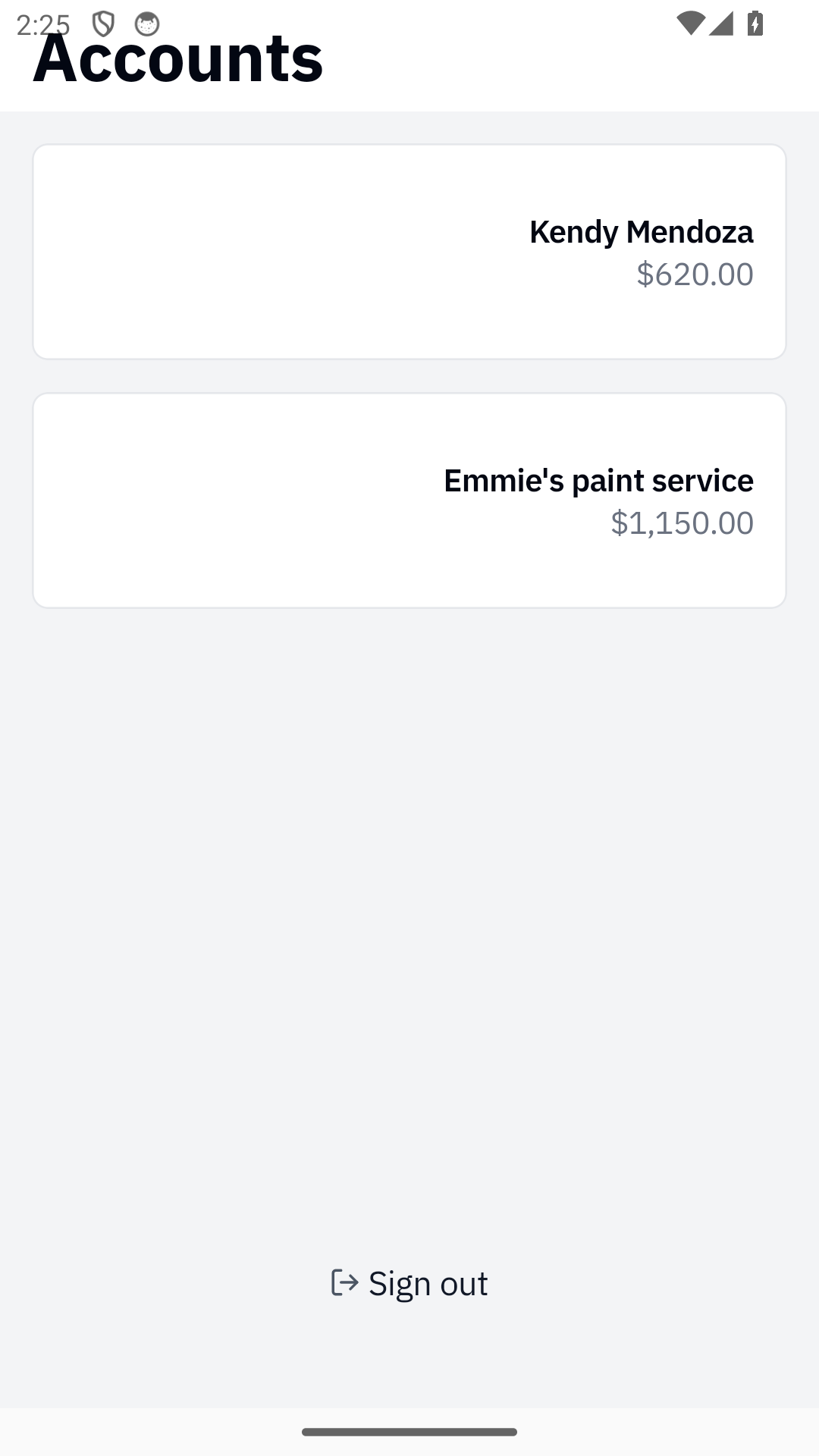
If a contractor's phone is tied to more than one of your customer records, say a personal account and a business one, they see an Accounts picker right after sign-in, each with its balance. They tap the one they want for this visit. Someone with a single account just taps their one row and moves on.
Right away they see their total balance, their current statement, and each open invoice. This is the answer to the "what do I owe?" question, and they got it themselves.
They tap the profile icon, then Pay Balance. They can tap Pay Total Balance to clear the whole thing, or pay specific invoices instead. Then Continue, then Pay. They add a card once and it saves, so next time it's one tap.
The moment they confirm, the payment shows up in Rundoo as a Bill payment, the same as if they'd paid at the counter. It hits your POS › AR view and updates their balance within seconds. No double entry, nothing for you to key in.
The app also lets a customer look up any past purchase or receipt, so they don't call you to find out what they bought for a job last spring. They can browse your catalog, check what's in stock, and if you've turned on e-commerce, add items to a cart and place the order right from the app. Online orders drop straight into Rundoo for you to fill.
If a customer would rather not think about it, they can turn on autopay to settle the statement balance automatically each time a statement runs, and manage their saved cards from the same place.
Every statement Rundoo sends carries a QR code and a Pay in app button that deep-link straight to the right app store. The monthly statement is your best pitch, because they're already looking at what they owe. There's also a printable counter flyer (English and Español) that walks a customer through downloading, signing in, and paying. Ask your Rundoo guide for a copy and leave a stack by the register.
The app
Rundoo (black icon)
The blue icon is your staff app.
Your one setup step
Cell on the Contact tab
No cell on file, no sign-in.
How they pay
Profile icon → Pay Balance
Total, statement, or specific invoices.
Lands in
POS › AR in seconds
As a bill payment. No double entry.
Good to know