Where
POS → Orders → New
Pick a vendor, then Generate order.

Getting Started with Rundoo · Purchase Orders
Filter a suggested order down to just what you need.
When it's time to restock, you know what you need. But letting Rundoo generate a purchase order for the whole store at once can hand you a list a mile long. It's accurate, it's just not focused. Some days you only want to buy for one aisle, top up a single brand, or stock up for a weekend sale, without sifting through everything else. Filtered ordering adds a review step between "generate" and "ordered" so you can narrow that big suggested list down to just the slice you're buying. This one came straight from a hardware store owner using Rundoo, and our own Jacob Hanzel helped build it.
Everything here lives inside the order builder: in POS mode, click Orders in the left sidebar, then the New tab. Pick who you're buying from under Order from, and click Generate order. Rundoo no longer drops the whole restock straight into your cart. Instead it shows you the suggested products first, with filters across the top, so you decide what actually makes the order. Nothing is committed until you say so.
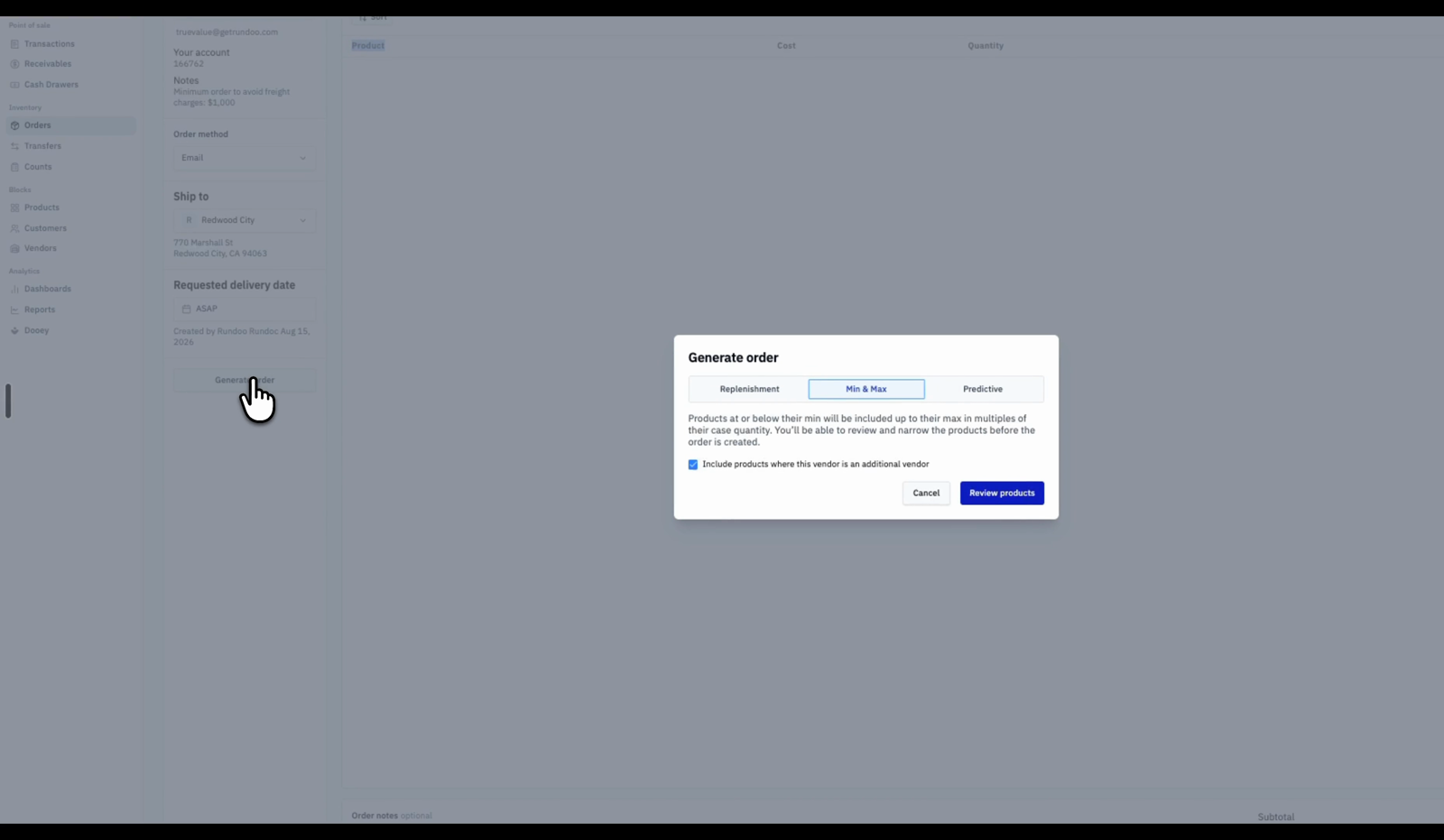
From POS → Orders → New, choose a vendor under Order from. That unlocks the builder. Now click Generate order in the left side panel to let Rundoo work out a full restock from your sales and stock levels.
A short window opens. Choose how Rundoo builds the list: Replenishment, Min & Max, or Predictive. Filtered ordering works with all three, so pick whichever you normally use for this vendor.
See the checkbox Include products where this vendor is an additional vendor? Leave it on to cast a wide net, or uncheck it to keep the list to products where this vendor is your primary source. Then click Review products.
Instead of a finished PO, you land on a review screen showing the entire suggested order. Across the top sit Sort, Show/hide columns, and Filter. Look it over. For a busy store this list can run long, which is exactly what the next step is for. Nothing has been created yet.
Click Filter and narrow the list to just what you want. Buying for an upcoming promotion? Pick a Product tag, say a Labor Day sale, and the list shrinks to only those items. Restocking one part of the store? Get as specific as Department, Class, Fineline, or Last sale. Stack a few together to zero in on exactly the aisle you have in mind.
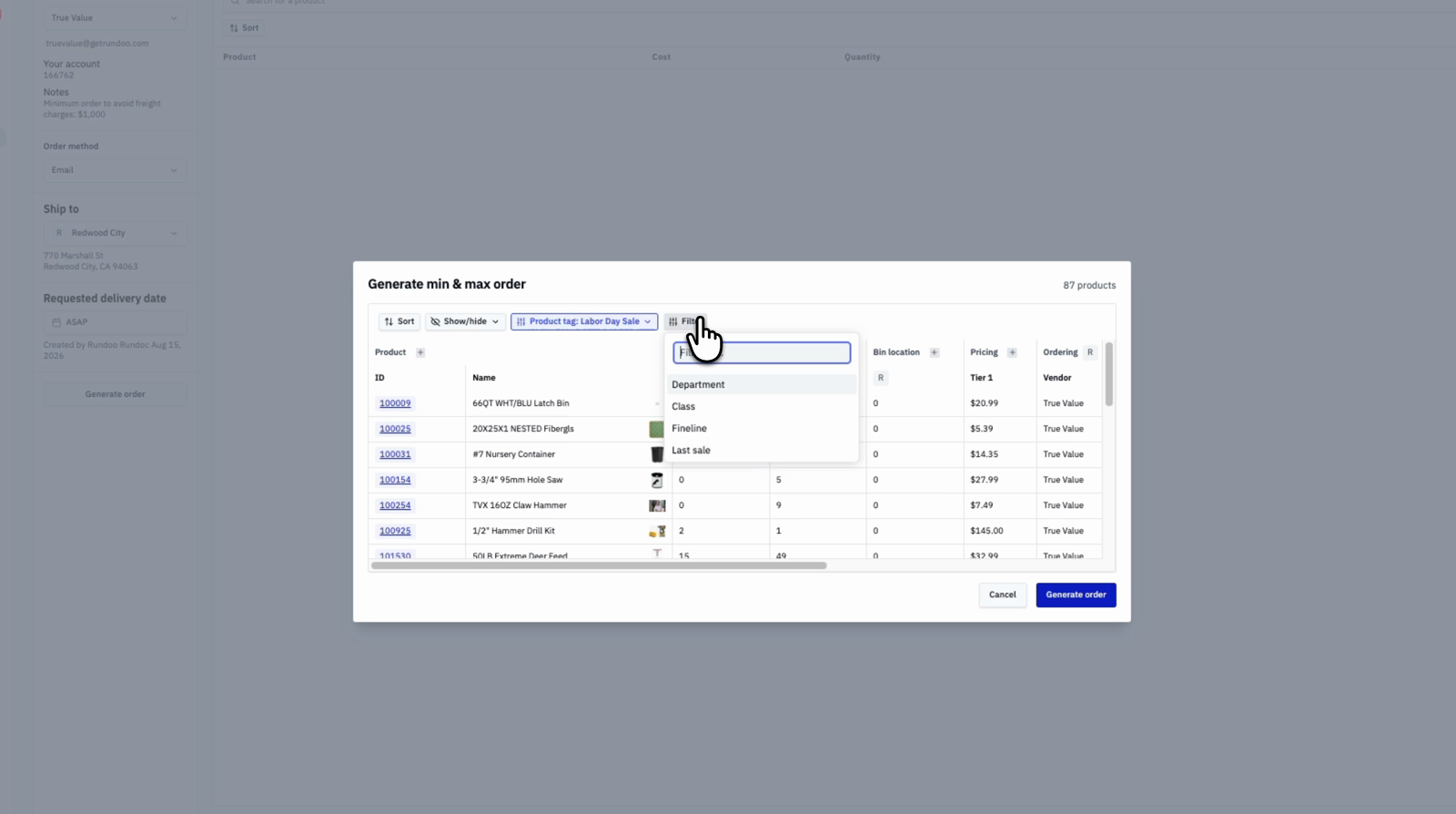
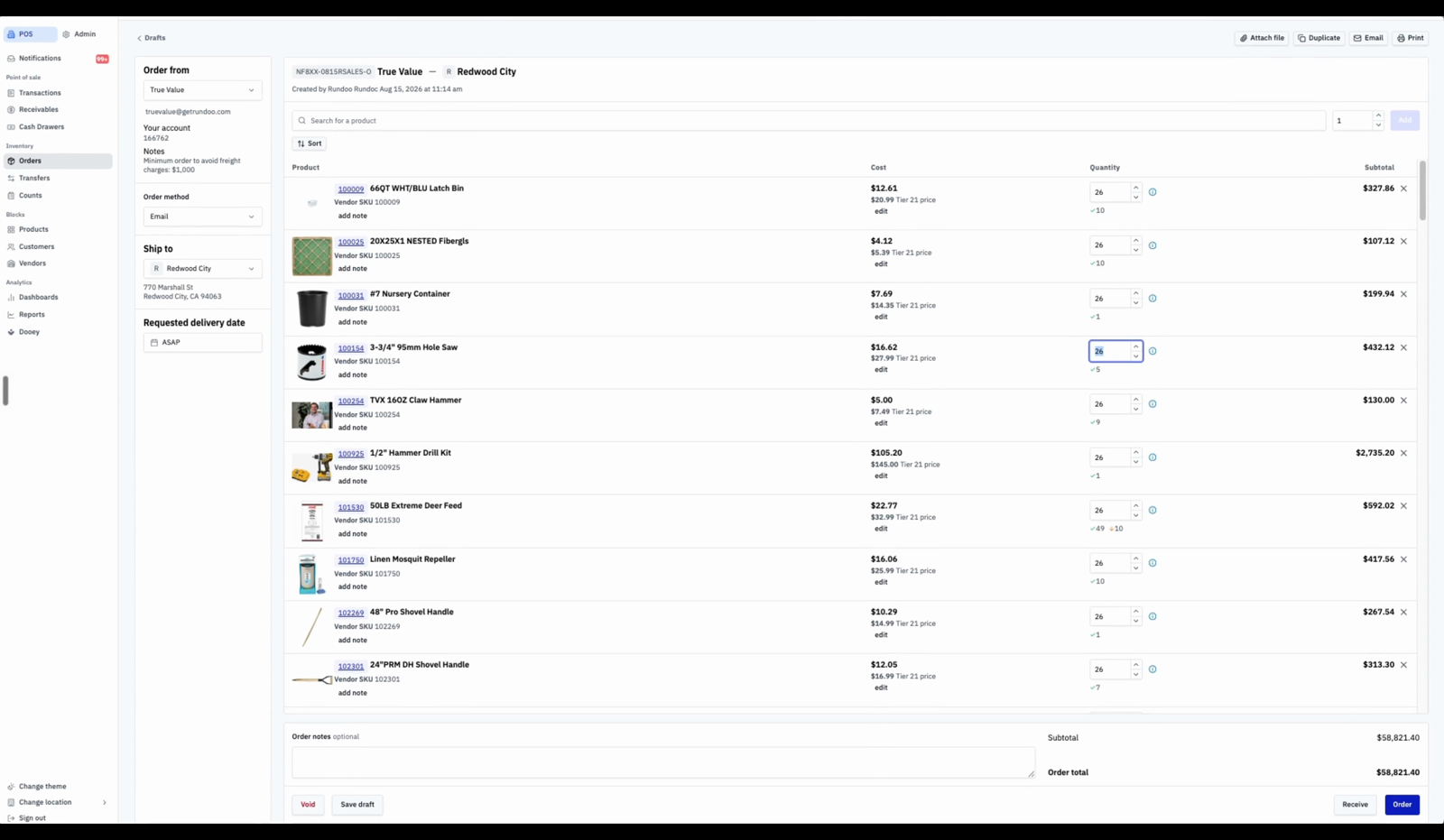
Filtering never takes the decision out of your hands. Change any Quantity up or down, override a cost, or if something slipped in that you don't want, click the × on its row to drop it. What you see is what you'll order.
When the list looks right, click Generate order to build the PO from just those lines. You can go from a suggested list of hundreds down to the handful you actually wanted. From there, save it as a draft or send it to the vendor, same as any other order.
Where
POS → Orders → New
Pick a vendor, then Generate order.
Works with
All three methods
Replenishment, Min & Max, or Predictive.
Filter by
Tag, dept, class, fineline, last sale
Stack a few to zero in on one aisle.
Primary vendor only
Uncheck the box
"Include products where this vendor is an additional vendor."
Good to know