Type
Search for a product
Matches name, SKU, or barcode. Pick from the list.

Getting Started with Rundoo · Products
Type, scan, or look up any product in seconds.
When the line's building at the counter, the only thing that matters is getting the right product onto the ticket, fast. Rundoo gives you a few ways to do it, so you can grab whichever is quickest for whatever's in your hand. This guide runs through all of them, plus the smart touches that keep you from ever stalling mid-sale.
In POS mode, open the Transactions tab on the left and stay on the New top tab. That's the empty cart, waiting. The Search for a product bar across the top is where all three add methods below happen, and the quantity stepper sits right next to it.
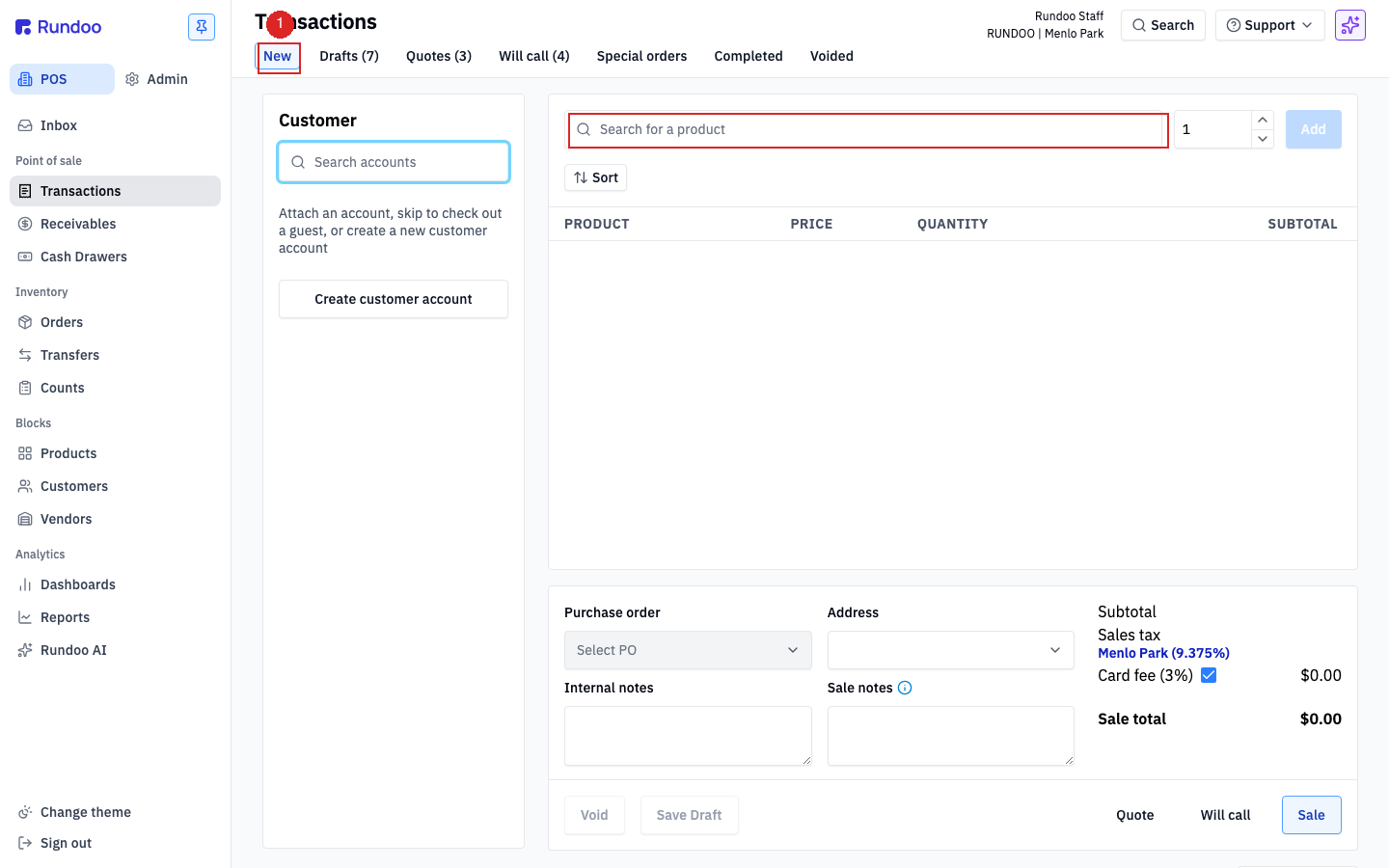
Click the Search for a product bar and start typing. You don't need the whole name. Rundoo matches on the product name, your SKU, or the barcode number, so whatever you remember, type it. Pick it from the dropdown and it drops into the cart.
Click into the search box first so it has focus, then run the barcode under your scanner and the item lands on the ticket. Here's the nice part: scan the same item again and Rundoo doesn't make a second line, it just bumps the count to two. So for ten of the same thing, scan, scan, scan, and watch the number climb.
When somebody wants fifty of one fastener, you don't need fifty scans. Set the number in the stepper to the right of the search box, then Add the product. One move instead of fifty.
Scan a barcode Rundoo doesn't recognize and you don't have to stop the sale. A quick-add box pops up so you can create the product right there, without leaving the cart. If that barcode is in Rundoo's master product library, the name and MSRP fill themselves in. Confirm it, and you're back to ringing.
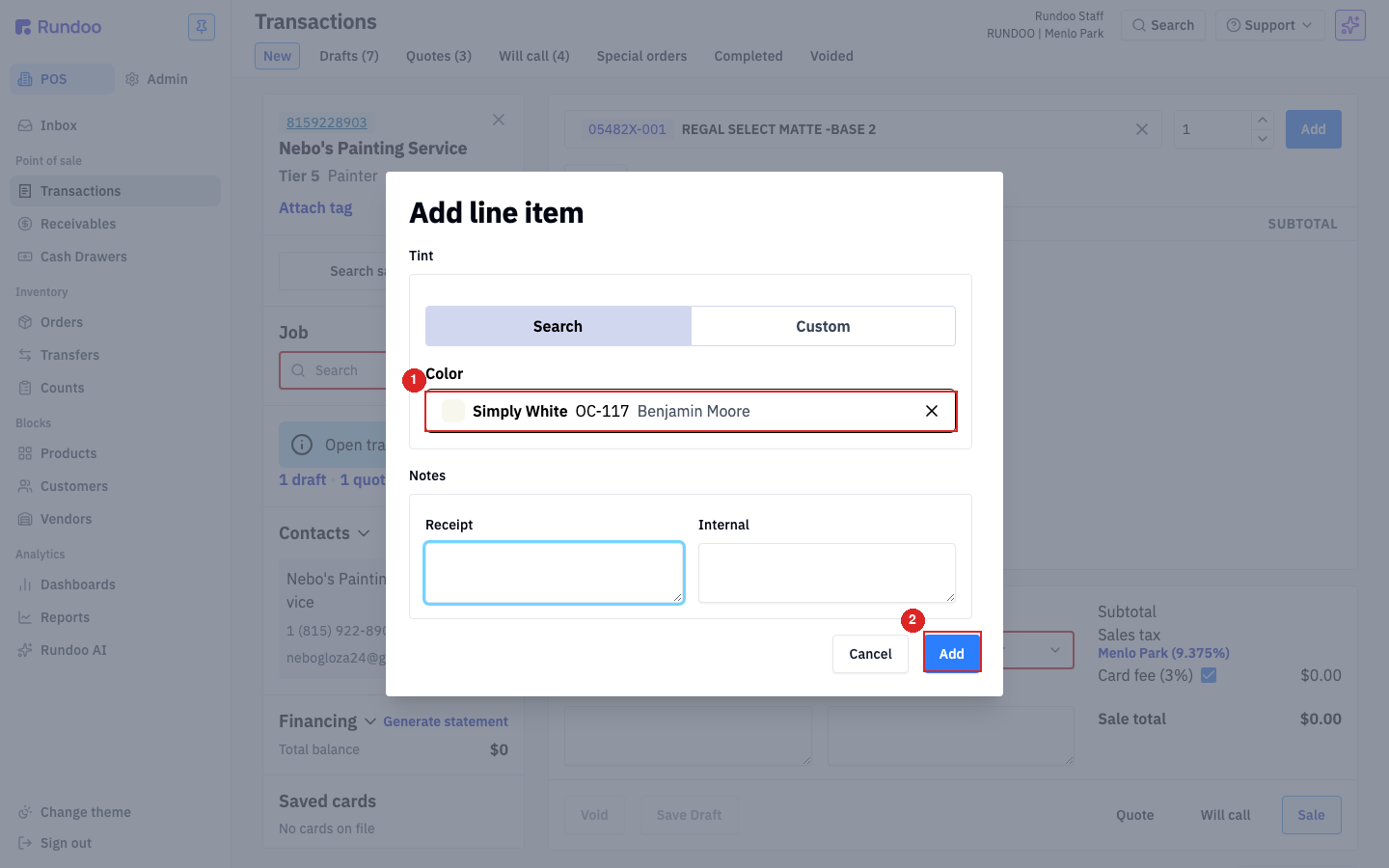
Selling a tintable base? When you add it, the Add line item modal opens. Leave the toggle on Search and type the color by name, like Simply White. Rundoo pulls it from every color catalog loaded on your store, so there's no paging through a fan deck at the counter. Add an optional receipt note, then click Add to drop the tinted line into the cart.
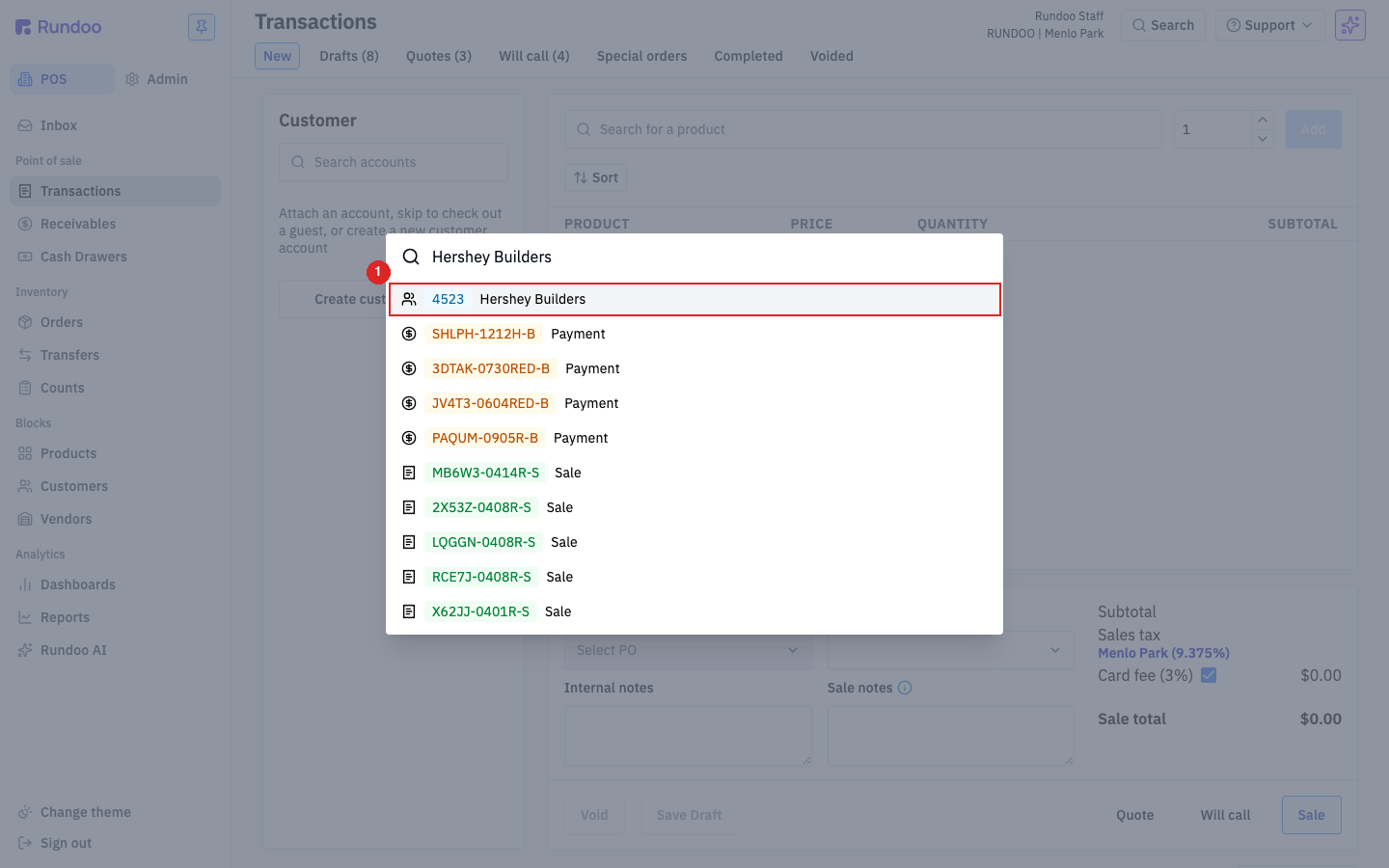
Sometimes a customer just wants to know "do you have it, and where is it?" For that, use the Search button up in the top-right corner of the header. Rundoo calls it Omni Search, and it works from any screen, in POS or Admin. Start typing and results appear grouped by what they are: customers, transactions, and products, each with its own icon. Click a product row to jump straight to its page.
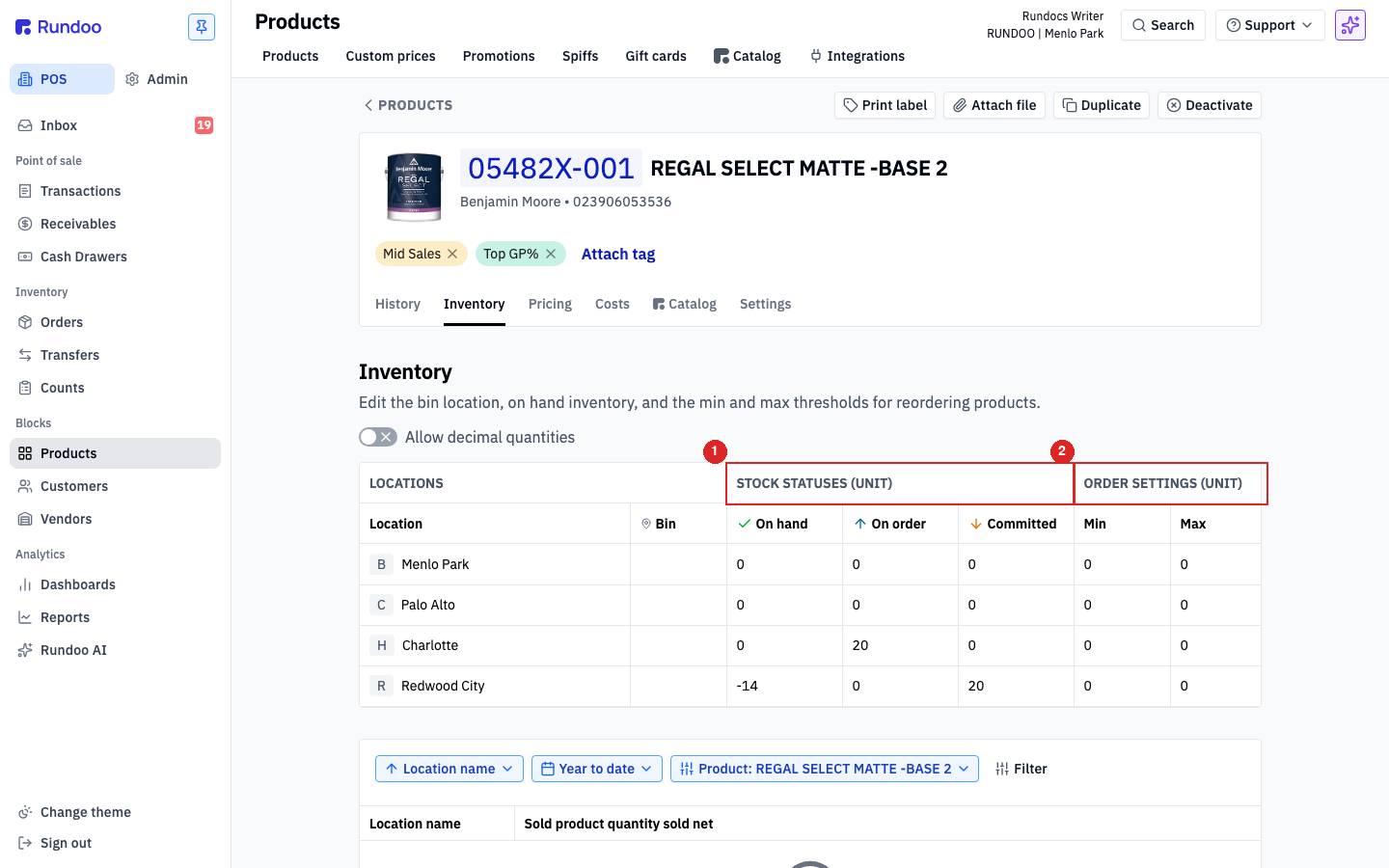
On the product's page, open the Inventory tab. It shows, for each of your locations, the On hand count and the Bin the product lives in, plus On order, Committed, and your Min/Max. That's your answer for "how many, and which shelf."
That same search rides along in the Rundoo POS app on your phone (the blue icon), so you can look up a product and its bin while you're standing out on the yard floor with the customer.
Type
Search for a product
Matches name, SKU, or barcode. Pick from the list.
Scan
Click the box, then scan
Same item again just bumps the count, no duplicate line.
Bulk count
Set quantity, then Add
One move for fifty of the same thing.
Look it up
Search → product → Inventory tab
On hand and the bin, per location.
Good to know