EDI
Straight into their system
Integrated vendors only. Look for the plug icon.

Getting Started with Rundoo · Purchase Orders
Send it by EDI or email, or mark it ordered yourself.
Last time, you built a draft purchase order and set it aside. Now it's time to actually place it with your vendor. This is the short, satisfying part: pick how the order should reach them, give it one confirming click, and watch it slide out of your drafts and into the Ordered pile, waiting on the truck. Nothing here is scary, and on your practice store nothing goes to a real vendor, so you can send with a clear conscience.
In POS mode, click Orders in the left sidebar. Across the top you'll see a strip of tabs, and that strip is the whole story of a purchase order, left to right: New, Drafts, Ordered, Received, and on down the line. Your saved work is sitting in Drafts, and the goal of this walkthrough is to move it one tab to the right, into Ordered. Each tab keeps a live count so you can see at a glance how many POs are in each stage.
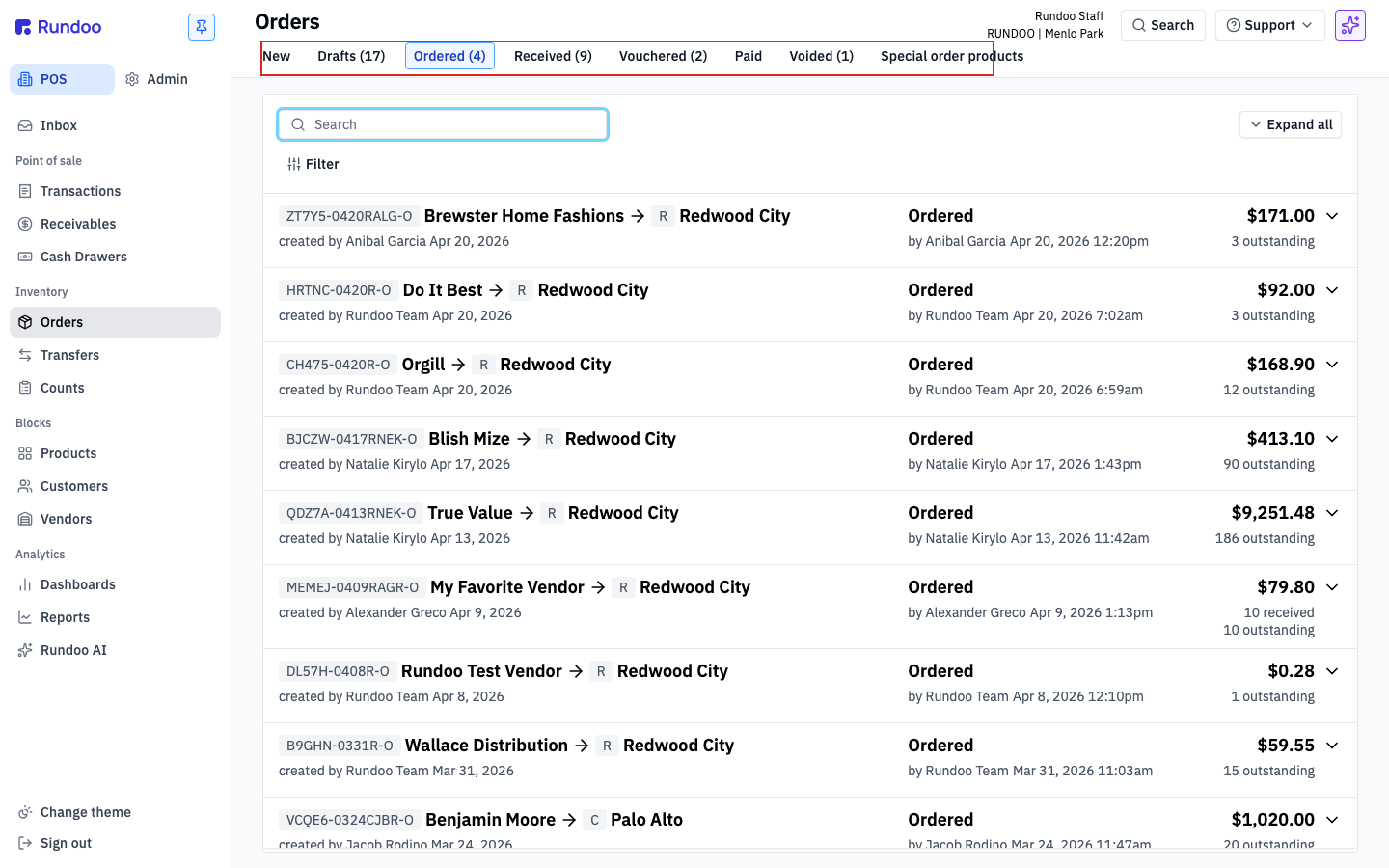
Click the Drafts tab. Every PO you've saved but not yet sent lives here. Find the one you built and click it to open it back up in the builder, cart and all, exactly as you left it.
On the left side-panel, find the Order method dropdown. This is the one real decision on this screen: it tells Rundoo how the PO should get to your vendor. It defaults to whatever that vendor is set up for, and you get up to three choices.
EDI only shows up for vendors wired for electronic ordering, like Orgill, True Value, Do It Best, or Benjamin Moore. You'll spot a little plug icon by their name. Pick this and the order goes straight into the vendor's system, no email needed. It's the fastest, most reliable route when it's available.
Email is what most vendors use. Rundoo emails a PDF of the PO to the vendor's Orders email, which shows right under the vendor's name so you can see exactly where it's headed.
Mark ordered sends nothing at all. Use it when you'd rather place the order yourself, by phone or on the vendor's own website. Rundoo still tracks the PO for you; it just leaves the sending in your hands.
Glance at Ship to on the left panel. It defaults to your current store, which is right for most orders. Only change it if the stock is going somewhere else, like another location or a customer's job site. The Requested delivery date just below it is a target for the vendor, and defaults to ASAP.
Down in the bottom-right action cluster you'll see four buttons. Void and Save draft are your back-out options, Receive is for logging stock later, and the blue Order button is the one you want. Click it. Rundoo fires off the order using the method you chose and drops a green confirmation banner at the bottom of the screen.

The PO now leaves your Drafts and lands in Ordered. Watch the counts: Drafts ticks down by one, Ordered ticks up by one. Click the Ordered tab and there's your PO, sitting in the waiting room. "Ordered" simply means it's with the vendor now, and you're waiting on the truck. You've done your part.
EDI
Straight into their system
Integrated vendors only. Look for the plug icon.
A PDF to their Orders email
The everyday choice for most vendors.
Mark ordered
You place it yourself
Sends nothing. Rundoo just tracks it for you.
What "Ordered" means
Sent. Waiting on the truck.
It sits in the Ordered tab until you receive it.
Good to know