Where they live
Products → Gift cards
Every issued card, with status and balance.

Getting Started with Rundoo · Setup
Sell, redeem, and track every card from one screen.
Sooner or later a customer walks up to your counter and asks if you sell gift cards. Some call them gift certificates, but it's the same idea. In Rundoo it is simple, because everything lives in one place and the card works like a tender, right alongside cash and card. Here is the whole thing, from selling a card to deactivating a lost one, without leaving the one screen you already know.
A gift card is a Gift card tender, not a special mode. You sell one by ringing up the gift-card product, you redeem one by picking the Gift card tender at checkout, and you track every card from Products → Gift cards. Once your store is set up, that is all there is to it.
Set it up once
Three things get done a single time, usually with your Rundoo guide alongside you. Turn the tender on under Admin → General settings with Enable gift cards. Order your physical cards from one of Rundoo's card vendors. Then load the card numbers into Rundoo (Generate card numbers to mint a batch, or Import card numbers for a vendor's list) from the Gift cards tab. Your guide also helps map the two gift-card accounts once. After that, you are just selling and redeeming.
Save that spreadsheet. When you generate or import card numbers, Rundoo hands you an Excel file of them. Rundoo hides the full card numbers in the app for security, so that spreadsheet is your only complete record. Put it somewhere you will find it again.
Go to Admin → General settings and toggle Enable gift cards on. That adds Gift card to your tender list, so it shows up at both sale and refund checkout. This is a one-time flip. If you ever turn it back off, cards already in circulation keep working, you just cannot generate or import new ones.
Your physical cards come from a Rundoo card vendor, and the numbers get loaded into Rundoo before you sell any. From POS → Products → Gift cards, click Generate card numbers, pick your gift-card product, enter how many you want, and click Generate. Rundoo downloads a spreadsheet of fresh numbers in Pending Activation status. (If your vendor supplies their own numbers, use Import card numbers instead.) Save that spreadsheet somewhere safe, it is your only full record of the numbers.
Selling a card is just a sale. Start a new sale under Transactions → New, search for your gift-card product, and click Add. The Activate Gift Card modal opens. Scan the physical card or type its number, click Look Up Gift Card to confirm it is a valid unactivated card, then enter the Initial Balance the customer is loading. Click Add to drop it into the cart, then take payment the usual way. The moment the sale commits, the card flips from Pending Activation to Active.
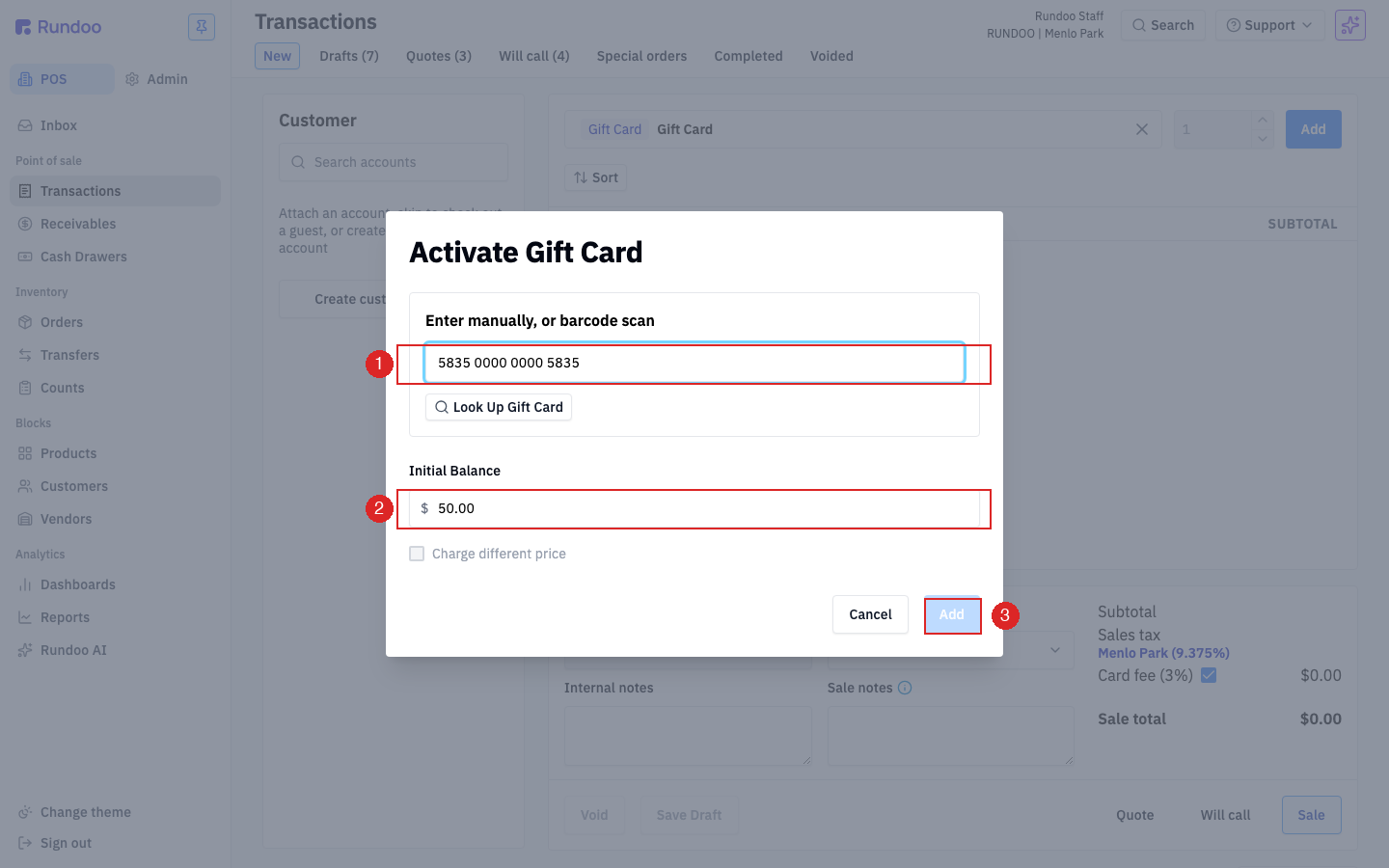
Charging a different amount than the face value, say a $50 card sold for $45 on a promotion? Tick Charge different price and enter what you are charging.
When the card comes back in, ring up the customer's items as normal, then click Sale to open the tender panel. Pick Gift card from the list, scan or type the card number, and click Look Up Gift Card. Rundoo pulls the current balance onto the sale. Click Accept $X.XX to commit, and the amount updates live with what is being applied.
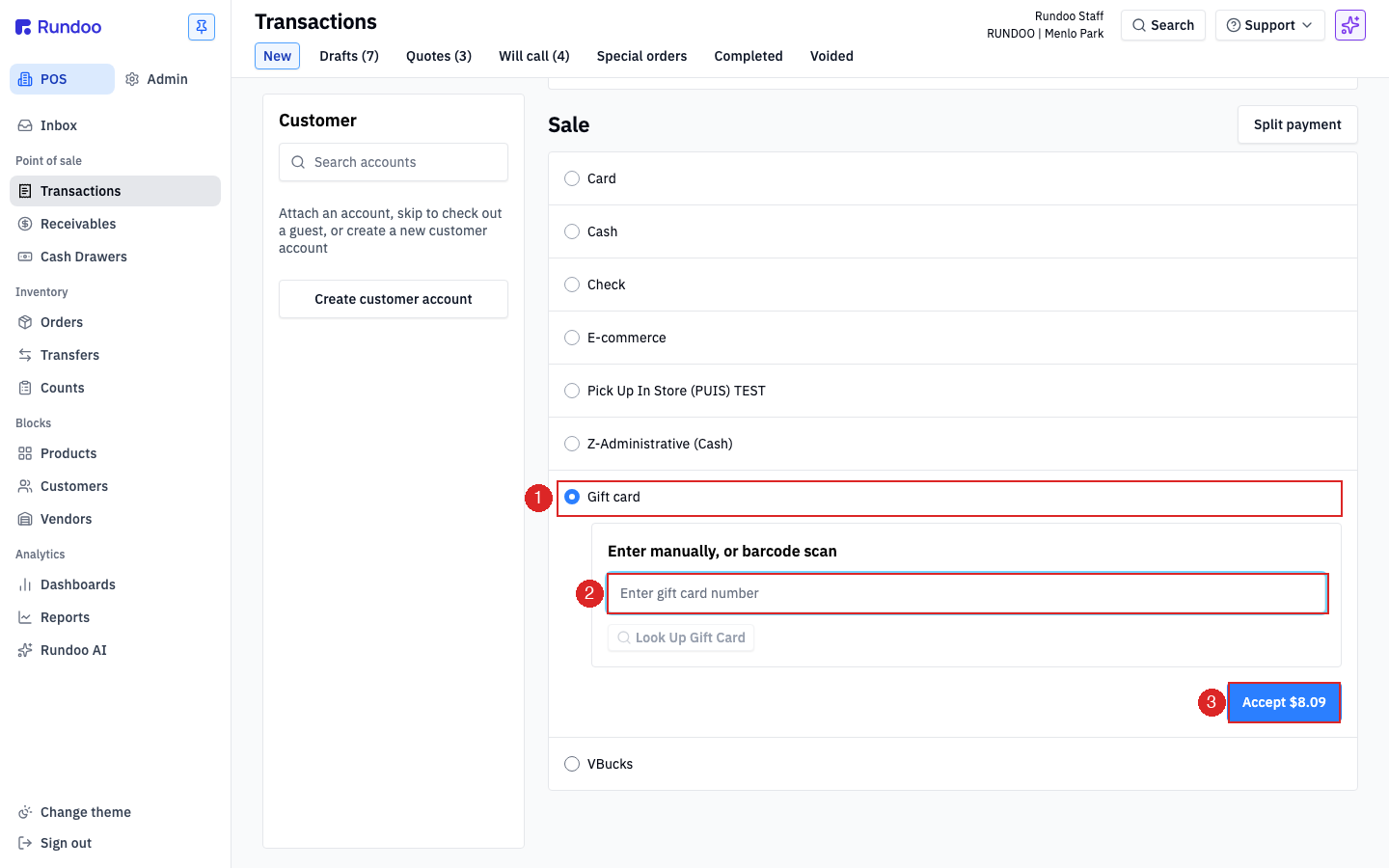
If the card does not cover the whole sale, the rest stays on the total. Click Split payment to add cash or card for the remainder. Gift cards combine with any other tender.
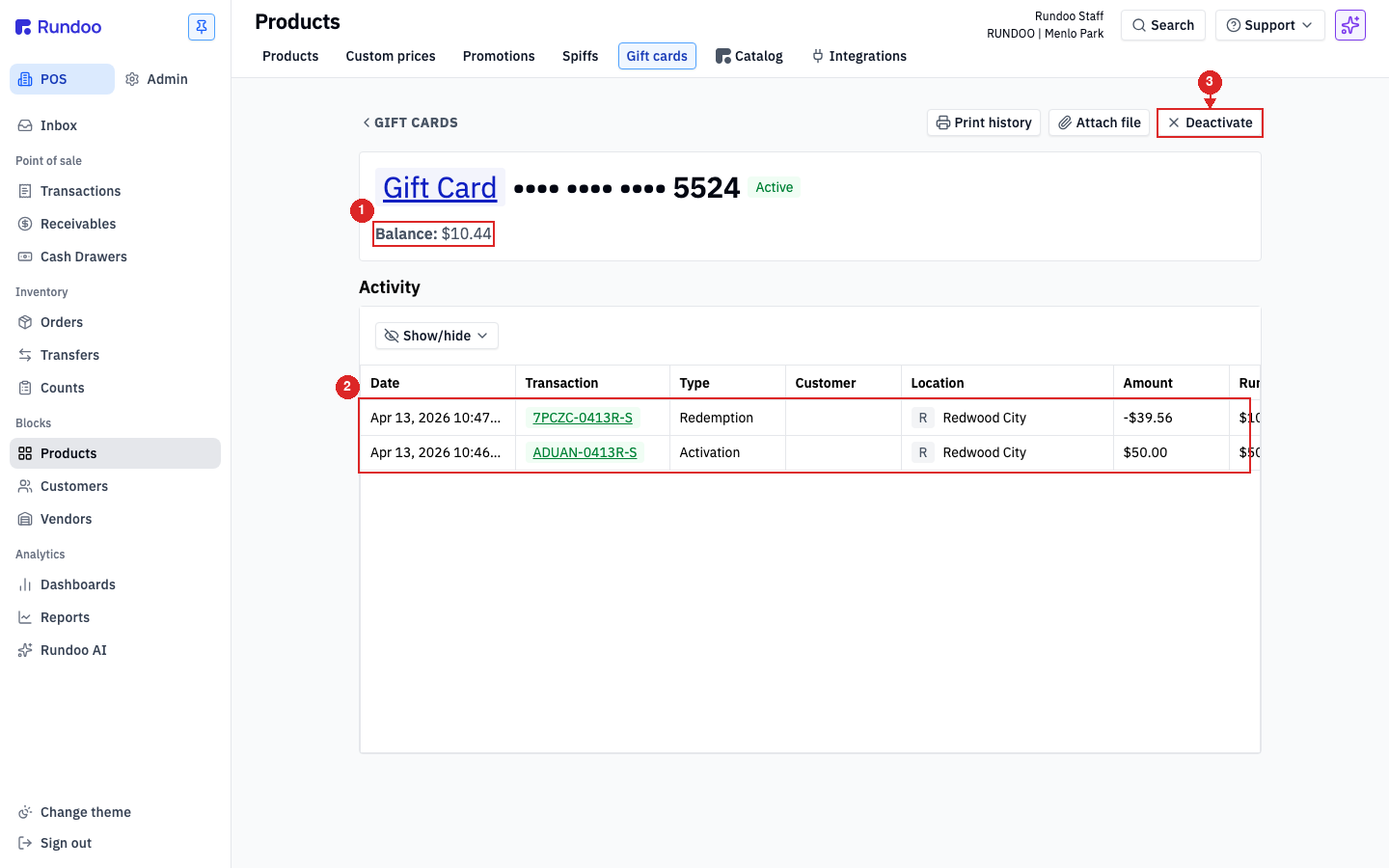
From POS → Products → Gift cards, the fastest check is Find Card: click it, scan or type the number, click Look Up Gift Card, and the current balance shows right in the modal. For the full story, click See Card Page. (From anywhere else in Rundoo, typing a full card number into the header Search jumps straight to that card.) The card page shows status and Balance up top, with an Activity table below logging every activation and redemption and a running balance, so there is no guesswork.
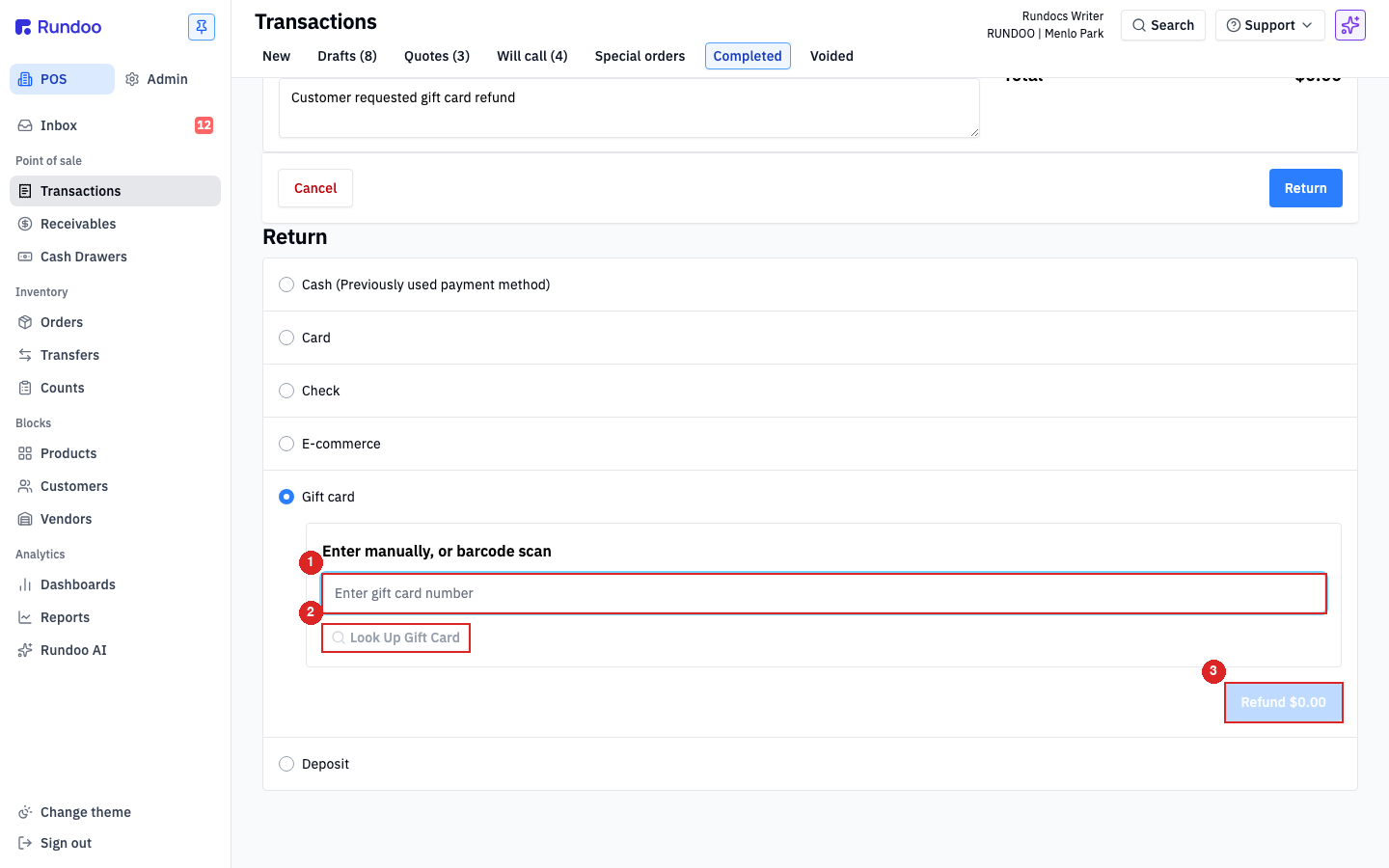
Gift card works as a refund tender too, which is a great way to keep that money in your store. From a completed sale, click Return, set the quantity to return on each line, fill in Reason for return, and click Return at the bottom. In the return tender panel, pick Gift card, scan or type the card to load the balance onto (an Active card in your pool, the customer's own or a new one), click Look Up Gift Card, then Refund $X.XX. The balance credits onto that card and the sale flips to Returned.
If a card is ever lost or needs to be voided, lock it down from its card page. Click Deactivate in the top-right and confirm. The balance freezes on the spot, no more redemptions or activations on that number, and the card stays in your list as Deactivated so its whole history survives for auditing. This one cannot be undone from the app, so be sure before you confirm.
Where they live
Products → Gift cards
Every issued card, with status and balance.
Sell & redeem
It's a tender
Sell the product; redeem via the Gift card tender.
Check a balance
Find Card
Or type the card number into header Search.
Statuses
Pending → Active → Deactivated
A completed sale flips Pending to Active.
Good to know