Where
Dooey → Chat
POS mode, near the top of the sidebar.

Getting Started with Rundoo · Dooey
Ask Dooey to create a record or take an action, and it does the work.
In the last video, you saw how Dooey can answer just about any question about your store. Here is the next step up: you can ask it to do the work, not just find the information. Tell it in plain English to create a vendor, add a customer, or build out a stack of products, and it goes and does it, the way you would ask a new employee to handle something. On the big jobs it shows you the plan first, so you always make the final call.
Dooey lives in POS mode, near the top of the left sidebar, just under the POS / Admin switch. You can also jump in from the Dooey mark at the top-right of the header, or by typing a request into Search and clicking the Ask Dooey row. At the top of the page there is a Chat / Routines toggle. Acting on a request happens in Chat, so that is where you want to be. (Routines, the scheduled jobs that run on their own, are the next video.)
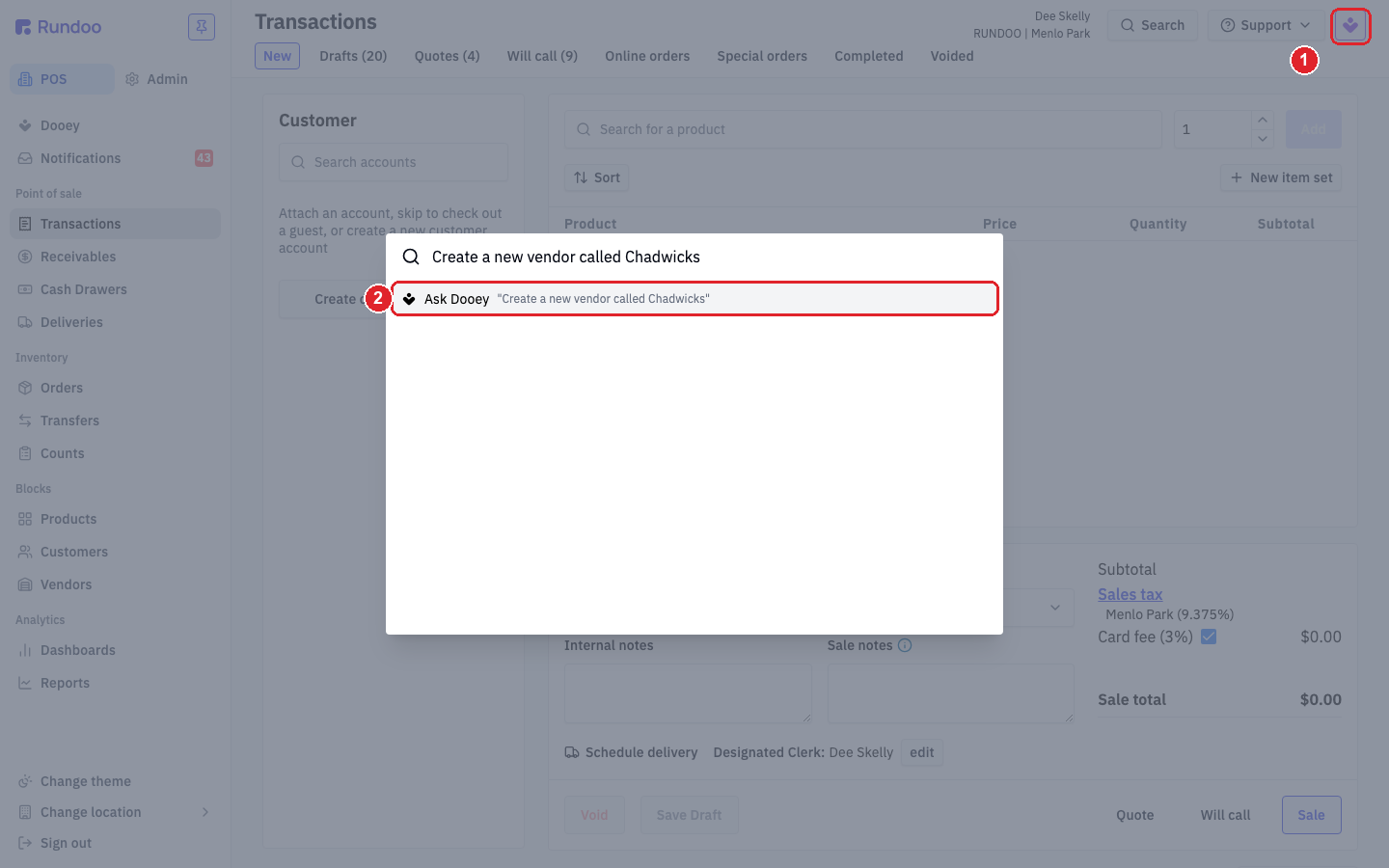
Say you just started carrying a new line from Chadwicks, a local lumber supplier. Instead of heading to Vendors and clicking through the fields, put your cursor in the chat composer and type it the way you would ask a coworker: Create a new vendor called Chadwicks. Press Enter or click the blue send arrow.
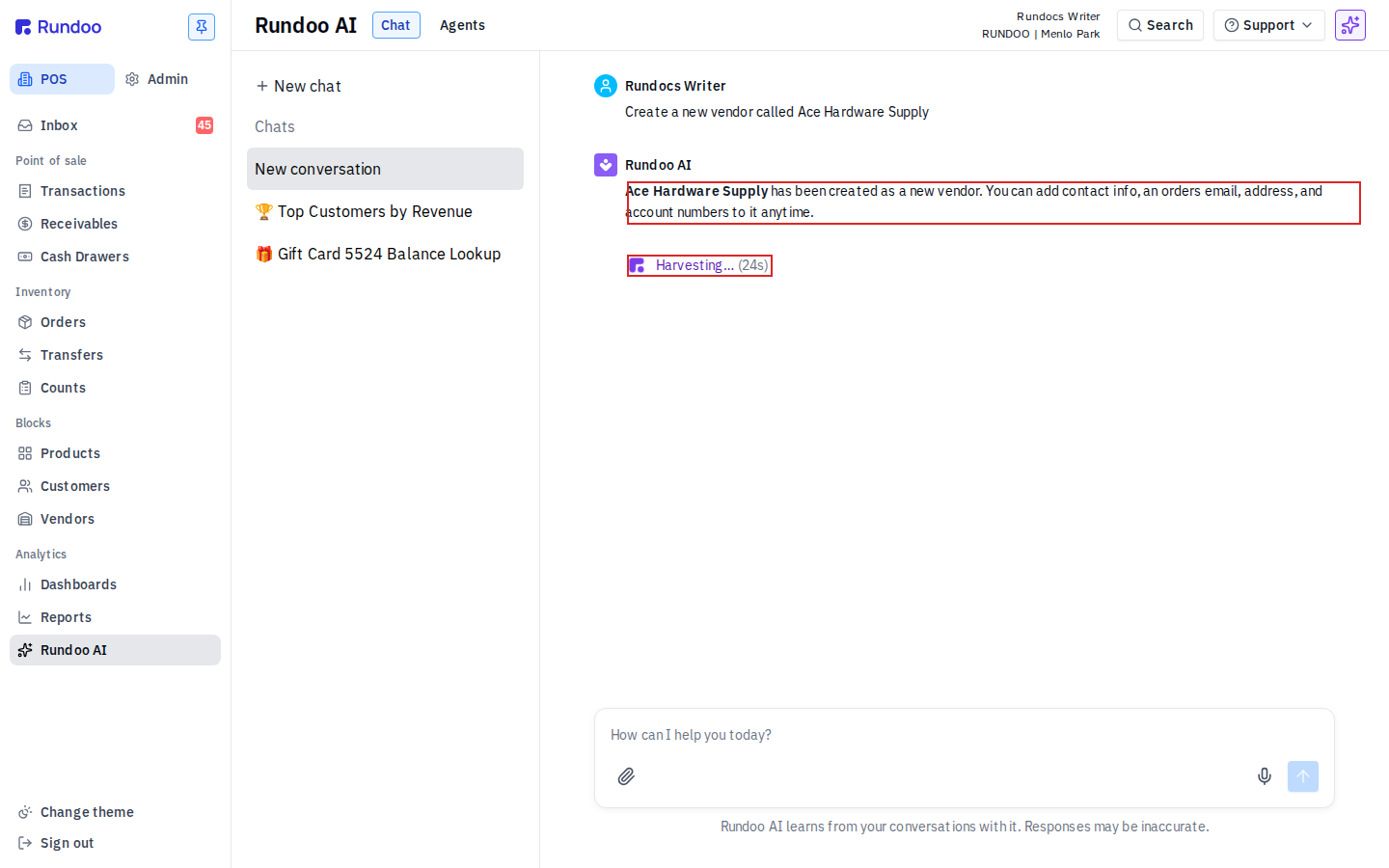
While Dooey is on it, a rotating Dooey icon shows a verb (Thinking…, Harvesting…, Marinating…, Sanding…) with an elapsed counter next to it, so you can see it is making progress and not stalled.
A moment later it posts a confirmation right in the chat, telling you what it created, with the new vendor's name as a link. Click that link to open the record. It is a good habit to take a quick look and make sure everything is in order before you fill in the rest, like the address or a rep's contact.
That was a one-off. Now the real time-saver. Chadwicks sent over a price list, and rather than key in a dozen products one at a time, you can paste the whole list into a single message: every item with its cost and your retail price (say a 2x4x8 SPF Stud at 3.25 cost, 4.49 retail, on down the list). Press Enter.
Because this creates a lot of records at once, Dooey does not just run with it. It stops and shows you a plan first: every product it is about to create, with the cost and price for each, and a count of how many records it will touch. Read it over the way you would look over a big order before you finalize the sale. Nothing is saved yet.
When the list looks right, click the button in the plan to proceed. Dooey works for a moment, then posts a confirmation that it built out every product under Chadwicks. It does the digital prep work, but you are the one who makes the final call on anything that matters.
The best way to get the feel of it is to try it. This is your practice store, so create a test vendor or add a few products with a clear conscience. None of it touches your real books. Asking on the spot is perfect for one-off jobs. For the work that should happen every week or every night without you asking at all, that is what Dooey Routines are for, in the next video.
Where
Dooey → Chat
POS mode, near the top of the sidebar.
How
Type it in plain English
Like asking a coworker. Press Enter to send.
Single create
It just does it
Then tells you what it created, with a link.
Big or risky job
Plan first, then you approve
Deletes, price changes, or 10+ records.
Good to know