Can't see the buttons?
Pick your Location first
They only appear after you choose a store.

Getting Started with Rundoo · Open the Box
The first step: sign in and get ready to set up your counter.
Every good day at the counter starts the same way: getting into the system. Rundoo lives on the web, so there is no software to install and nothing to keep updated. You just open your store's web address, pick your location, and prove it's you with a one-time code. No password to remember, no sticky note under the keyboard. The whole thing takes under a minute, and once you're in, this computer is ready to become your register.
Rundoo opens at your own web address, something like yourstore.rundoo.app. Your Rundoo guide set this up for you, so bookmark it on the counter computer or tablet. Open it while you're signed out and the sign-in card loads on its own. Chrome is the browser we recommend.
This is the one thing that trips folks up on day one, so it goes first. At the top of the Sign in to Rundoo card, open the Location dropdown and choose the store you're standing in. If you run one store, you'll see one option. If you have several, the location you pick tells Rundoo which register, receipt templates, and inventory counts this computer lands on.
Heads up: the sign-in buttons do not appear until a location is chosen. If the card looks empty below the dropdown, that's why.
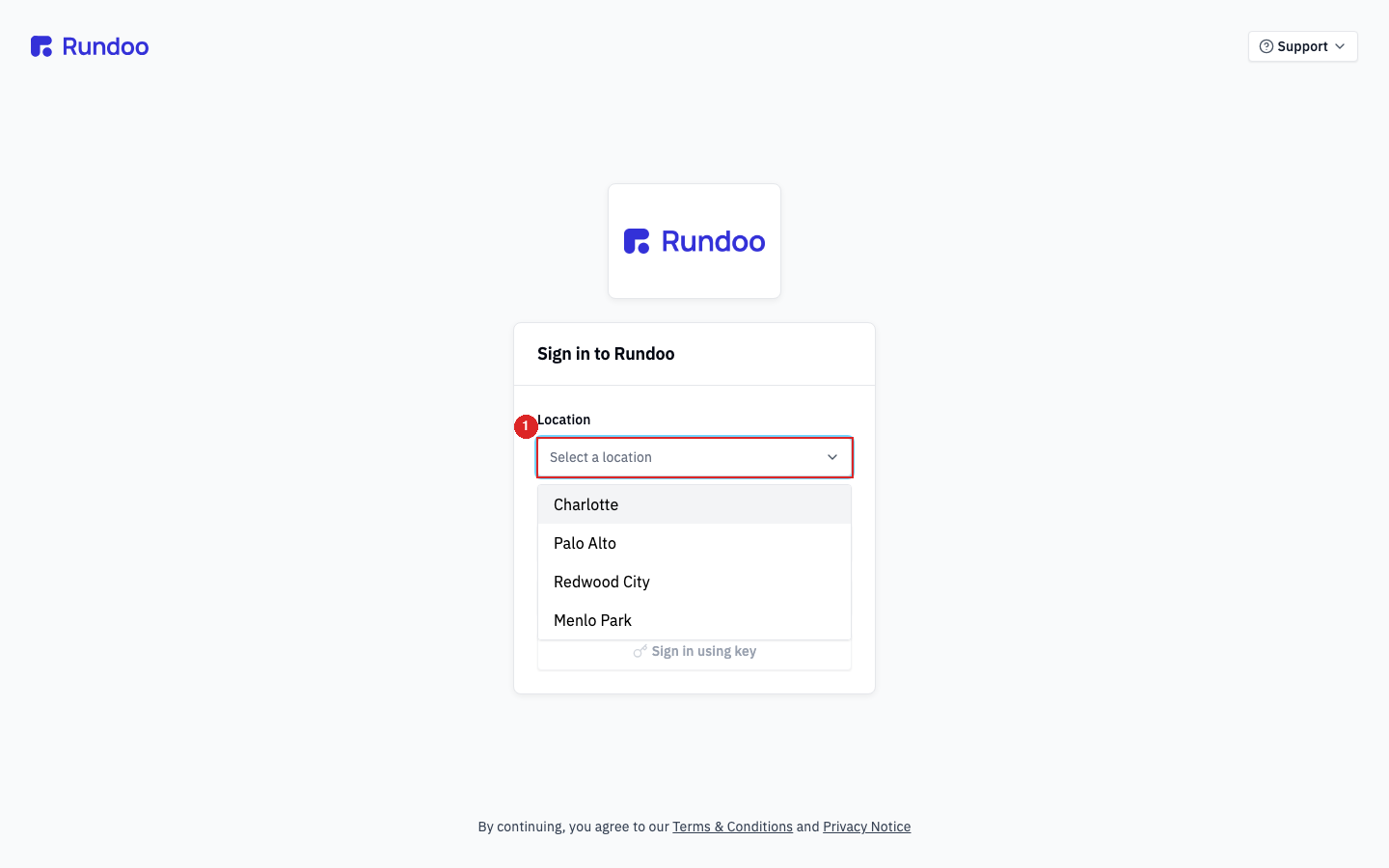
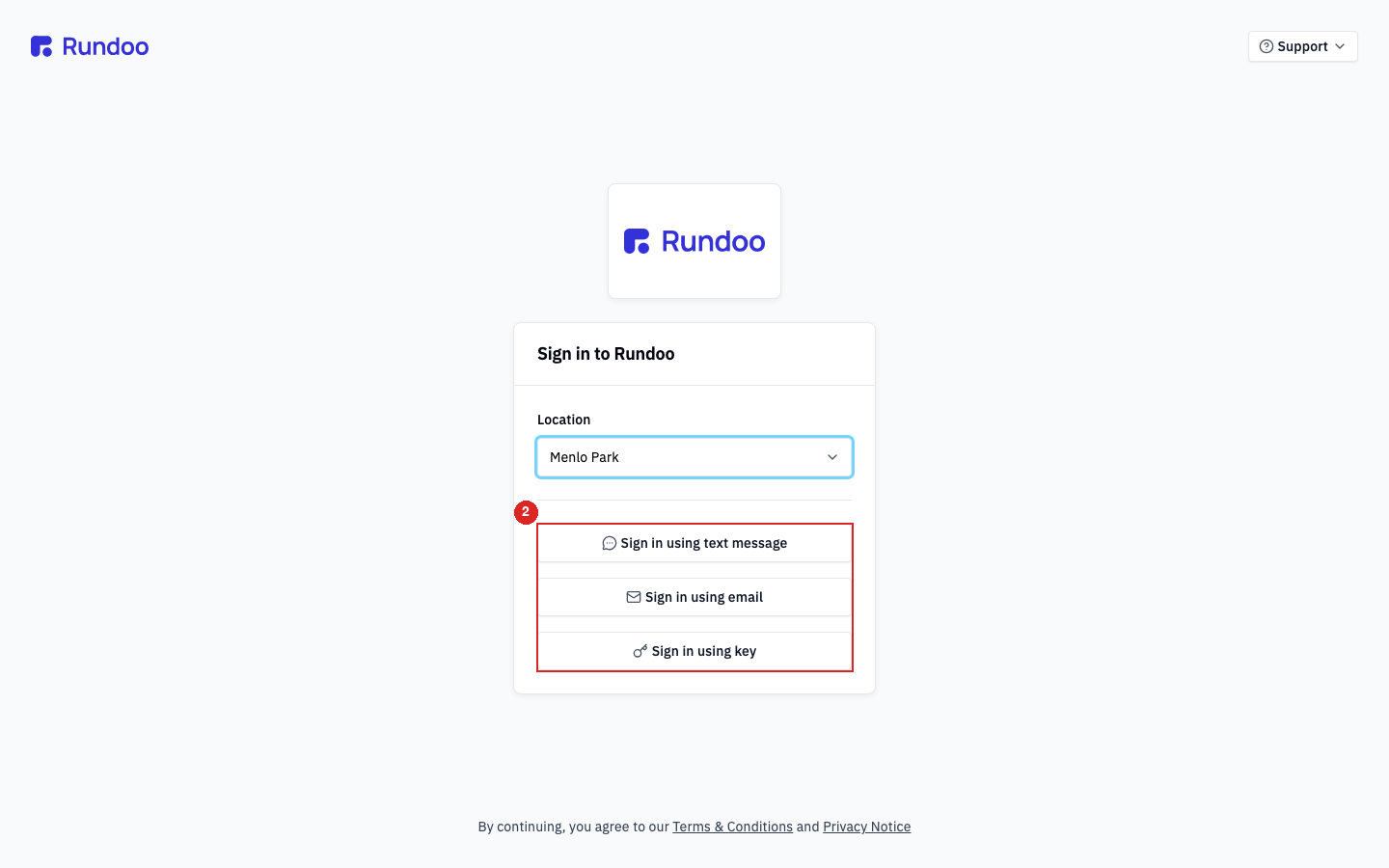
Once a location is set, three ways in appear. Pick whichever fits your counter:
Sign in using text message texts a 6-digit code to the mobile number on your staff profile. Sign in using email emails you a 6-digit code. Sign in using key is one tap of a physical security key, like a YubiKey, if your store bought them.
Email is the most common path, so that's what the next two steps walk through. Text message follows the same "enter the code we sent" pattern, and the key is a single tap with no code to type.
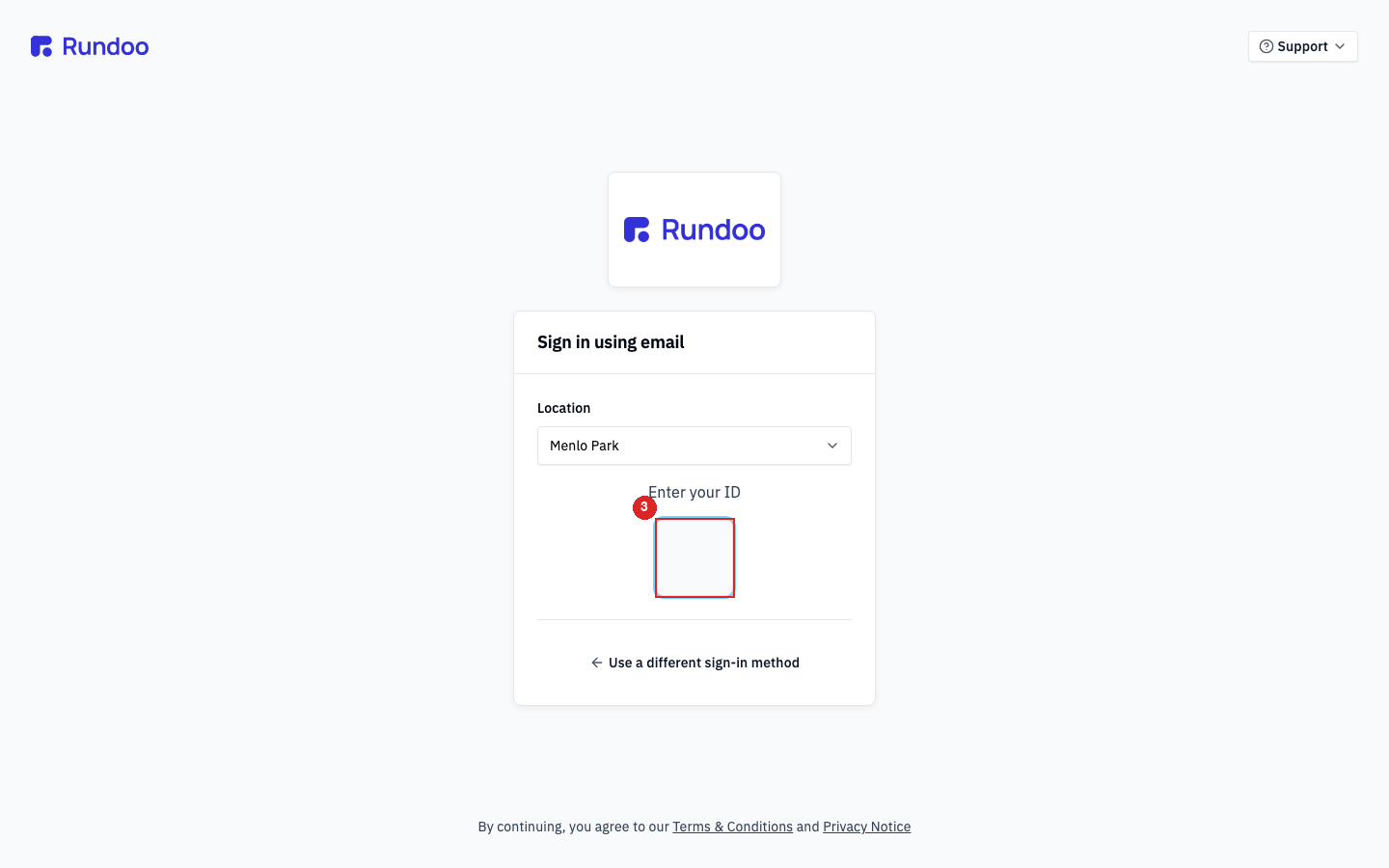
Click Sign in using email and the card asks you to Enter your ID. This is your Staff ID, the short POS identifier on your staff profile (something like /N), not your email address. Type it in and Rundoo mails the code to the address on file for that staff record.
Typed the wrong thing, or picked the wrong method? ← Use a different sign-in method at the bottom takes you back to the three buttons without losing the location you picked.
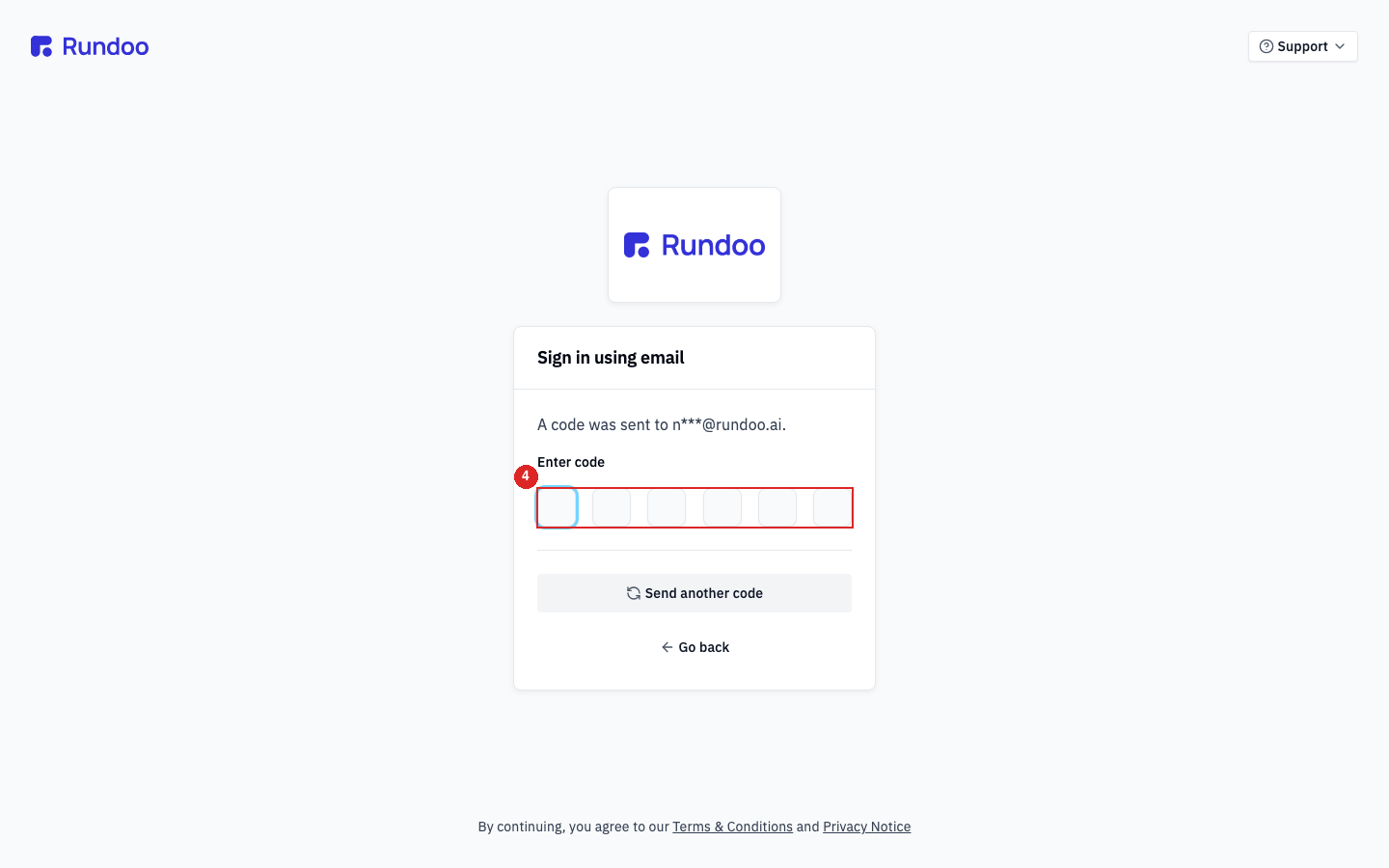
The card now reads A code was sent to your email. Check your inbox for a message from login@stytch.com with the subject Your one-time login code for Rundoo POS. The code is the first line of the email. Type or paste it into the six boxes; the cursor jumps ahead on its own and submits automatically once all six are in. You're on the sales screen, signed in.
Can't see the buttons?
Pick your Location first
They only appear after you choose a store.
Email path asks for
Your Staff ID, not email
The short POS code on your profile, like /N.
Where the code comes from
login@stytch.com
Subject: Your one-time login code for Rundoo POS.
Code lifespan
2 minutes
Expired? Hit Send another code for a fresh one.
Good to know