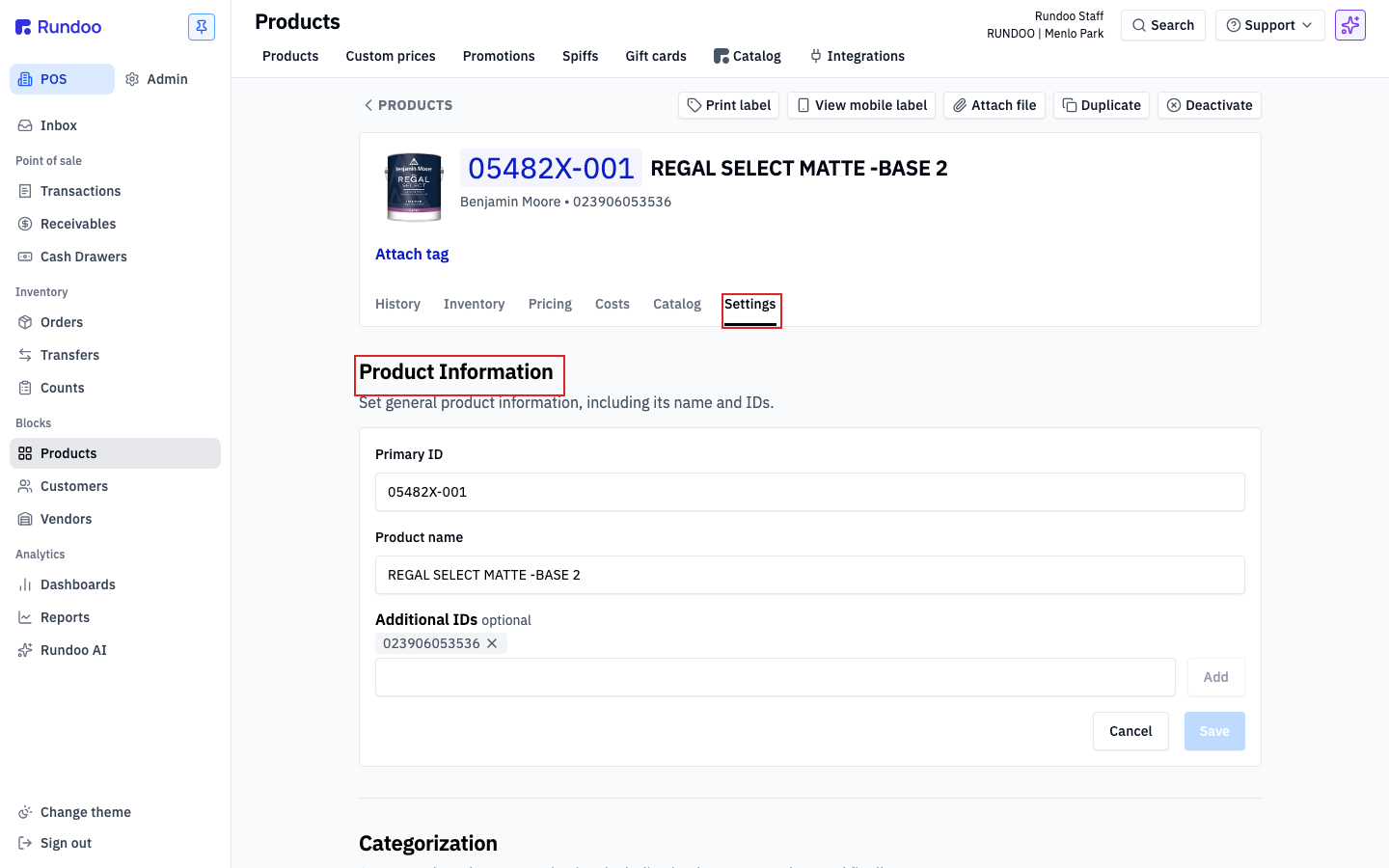
Product Information
IDs & name
Add a UPC or vendor code under Additional IDs.

Getting Started with Rundoo · Setup
Set how a product is taxed, categorized, and rung up at the counter.
When you first add a product, you get the basics in: a name, an ID, a price. But you know every item in your store has its own story. Is it taxable? Does it carry a paint care fee? Should it flash a reminder for your team at the counter? The Settings tab is where you tell Rundoo how each product should behave. Set it once, and every sale of that item just does the right thing.
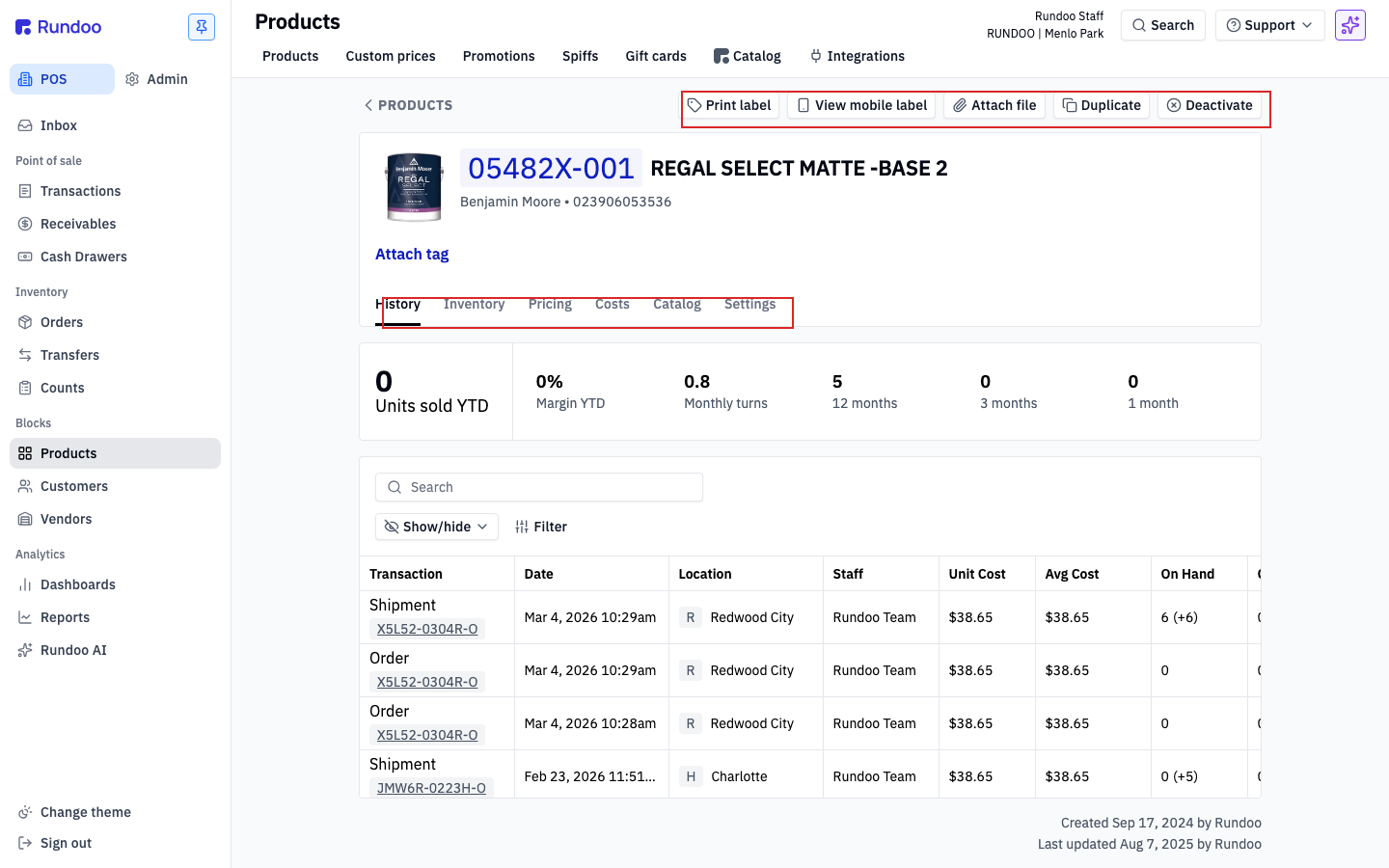
In POS, open Products from the left sidebar and click any product row to open its detail page. It lands on History by default. Along the top of the record sit six tabs: History, Inventory, Pricing, Costs, Catalog, and Settings. Everything below is on that last one.
Each section saves on its own
The Settings tab is split into sections, and every section has its own Cancel and Save. Saving one does not commit changes in another, so click Save in each section you touch before you move on.
Up top you'll see Primary ID (what a cashier scans or types), Product name, and Additional IDs. Add as many extra IDs as you need, like a vendor code or the 12-digit UPC your barcode scanner reads. Type one in and click Add. Every ID here will also find the product at the counter.
This is where you assign the product's Department, Class, and Fineline. It's the only place Class and Fineline can be set. You can't create new ones here, that's done in your Admin settings, but assigning them here is what powers clean reporting and any rule-based pricing or promotions you set up later. The more of your catalog that's classified, the more rules you can write once and let run.
If an item carries its own surcharge, like a paint care fee, a core charge, or a bottle deposit, add it here from the list you've already built in Admin. It rings as its own line at the counter, so the fee shows up plainly on the receipt.
Most items are simply Taxable or Non-taxable. The special case is Single-use non-taxable, for goods a contractor uses up on a job (paint, primer, caulk) rather than keeps. For the tax to actually come off, both the product and the customer need the single-use exemption set. One without the other still rings full tax.
These flags tell Rundoo to take an extra step when the item hits the cart. Tintable is the big one for paint: flip it on for any base that needs a color picked at the register, and Rundoo opens the tint picker every time it's rung. Non-stock is for service fees and one-off items. Heads up: when Non-stock is on, Rundoo won't pull a cost, so set the cost by hand on the sale or your margins will read wrong.
The Notes section works just like it does on a customer. Internal notes are a quiet, staff-only message on the record. Sale reminders are a pop-up that takes over the screen when the item hits the cart and has to be dismissed before the sale continues, great for a protocol-critical nudge. A sale product template note auto-adds a pre-written line to the ticket when you sell the item, which the cashier can then edit.
Product Information
IDs & name
Add a UPC or vendor code under Additional IDs.
Categorization
Department / Class / Fineline
The only place to set Class and Fineline.
Additional charges
Per-product fees
Paint care, core charges, deposits. A separate line.
Tax status
Taxable / Single-use / Non-taxable
Single-use needs the customer flag too.
Checkout
Tintable, Non-stock, and more
Non-stock pulls no cost. Set it by hand.
Notes
Internal notes & reminders
Sale reminders pop up and block the sale.
Good to know