Recent sales
POS → Transactions → Completed
Match five or six against paper receipts.

Getting Started with Rundoo · Go-Live Data Check
Spot-check recent sales, confirm your tax rate, and catch duplicate accounts.
This is the last stop on your go-live data check. Everything Rundoo pulled from your old system is sitting in front of you, and now you get to make sure it landed right. You are not auditing every record. You are pulling up a handful of recent sales, matching them against the paper receipts in your drawer, confirming your tax rate, and giving your house accounts a quick once-over. Just enough to trust the numbers before your first real day.
Before you start: expect the totals to look low
This check runs on a preview built from your recent history, so big roll-ups like year-to-date sales will read low, and a customer's transaction list will look short. That is normal. Rundoo loads your most recent data for the review, not years of old tickets. You are confirming the numbers that are here are accurate, not that every past sale has arrived yet.
Grab a few of your paper receipts first, so you have something to check against. Then in Rundoo go to Point of Sale, open Transactions, and click the Completed tab. That is your list of finished sales, newest at the top.
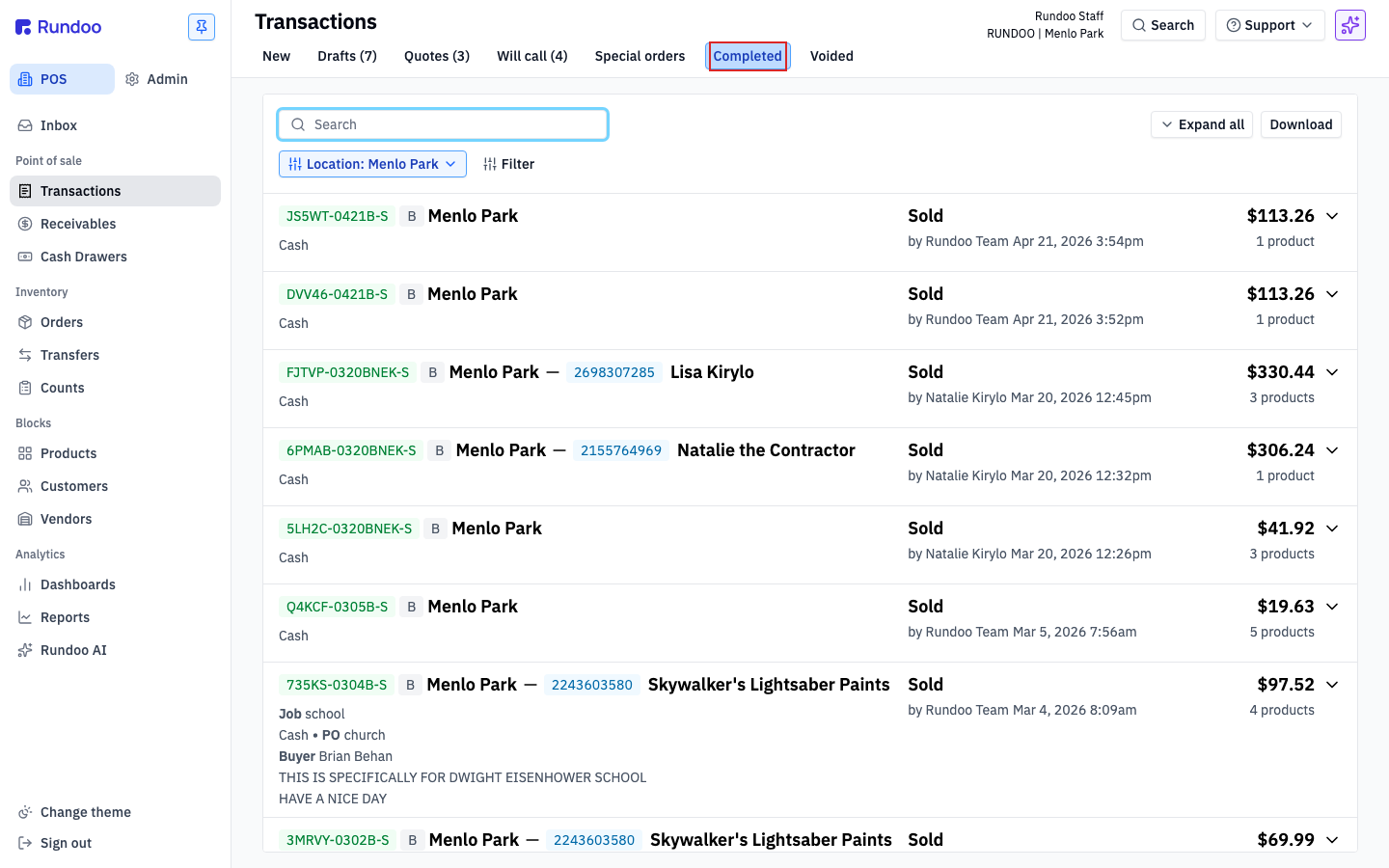
Open your latest few sales one at a time and line each one up against the paper copy. On each sale, check that the subtotal, the sales tax, and the final total all match. Confirm the tender is right too, whether it was rung as Card, Cash, or Charge account. If you write purchase order numbers on your tickets, make sure the PO made the trip.
You do not need to open every sale. Check five or six random ones. If they all line up, that is your happy path, the rest of your history is almost certainly solid, and you can move on. If one is off, note the sale so you can flag it (more on that below).
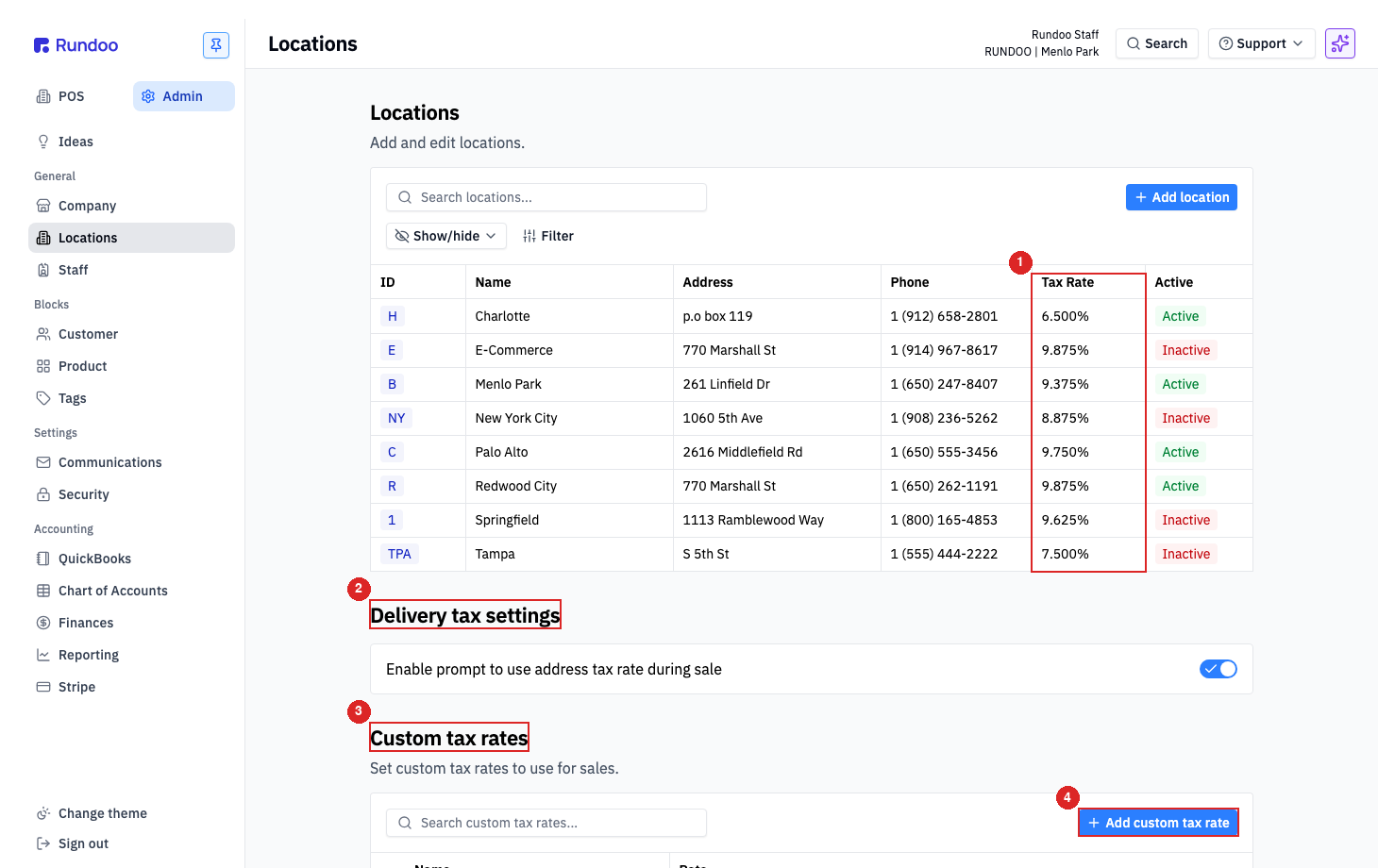
Next, flip to Admin and open Locations. Rundoo sets a default tax rate for each store from its address, so you do not type the rate in. Just read the Tax Rate column and confirm the rate looks right for each location. This one rate applies to the whole sale, not line by line, so getting it right here is what matters most. You will also see your Custom tax rates here, including a built-in Tax exempt rate for your exempt customers.
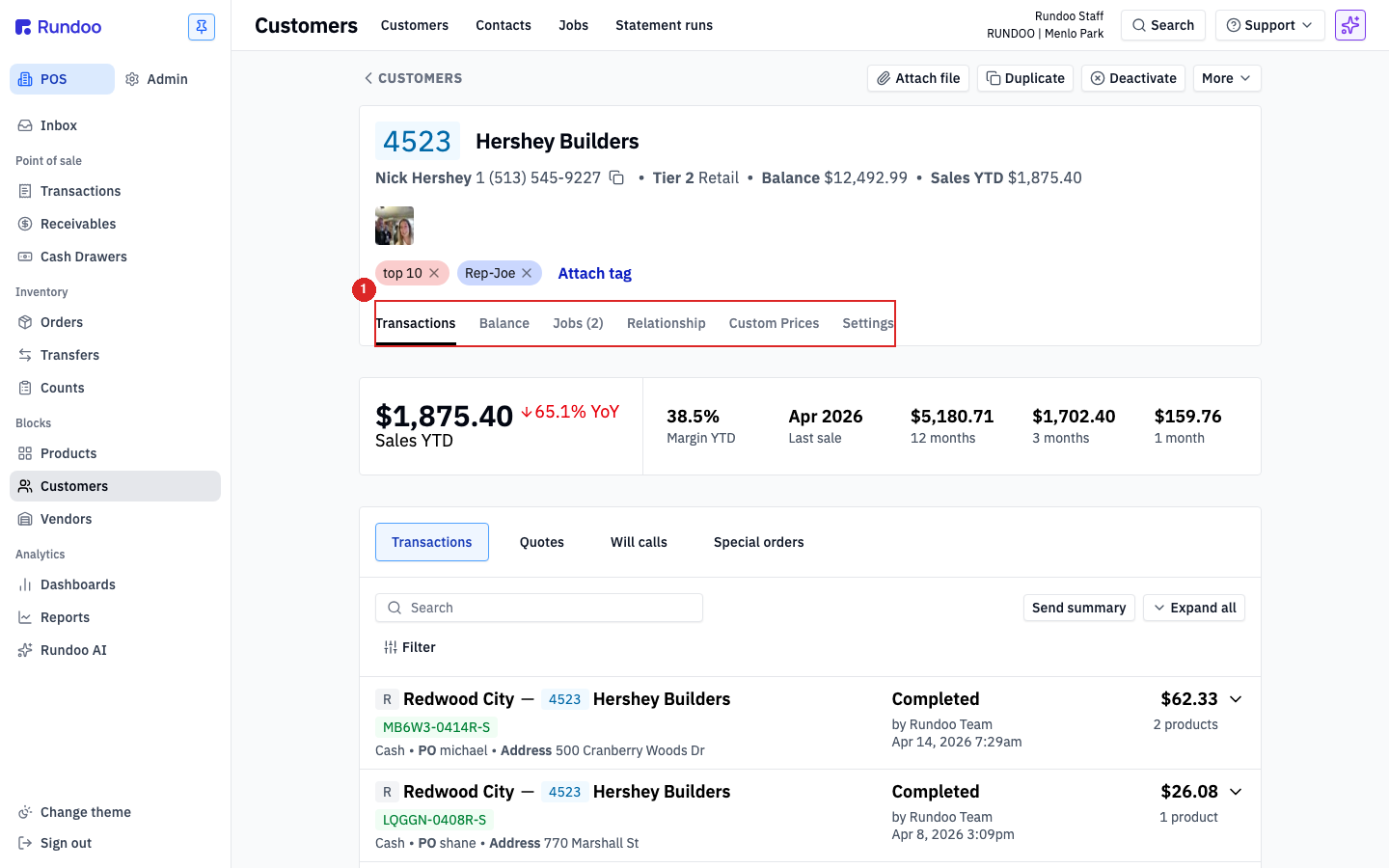
Back in Point of Sale, open Customers and pull up one of your charge accounts. Click between the Transactions and Balance tabs. Remember, a short transaction history is expected. The thing that really matters is that the starting balance is correct. Do this for a couple of your bigger accounts.
While you are on the main Customers list, give it a quick scan for obvious duplicates, the same name or the same phone number showing up twice. It is common for a few to sneak in during a migration, so this is worth a minute.
You do not merge duplicates yourself. A merge cannot be undone, so Rundoo handles it for you. Right underneath this video there is an Ask a question box. Type exactly what you see, for example that you have two accounts with the same name and phone number, and send it. It goes straight to your Rundoo guide and lands on their list to fix before you go live. They merge the records safely, and you keep moving.
Recent sales
POS → Transactions → Completed
Match five or six against paper receipts.
On each sale
Subtotal, tax, total, tender
Plus the PO number if you use them.
Tax rate
Admin → Locations
Default per store, applied to the whole sale.
House accounts
POS → Customers
Starting balance right; scan for duplicates.
Good to know