Column A: Token
Never edit it
Filled = update, blank = create a new record.

Getting Started with Rundoo · Setup
Export, edit, and import to update hundreds of records at once.
Some days you need to change hundreds of products at once. A vendor sends a new price list for their whole line, or you want to tag a group of items for a spring promotion. Doing that one product at a time would eat your whole afternoon. Rundoo has a faster way: filter your list, export it to a spreadsheet, make your edits, and import it back so every change lands together. The same rhythm works for your Customers and Vendors, too.
Everything happens from a block in POS mode: Products, Customers, or Vendors in the left sidebar. Two buttons do the heavy lifting: Download spreadsheet at the bottom of the list pulls your records out to a file, and Import products at the top-right brings your edited file back in.
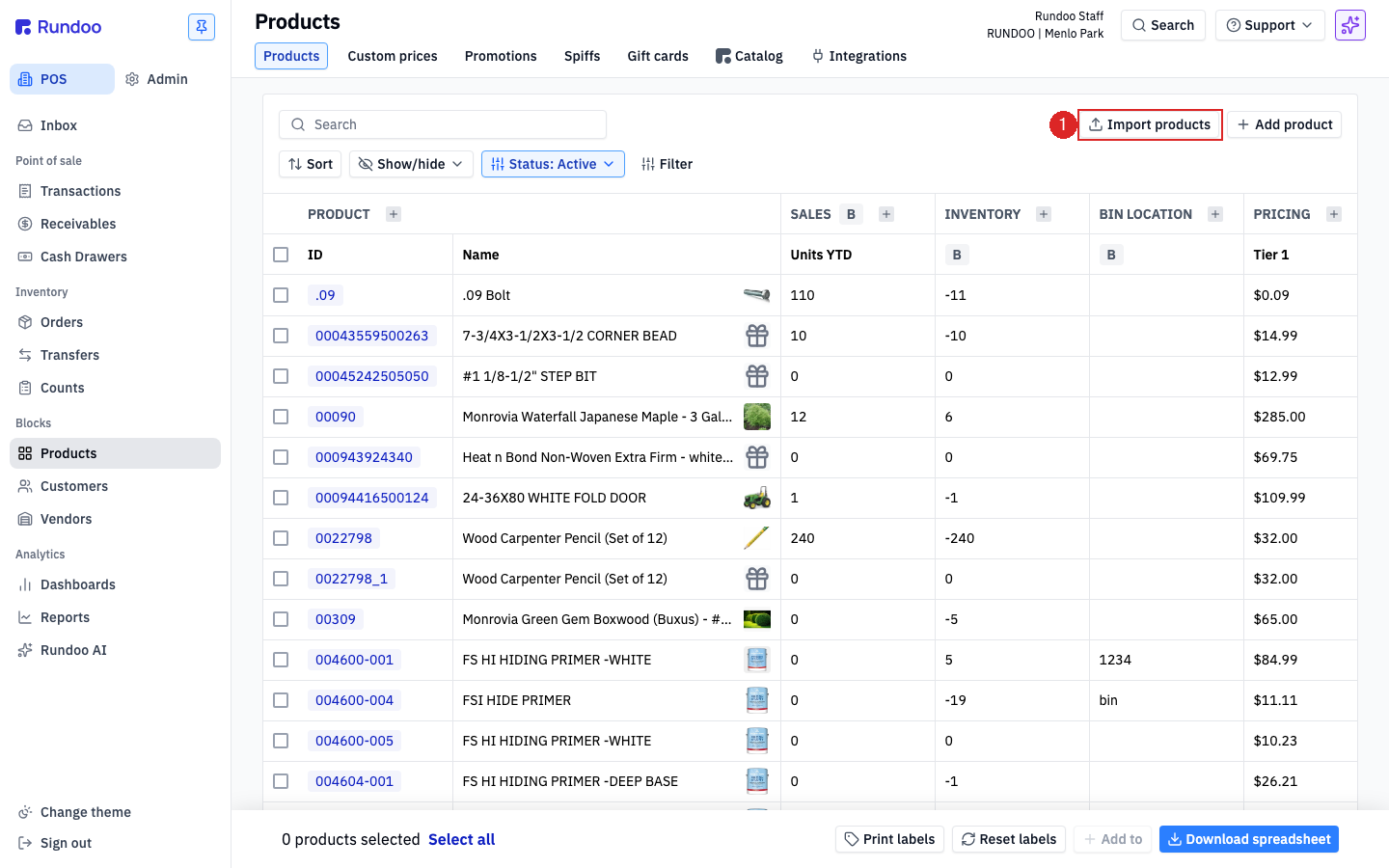
This is the trick that keeps the job small: filter down to only the records you plan to change. On Products, use Filter to narrow by Default vendor, by Department, or by a tag. Say you filter to just your Benjamin Moore products, so the list shows only those items.
Click Download spreadsheet at the bottom of the list, then Download file. The download respects your filter, so you get a spreadsheet of only the records you filtered to. Rundoo pre-fills the Token column for each one, which is what tells it to update those exact records later.
Open the .xlsx in Excel, Numbers, or Google Sheets. The most important column is the very first one, column A, called Token. That is Rundoo's private ID for each record, and it is how Rundoo knows which one to update. Do not change anything in that column. Its header even says so: "DO NOT CHANGE THIS FIELD." Leave the data on the sheet named Sheet1, and if you save from another program, save it back as .xlsx.
Find the column you care about and edit just those cells. To tag your filtered list, type your tag into the Tags column and fill it down every row. Leave the other columns blank. Blank cells are not a problem, Rundoo simply ignores them and will not erase your existing data. Hover any header cell for a note on what that column does and an example value.
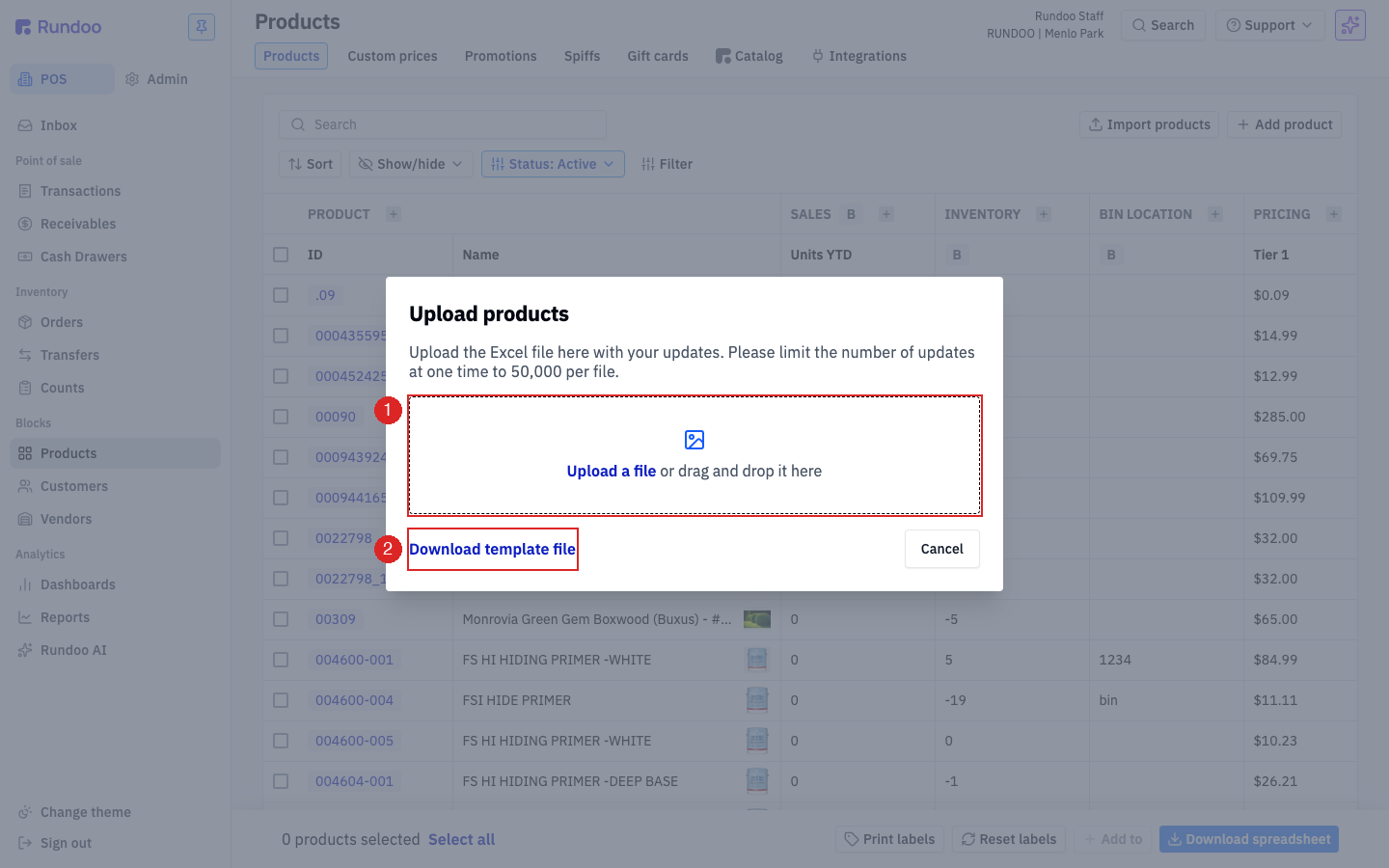
Save your file, then click Import products at the top-right of the list. Either click Upload a file and pick it, or drag the .xlsx straight onto the dashed drop-zone. (Need a fresh blank sheet to create brand-new records? Download template file lives in the same window.)
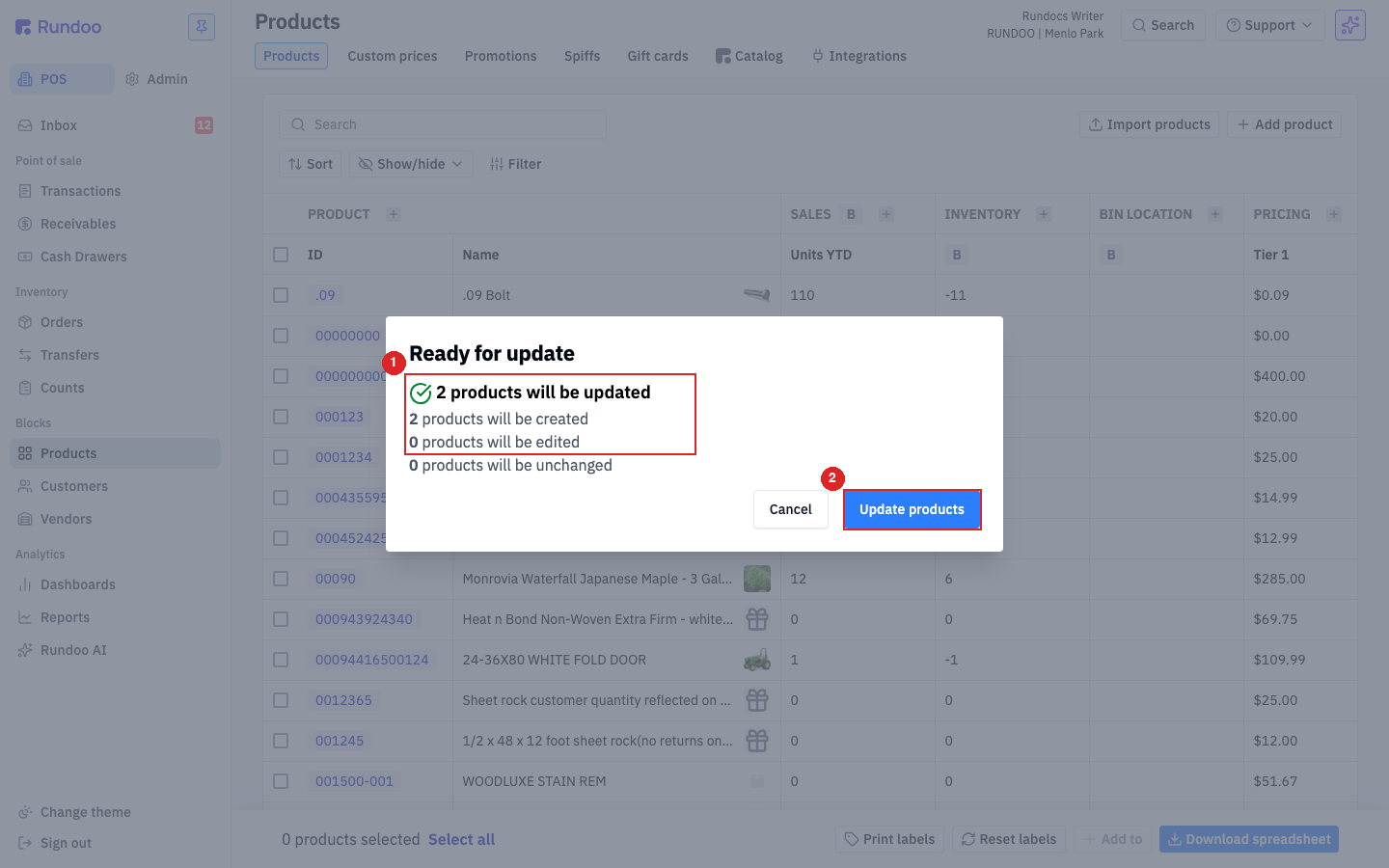
Rundoo checks the file and shows a Ready for update preview: how many records will be updated, created, edited, and unchanged. Nothing has posted yet, so this is your final gut-check. If the counts match what you meant to do, click Update products. If a number looks off, click Cancel, fix the file, and try again.
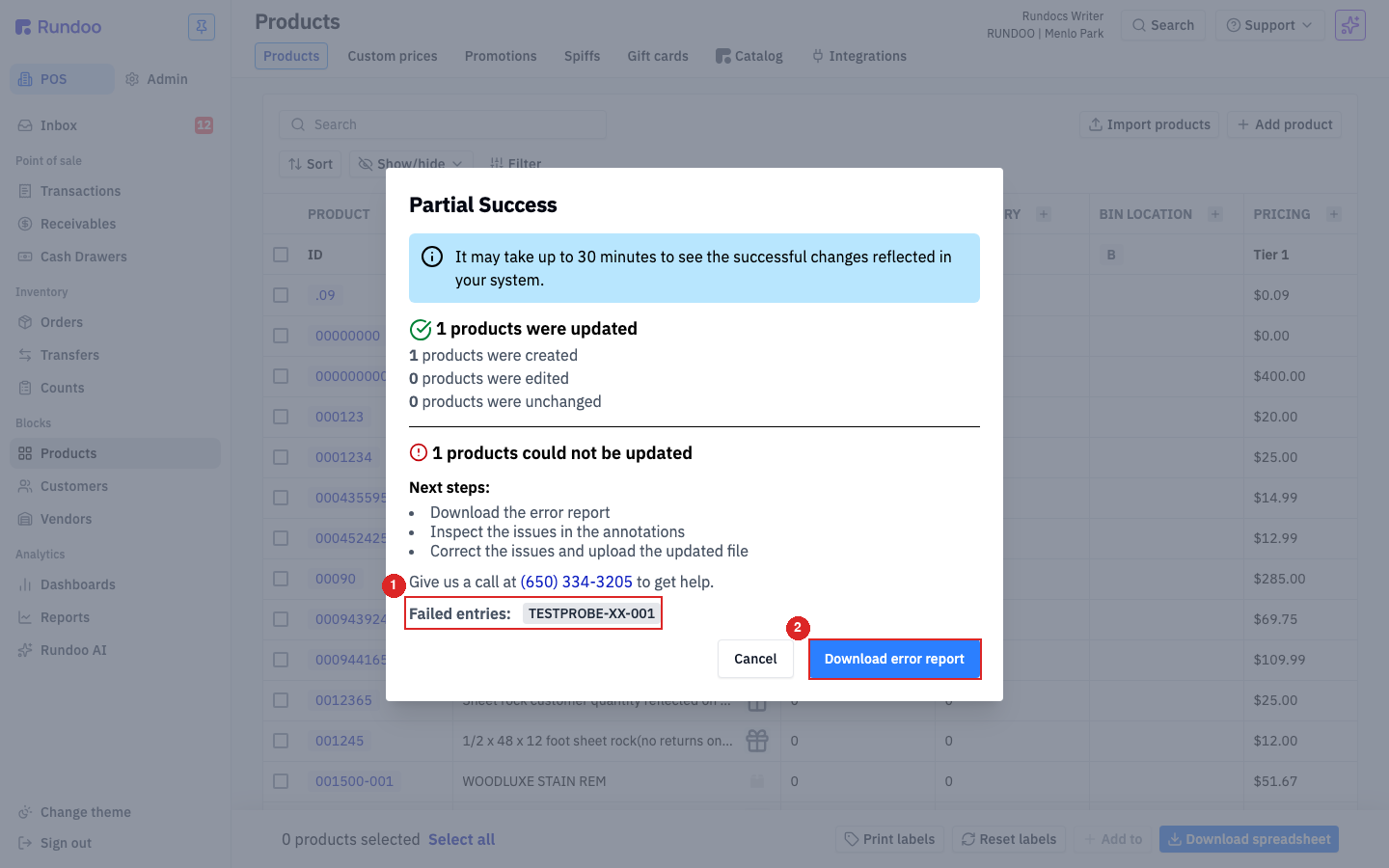
If a row does not pass, Rundoo lands the good rows and lists the rest under Failed entries by their ID. Click Download error report to get those rows back as a fresh spreadsheet, with a comment on the exact cell that needs fixing (a mistyped department, an ID already in use, and so on). Fix just those cells, save, and re-upload the report as a follow-up. The rows that already landed are safe.
Column A: Token
Never edit it
Filled = update, blank = create a new record.
File type
.xlsx only
Keep the data tab named Sheet1.
Blank cells
Ignored, not cleared
To empty a field, clear it on the detail page.
On-hand inventory
Read-only on import
Change stock with a count, not the sheet.
Good to know