Where
POS → Receivables → Payment
The Payment tab is the default.

Getting Started with Rundoo · Transactions
Take a customer's payment and apply it to the oldest bills or a specific job.
You know the rhythm of the counter better than anyone. A contractor with a charge account swings by to pay down what they owe. This isn't a new sale, it's settling up on a running balance, and it all happens in one place. Here's how to take that payment and get it landing on the right invoices, whether they're clearing the oldest bills or paying off one specific job.
In POS mode, click Receivables in the left navigation. The Payment tab is selected by default, and that is the bill-payments surface. On the left is the Customer panel where you pull up who's paying, and the big table on the right is where their open invoices show up once they're attached.
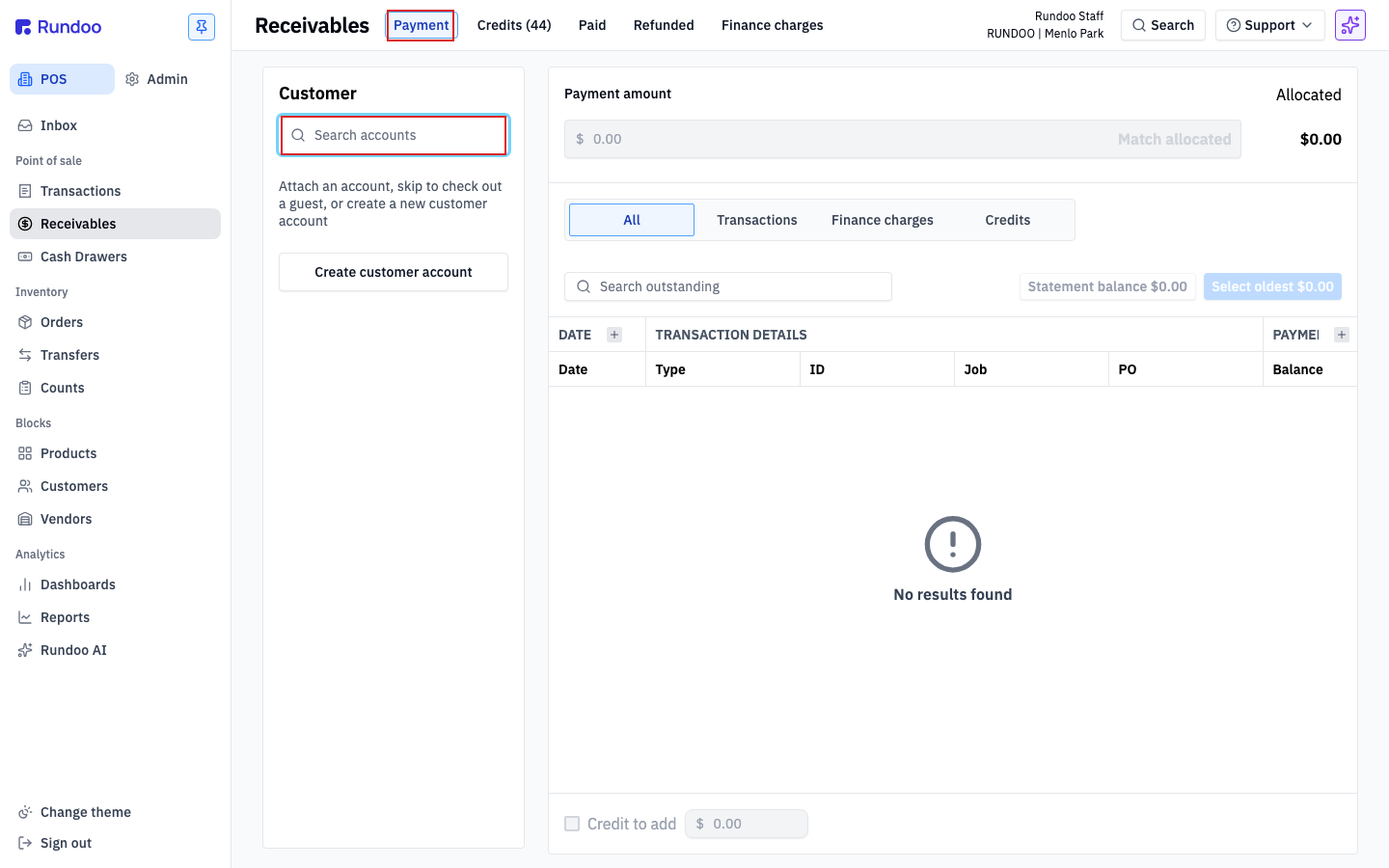
Click Search accounts and type their name, phone, or customer ID. Only customers with a charge-account finance term show up here, so a retail walk-in won't appear. Pick their row, and their name, tier, total balance, and every open invoice fill in, oldest on top.
No account yet? Create customer account at the bottom of the panel opens the new-customer form without losing your place.
Most of the time a customer just wants to drop a flat amount on their balance and knock down the oldest bills first. Type the figure into Payment amount at the top, say $500. Then click Select oldest $500.00. Rundoo walks down the list from the oldest, checking rows until the full amount is spoken for, and partial-applies the last one if it needs to. Watch the Allocated total top-right tick up to match.
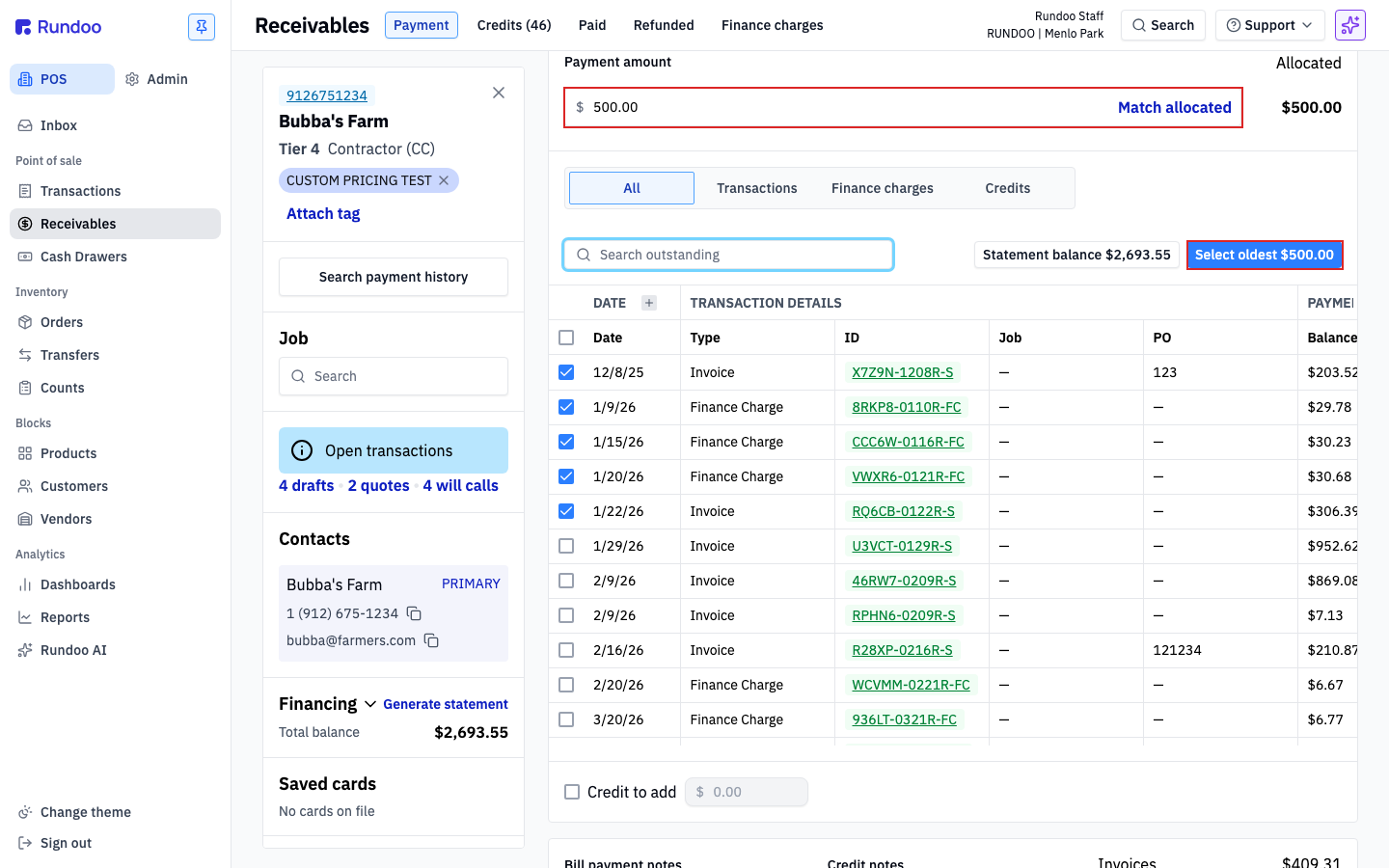
Other times they want to clear one job or a particular purchase order, not just the oldest. Skip the amount box. Instead, check the boxes next to the exact invoices they're paying, then click Match allocated on the Payment amount row. Rundoo totals up the rows you checked and sets the payment to match. Same table, same button, you just start from the invoices instead of the dollar figure.
Below the table, pick a tender: Cash, Check, or Card. Choose Check and a Check number box appears, so the number gets logged against the payment and your drawer reconciles at close-out. Cash calculates change; card lets you swipe a reader or key it in.
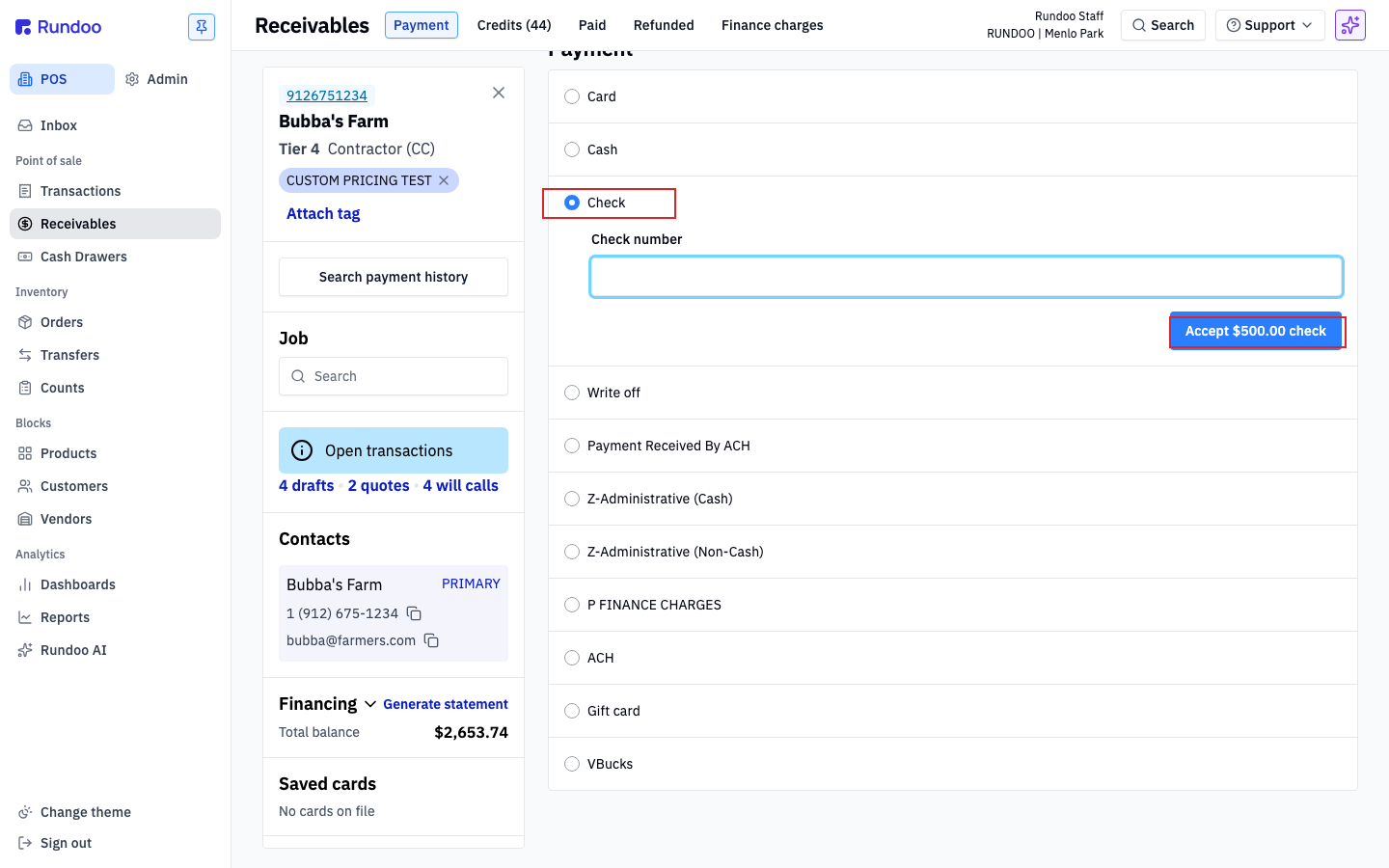
Click the commit button, which names the tender and amount right on it, like Accept $500.00 check. The payment posts to the customer's ledger, the screen clears, and you're ready for the next one. It shows up on their next statement as a credit against their balance.
A check written for more than they owe is the most common surprise at the counter, and Rundoo catches it. When the payment is bigger than the total balance, check Credit to add at the bottom of the panel and the overage posts as a credit on their account for the next sale to draw against. You'll be asked for a quick note explaining why. Mark it at payment time rather than fixing it later, since credits patched in afterward are harder to trace back to the check.
Where
POS → Receivables → Payment
The Payment tab is the default.
Oldest first
Enter amount → Select oldest
The right default for most payments.
Specific job / PO
Check rows → Match allocated
Start from the invoices, not the amount.
Overpaid
Credit to add
Overage becomes a credit. Note required.
Good to know