Loyalty toggle
Admin › Communications
Show loyalty points, at the bottom

Getting Started with Rundoo · Setup
Track contractor loyalty and collect Google reviews.
Two small settings, one goal: give your best customers a reason to keep coming back. Loyalty points let your contractors watch their spending add up right in the Rundoo app, and a Google review link turns a happy customer at the counter into a five-star review with one tap on their receipt. Neither one changes how you ring a sale, and your guide already switched them on when you went live. Here is how to check them, tune the wording, and add a review link when you open a new store.
In Admin, open the Communications tab and scroll to the Loyalty points section at the bottom, under Card payment surcharge. Flip Show loyalty points on. That is the whole switch: nothing to install, no per-customer opt-in, no location setup.
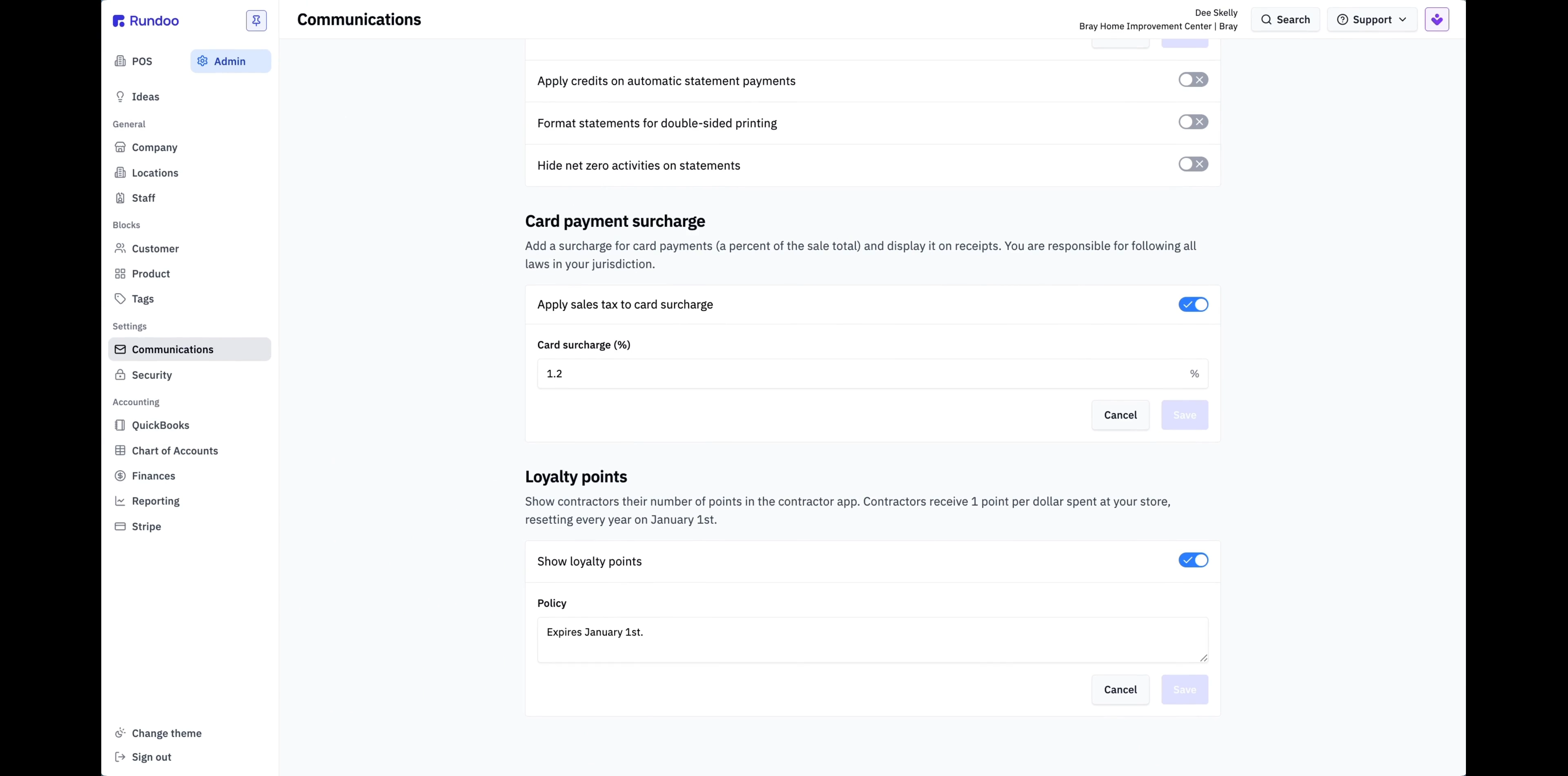
Points earn at a fixed 1 point per dollar spent and reset every year on January 1st. Those numbers are locked, but the Policy box is yours: use it to tell contractors how to redeem points (a call to the store, a quarterly mailer) or to note a holiday double-points week. Save commits it, and the new wording shows in the app the next time they open it.
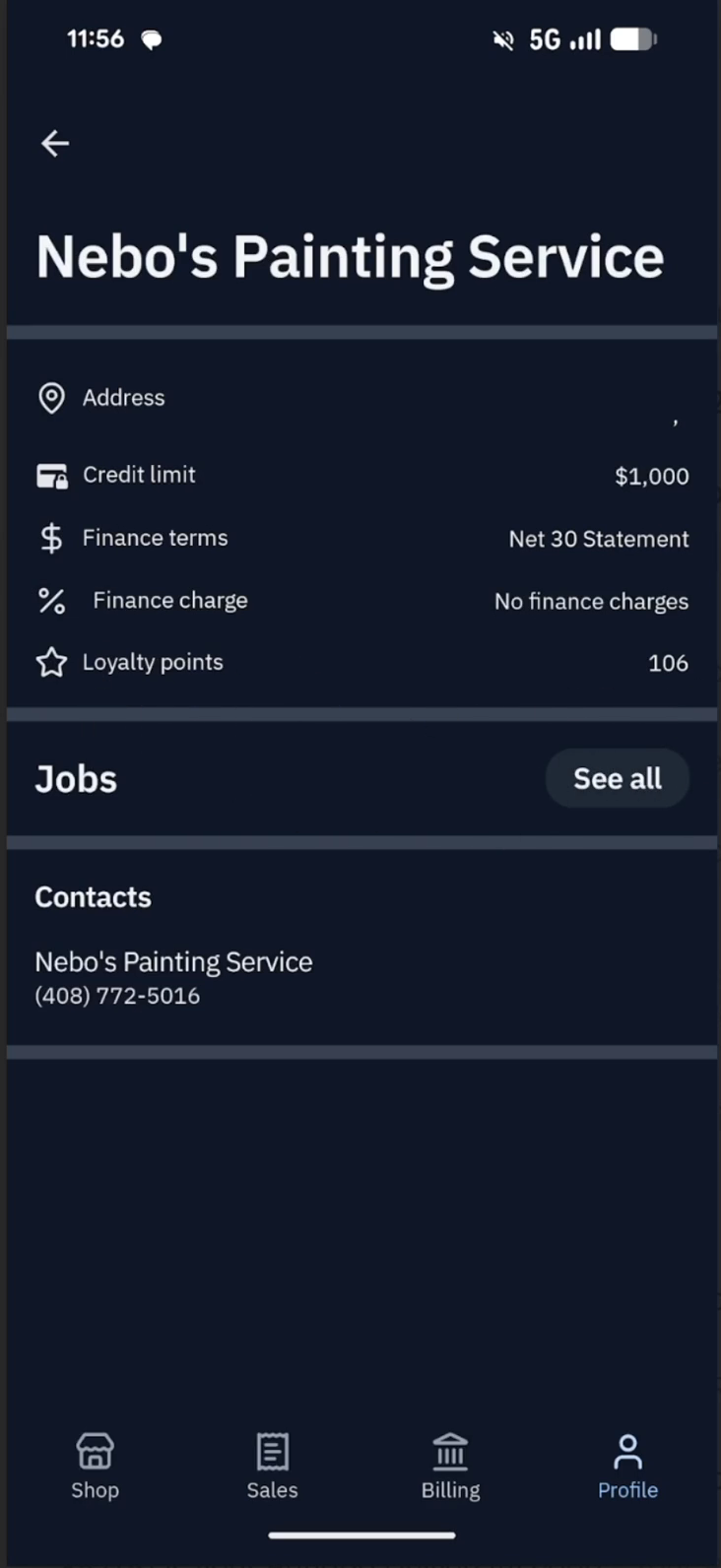
Once it is on, every contractor who signs into the Rundoo contractor app sees a running point total and your policy under the Loyalty tab. It is display only: points never appear in Admin, POS, reports, or the tender picker, and they are not a discount at checkout. If someone at the counter asks how many points they have, the fastest answer is to have them open their app.
Good to know
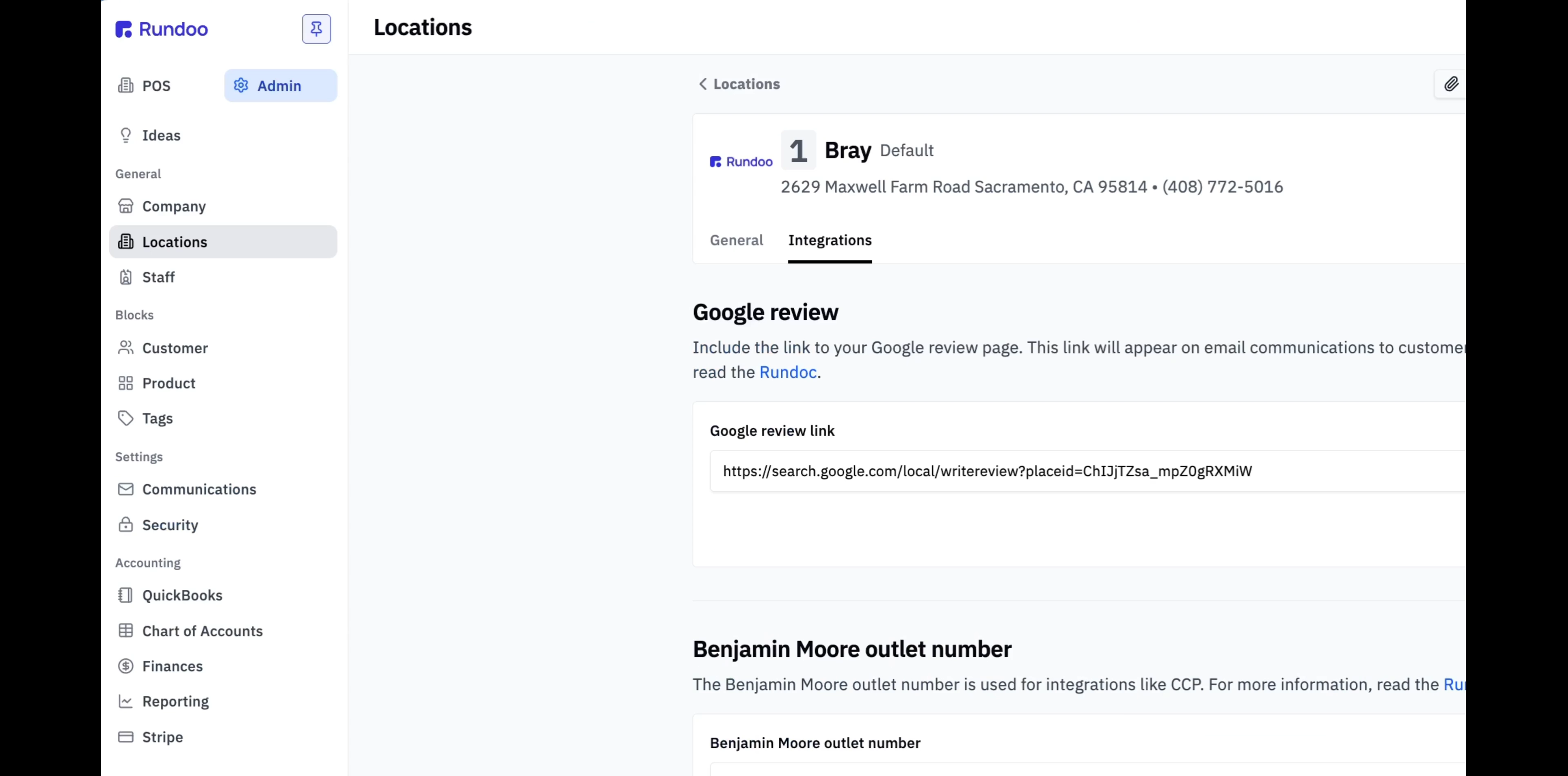
A "Review us on Google" link can ride on every emailed receipt, so a happy customer leaves you a review in one click. Your guide set this up when you went live, so you only need the steps below for a new location, a change of address, or a lost link. The link lives in Admin › Locations: open a location, then the Integrations tab.
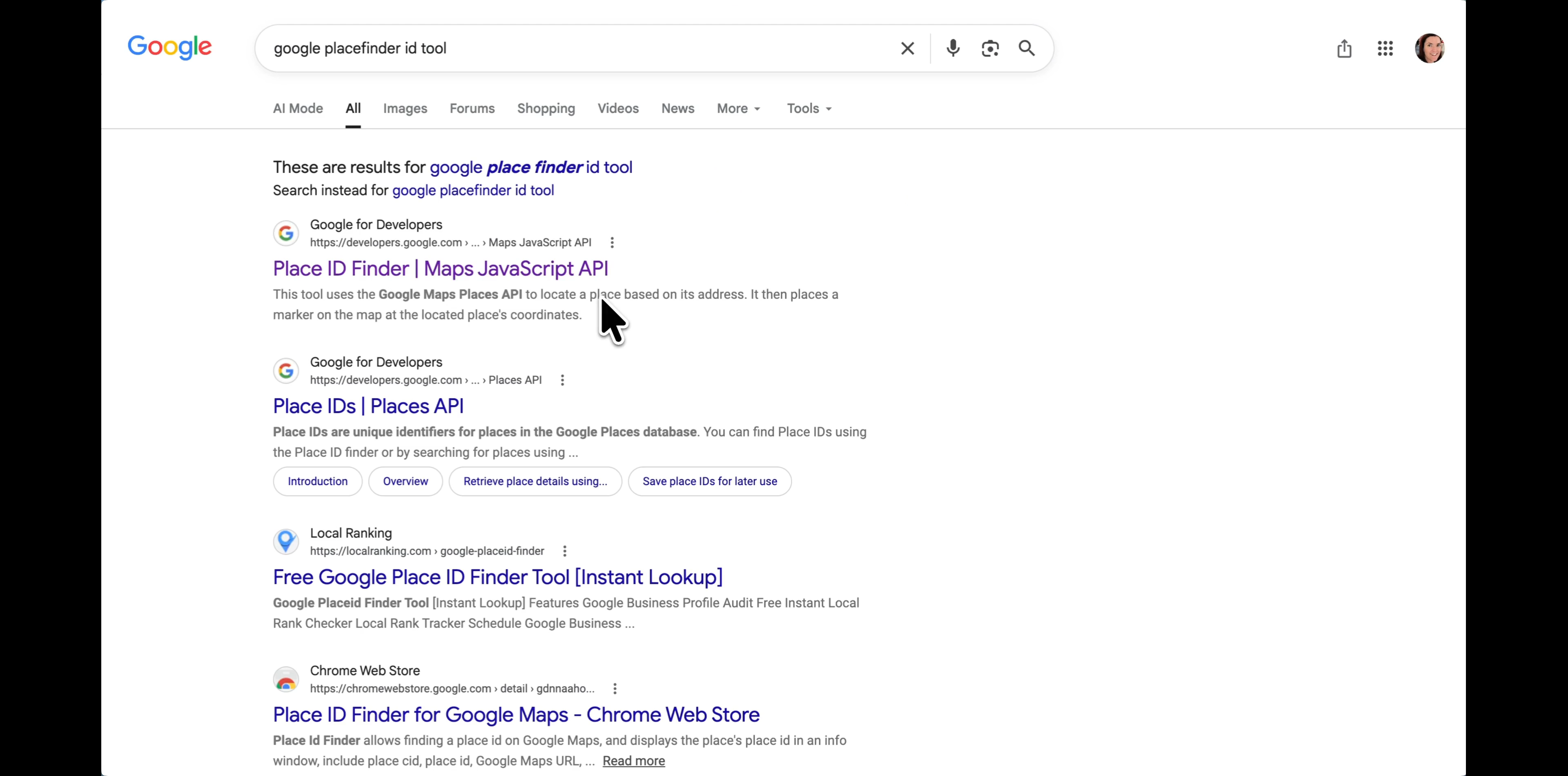
Google gives every business location a unique Place ID. Open Google's Place ID Finder, search your business name and location, and copy the Place ID it shows (it looks like ChIJlyBhM1qjj4ARPwoEkfOXErQ).
Take this template and swap in the ID you copied:
https://search.google.com/local/writereview?placeid={PLACE_ID}
So it becomes, for example, https://search.google.com/local/writereview?placeid=ChIJlyBhM1qjj4ARPwoEkfOXErQ
In Admin › Locations, open the location, scroll to Integrations, find the Google review field, paste the full link, and save.
Every store has its own Place ID. If you run more than one, do Steps 1 through 3 for each so every location collects reviews for itself, not its siblings.
Ring a quick sale and email the receipt to yourself. Open the email, click Review us on Google, and the review popup should appear pointed right at your store.
Loyalty toggle
Admin › Communications
Show loyalty points, at the bottom
Earn & reset
1 point / $1, resets Jan 1
Fixed; edit the policy wording only
Review link
Admin › Locations › Integrations
Paste your writereview URL
Link template
writereview?placeid={PLACE_ID}
One Place ID per location