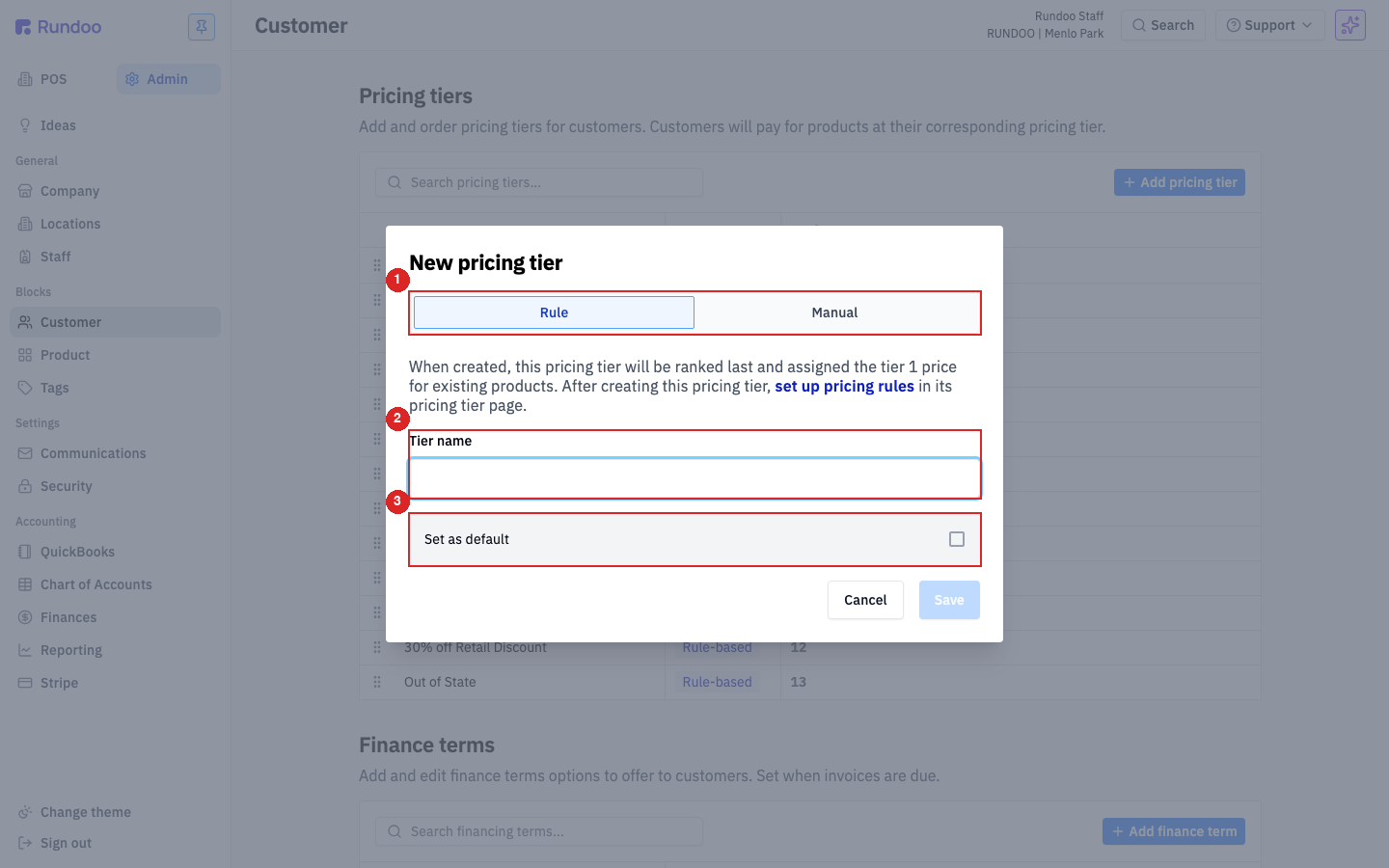
Two types
Rule or Manual
Rule = Rundoo does the math. Manual = you type prices.

Getting Started with Rundoo · Setup
Build a tier, set the rule, and let each customer ring up at their price.
You know your customers. You've got your retail walk-ins, and you've got your regulars, like the contractors who buy from you every week. You probably don't charge them all the same price. In Rundoo, a pricing tier is a named price list you attach to a whole group of customers, so once you set it up, the right price rings automatically at the counter. No mental math, no discount to remember, no shortchanging yourself. Let's build one.
In Admin mode, click Customer in the left sidebar. The Pricing tiers section sits right at the top of the page. You'll already see one called Tier 1 Retail, marked DEFAULT. That's your baseline. Every customer and every product starts here, and any tier you build measures itself against it.
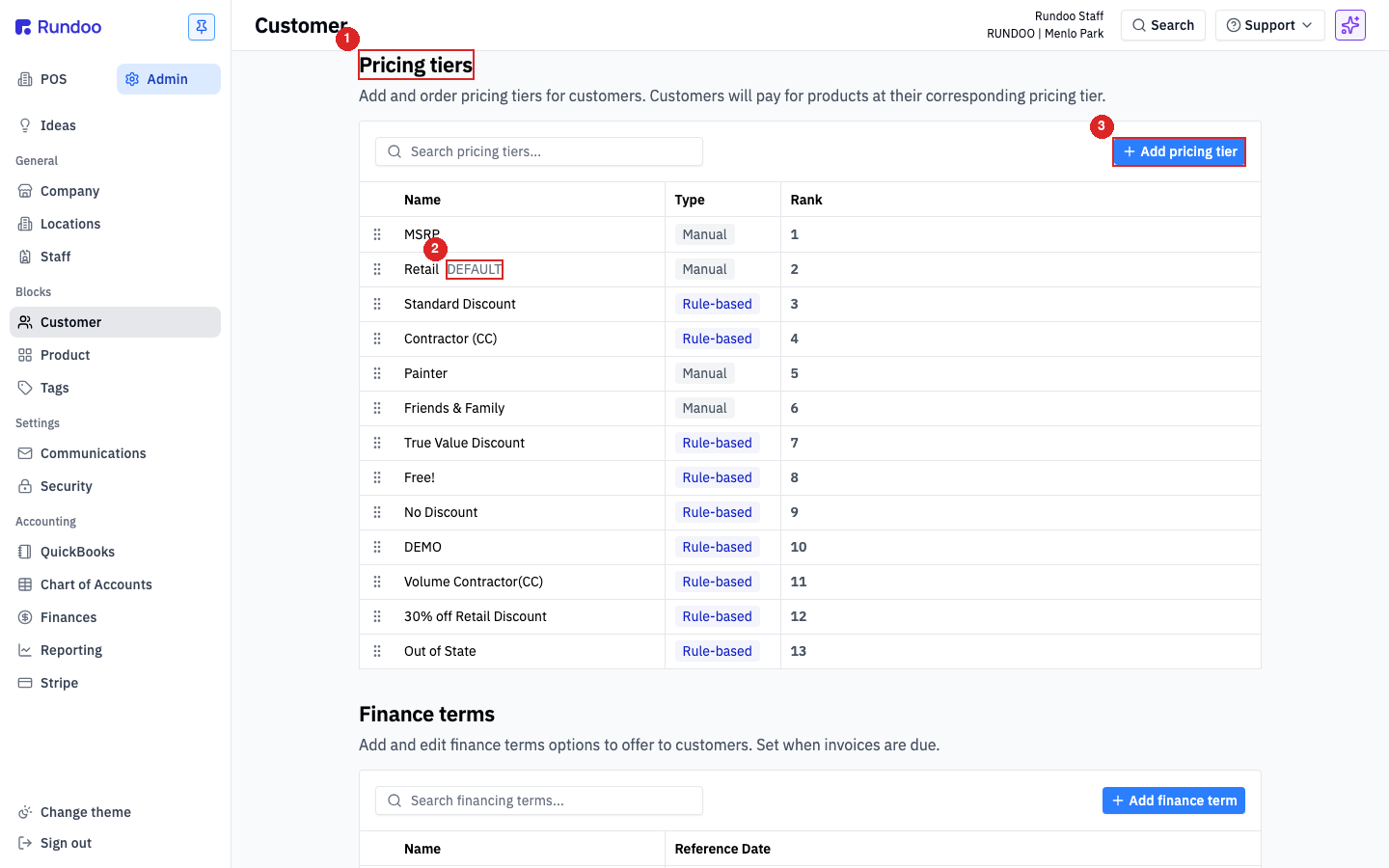
Click + Add pricing tier at the top-right of the table. In the New pricing tier window, you pick a type. Rule lets Rundoo do the math for you from a rule you set; Manual means you type in every price by hand. We'll leave it on Rule. Type a Tier name, like Contractor, and click Save. Rundoo adds it to the list as Tier 2 Contractor, prepending its rank number.
Click the new Tier 2 Contractor row to open it, then in the Rules section click + Add new rule. Set the scope to Vendor and pick a brand, for example Benjamin Moore. Set the strategy to Discount and type 15 for 15 percent off. Click Save. If the rule doesn't pop into the table right away, give the page a quick refresh.
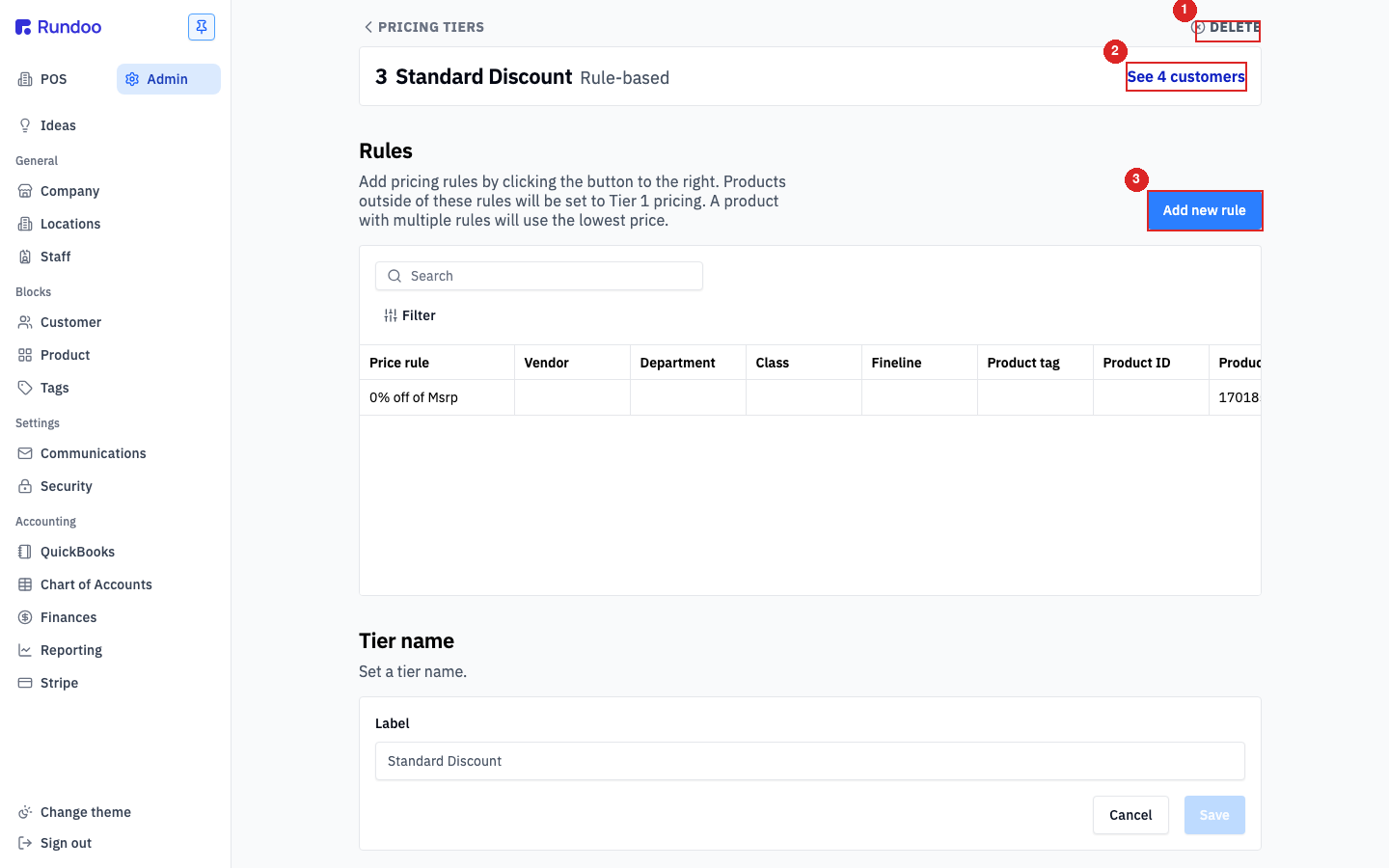
With that rule saved, anything from Benjamin Moore rings 15 percent off for a contractor. Everything else they buy still rings at the normal Tier 1 Retail price, because Tier 1 is the fallback for whatever a rule doesn't touch. And if two rules could apply to the same product, Rundoo always gives the customer the lower price. You never have to worry about accidentally overcharging.
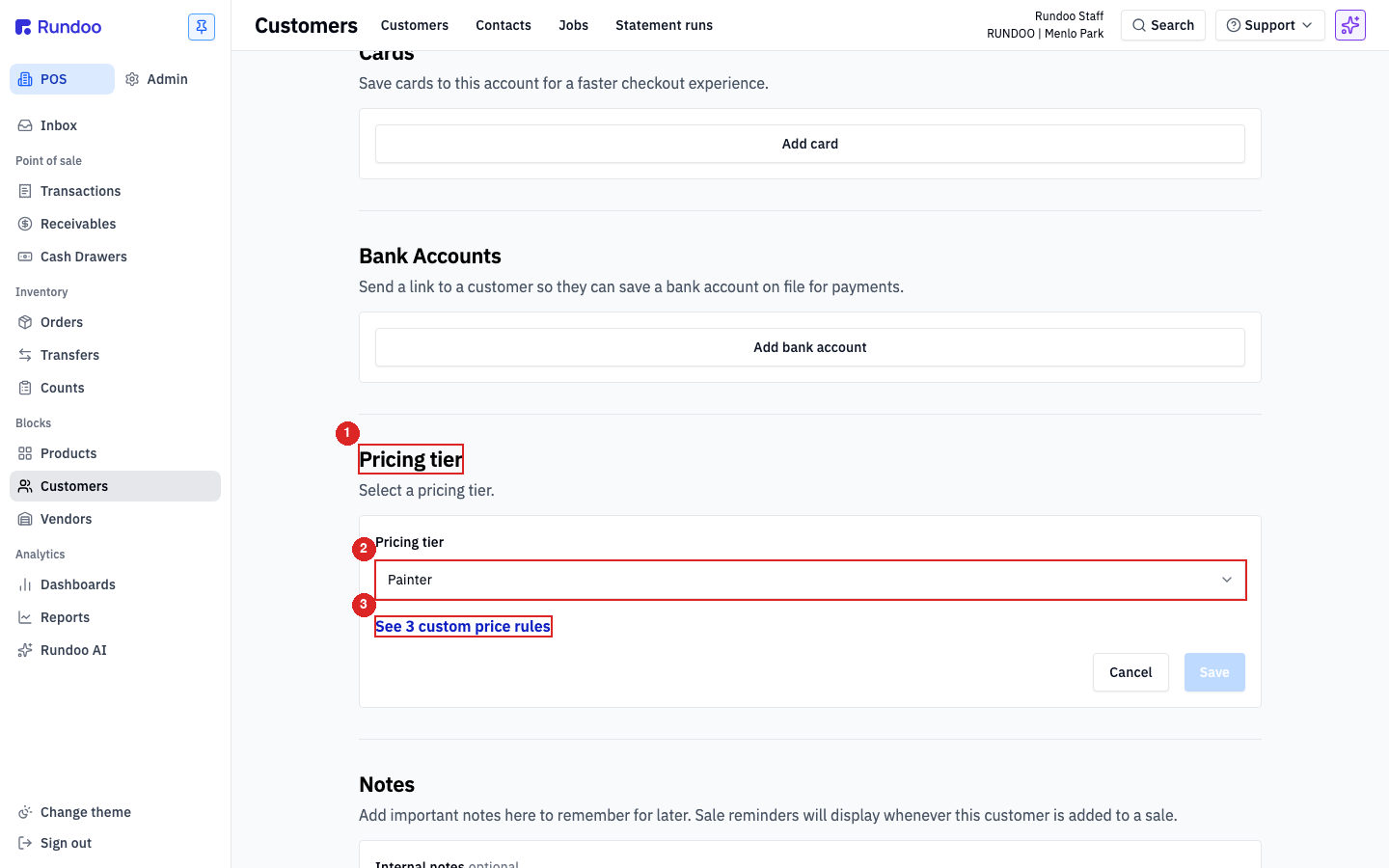
Now tell Rundoo who gets this pricing. Switch to Point of Sale mode, open Customers in the left sidebar, and click your contractor, say Nebo's Painting Service. Open their Settings tab and scroll to the Pricing tier section. Change the dropdown from Tier 1 Retail to Tier 2 Contractor and click Save.
That's it. The next time Nebo's Painting comes in, start a new sale, add them as the customer, and ring up a Benjamin Moore product. The 15 percent discount is already on the line, automatically. No extra buttons, no math at the counter. Tiers are for groups like this. If you ever need a special price for just one customer, that's a feature called Custom Prices, covered in its own video.
Two types
Rule or Manual
Rule = Rundoo does the math. Manual = you type prices.
Rule scopes
Vendor, Department, Class, more
Also Fineline, Product tag, Product ID, or one Product.
Fallback
Tier 1 price
Anything a rule doesn't cover rings at Tier 1.
Ties
Lowest price wins
If two rules apply, the customer pays the lower one.
Good to know