Where
Admin › Settings › Communications
Printing and Quick print sections

Getting Started with Rundoo · Transactions
Set your receipt printing once, and still choose what shows and which printer.
You know the rhythm of a busy counter. Ring someone up, hand them their receipt, on to the next. On a packed Saturday you will do that a hundred times, and every time you stop to tell Rundoo what to print. Quick Print lets you make that choice once, up front, so you are not making it on every single sale.
You set this up in the back office. Flip on Admin mode (top right), then on the left open Settings and go to Communications. Scroll down and you will see two sections that work together: Printing and Quick print.
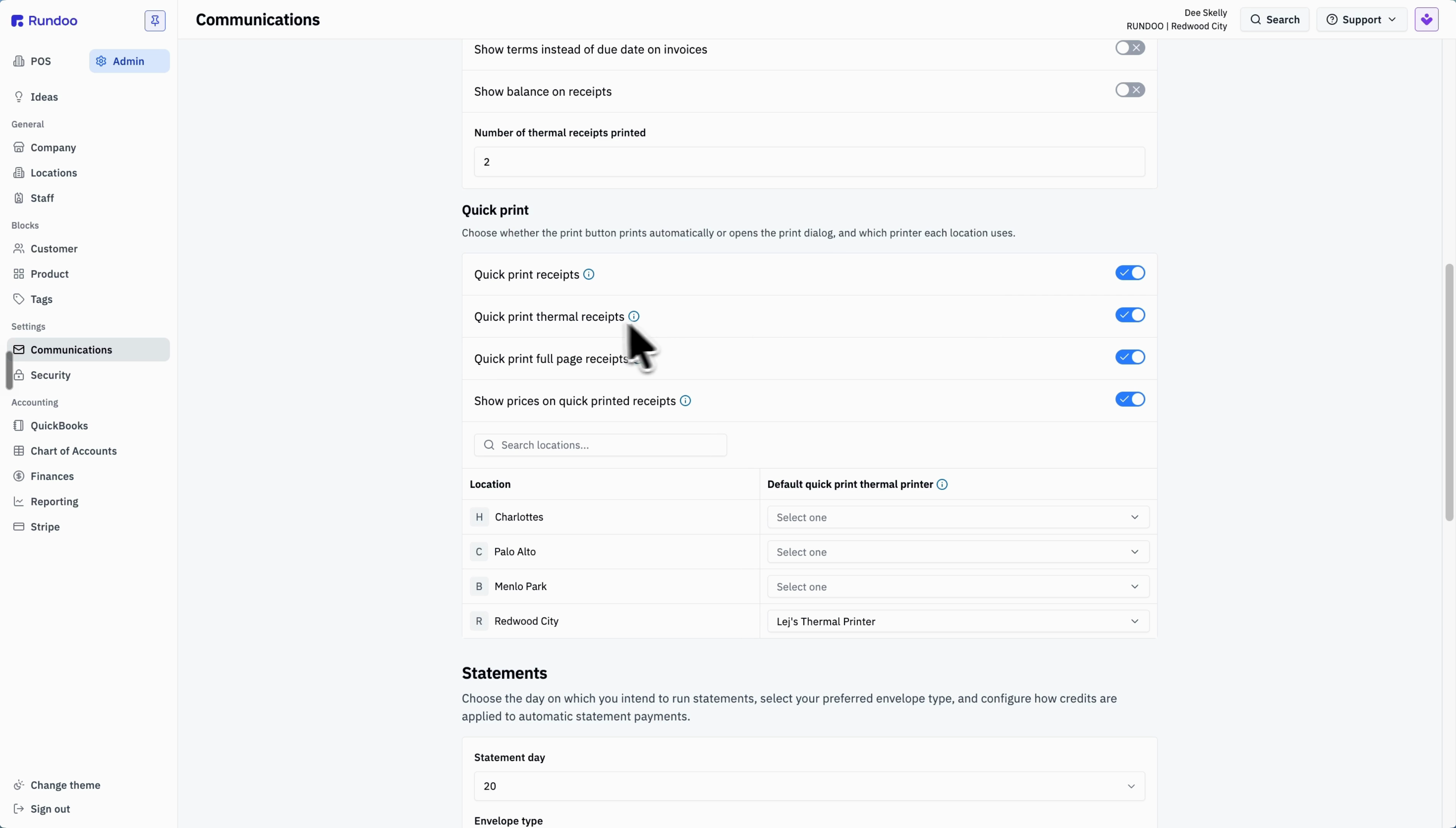
Under Printing, look at Number of thermal receipts printed. It often starts at two, one for the customer and one for you. If you only need the customer's copy, set it to one.
In the Quick print section, turn on Quick print receipts. That is the master switch, and it is what makes your receipts print on their own.
Turn on Quick print thermal receipts for that slip at the counter (leave Quick print full page receipts off unless you want a full sheet). Then choose whether to Show prices on quick printed receipts. You are telling Rundoo, once, exactly how you want a receipt to come out.
Find your location in the table and pick your printer under Default quick print thermal printer. The dropdown only lists printers that are connected, so if you do not see yours, that is the thing to sort out first. This one is per location, so each store points at its own printer.
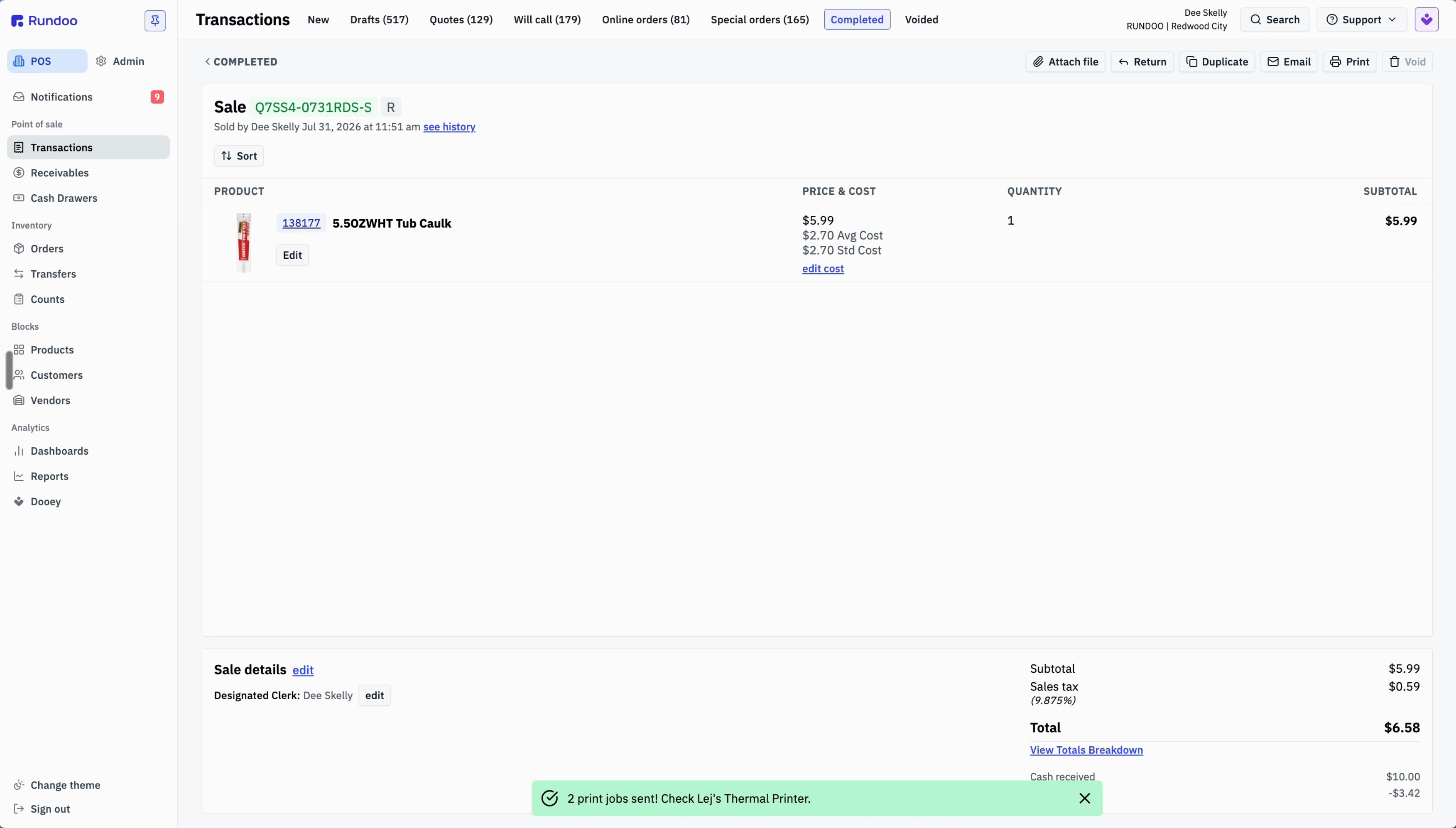
Ring up a sale and take payment. On a brand-new sale, Rundoo still shows you a quick confirmation on purpose, so you always get a look before it prints, but nothing is left to choose. It is already set the way you wanted. One tap on Print and you are done. On reprints, quotes, and will calls, it prints straight away, no pop-up at all.
Where
Admin › Settings › Communications
Printing and Quick print sections
Master switch
Quick print receipts
Turns auto-printing on
Copies
Number of thermal receipts printed
Set 2 to 1 for customer-only
Printer
Default quick print thermal printer
Per location, connected printers only
Good to know