Orders email
Under Ordering
One address. The vendor's order desk, not a rep.

Getting Started with Rundoo · Validate Your Data
Check each supplier's order email and account numbers so your POs land right.
Your first purchase order in Rundoo should land in the right inbox the first time, not sit unread in a rep's personal email or bounce because a co-op never got your account number. This is a quick, before-you-go-live spot-check of your main suppliers. You are not fixing anything here. You are eyeballing a few key fields, and flagging anything that looks off so your Rundoo guide can square it away before you place a real order.
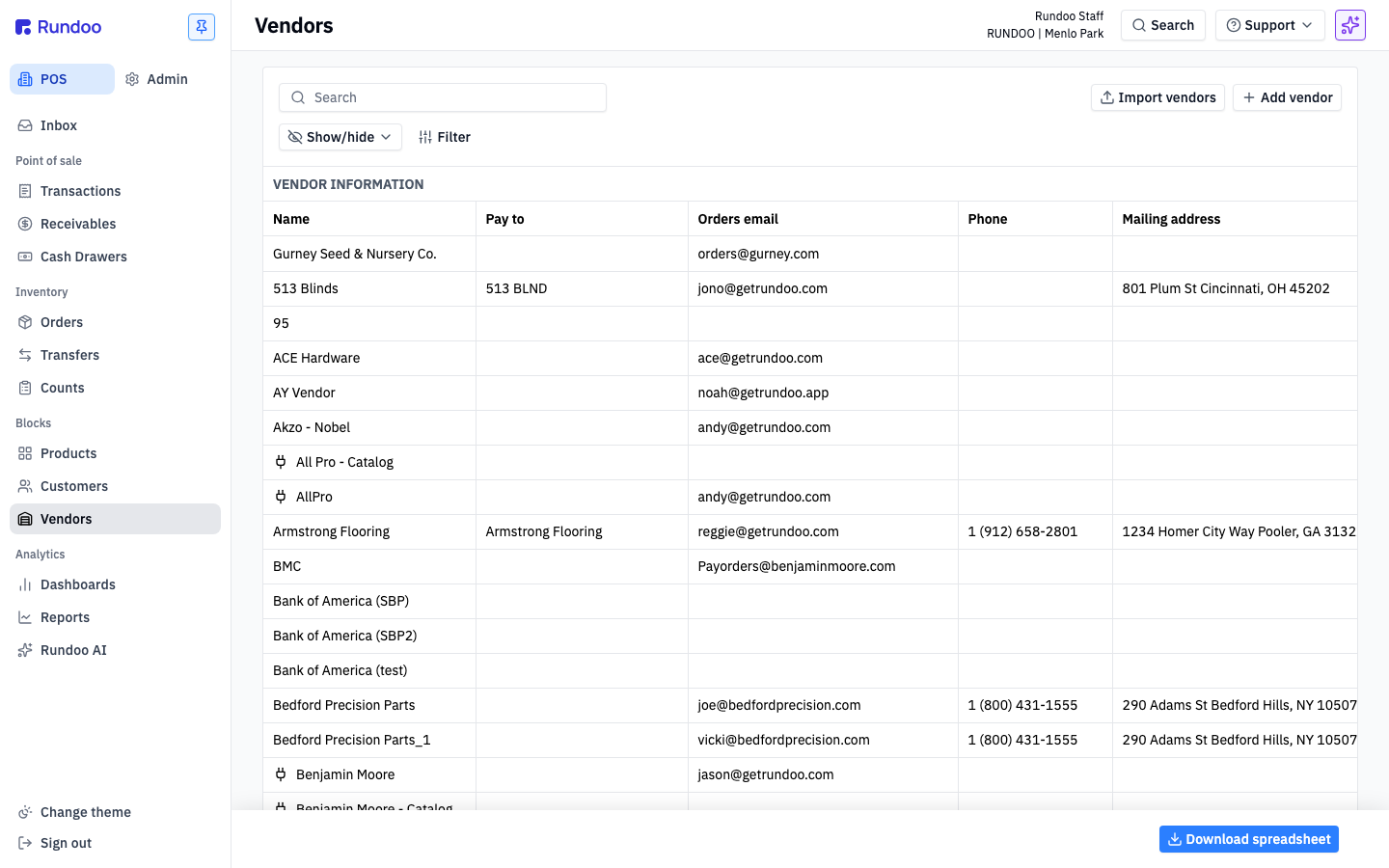
In POS mode, click Vendors in the left sidebar. This is the list of every supplier you buy from. You do not need to open all of them. Pick the handful you order from every week, your paint line, your main co-op or distributor, and check those.
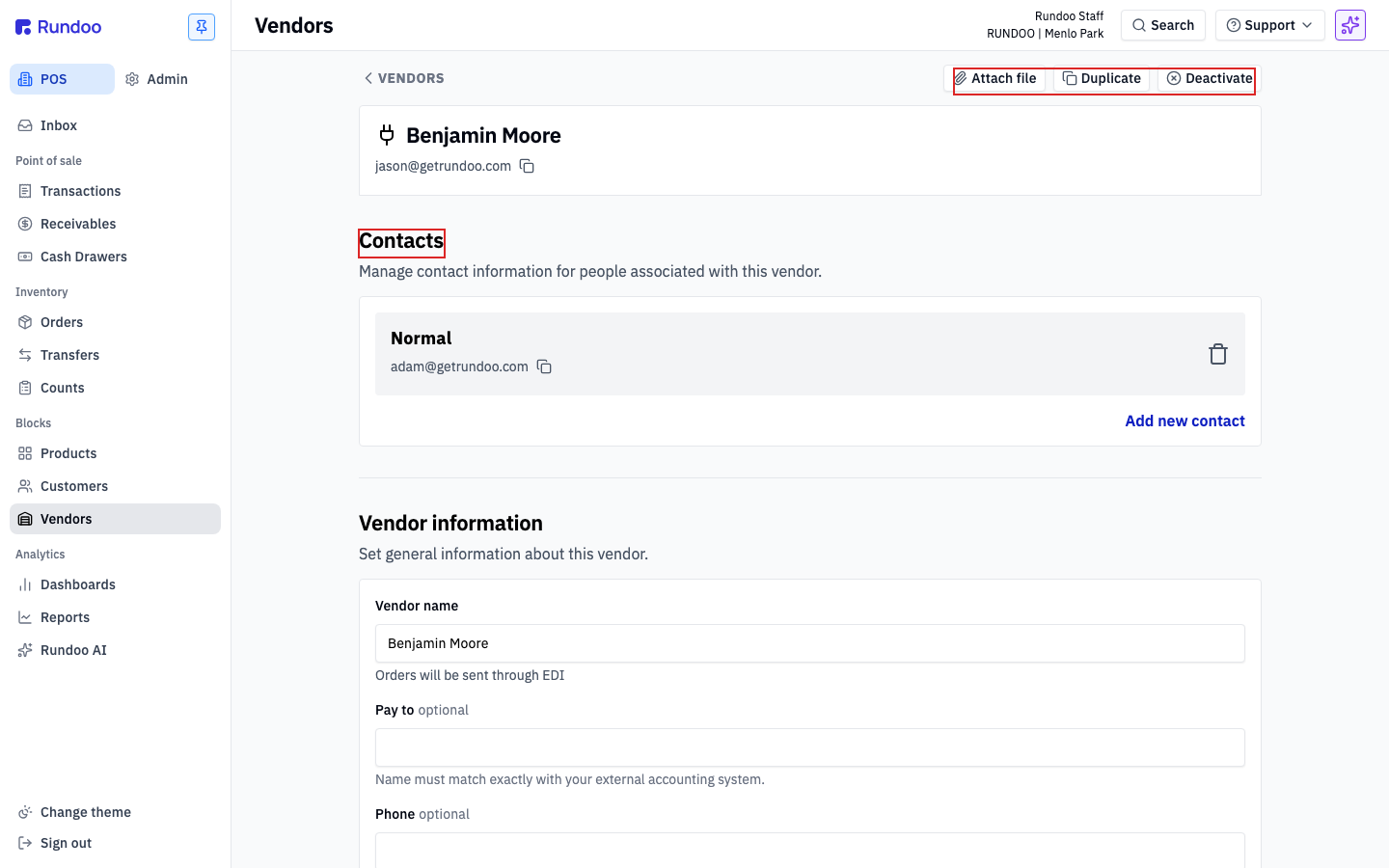
Click the vendor's row to open their detail page. The header shows the vendor name and their orders email, with an action cluster top-right. Below it the page stacks a few sections that each save on their own, the ones you care about today are Ordering, Vendor information, and Vendor settings.
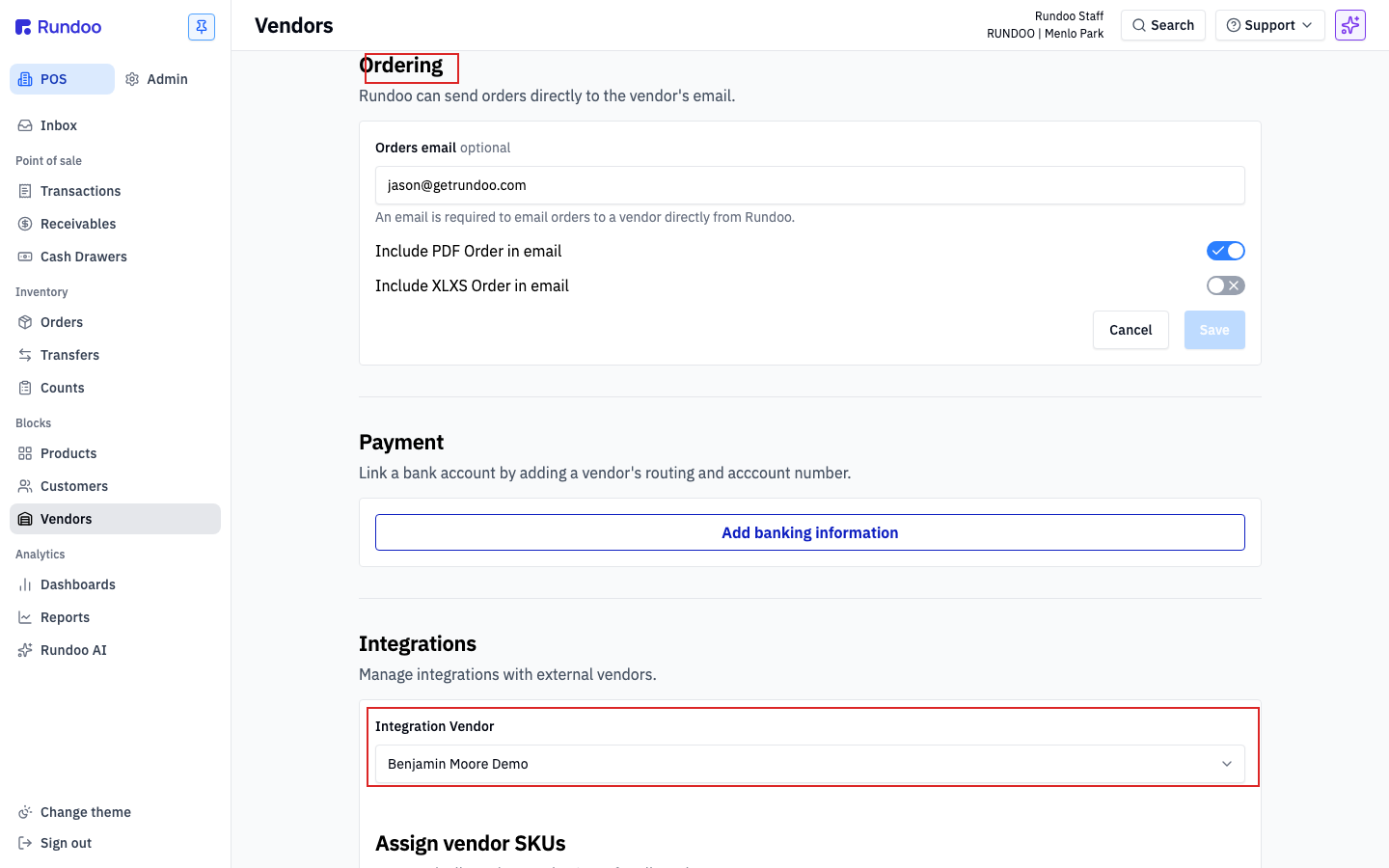
Scroll to the Ordering section and look at the Orders email. This is the single address Rundoo sends your purchase order to when you submit an order. Make sure it is the vendor's actual order desk, not your sales rep's personal email. That mix-up is common, and it leaves an order sitting in the wrong inbox with nobody working it.
Next, see if this is a supplier you order from electronically, a co-op or major distributor like Do it Best or Orgill. The tell is a line reading Orders will be sent through EDI under Vendor information, plus a small plug icon up in the header. If you see it, this vendor's orders go out over a live connection, which is why the next step matters.
For a connected supplier, scroll to Vendor settings. That is where your account number lives, one for each of your locations, because that is how the supplier knows which store an order is for. Make sure every location has its number filled in. If one is missing, your electronic orders to that store may not go through.
You may notice the per-location Edit button is greyed out on a connected vendor. That is on purpose. Rundoo maintains those account numbers so the connection can't break, so you won't be able to change them yourself, and you don't need to.
Found a wrong orders email or a missing account number? Do not fix it yourself, and do not send a test purchase order to check the connection. A test PO can trigger a real shipment. Instead, use the Ask a question box right under this video. Type exactly what's wrong, the vendor name and the issue, and send it. It goes straight to your Rundoo guide to fix before you go live. You flag it, we take care of the rest.
Orders email
Under Ordering
One address. The vendor's order desk, not a rep.
Connected?
Under Vendor information
Look for "Orders will be sent through EDI."
Account numbers
Under Vendor settings
One per location for connected suppliers.
Something off?
Ask a question box
Flag it. Never send a test PO.
Good to know