Area
Per square foot (L × W)
Plywood, flooring, countertops.

Ring up a cut-to-size order and let Rundoo total every piece.
Some of what you sell doesn't ring up as one neat quantity. It gets cut to size, piece by piece, each one a little different, and priced by the foot or the square foot. A Tally product is something you sell in cut pieces of all different sizes under one line. You add it to a sale, Rundoo opens a calculator right there, you punch in how many pieces and what size, and it works out the footage and the price and lists every cut underneath. No calculator at the counter, no second-guessing.
Turning Tally on is a one-time setup on the products you cut to size. You can do it by hand (below), use the bulk uploader to change several at once, or just ask Dooey. Tally rides on top of how a product is already priced, so the product should already sell by the square foot or the foot before you switch it on.
Open the product and go to Settings. Scroll down to Tally and toggle it on. A module opens up where you choose the Tally type.
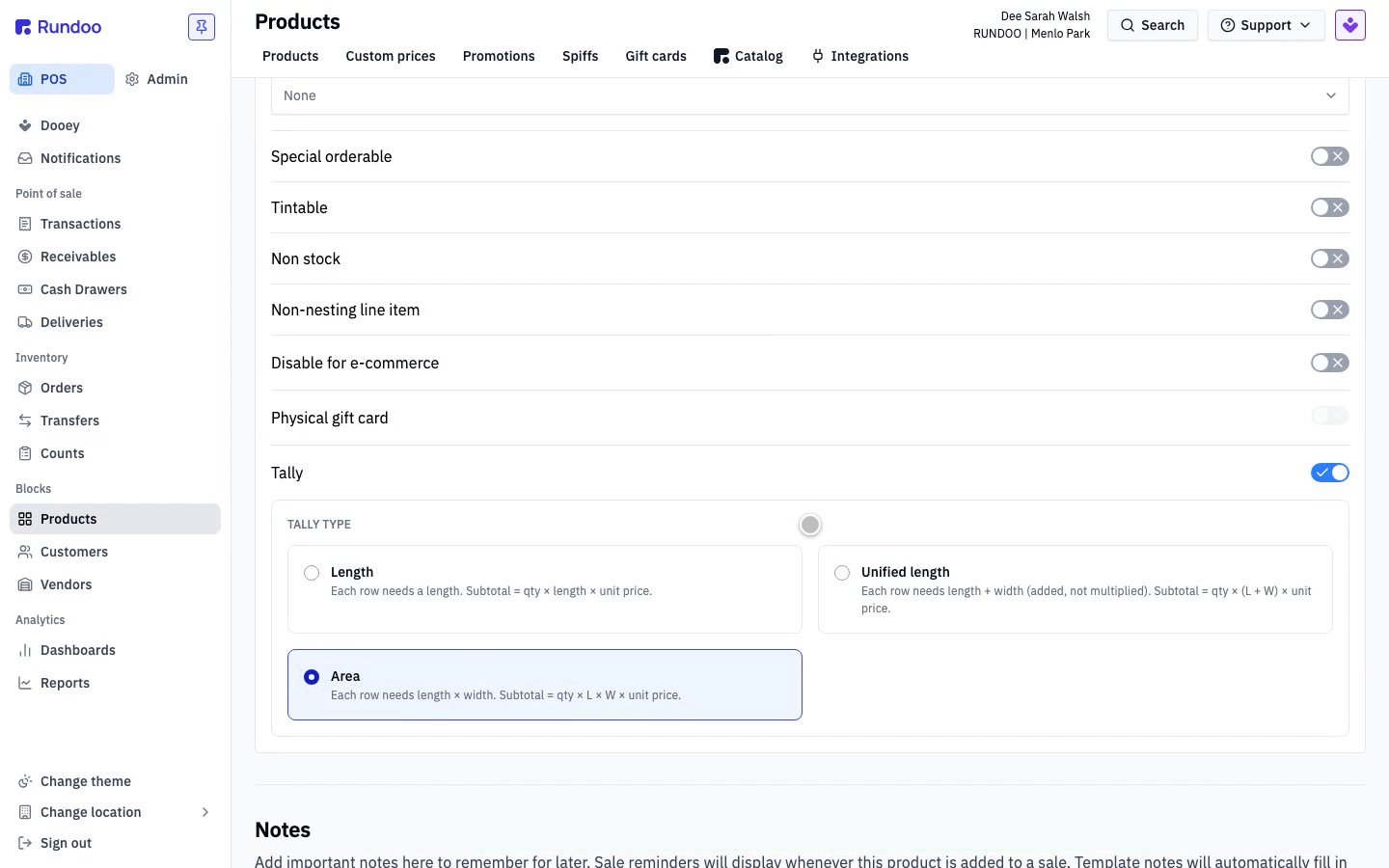
The type you pick is simply how you already price that product. Area is for anything sold by the square foot, like plywood, flooring, or countertops (length times width). Length is for things sold by the running foot, like metal roofing, dimensional lumber, gutter, or pipe (one measurement a piece). Unified length is the glass trade's united inches, length and width added instead of multiplied, for cut mirror and glass.
Plywood sells by the square foot, so we choose Area.
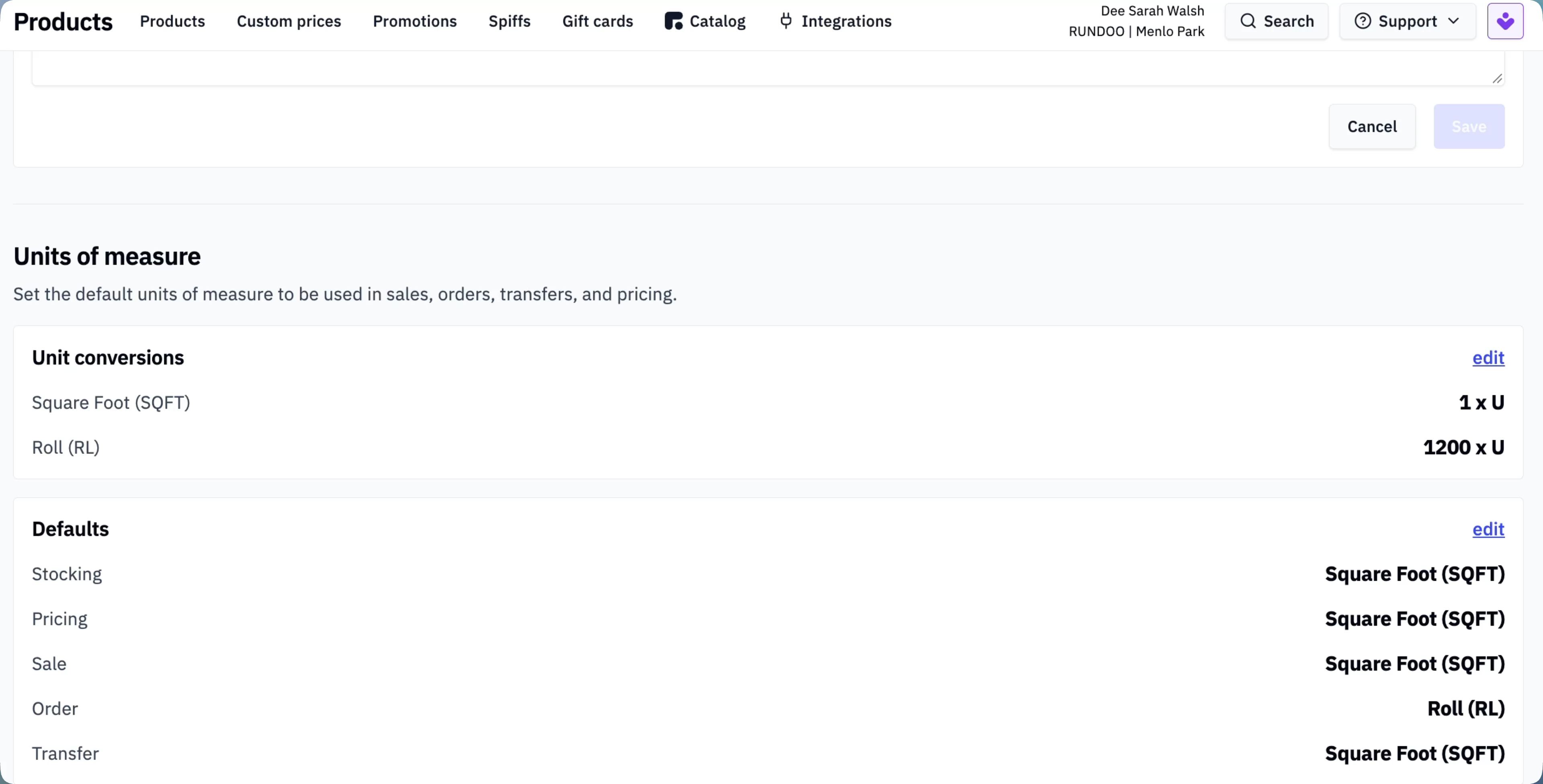
Because Tally rides on top of how a product is priced, make sure the selling unit is set before you rely on it. For this plywood the units of measure are already set to Square Foot, which is exactly what Area needs. If a product isn't priced by the square foot or the foot yet, set that up first.
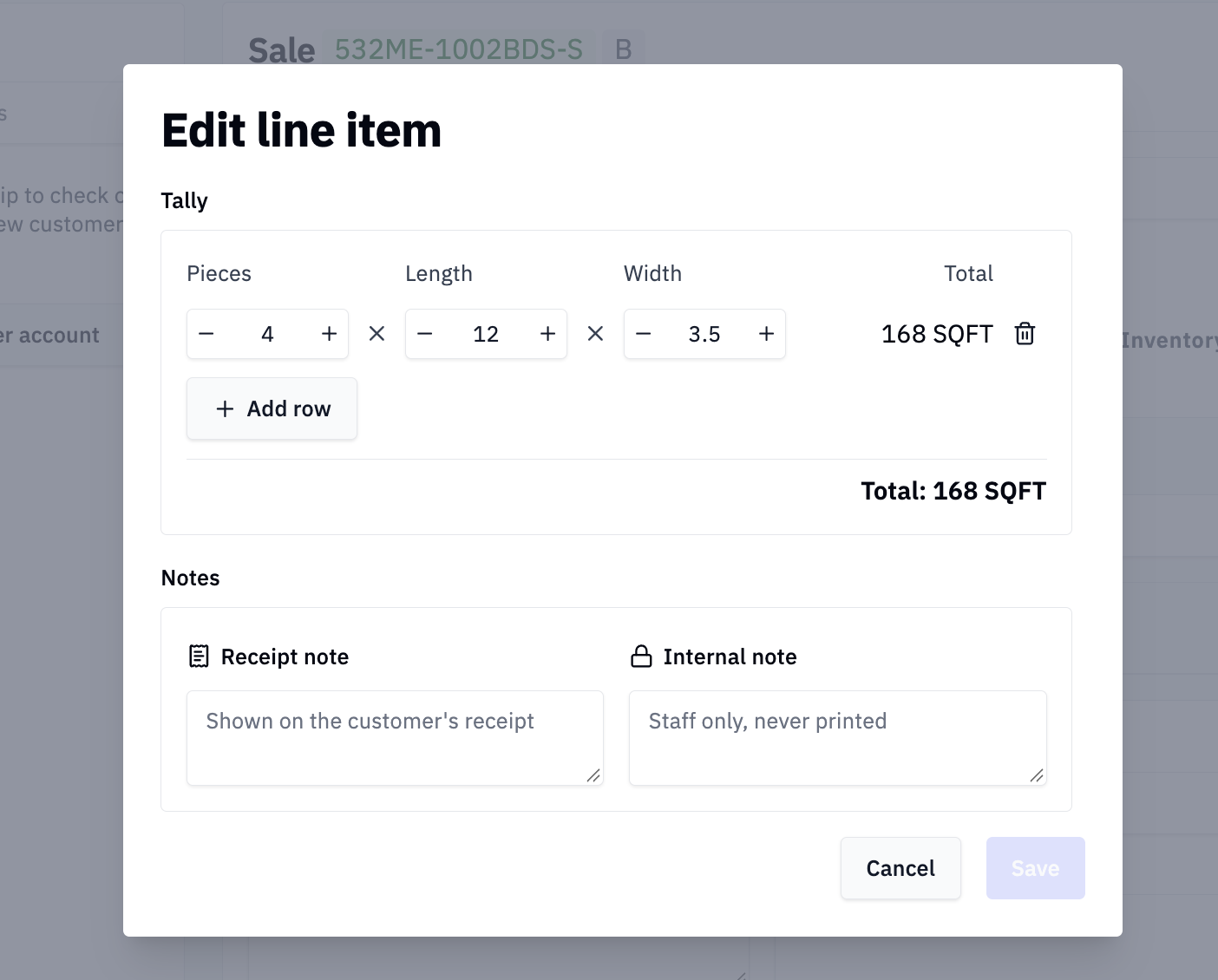
Add the product to a sale like any other item. Because it's a Tally product, the Tally box pops open so you can input the exact cuts. Enter Pieces, Length, and Width for a size, and use Add row for each different size. Rundoo keeps a running total as you go.
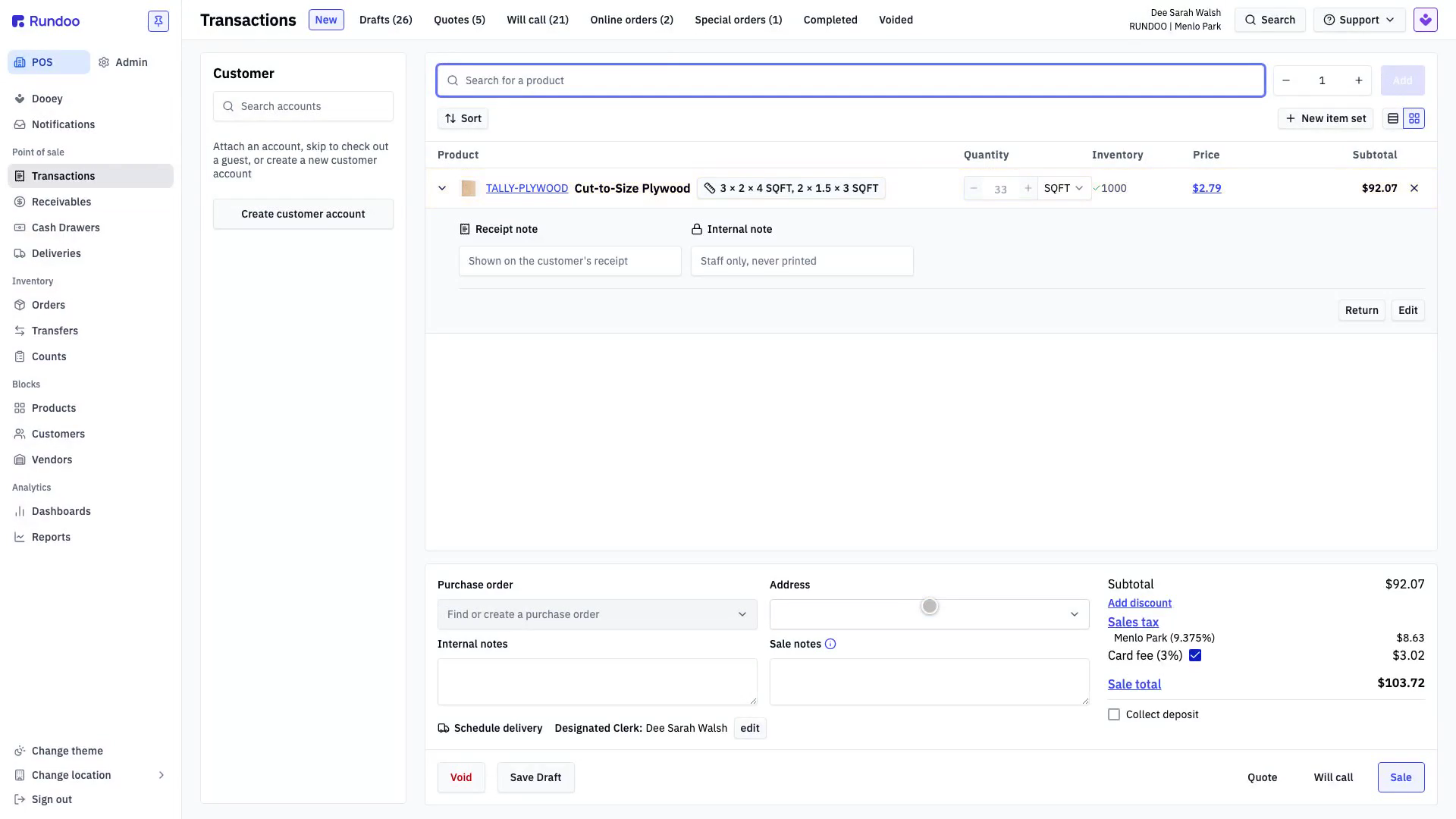
Rundoo works out the square footage and the price and lists every cut underneath that one line item. The line shows the total footage and subtotal with the per-piece breakdown right beneath, so whoever runs the saw has the exact sizes and the price is always right.
Area
Per square foot (L × W)
Plywood, flooring, countertops.
Length
Per foot (one measurement)
Metal roofing, dimensional lumber, gutter, pipe.
Unified length
Per united inch (L + W)
Cut mirror and glass.
First
Set the units of measure
Price by the square foot or the foot before you turn Tally on.
Good to know