The app
Rundoo POS (blue icon)
The black icon is the customer app.

Getting Started with Rundoo · Unboxing
Watch your revenue and every location from the Rundoo POS app on your phone.
You can't stand at the counter every minute of the day, but you still want to know how things are going. What did we sell today? What's in the bank? Is that other store having a good afternoon? The Rundoo POS app puts all of it in your pocket. Think of it as a window into your store from anywhere, not the register itself. You won't ring up sales here. What you will do is keep an eye on things from the truck, the supplier's counter, or your own kitchen table.
Search Rundoo in the App Store or Google Play and you'll see two apps. The one for you and your team is Rundoo POS, the blue icon. The black one is the separate customer app, and that's a different video. Get the blue one.

One thing has to happen first: you need a Rundoo login. Your Rundoo guide sets that up with you during onboarding, added under Staff. And to open straight onto your numbers, your login needs the analytics permission. Without it, the app opens on the transactions screen instead.
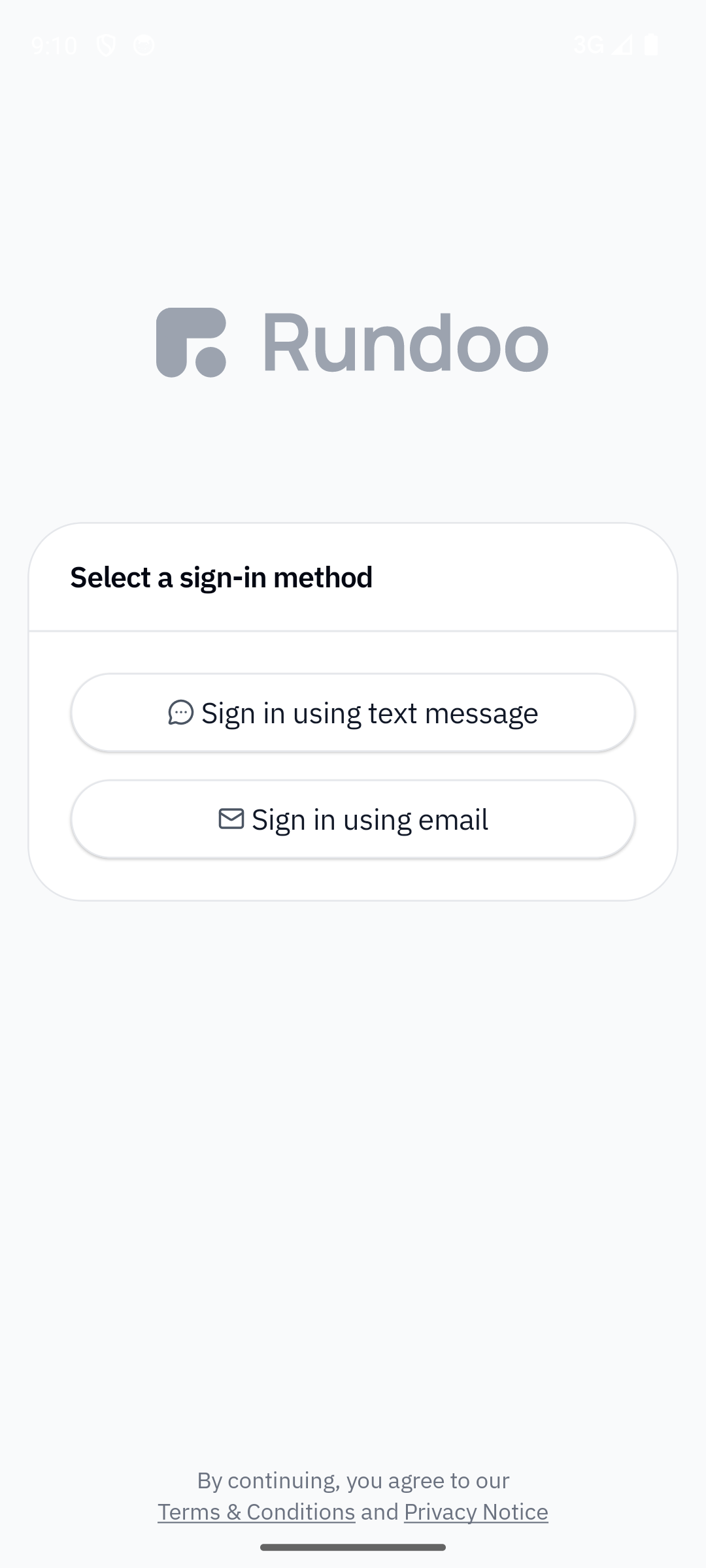
Open the app and tap Sign in using text message. Enter your cell phone number. Rundoo texts you a six-digit code, you punch it in, and you're in. There's no separate password to keep track of.
If your login has the analytics permission, the app opens on Home, scoped to today by default. You'll see revenue and gross profit right at the top. Tap the Today chip to change the time window, and tap Revenue or Gross profit to switch which number the donut chart is showing. It's the same reporting you get on the web, just sized for your phone.
If you run more than one store, scroll down and each location is on its own line. Tap any location to focus right in on that store's report. It's how you check who's having a big day and who's a little slow, without calling around.
The same powerful search you have on the web is right here. Type, or just say, a product, a customer, a past sale, or an order, and Rundoo pulls it up. So when a regular calls and asks whether you have something in stock, you can answer them from the aisle without walking back to a computer.
Pull up a customer and drop a note right from wherever you are, something like "wants the deck stain matched Thursday." It shows up for whoever's at the counter back at the store, so nothing falls through the cracks between you and your team.
Here's the one a lot of folks end up loving. Walk the aisle, open a count, and scan products with your phone's camera. The counts land straight in Rundoo, no clipboard and no typing it up later. It's how you keep your inventory accurate without closing the store to do it.
You can also see your Rundoo-managed bank balance, the account you set up during Go-Live, right alongside everything else. Your sales and your cash position, in the same pocket.
The app
Rundoo POS (blue icon)
The black icon is the customer app.
Sign in
Text message + 6-digit code
Your cell number. No password.
Opens on
Home dashboard
If your login has the analytics permission.
Watch
Revenue · Gross profit
Any date range, every location.
Good to know