Where
Top right of the payment panel
The Split payment button, after you click Sale.

Getting Started with Rundoo · Transactions
Take part of a sale on one payment method and the rest on another.
It happens every day at the counter. A customer gets to the total and asks, "Can I put some of this on a check and pay the rest in cash?" With Rundoo, the answer is always yes, and it rings up as one sale on one receipt. This is called a split payment, and once you have done it once you will reach for it without thinking.
You ring the sale up exactly like any other. When you click Sale at the bottom right, the payment panel slides in with your tender methods. Up in the top-right corner of that panel is the Split payment button. That is the whole trick, so once you spot it there you are already most of the way home.
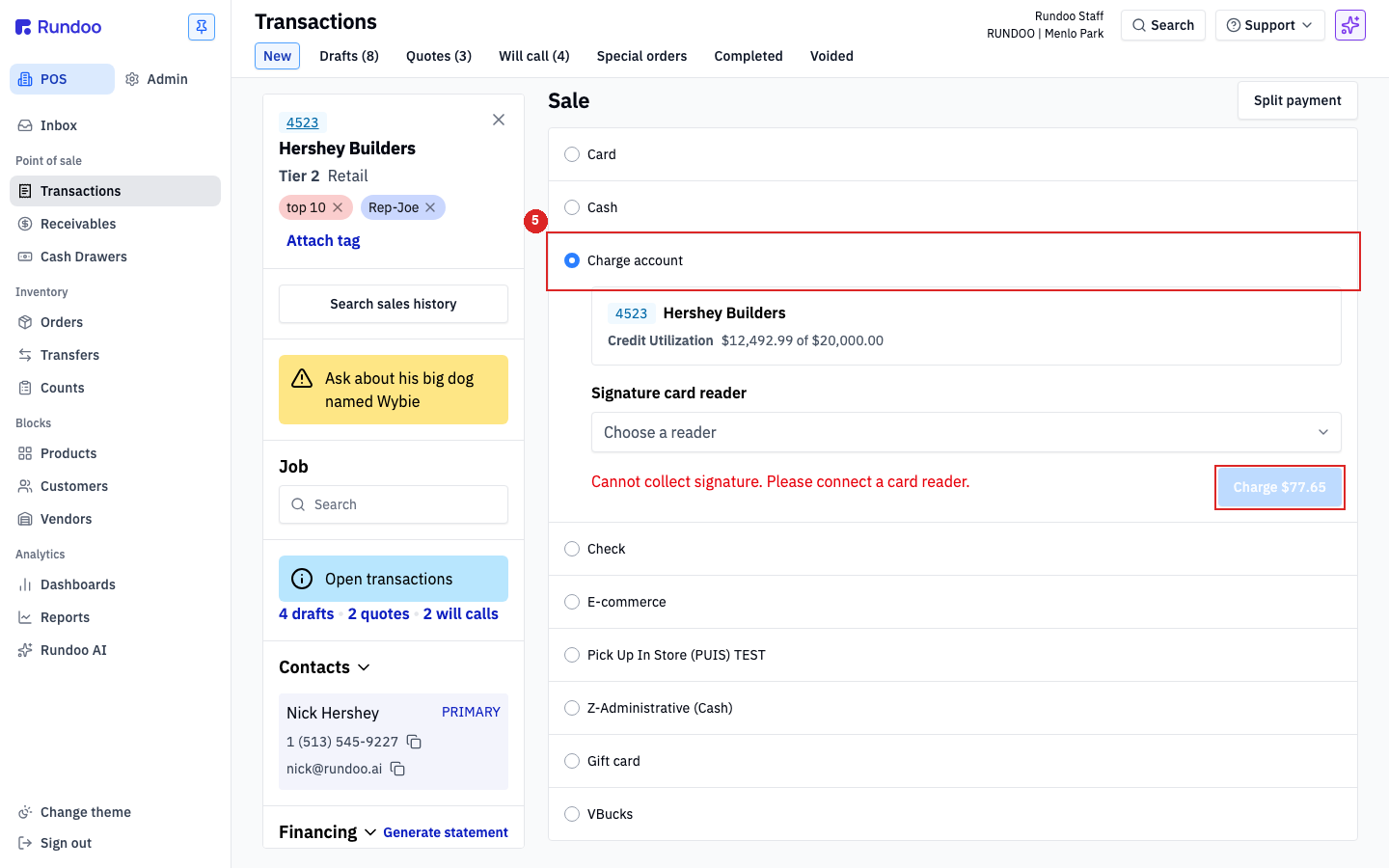
Add your items to the cart and attach a customer if you need one. Say the total comes to $120.85. When you are ready to take payment, click Sale at the bottom right to open the payment panel.
Look to the top-right corner of the payment panel and click Split payment. Rundoo now walks you through the sale one tender at a time. Clicked it by accident? You can back out, so no harm done.
Type the amount for the first tender into the amount box, say 100 on a check. Select Check as the method, then enter the Check number in the field that appears. Click the blue Charge button to lock in that first part.
Rundoo confirms the first payment and shows you exactly what is left, no calculator on the side of the register needed. With $20.85 remaining, type 20.85 in the amount box, select Cash, and click Charge to finish the sale.
That is it. The completed sale and the receipt both spell out each tender on its own line, Check $100.00 and Cash $20.85, so your records stay straight without any extra work from you.
Where
Top right of the payment panel
The Split payment button, after you click Sale.
How it works
One tender at a time
Enter an amount, pick a method, Charge. Repeat.
The math
Rundoo tracks the balance
It shows what is left after each part.
The receipt
Every tender, its own line
Automatic. Nothing to configure per sale.
Good to know