Flag the product
Products → Settings → Checkout
Turn on Special orderable. Needs 0 on hand.

Getting Started with Rundoo · Setup
Special-order any item, take a deposit, and close it out at pickup.
You know the moment. A customer wants something you don't keep on the shelf, but you know you can get it for them. That is a special order, and it is different from a will-call, where you set aside something you already have. Rundoo keeps the whole thing tied together on one ticket: the customer, the deposit, the vendor order, and the final payment at pickup. Here is the loop, start to finish.
A special order begins with a flag on the product itself. In POS, open the Products tab, pick the product, go to the Settings top tab, and scroll to the Checkout card. Flip Special orderable on. You only do this once per product, and it stays on until you turn it off.
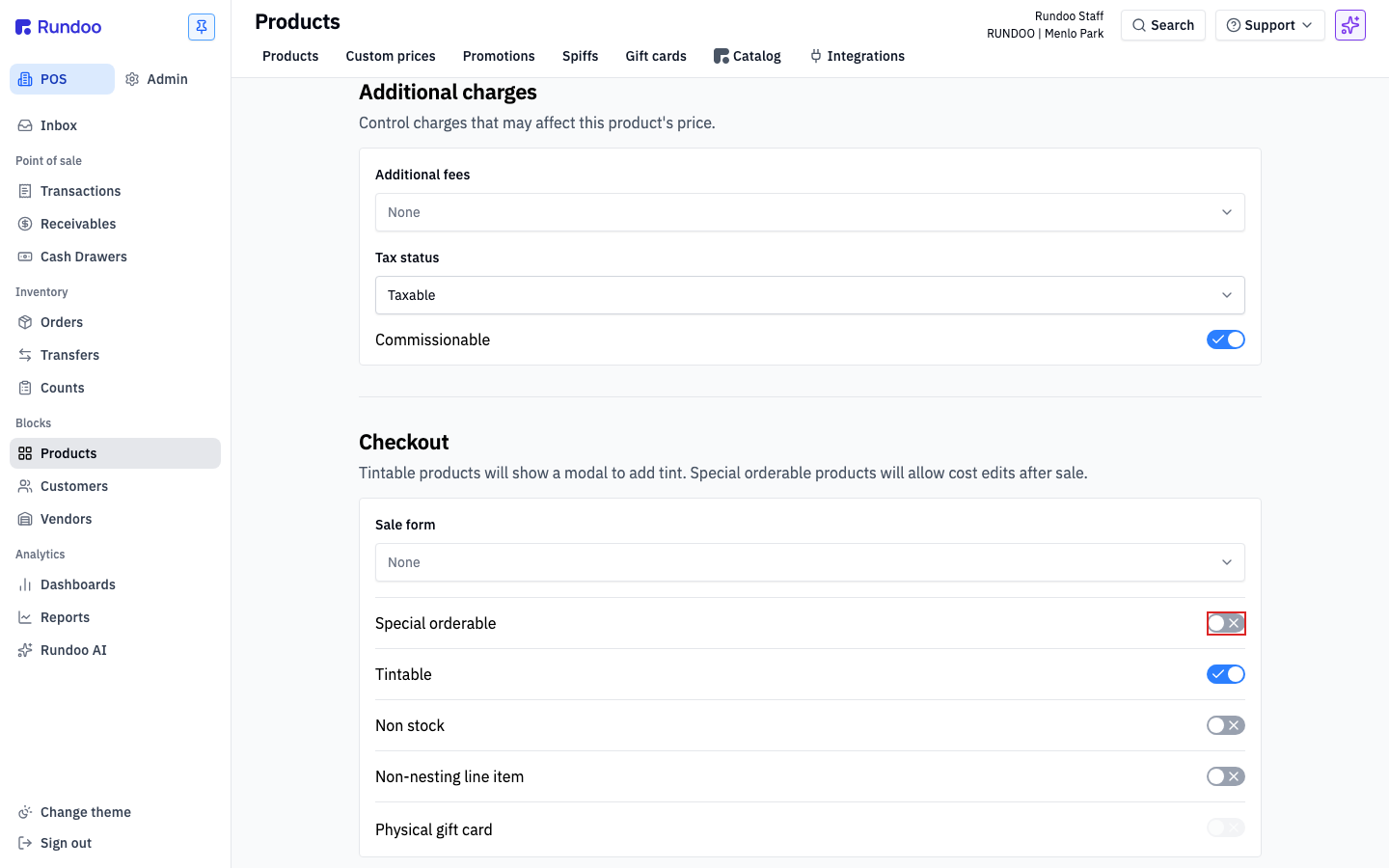
One catch worth knowing: the toggle only flips when the product has 0 On Hand and 0 Committed inventory. If either is above zero, the switch is greyed out until the stock clears.
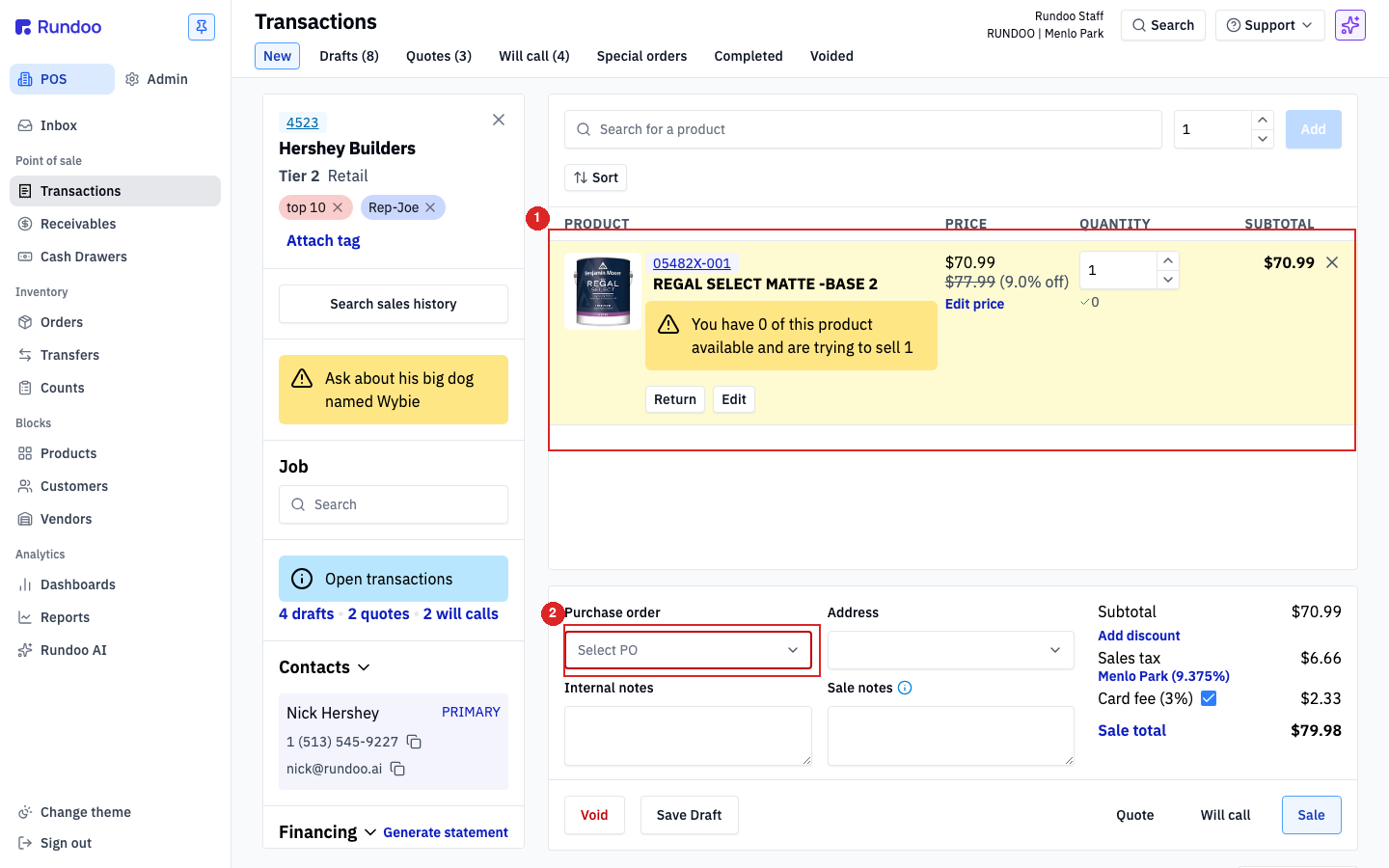
In Transactions, start a New sale and attach the customer first. Search for the special-orderable product and add it. Because you have none on hand, Rundoo flags the line (something like "You have 0 of this product available") and keeps it on the ticket as a special order instead of stopping you.
This is the heart of it. On the cart, open the Deposit control and Rundoo shows an Edit deposit panel. It starts at your store's default (Rundoo ships this at 50% of the special order total), and you can change it to any percentage or a flat dollar amount. Toggle whether tax and fees ride along, and Rundoo works out the Deposit due today for you.
Click Save, then tender the deposit like any payment (cash, card, check, or on account). It all rings up as one sale and one receipt, so the customer walks away with the deposit paid and the balance clearly waiting.
Now your buyer takes over. In POS, open Orders and go to the buyer's list of special-order products. This is the whole-store view of every line waiting to be ordered, filtered to Needs order. Check the box on the line, then click Create new order to build a purchase order for the vendor (or Add to existing order to tack it onto a PO already in draft).
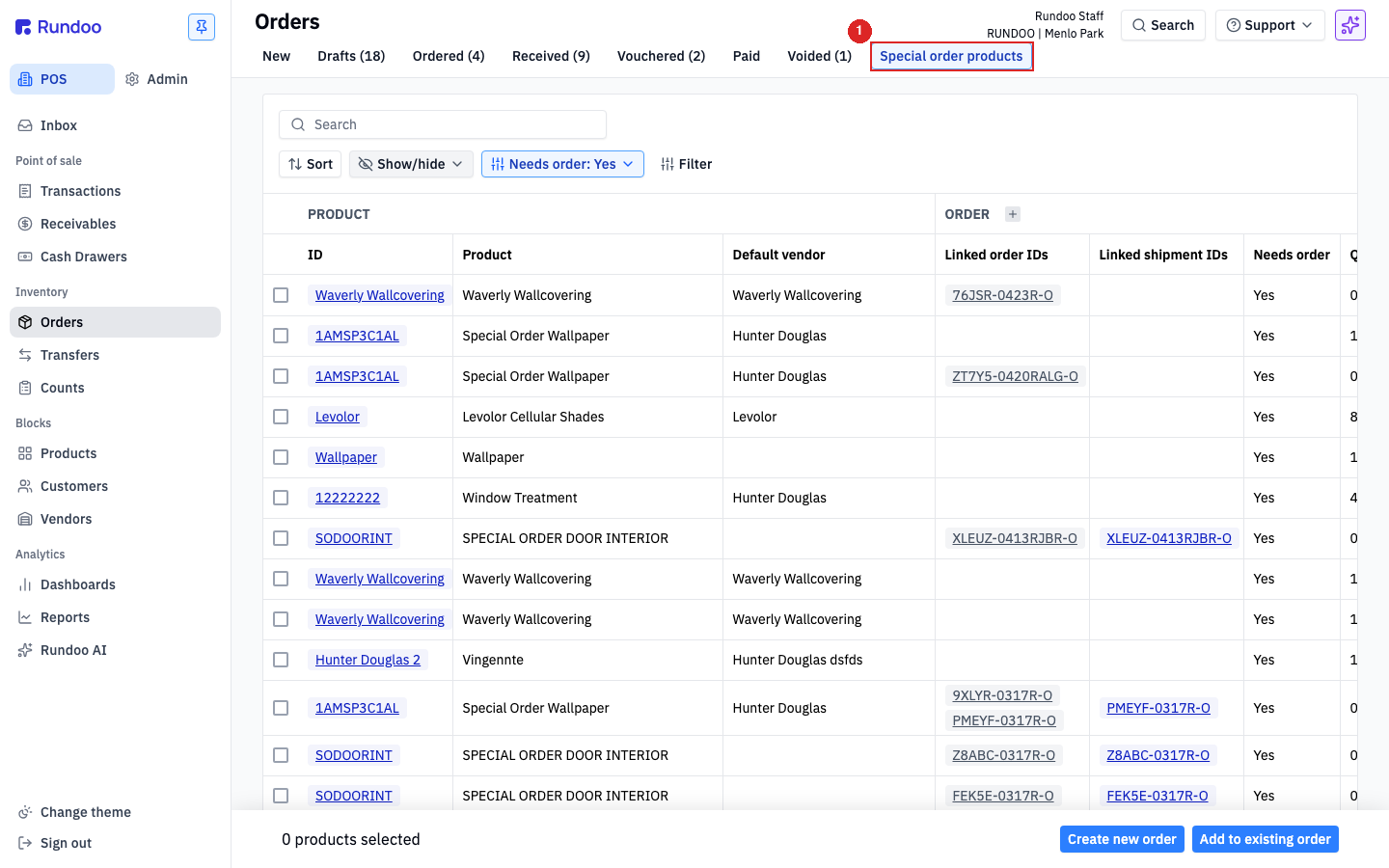
This is what Rundoo calls Linked Sales and Orders: the counter side and the buyer side stay in sync, so when the PO is received, the customer's ticket updates right along with it.
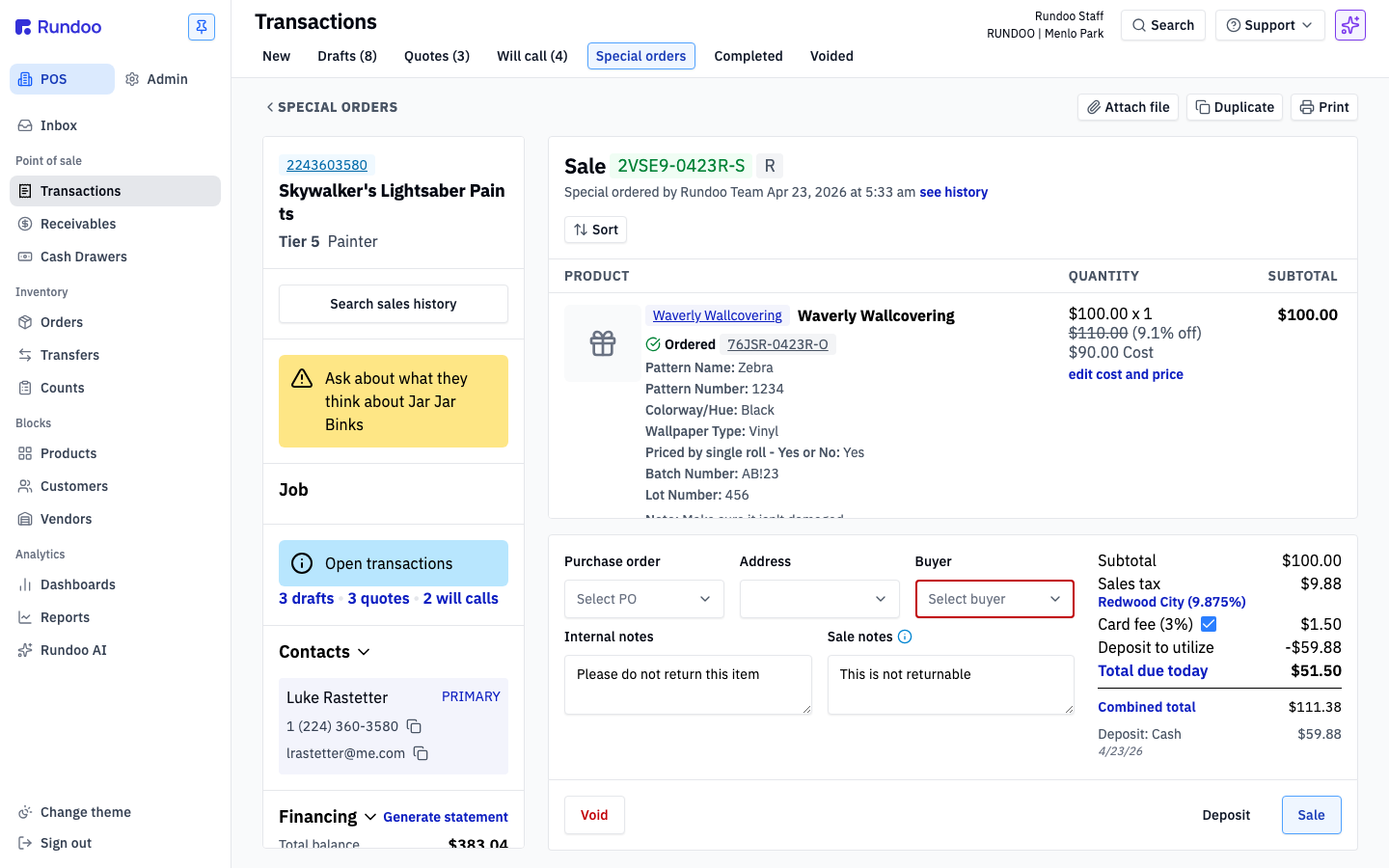
When the goods land, the ticket's status flips to Received. Rundoo does not auto-notify anyone, so give the customer a call, text, or email to come get it. When they arrive, open the order from Transactions → Special orders, confirm it matches, and click Sale.
The deposit they already paid shows as Deposit to utilize and comes right off the Total due today. Take the final payment, hand over the product, and the loop is closed.
Flag the product
Products → Settings → Checkout
Turn on Special orderable. Needs 0 on hand.
Take the deposit
Deposit control on the cart
Default 50%. Change to any % or dollar amount.
Order it
Orders → Create new order
Buyer sends the PO from the special-order list.
Pick it up
Transactions → Special orders → Sale
Deposit comes off the total due today.
Good to know