Where
POS › Analytics › Dooey › Agents
Same list to build, edit, or pause one later.

Getting Started with Rundoo · Dooey
Set up a Dooey agent that reviews the day and texts you what to notice.
It's the end of the day. You're locking up, and that question hits: what did I miss? Maybe it was an odd discount, a regular who bought something new, or a big sale your team handled while you were in the back. You can't be everywhere at once. An agent is Dooey set up to run on its own, so instead of remembering to ask, you teach Rundoo to check for you on a schedule and text you the answer. Think of it as your night manager, reviewing the day while you head home and telling you what to notice in the morning.
You may already know the Chat side of Dooey, where you sit down and ask a question. An agent is the other half: same model, same data, same plain-English prompts, but it runs on a schedule and the answer shows up without you opening the app. Chat is ask-now. Agents are set-it-and-forget-it. When a question is worth asking every single day, that's when you build an agent.
In POS mode, head down the left sidebar to the Analytics group and open Dooey. Up top you'll see two tabs. Click the Agents tab. This list is your home base: every agent in your store shows here with its name, type, status, and scheduled run time. On a fresh store it may be empty, and that's fine.
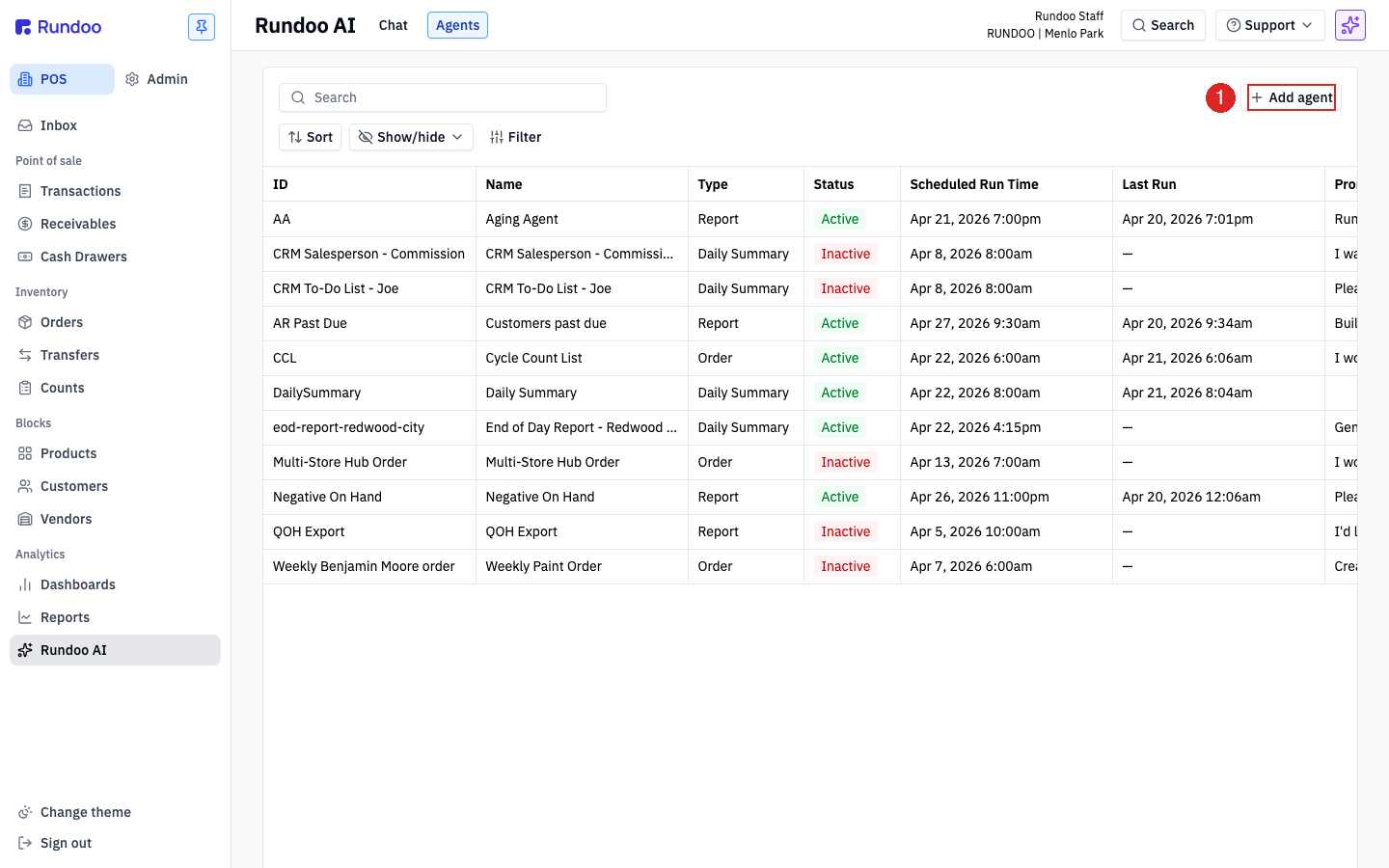
Tap + Add agent in the top-right corner. A modal opens with the fields you'll fill in. There are no templates or presets here, you write it yourself, and it only takes a minute.
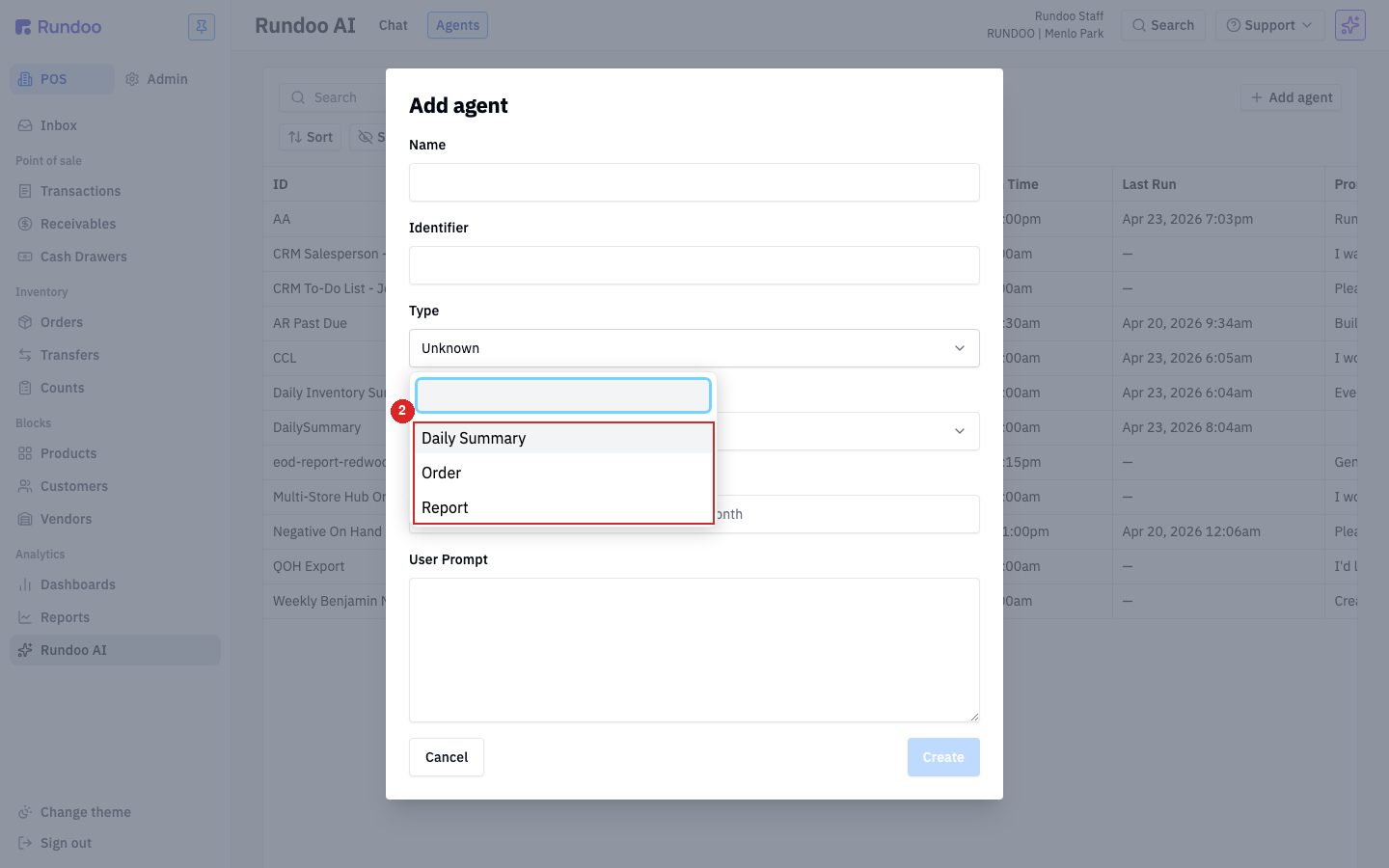
Give it a Name like "Daily AI Summary" and a short Identifier like "DAS" (a 2 to 4 letter shorthand that shows in the list's ID column). Then pick a Type. You get three choices for what the agent produces: Daily Summary, Order, or Report. That's the whole menu. For your first one, pick Daily Summary.
Under Staff, choose who gets the results. Whoever is here gets the text, and only them, so just add yourself to start. Then type the cadence into Schedule in plain English, the way you'd say it out loud: Every day at 6pm. Rundoo reads it and works out the next run time for you.
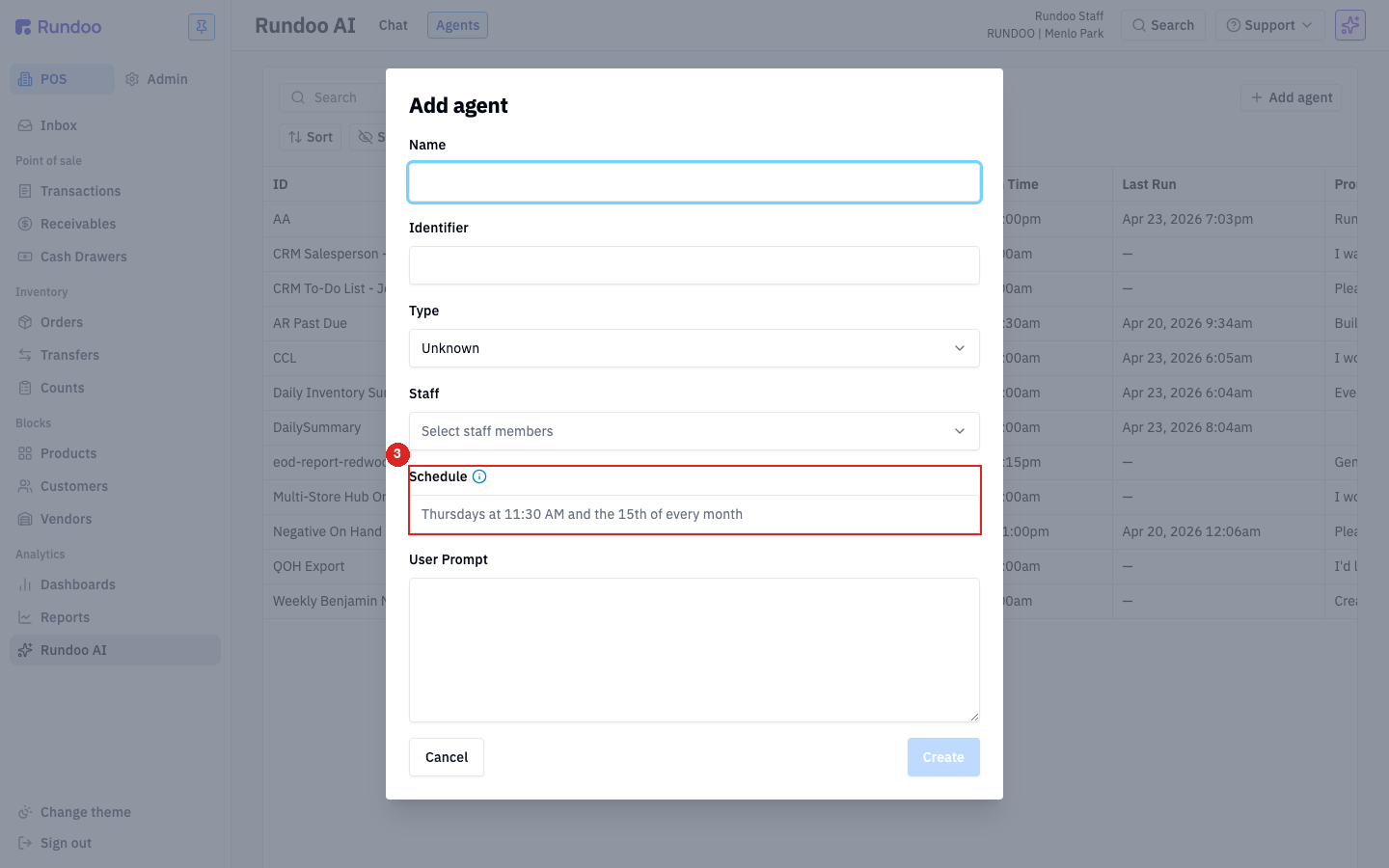
The User Prompt is the agent's whole instruction. Tell it what to look at, what to flag, and how to send it. Keep it concrete, and end with "text it to my phone" so delivery is explicit. A solid starter for the Daily Summary:
"At 6pm each day, review yesterday's sales and flag anything unusual, like low-margin transactions, customers who went quiet, or inventory running low. Text me the top 3 to 5 items with the transaction ID and a one-line reason each."
Once every required field is filled, the Create button in the bottom-right turns blue. Click it. Your new agent lands in the list with Status set to Active and the next scheduled run time already worked out. Remember this is your practice store, so you can build and test freely without touching your real numbers.
You don't have to wait until six o'clock to see it work. Click the agent to open its detail page, then click Run now in the top-right. In a moment you'll get a text with the summary you asked for, with links that take you right to the transaction or item inside Rundoo. The text arrives short on purpose. Tap a link to see the full picture.
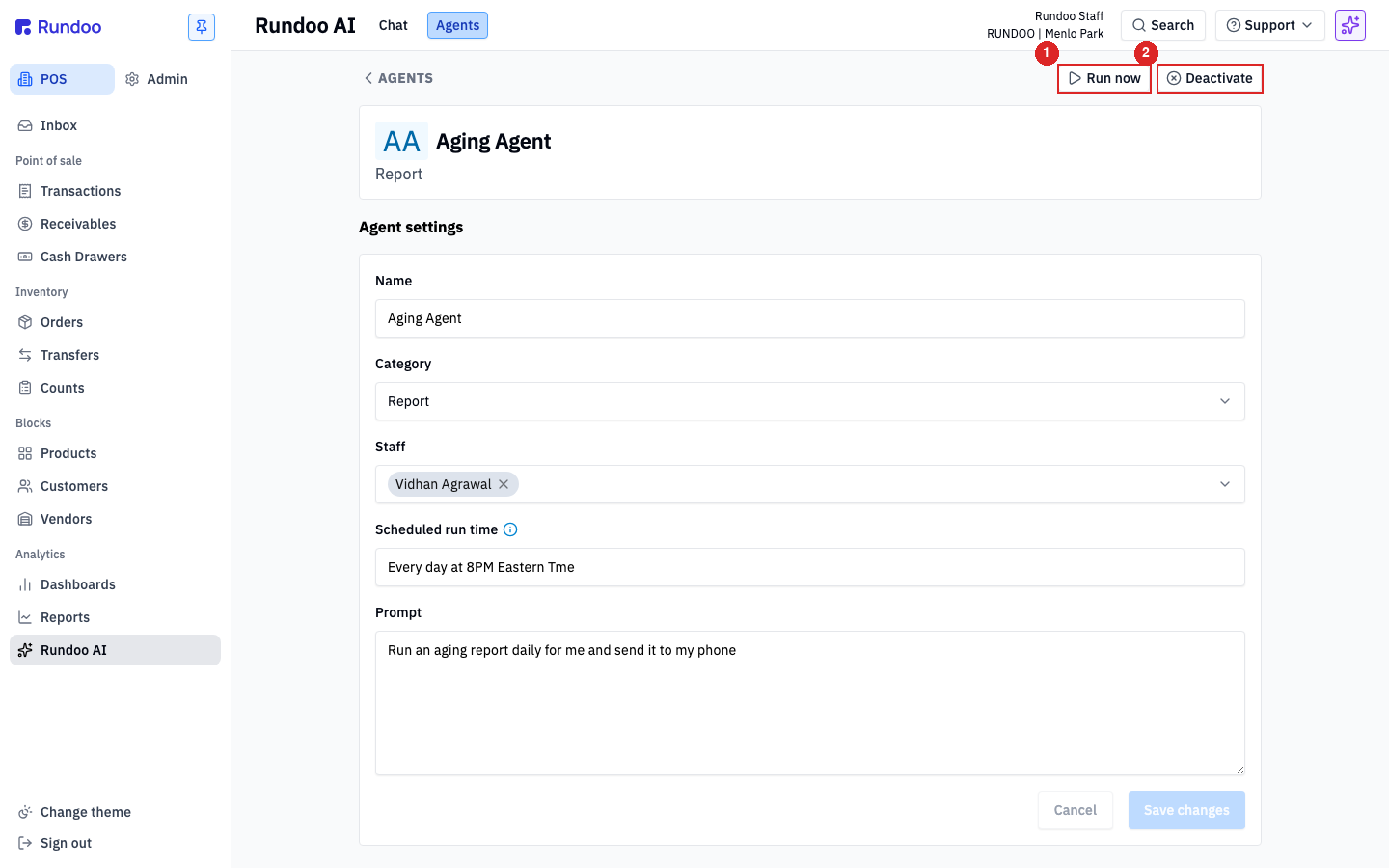
Always treat the text as your starting point, not the final word. Before you act on a dollar figure, tap the link and check it against the matching report or detail page, because AI can miscount. To pause an agent, open it and click Deactivate. It stays saved, ready for you to Activate again later. On the detail page, Type reads as Category and Schedule reads as Scheduled run time, but they're the same fields.
A real payoff, from a real store
Jason, a paint-store owner, got his 6pm Daily Summary one evening and it flagged a sale rung up near cost. He tapped the link and found a clerk had saved a one-time competitive price months earlier that the old system kept applying, week after week. A ten-minute fix recovered more than $4,200 in margin he never would have caught by hand. Roughly ten minutes a day with the summary caught what hours of report-diving hadn't.
Where
POS › Analytics › Dooey › Agents
Same list to build, edit, or pause one later.
Three types
Daily Summary · Order · Report
Pick the shape first, then write the prompt.
Delivery
Assigned Staff's phone
SMS by default. Email via each person's Notifications tab.
Schedule
Plain English
"Every day at 6pm," "Fridays at noon." Specific beats vague.
Good to know