Where they live
POS → Orders → Vouchered
Your one list of unpaid vendor bills.

Getting Started with Rundoo · Accounting
Settle your vendor bills, print a check, and fix a mistake.
It's the end of the week and you've got a stack of vendor invoices to settle. Once you've vouchered a bill, confirming that what showed up on the truck matches what you were billed for, it lands in one to-pay list in Rundoo. This is where you clear what you owe your vendors, one bill at a time, and it's also where you go to fix things when a payment or a sale went in wrong.
In Point of Sale, open the Orders left tab, then the Vouchered top tab. That's your accounts-payable queue: every row is an unpaid vendor bill, sorted by when it was vouchered, showing the vendor, the location, the invoice total, and the count of products on the order. There's no separate payables list anywhere else in Rundoo, so this one tab is the whole picture of what you owe right now.
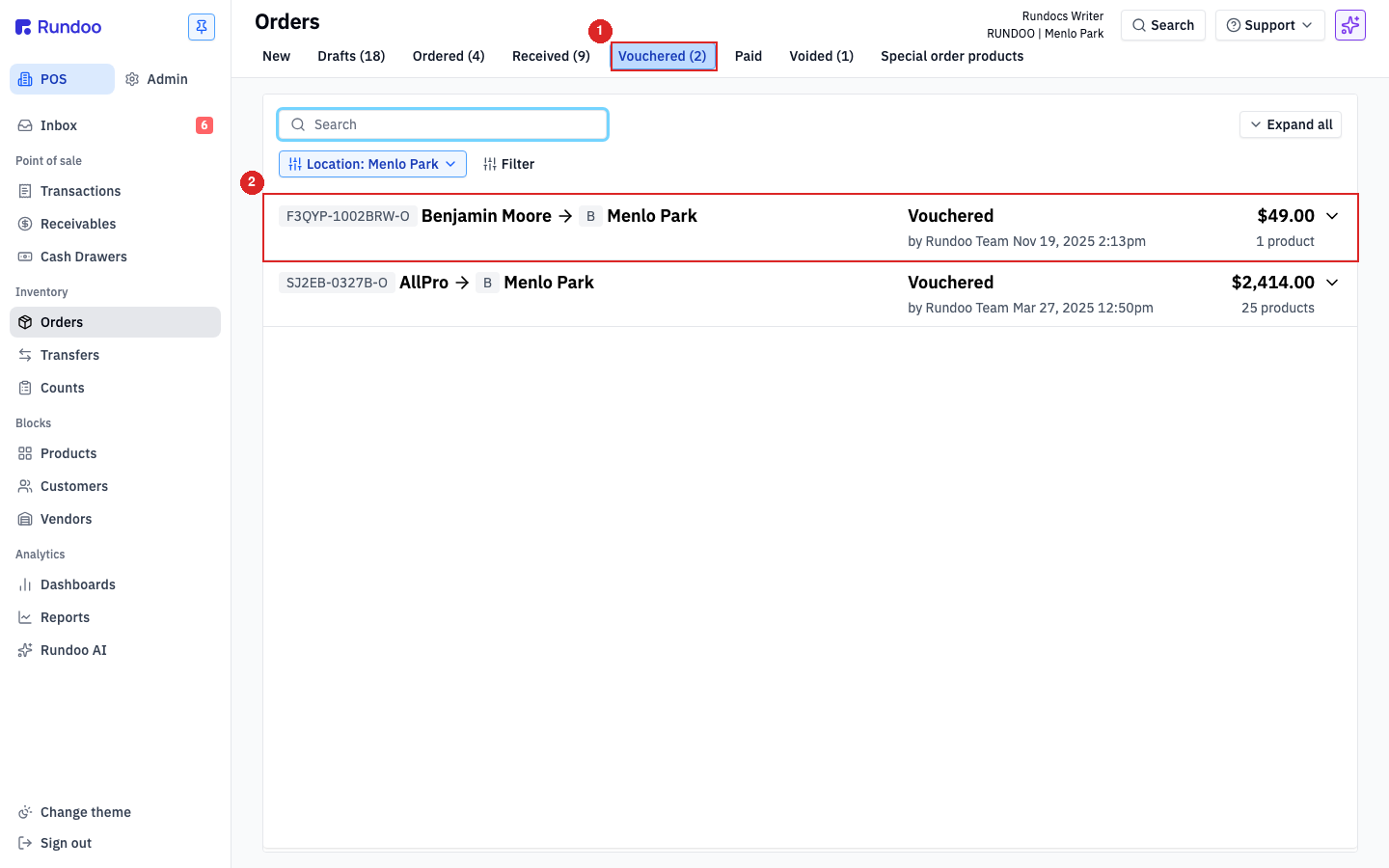
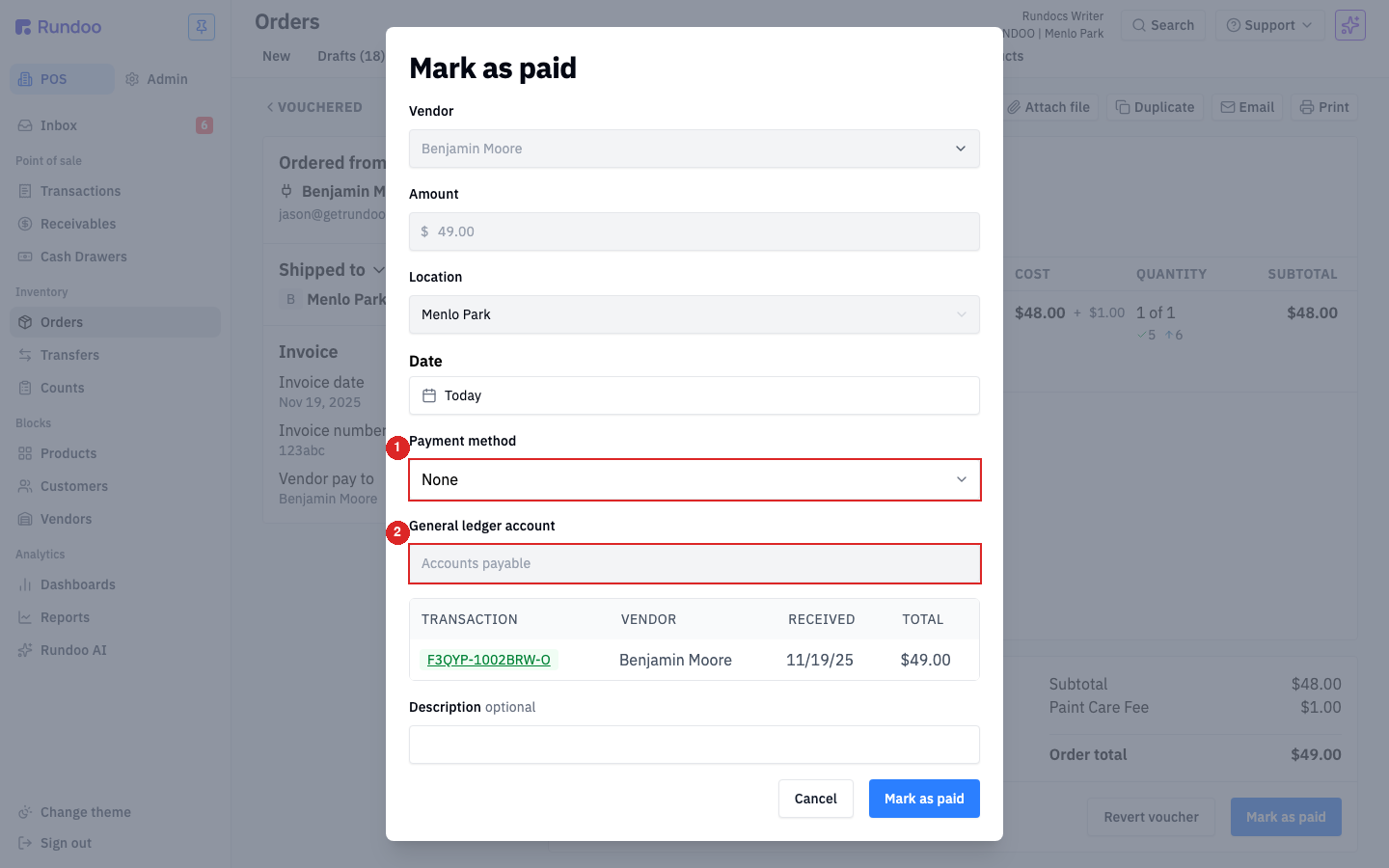
Click any row in Vouchered to open the bill. The invoice panel sits on the left, the line items on the right. Down at the bottom, click Mark as paid. Rundoo fills in the vendor, amount, and location for you, and defaults the date to today (change it if you're back-dating a payment your bookkeeper already cut).
Your one real decision is Payment method. Pick the way the money left: Card, Cash, Check, or Bank transfer (any ACH or wire). Drop a reference like an ACH confirmation or check number in the Description field for your books. Leave the General ledger account on Accounts payable unless your chart of accounts routes vendor payments somewhere else. Click Mark as paid and the bill moves to the Paid tab, your AP balance drops, and Rundoo posts the journal entry.
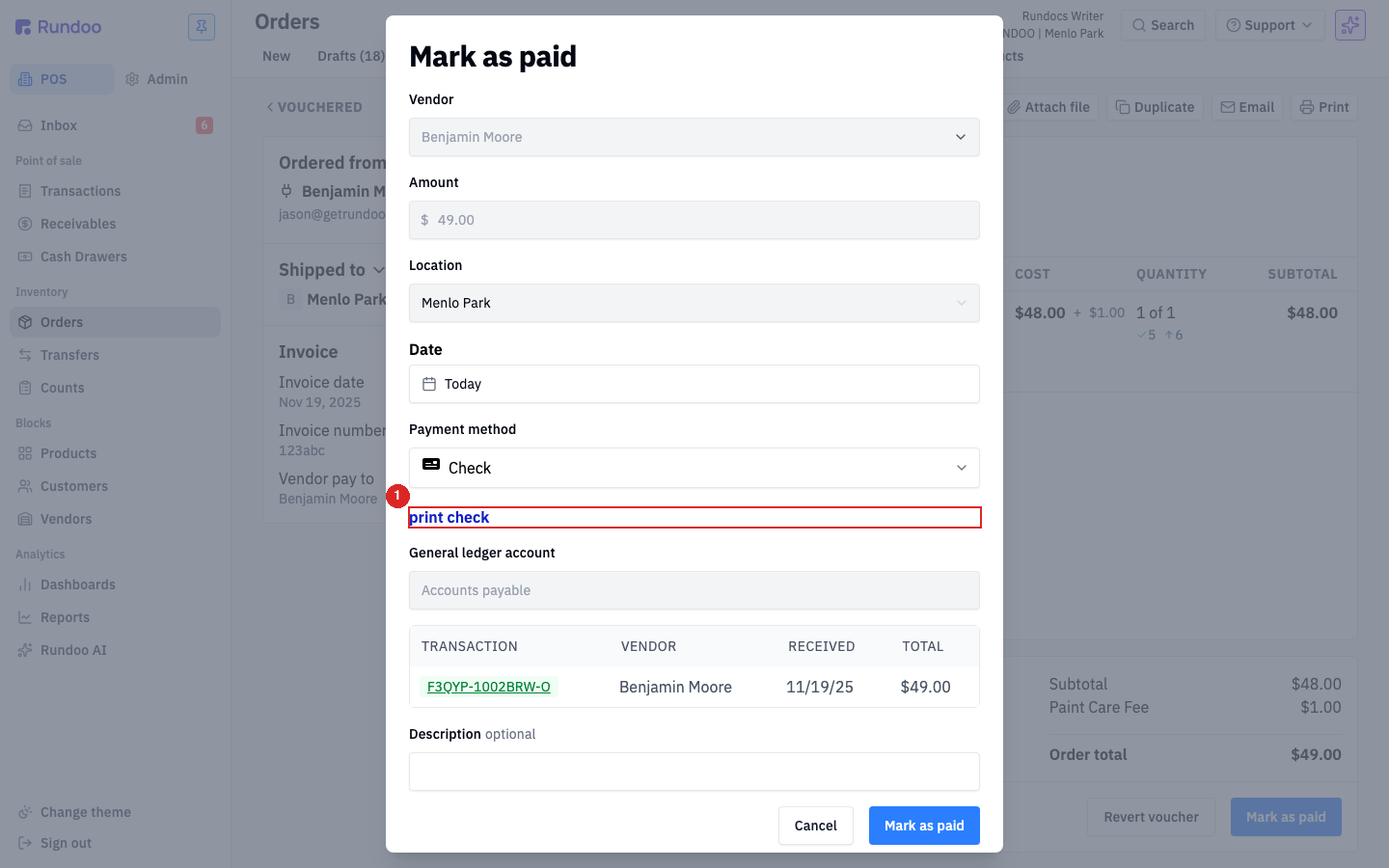
If you're cutting a paper check, choose Check as the payment method and a blue print check link appears. Click it to generate a PDF that prints the payee and amount onto standard pre-printed 8½×11" check stock (the kind with your account and routing numbers already on it). Order that stock from any check vendor. If you hand-wrote the check instead, just skip the link, record the check number in the description, and click Mark as paid.
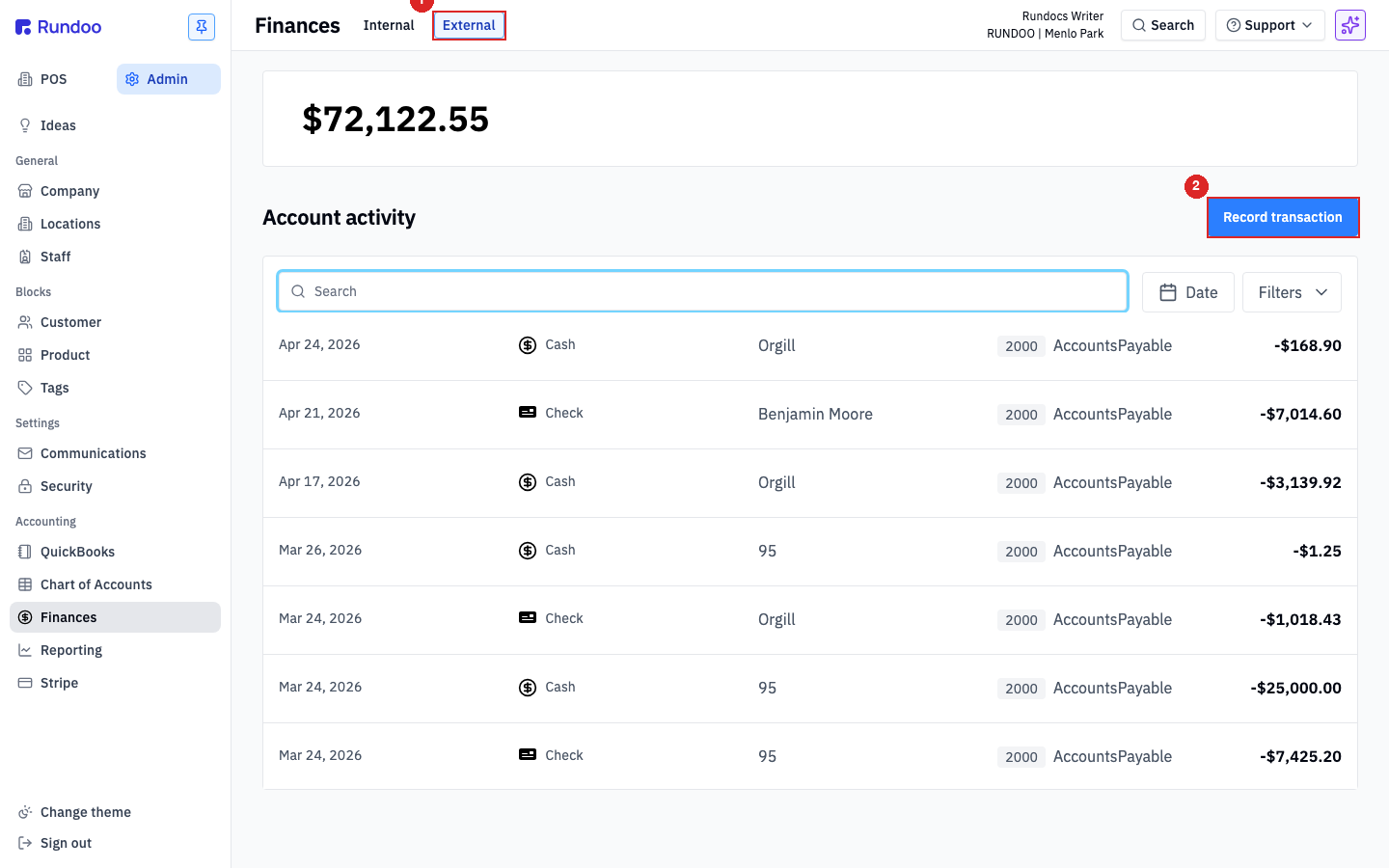
Not every bill comes from a purchase order. For rent, utilities, insurance, or any non-inventory invoice, switch to Admin mode, open the Finances left tab, then the External top tab. Think of it as your checkbook register. Click Record transaction, toggle to Payment, and fill in the vendor, amount, date, and method. Here's the key part: set the General ledger account to the right expense account, like Utilities or Rent, not Accounts payable, so it stays separate from the bills tied to your inventory.
While you're squaring up, say a sale got charged to the wrong customer's account. In POS → Transactions → Completed, find the sale (only rows whose method reads Charged to account can be voided) and open it. Click Void in the top action cluster. Rundoo asks whether to return the items to stock: leave it on Yes for a genuine mix-up, or pick No if the goods already walked out. Confirm, and the charge comes off the customer's balance. If Void is greyed out, hover it for the reason.
Once a bill is on the Paid tab it's frozen, which is what protects your audit trail, so there's no delete or edit button. To correct it you record a second, offsetting entry rather than unwinding the original: an extra payment for a shortfall, or a deposit on the External register for an overpayment, wrong vendor, or a vendor credit memo. Run this one past your bookkeeper first so the correction posts in the same accounting period as the original.
If the bill is still in Vouchered and no money has moved, you don't need any of that. Open the bill and click Revert voucher to drop it back to Received. That reverses the voucher's journal entry cleanly and leaves your stock counts alone, so you can fix the invoice details and re-voucher.
Where they live
POS → Orders → Vouchered
Your one list of unpaid vendor bills.
Pay a bill
Open it → Mark as paid
Pick the payment method, then commit.
No PO? (rent, utilities)
Admin → Finances → External
Record transaction, to an expense account.
Not paid yet?
Revert voucher
Back to Received to fix and re-voucher.
Good to know