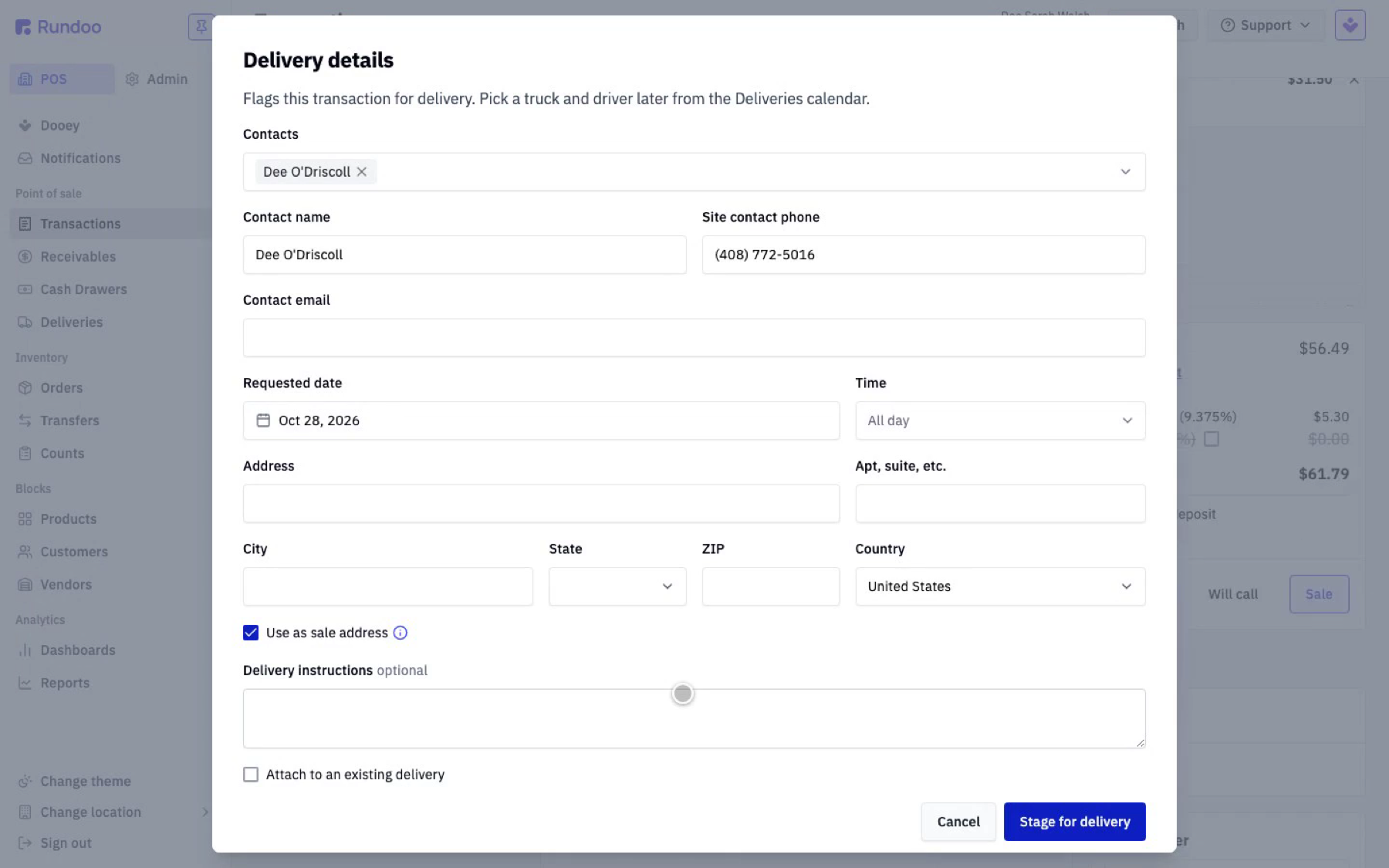
Requested date
When they need it
Set on the sale. Not the truck day, the arrive-by date.

Getting Started · Deliveries
Schedule it from the sale, build the run, let your driver work it from a phone, and keep the proof on file.
A contractor loads up on lumber and says, "get it to the site by Thursday." You can schedule that whole delivery right from the sale, build the run, and track it to the doorstep. What is new is everything that happens after the counter: you decide exactly who touches a delivery, your driver runs the route from a phone, and every drop comes back with proof. Here is one delivery, start to finish.
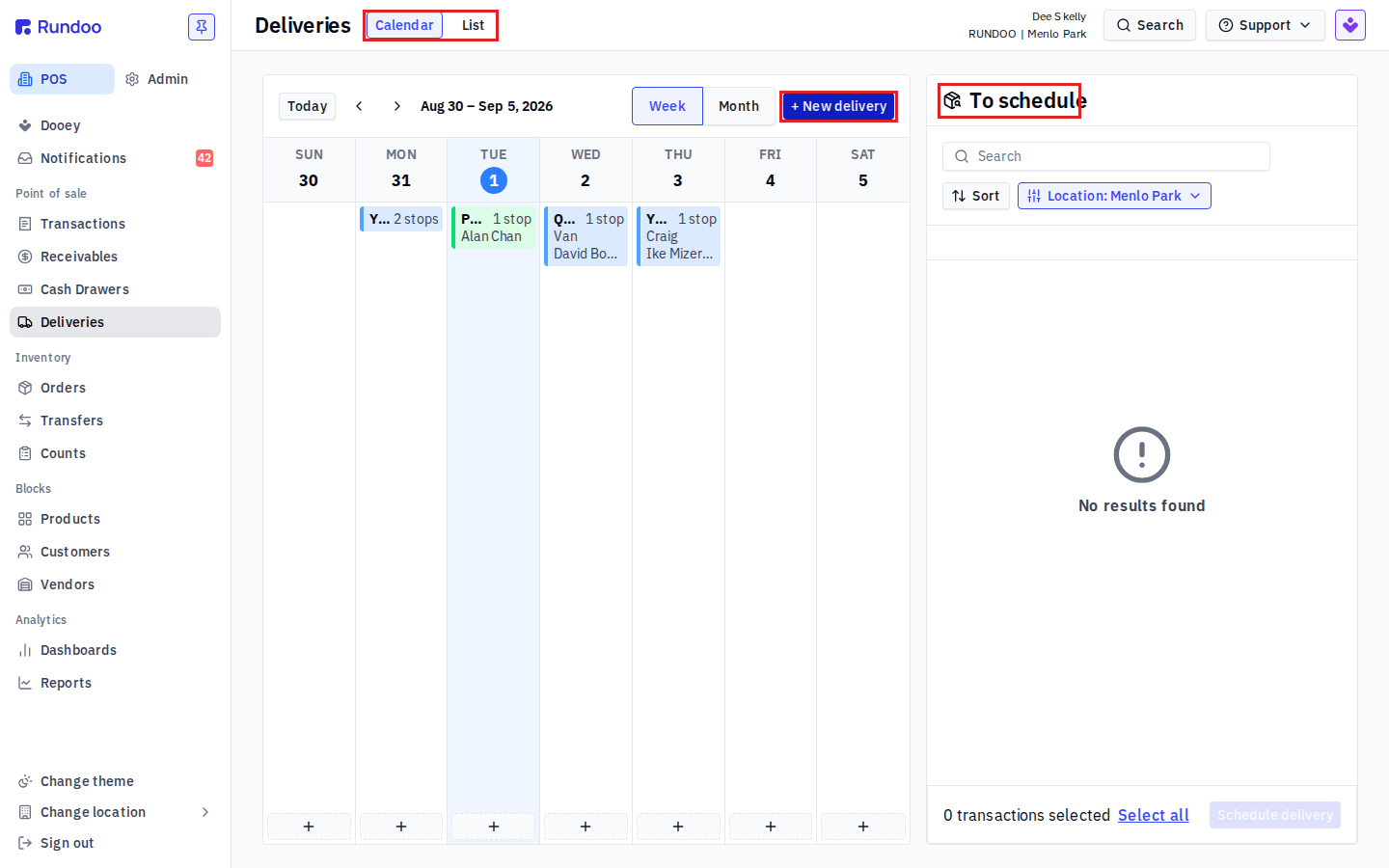
In POS mode you have a Deliveries tab in the left sidebar. It opens on a Calendar of every run, with a List view next to it. On the right is the To schedule panel: your to-do list of every order staged for delivery that is not on a run yet. A delivery is one truck run for a departure date, and it holds one or more stops, one stop per address.
A good delivery starts with who is allowed to do what. Go to Admin → Staff → Permissions, and look in the Point of Sale section for three switches. Schedule deliveries from a sale puts the button in front of your counter staff. View and update stops on deliveries assigned to you is for drivers, so a driver only sees their own runs. View and manage all deliveries is for your dispatcher, the person who runs the whole board. Turn on only what each person needs. Everyone keeps what they already had.
Ring the order up the way you always do, then click Schedule delivery at the bottom of the cart. In the Delivery details box, set the Requested date (the date they need it on site, not the day the truck rolls) and a Time (it defaults to All day, or pick a window when they need it at a set time), confirm the job-site address, and add any Delivery instructions for the driver. Attach the customer as a contact so the delivery carries their name and number. Then click Stage for delivery and take payment as normal. That is the whole job at the counter.
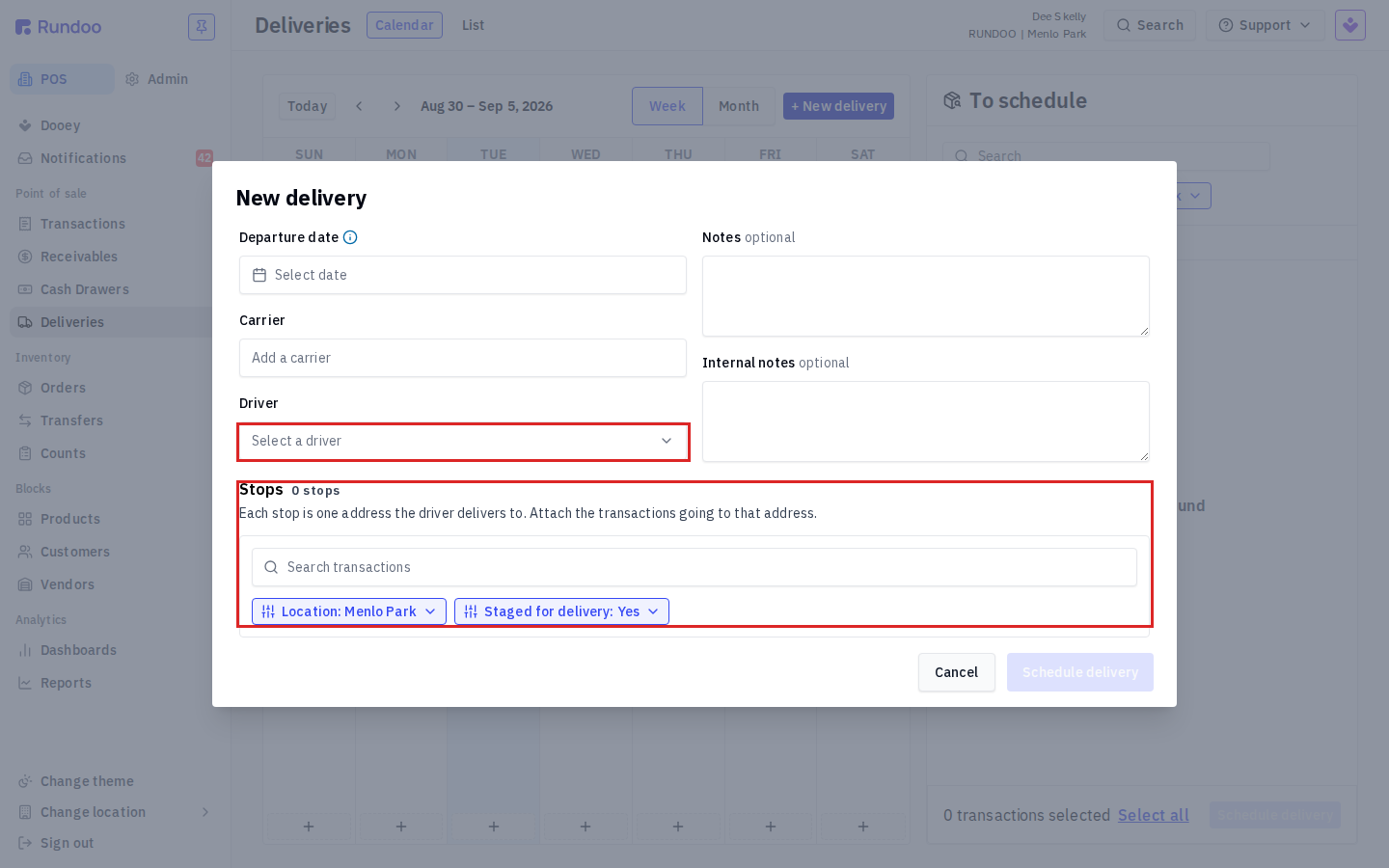
Whoever runs your trucks opens the Deliveries tab. Every staged order is sitting in the To schedule panel. Tick the ones going out together and click Schedule delivery, or click + New delivery to build a run from scratch. Set the Departure date, pick a Carrier if you use one, and choose the Driver. Each address becomes its own stop, and the run lands on the calendar for that day.
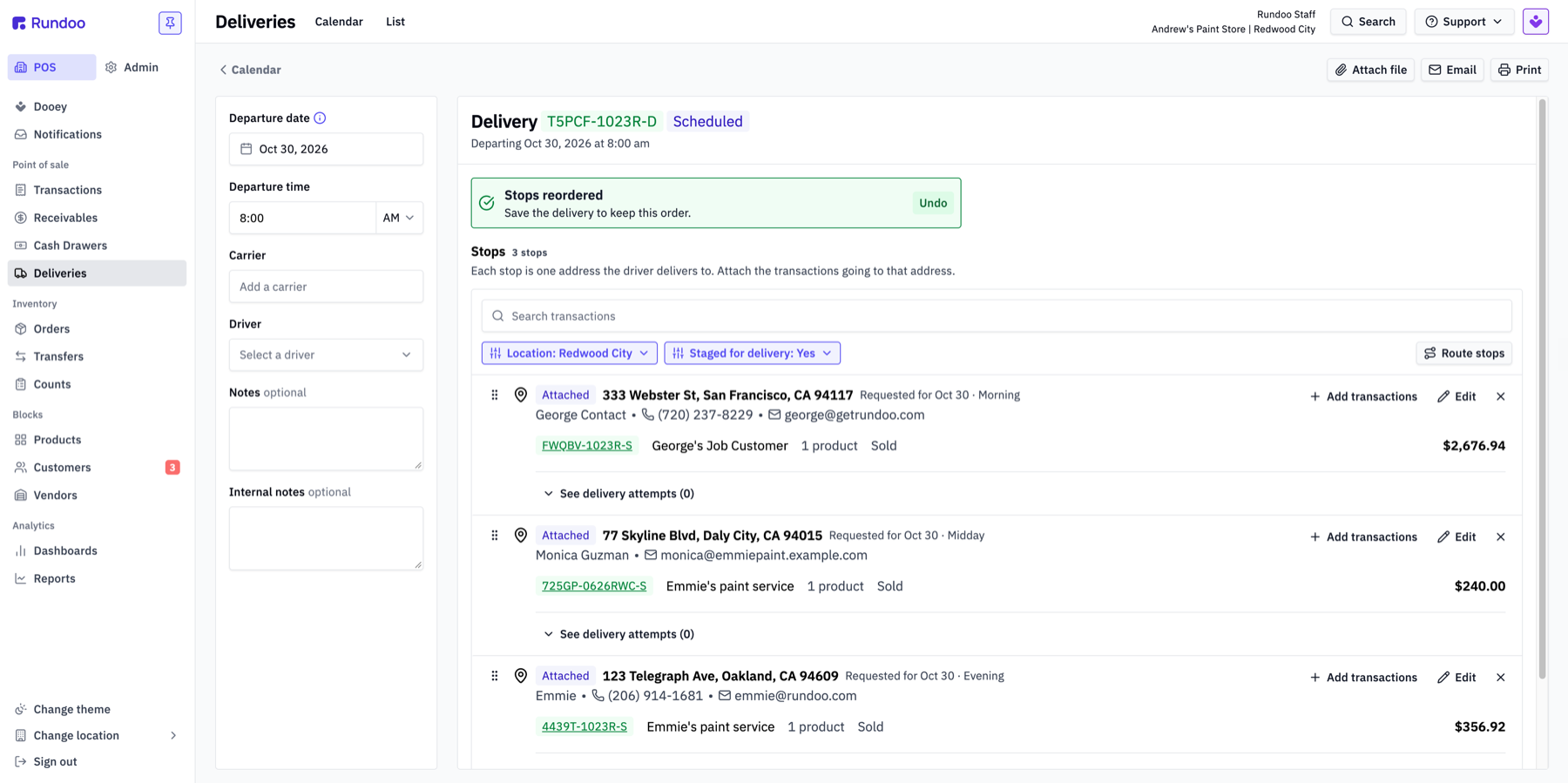
Open the run and click Route stops. Rundoo puts the stops in a sensible driving order so your driver is not doubling back across town. A green Stops reordered banner appears; click Save to keep the new order. If you would rather set the order yourself, drag the stops by the handle on the left.
Here is the part that is brand new. Your driver signs in to the Rundoo mobile staff app on their phone and sees the deliveries assigned to them, stops already in order. One tap opens turn-by-turn directions to the next address, so there is no copying addresses into a maps app. The whole run works from the phone, no paper route sheet.
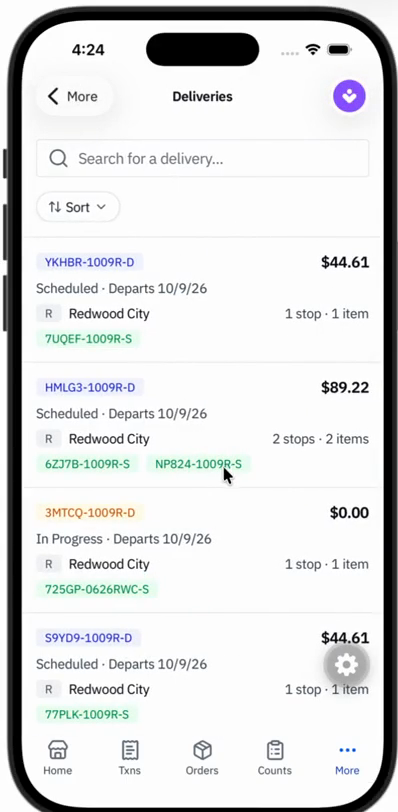
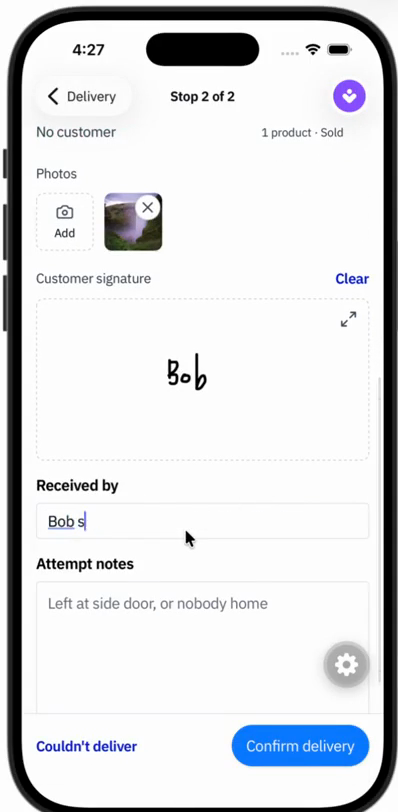
At each stop the driver snaps a photo of the drop, has the customer sign right on the screen under Customer signature, notes who it was Received by, and taps Confirm delivery. The moment a status changes, the store and the customer are notified automatically, so there are no "did it get there" phone calls.
Nobody home? The driver taps Couldn't deliver, snaps a photo, and leaves a quick note. That attempt is logged with a time stamp under the stop, so the next morning you know exactly which addresses to run again, and you have the proof if anyone ever asks.
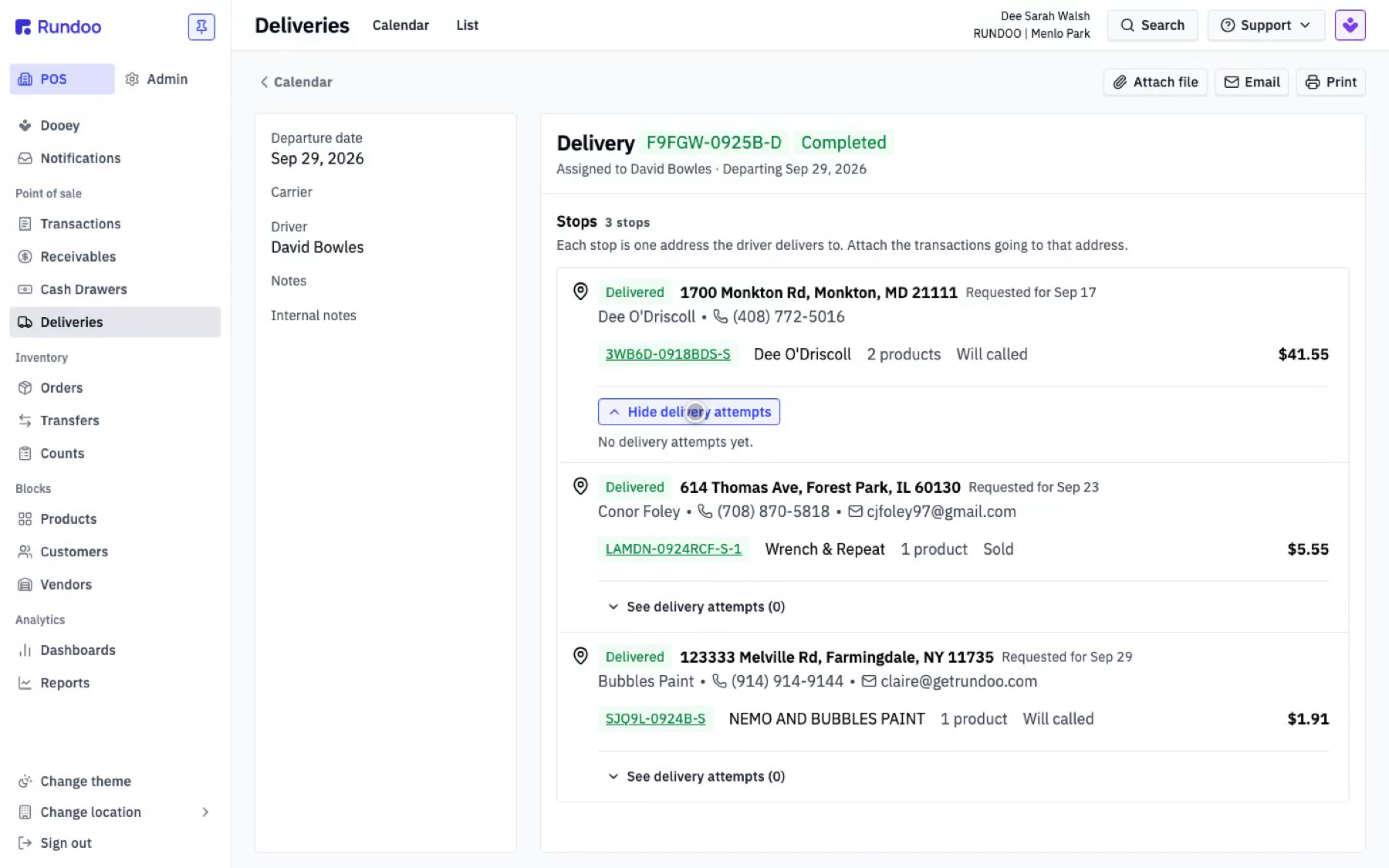
As the run goes out, its status moves forward only: Scheduled → In Progress → Completed (or Cancelled if it is called off). Back in the store, open the run and it reads Completed, with every stop marked Delivered. The photo and signature sit right there under the stop's delivery attempts. If a customer ever calls about an order they "never got," you are two clicks from showing them the picture on their porch and their own signature.
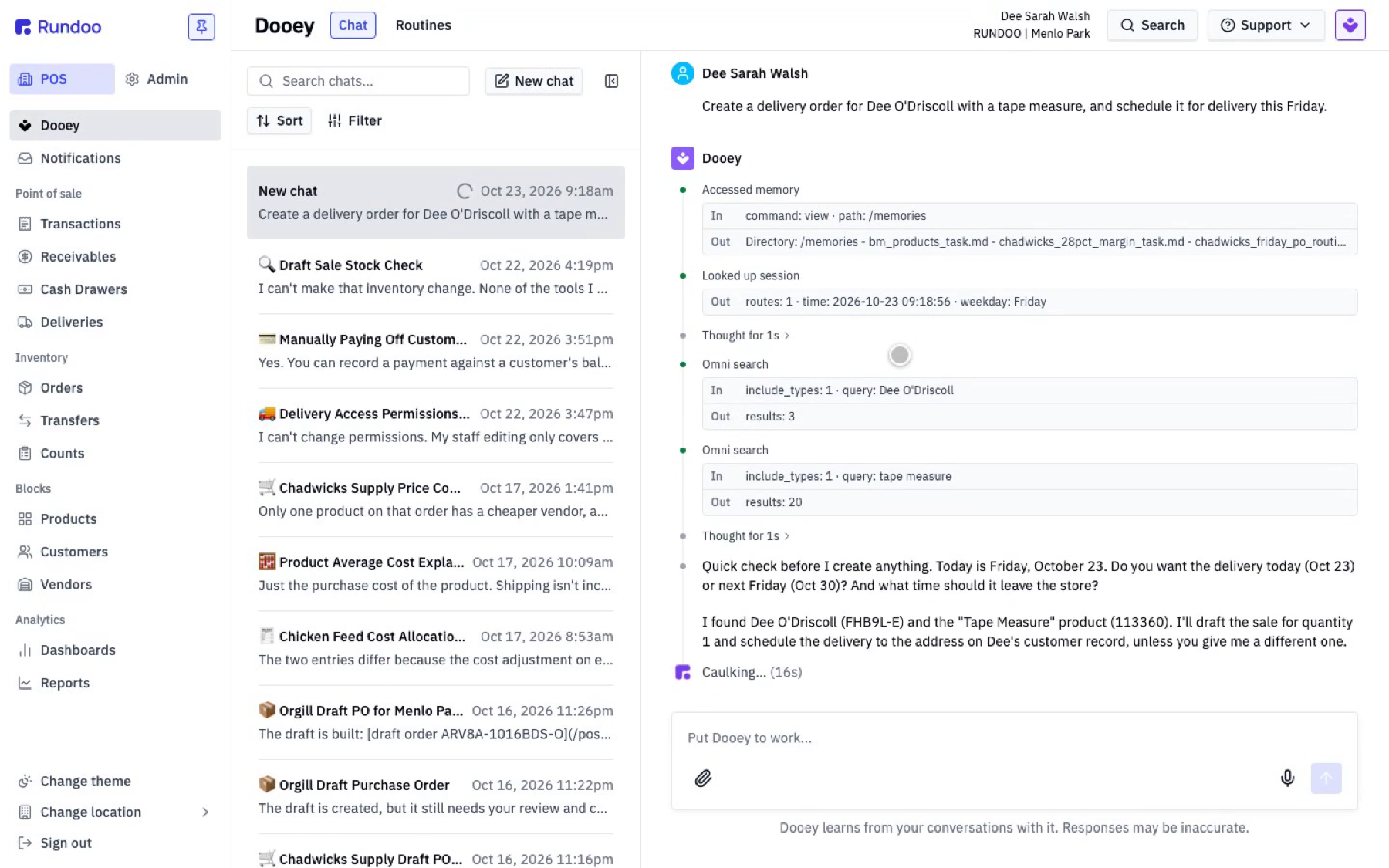
You do not have to click through any of this if you would rather ask. Dooey can create a delivery, edit one, or pull a report. Ask it how many deliveries went out last week and it will tell you; ask it to set up a delivery for a customer this Friday and it will draft it for your review.
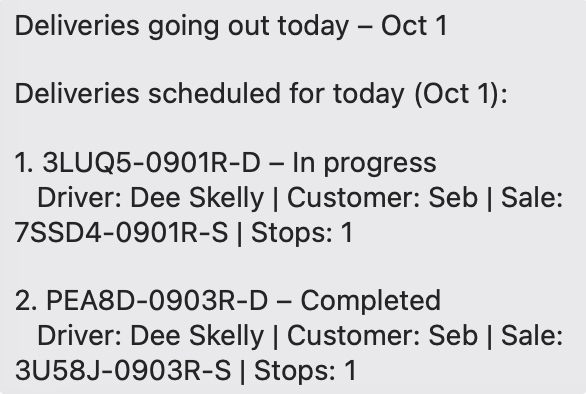
Rundoo does not ship a built-in "deliveries due today" alert, but you can build one in a couple of minutes with a Dooey routine. On a staff account that can run reports, ask Dooey to set up a daily Routine that texts or emails whoever runs deliveries a rundown of the day: what is scheduled to go out, plus anything sold for delivery that is not on a run yet and is coming due. You pick text, email, or both, and you word it however you like.
Requested date
When they need it
Set on the sale. Not the truck day, the arrive-by date.
To schedule panel
The to-do list
Every order staged for delivery that is not yet on a run.
Statuses
Scheduled → In Progress → Completed
Forward only. Completed locks the run.
Drivers
Rundoo staff users
Add anyone who drives under Admin → Staff so they can log in to the app.
Good to know