Where
Admin › Stripe › Payouts
Payments, Payouts, and Account across the top.

Getting Started with Rundoo · Setup
See each card sale reach your bank, and read the payout when it lands.
You work hard for every sale, and at the end of the day you want to know the money is on its way from your register to your bank. Rundoo runs your card and ACH payments through Stripe, and gives you one place to watch the whole trip. This guide follows a card sale from the counter to the deposit, and shows you how to read a payout once it lands, so the numbers on your bank statement always make sense.
From your main screen, switch to Admin mode and open the Stripe tab in the left nav. This is your home base for every card and ACH payment. Your Rundoo guide connects it for you during setup, so there is nothing to configure here, it is just where you keep track. You will see three tabs across the top: Payments is every card transaction (succeeded, refunded, or failed), Payouts is the list of deposits sent to your bank, and Account holds the business details Stripe has on file.
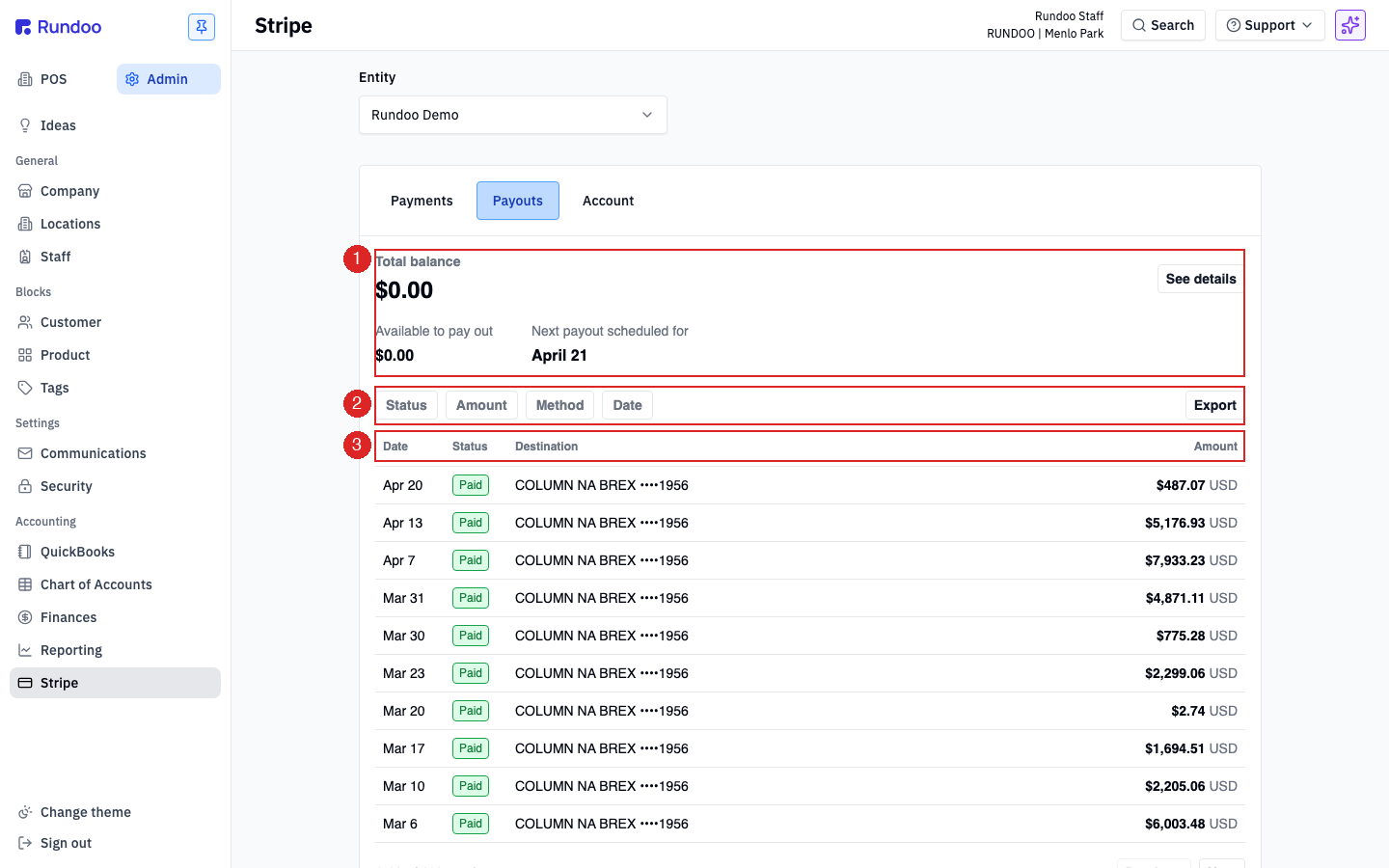
Click Payouts. Up top is your balance summary: Total balance is everything Stripe is holding for you right now, Available to pay out is the settled part ready to wire, and Next payout scheduled for is the date the next deposit should leave. Below that, each row is one wire to your bank, with its date, status, destination, and amount.
The most common question at the counter is "why doesn't the deposit match my sales total from two days ago?" A payout is not one day's sales, it is a batch of money. By default Rundoo pays out every business day on a two-day delay, and it also nets in any refunds you processed during that window.
Say you ring up a $100 sale on Monday, then process a $20 refund for a different customer on Tuesday. That $20 comes out of your balance, so the payout that lands on Wednesday is $80, minus the processing fees. That is expected, and it is exactly why you read the payout's detail instead of trying to match it to a single day.
Click any row to open its detail. At the top is the final amount, the status, and the date it completed. The Timeline shows the three steps every payout passes through: initiated (Stripe batched it), in transit (Stripe released it to your bank), and completed (your bank accepted it). Each step is stamped with a date and time, so you can see exactly where the money is.
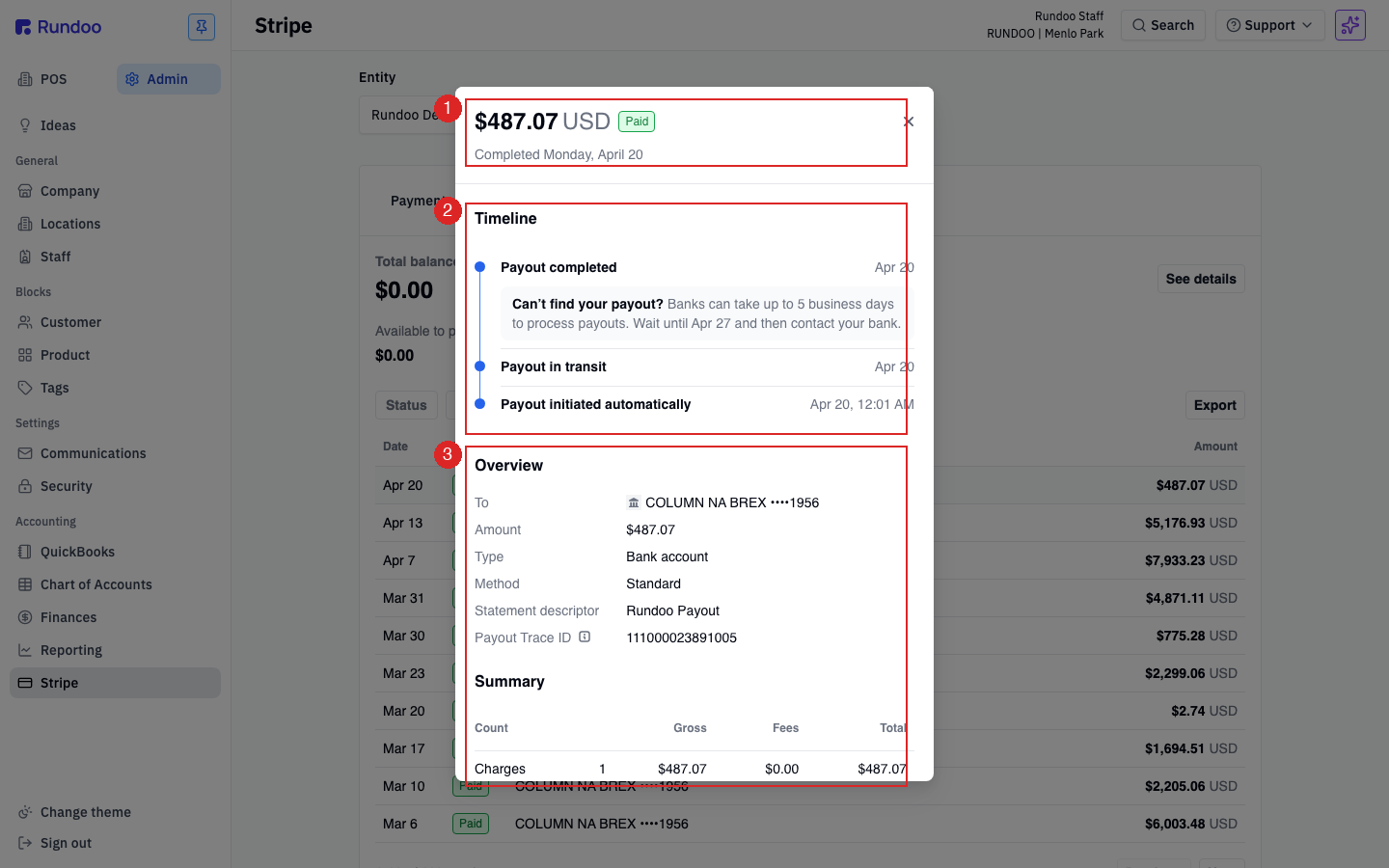
In the Overview section you will find the Payout Trace ID, the single most useful number for your bookkeeper. It is unique to that wire, and it is what your bank or bookkeeper uses to track down a specific deposit. When someone asks "where did this Stripe wire come from?", copy the trace ID and send it over. The same section also shows the destination account and the statement descriptor (Rundoo sets that to Rundoo Payout so it is easy to spot on your bank statement).
The Summary is the roll-up: how many charges made up the payout, the gross (charges total), the Stripe fees, and the net total that hit your bank. Reading it top to bottom tells you the whole story of that deposit in four numbers. If the total ties out but a fee looks off, that is your cue to check your account mapping.
The Stripe tab tells you the story of the bank deposit. To tie that deposit back to the sales that made it up, use a separate tool over in Admin under Reporting, also called Payouts. That report is built for sales reconciliation. It is a different screen from the Stripe feed, so don't mix them up. On the Stripe Payouts tab itself, the Export button pulls the filtered list as a CSV when your bookkeeper wants the raw rows for a date range.
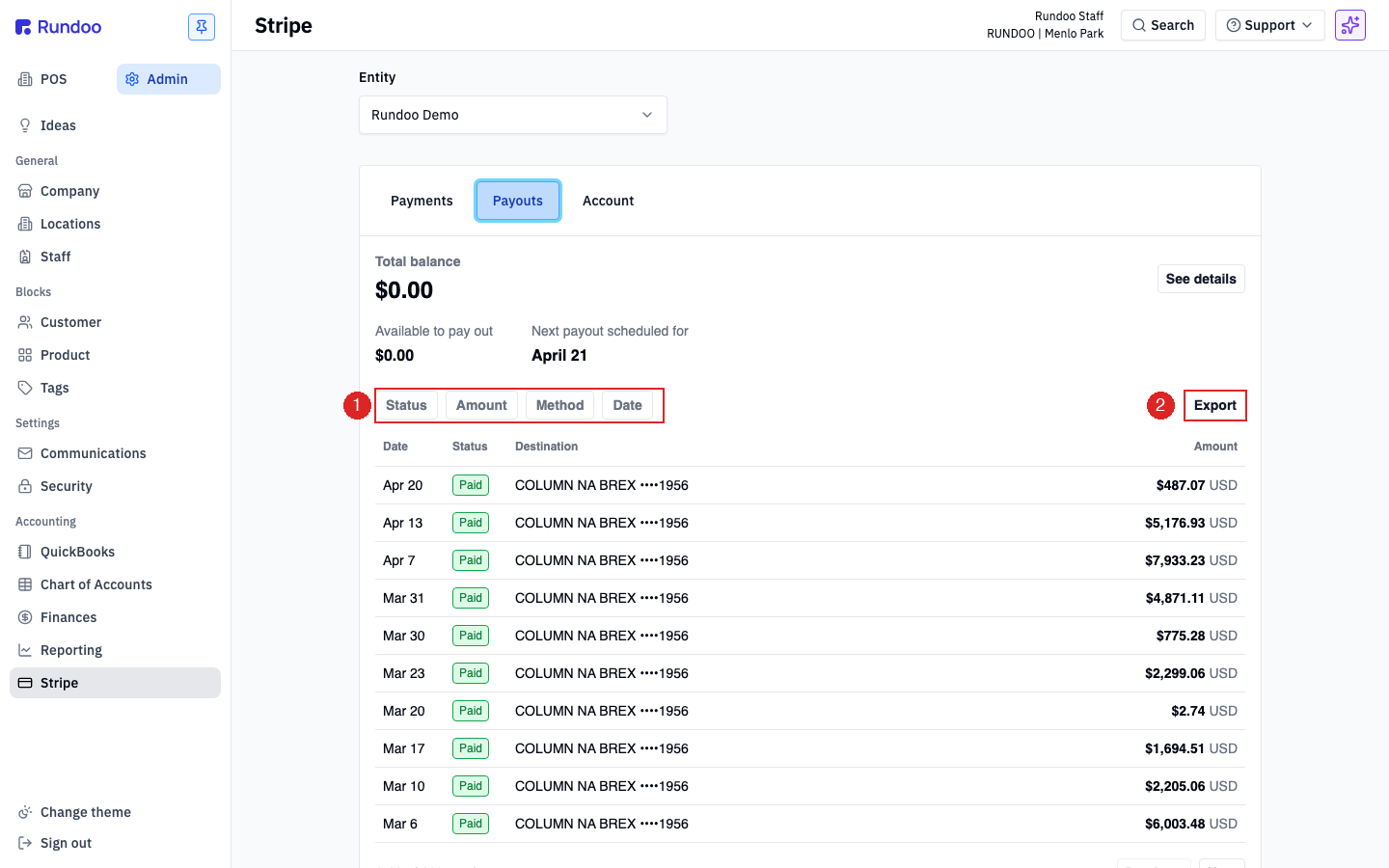
If a deposit seems late, there are two places to check. First, open the Account tab: if Stripe needs anything from you (a missing EIN, unverified owner info, a new address), a warning shows up right at the top and funds can be held until you clear it. Second, check the Status on the Payouts feed. Pending means Stripe released it and your bank hasn't confirmed yet. Failed means the bank rejected the wire, usually a closed account or a name mismatch. If you see a Failed row, or a payout is delayed more than a day or two, don't wait it out. Call your Rundoo guide or Support at (650) 334-3205.
Where
Admin › Stripe › Payouts
Payments, Payouts, and Account across the top.
Cadence
Daily, two-day delay
Monday's sales land Wednesday. Weekly is also available.
Read a payout
Header, Timeline, Overview, Summary
Trace ID lives in the Overview.
Reconcile to sales
Admin › Reporting › Payouts
A separate report from the Stripe feed.
Good to know