On hand
On the shelf now
Ready to sell. Moves with sales, orders, counts.

Getting Started with Rundoo · Setup
Check a product's stock, history, and reorder points.
You know your products better than anyone. But whether a customer is holding a box up at the counter asking "how many of these do you have?" or you're walking the aisles trying to remember when you last ordered something, you need the right number right now. In Rundoo, every product's whole story and its exact stock live on one detail page, two clicks away.
In POS mode, click Products in the left sidebar. The search box in the top-left matches on name or any ID, so type a name, a product number, or scan a barcode. Click the row for the product you want.
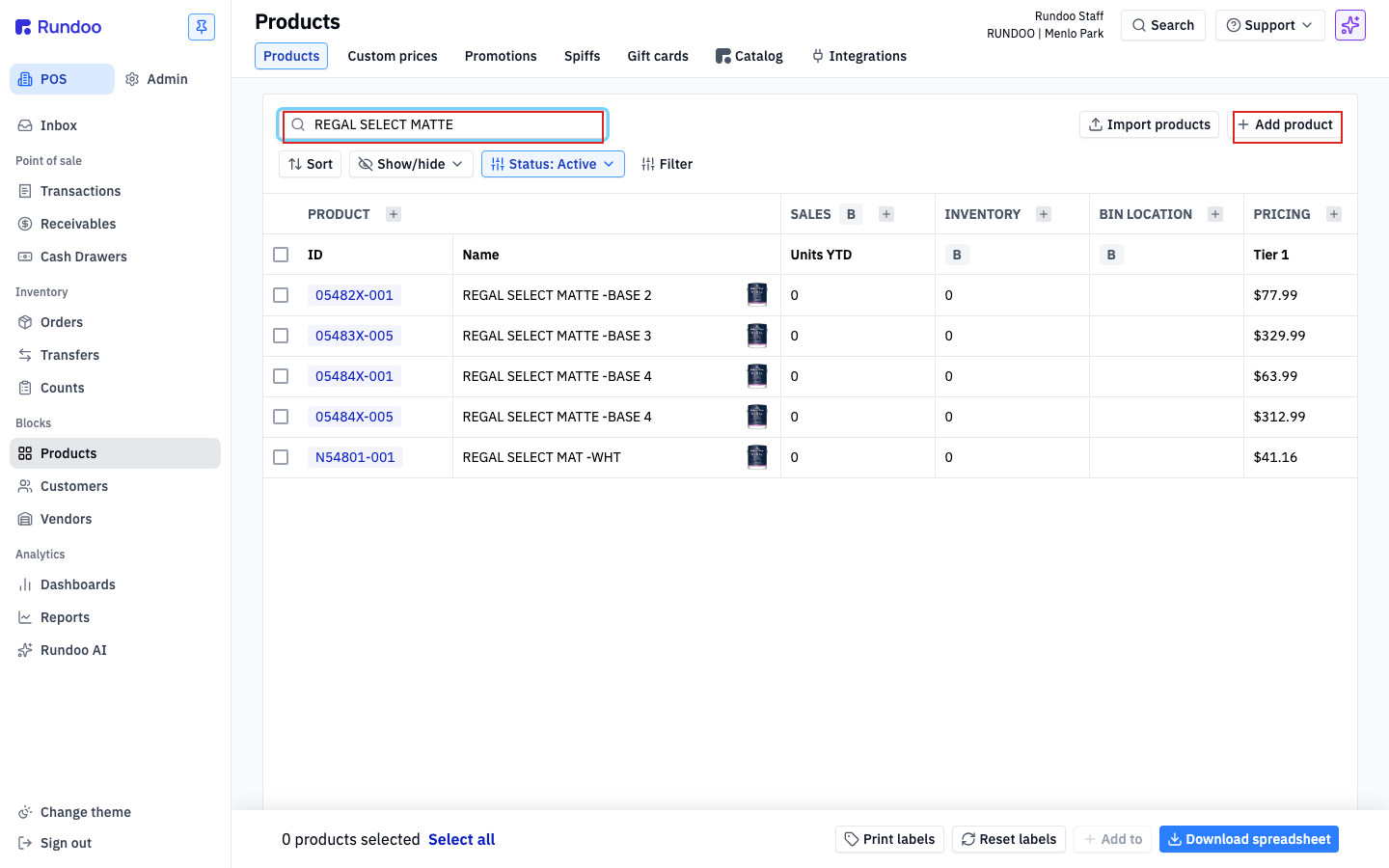
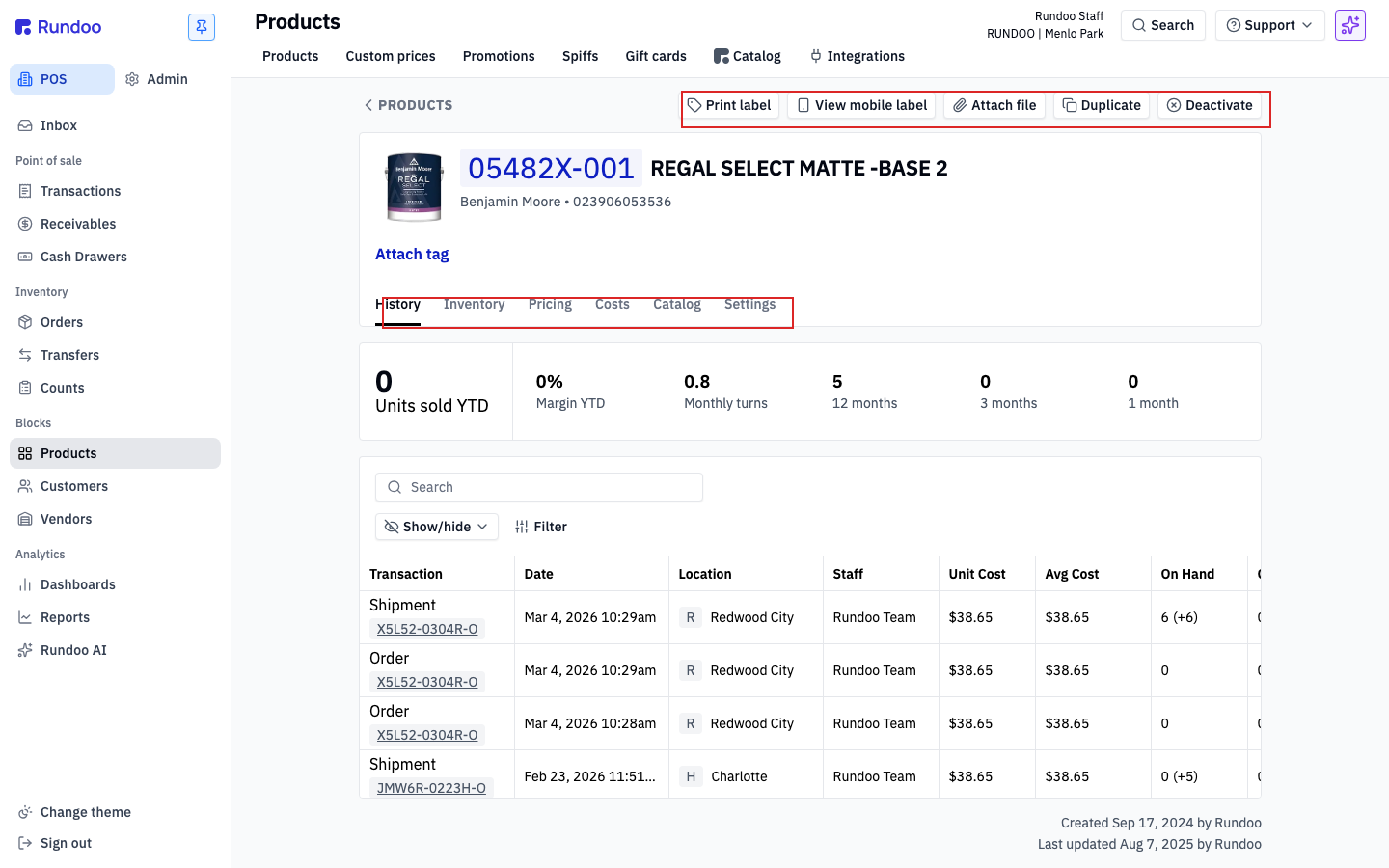
Clicking a row opens that product's detail page on the History tab. Six tabs run across the top: History, Inventory, Pricing, Costs, Catalog, and Settings. For "how many do I have," you only need the first two.
Think of the History tab as the complete story of this item in your store. The tiles across the top give you the shape of demand at a glance: Units sold YTD, Margin YTD, Monthly turns, and a 12-month, 3-month, and 1-month count.
Below the tiles is every single movement, one row per event, ordered by date: sales, orders, transfers, counts, shipments, and returns. It is the full audit trail, all in one place.
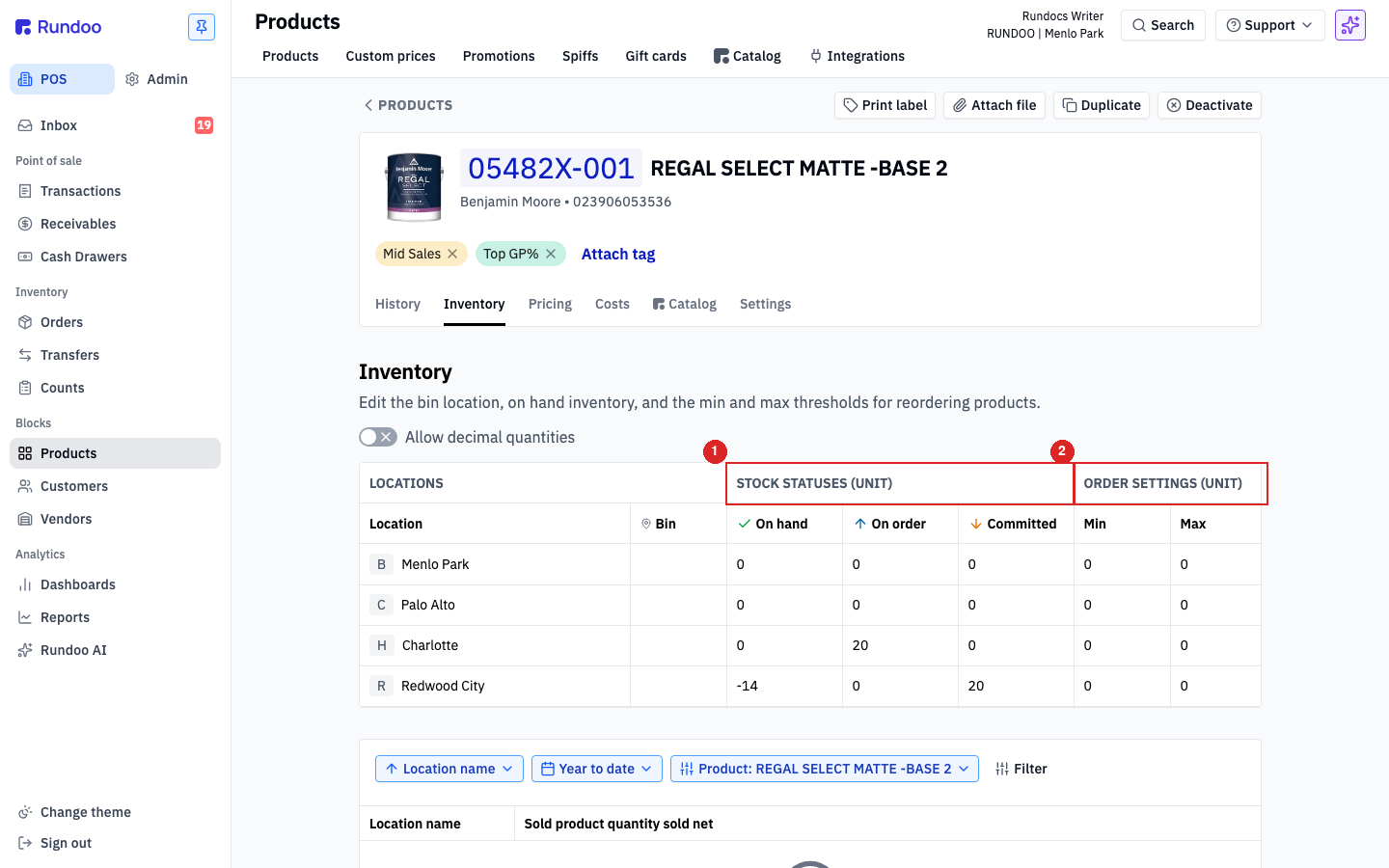
Click the Inventory tab. This breaks the numbers down by location, one row per location you operate, because the right stocking level for a slow store and a busy one is rarely the same. Three columns tell you where your stock stands:
On hand is what you physically have on the shelf, ready to sell. On order is what is on the way from your vendor on an open purchase order. Committed is what is spoken for, like a will-call waiting for pickup, so it is still in the building but you cannot sell it again.
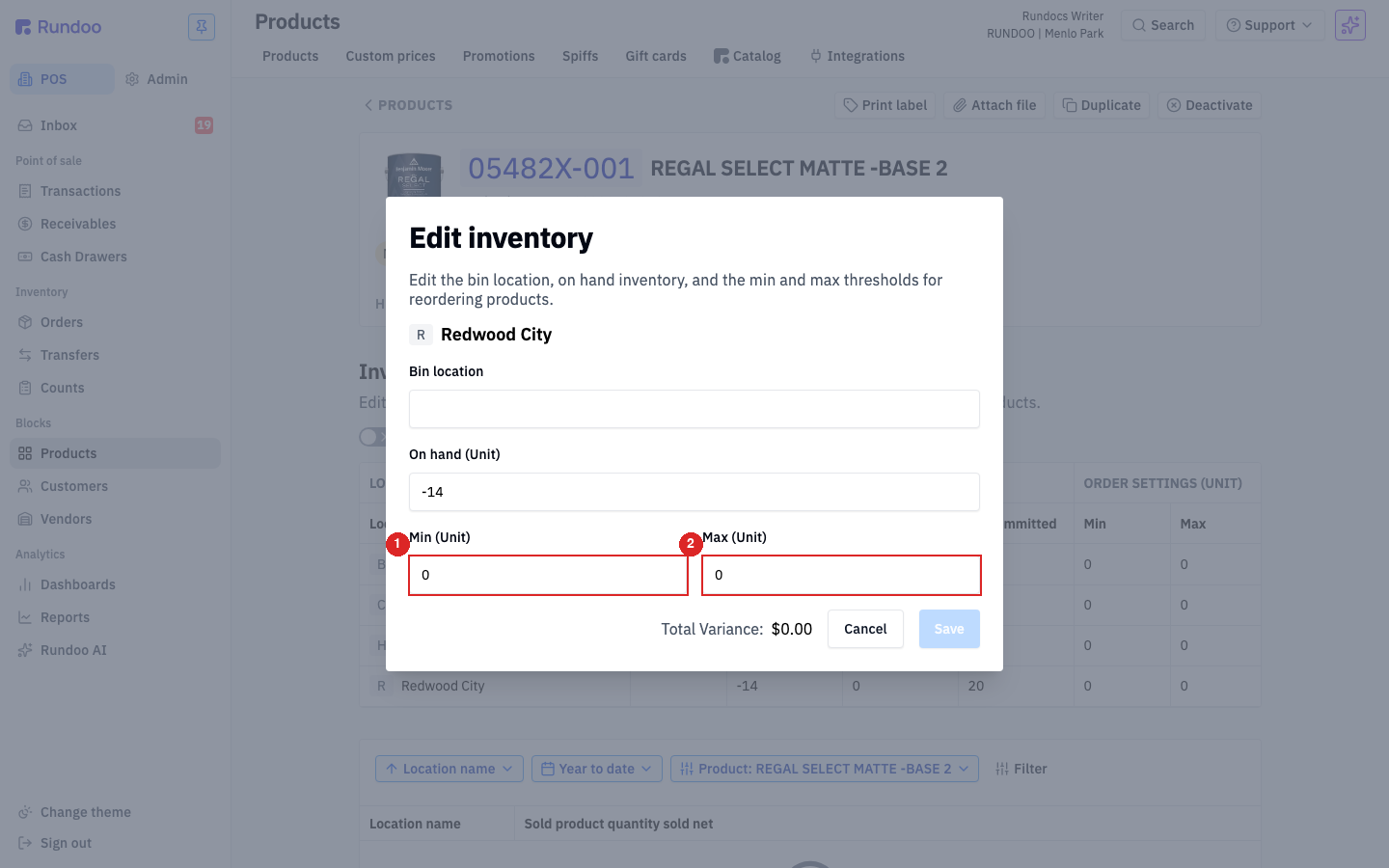
The same grid is where you set reorder points. Click any location's row to open the Edit inventory modal, then fill in Min (Unit) and Max (Unit) and click Save. The row updates right away.
Min is your trigger: when On hand plus On order drops below this number, Rundoo flags the product for reorder when you generate a purchase order. Max is your target: the quantity you want to stock back up to. You'll see exactly how this plays out when we cover Purchase orders.
You can also change the On hand number here for a quick fix, say you find a box that was hiding on the wrong shelf. Just know this creates a variance in your records, and it is an inventory adjustment, not a receiving. For a formal, end-of-month stocktake, use the full Inventory counts tool instead, and bring new stock in with a purchase order.
On hand
On the shelf now
Ready to sell. Moves with sales, orders, counts.
On order
On the way
Units on an open purchase order to this location.
Committed
Spoken for
Allocated to open sales, drafts, quotes, will-calls.
Min / Max
Trigger / target
Min flags a reorder. Max is the level to fill back to.
Good to know