Where
POS → Analytics → Dooey
Or the sparkle in the top-right header.

Getting Started with Rundoo · Dooey
Ask Dooey a plain-English question and get an answer in seconds.
You know your business inside and out. You know which products move, which customers are behind on payment, and roughly what last Tuesday looked like. The numbers are all in Rundoo, but hunting for the right report to prove it can feel like looking for a needle in a haystack. Dooey gives you a faster way: just ask your store a question, in plain English, and read the answer right there in the chat.
In POS mode, Dooey sits at the bottom of the left sidebar under the Analytics group. That is the full chat surface, with every past conversation saved down the side. You can also jump in from two spots in the header: the Dooey sparkle up in the top-right corner, and the Ask AI row at the bottom of any Search result. All three land you in the same place.
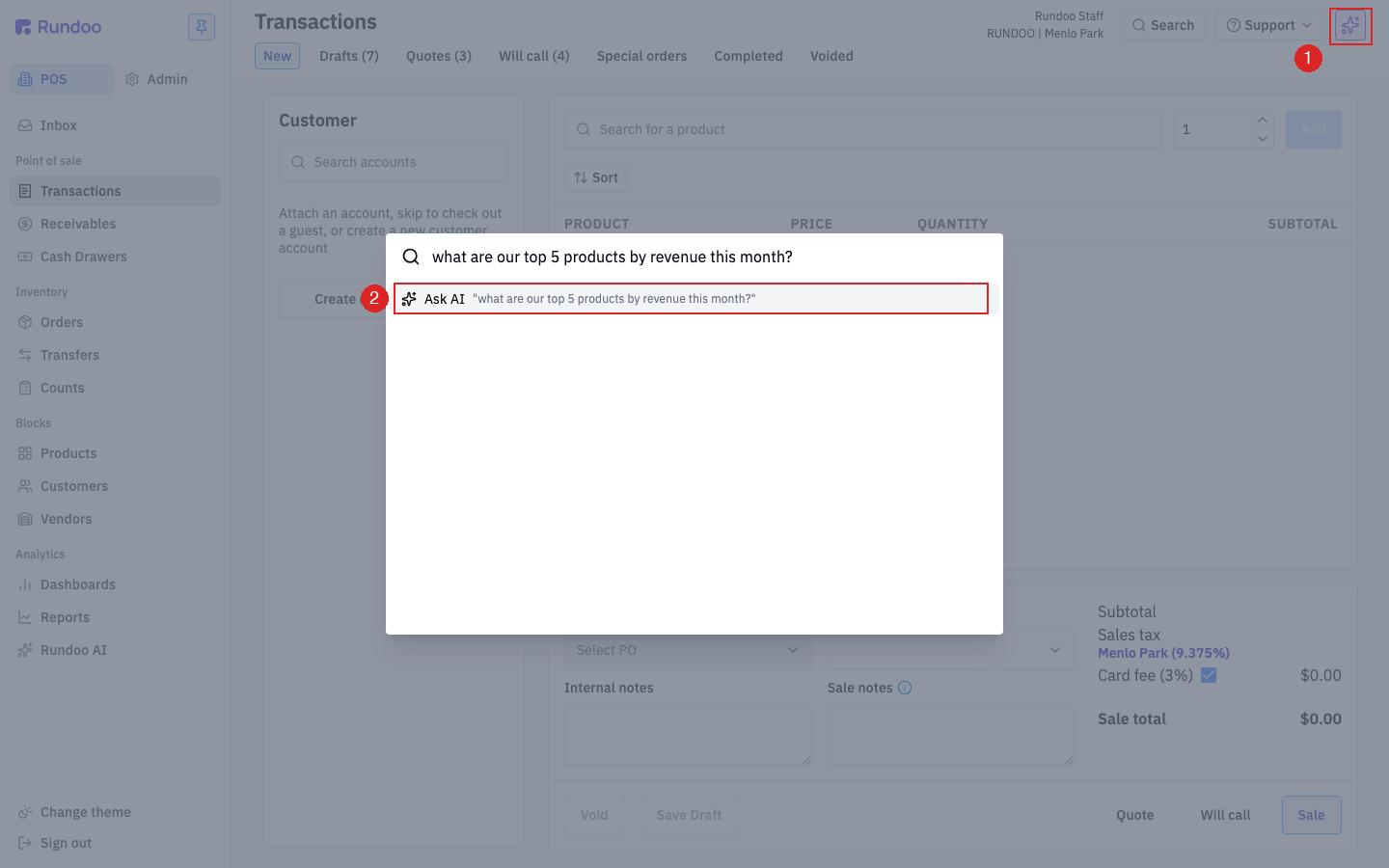
Head to the Analytics section and click Dooey for the full view. It opens as two panes: your saved conversations on the left, the chat on the right. Click + New chat to land on a clean Ask Dooey anything composer, with a few suggested starter questions underneath if you want a nudge.
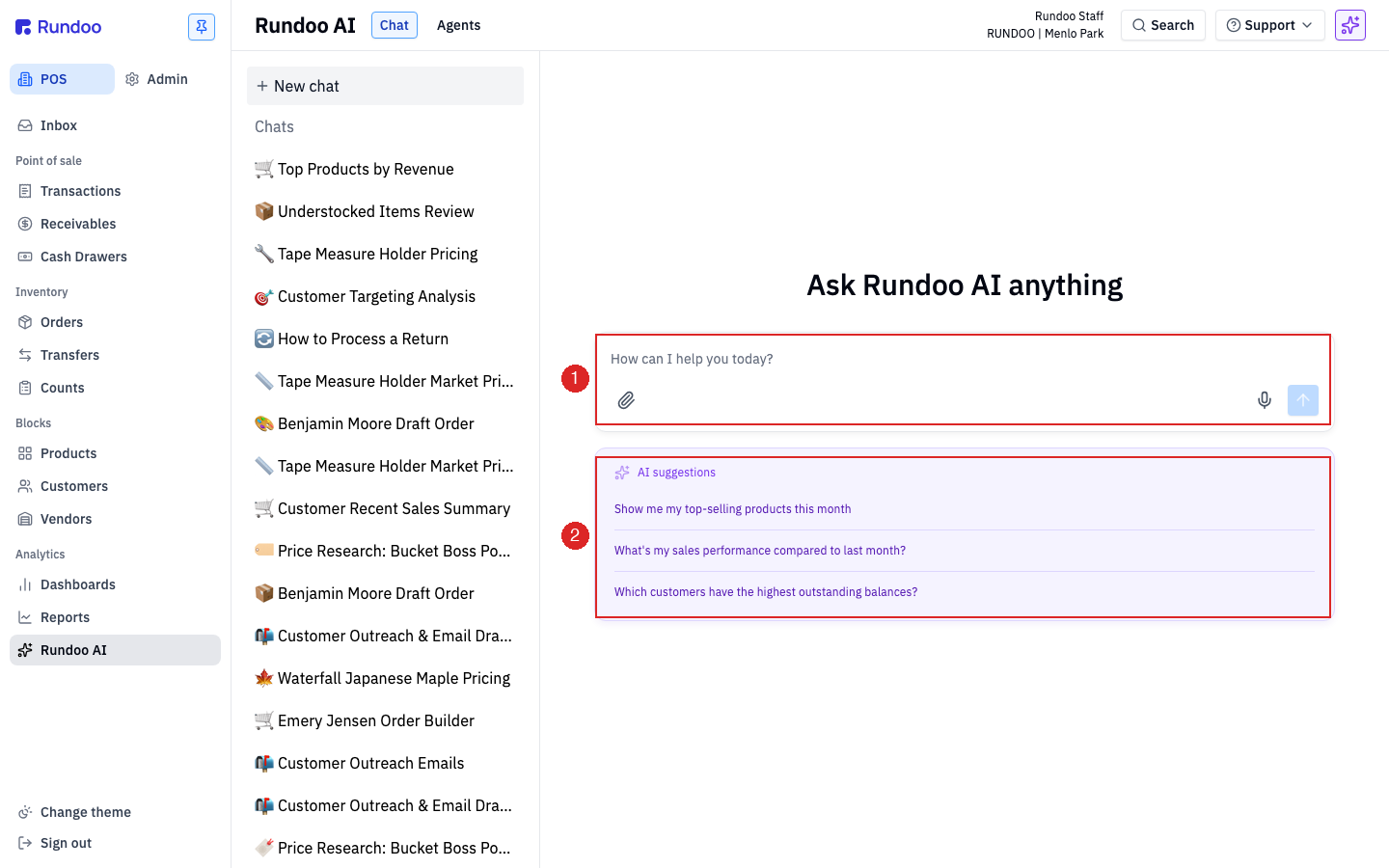
Down in the composer at the bottom, type your question the way you'd ask a coworker who could read every report in the building. Something like What were my top-selling products this month? Press Enter or click the blue send arrow. The more specific you are about dates, the sharper the answer. Need to hand it a file? Click the paperclip on the left of the composer, or drag one straight onto the chat.
While it works, you'll see a rotating Dooey icon with a verb ("Thinking...", "Harvesting...", "Sanding...") and an elapsed counter, so you can tell at a glance it's making progress, not stuck.
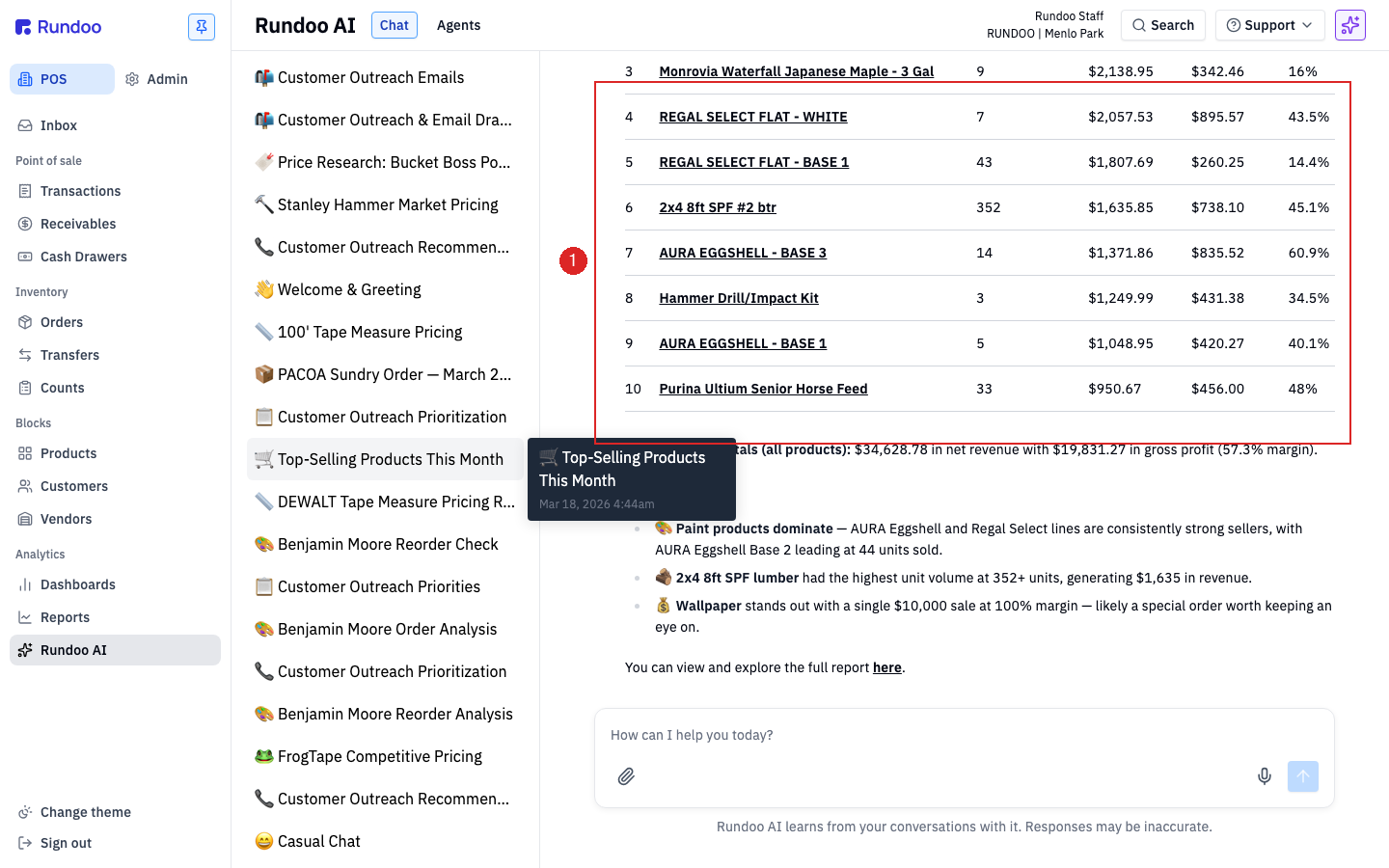
The answer comes back in a few forms, depending on what you asked: a short plain-English summary with the load-bearing numbers in bold, a clean data table when you asked for a ranked list (with the same columns you'd see in the matching Report), and a few Key highlights at the bottom of longer answers. No report to build. It's just right there.
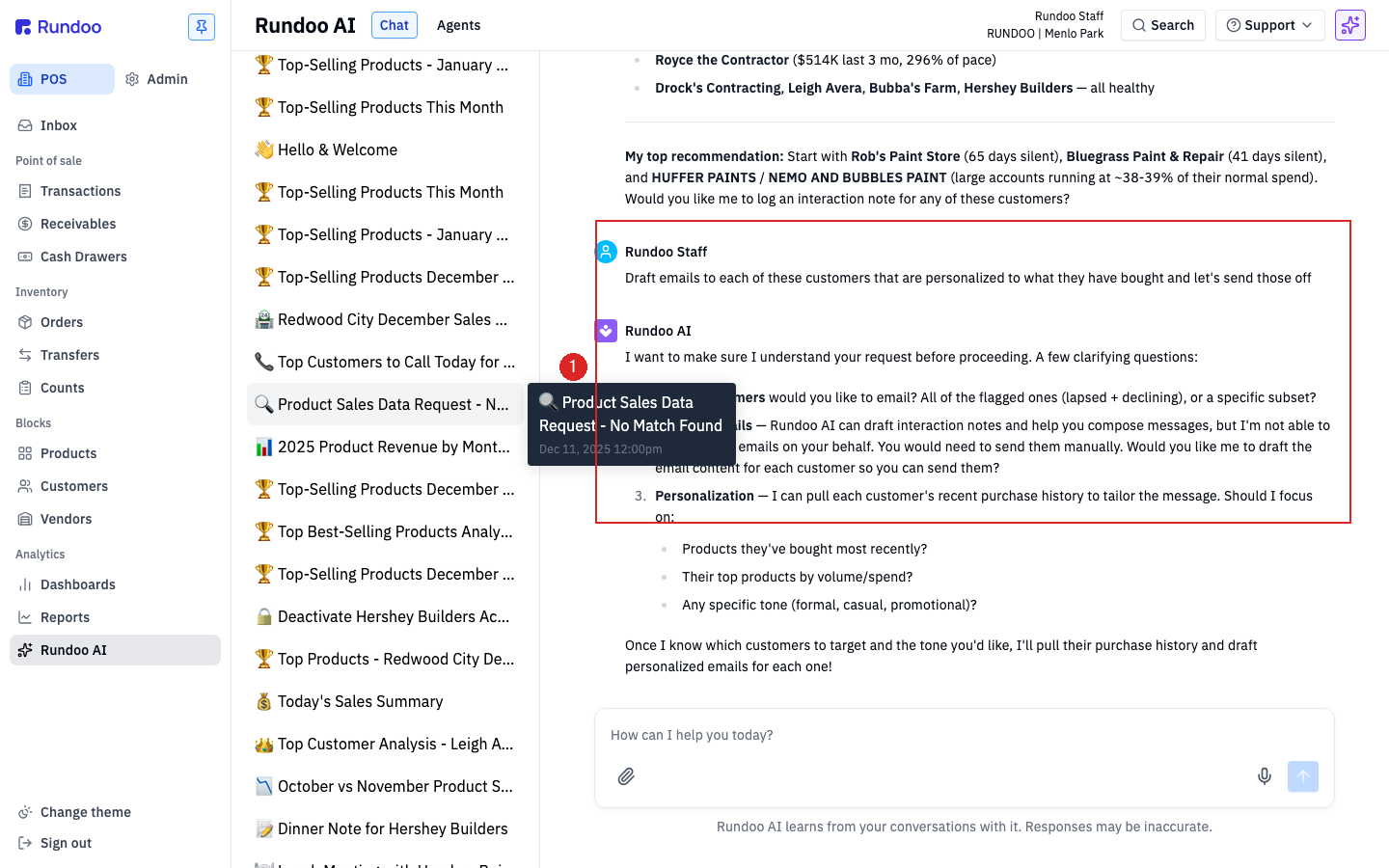
You don't have to start over for the next question. Dooey remembers the conversation, so right in the same thread you can ask something new, like Now show me which customers owe us the most, and it answers on the spot. Follow-ups can lean on what came before ("same thing for customers," "break that down by location"). If it needs a little more to answer cleanly, it'll ask you back, "which location did you mean?", and you just reply.
This is the one habit worth building. Dooey's answers run on your live data, so treat any number you're about to act on, a quantity going on a purchase order or a balance going on a customer's statement, as a solid first draft. When the answer is pulled from a report, it links to it inline: You can view and explore the full report here. Click through and confirm the live number before you commit.
Where
POS → Analytics → Dooey
Or the sparkle in the top-right header.
Ask
Type it, press Enter
Plain English. Be specific about dates.
Answer
Summary + table + highlights
Plus an inline link to the source report.
Follow up
Stay in the thread
It remembers the conversation.
Good to know