What it is
A store-use account
A charge-account customer that stands in for your store.

Getting Started with Rundoo · Inventory
Ring up store-use inventory at zero dollars, and hand your accountant a clean list.
It happens in every paint store. A customer asks for one color, you end up with a can of something else, and now that mistint is just sitting there. The trouble is bigger than the lost sale: that can is still counted as on-hand stock, and come tax time you need a clean way to write it off. Rundoo handles this with a store-use account, a special customer that represents your own store, so you can ring the can up at zero dollars, keep your counts honest, and leave your accountant a tidy paper trail.
A store-use account is a normal customer record you turn into a charge account. You ring up mistints, colorant, break-room supplies, and anything else the store consumes internally against this account instead of a real customer. Every store-use sale does two things: it removes the product from your inventory the same way a retail sale does, and it posts a clean, zero-dollar invoice you can pull as a report later. There is no "charge account" checkbox to flip. What makes it a charge account is a statement-based Finance term, which you set in a moment.
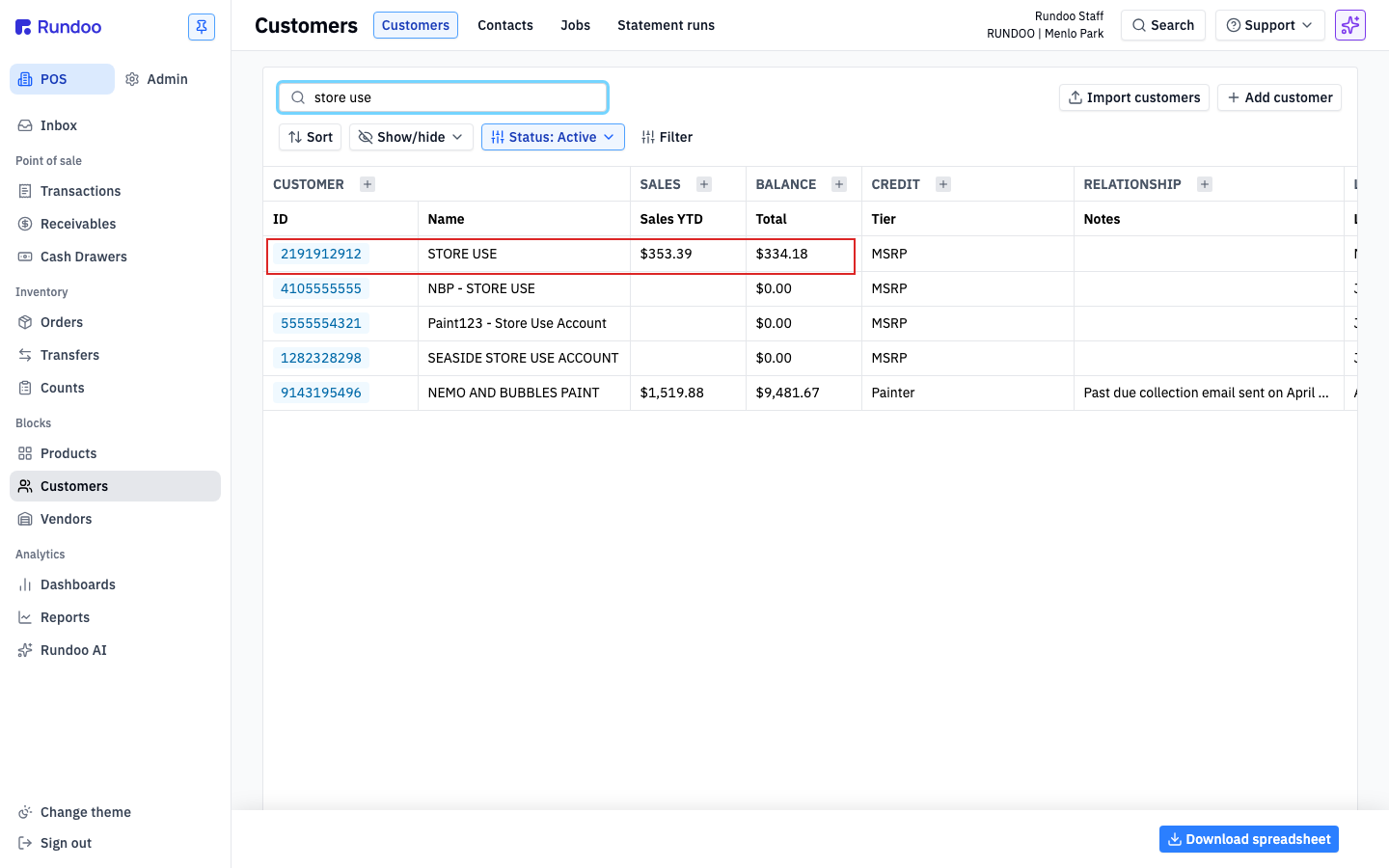
In POS mode, open Customers in the left sidebar and click Add customer. Give it a name your staff will spot fast, like your store name followed by "Store Use". Add any store phone number and your store's email (no one will actually call or write it), and leave the Pricing tier on its default. Click Save.
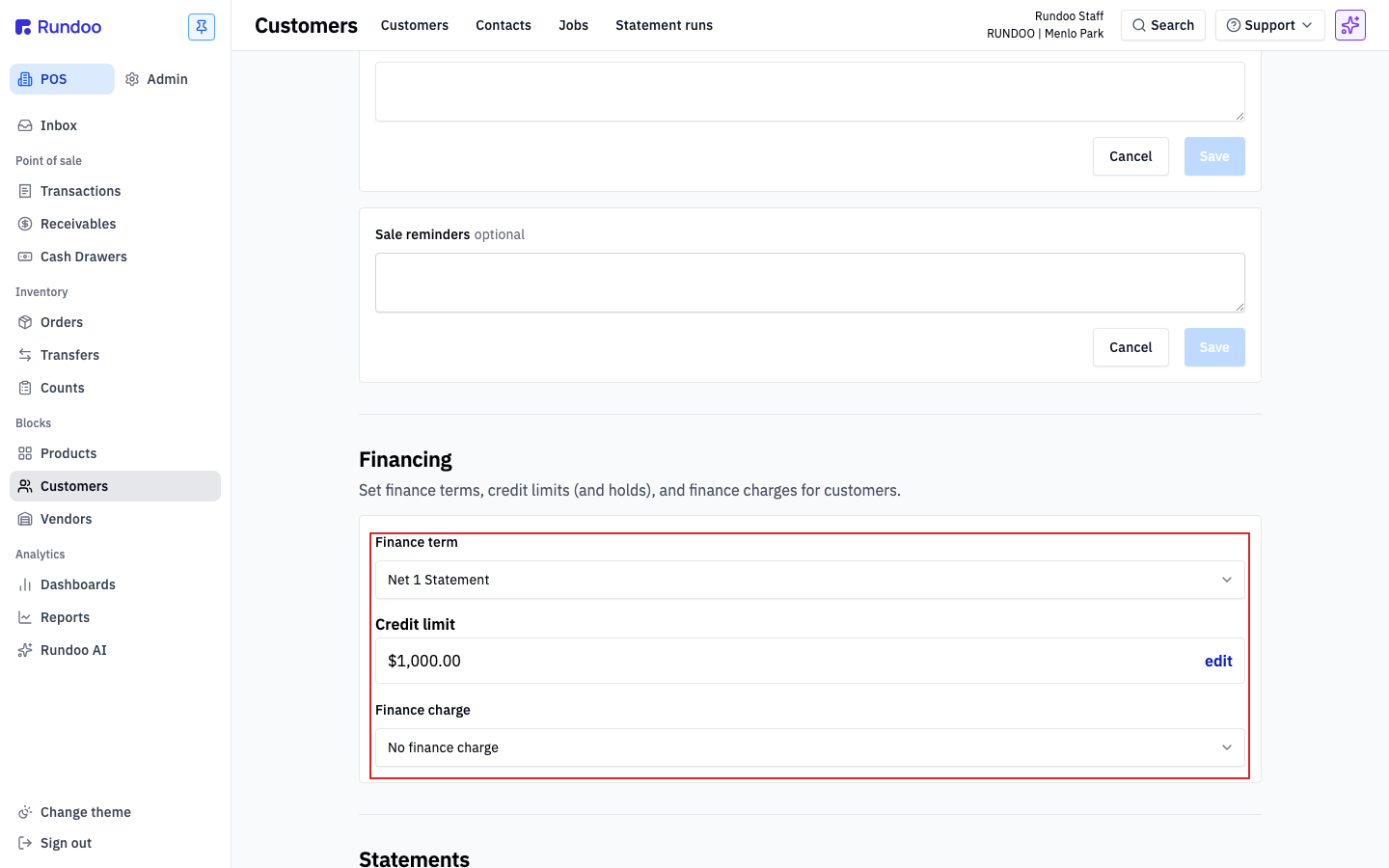
This is the step that makes the whole thing work. Open the new account, click the Settings tab, and scroll to Financing. Set the Finance term to Net 1 Statement, which tells Rundoo to treat this as a charge account that settles up each month. Give it a modest Credit limit (a thousand dollars is typical) and leave Finance charge on No finance charge. You are not paying yourself interest.
Open Transactions in the left sidebar and start a sale on the New tab. In the left panel, search accounts and attach your store-use account, exactly the way you would attach a regular customer.
Add the exact product that was mistinted, for example a gallon of Regal Select. In the tint modal, pick the color the can actually ended up as, not the color the customer wanted, so your records match the can on the shelf. A red inventory banner may appear if stock is already low; that is fine, more on it below.
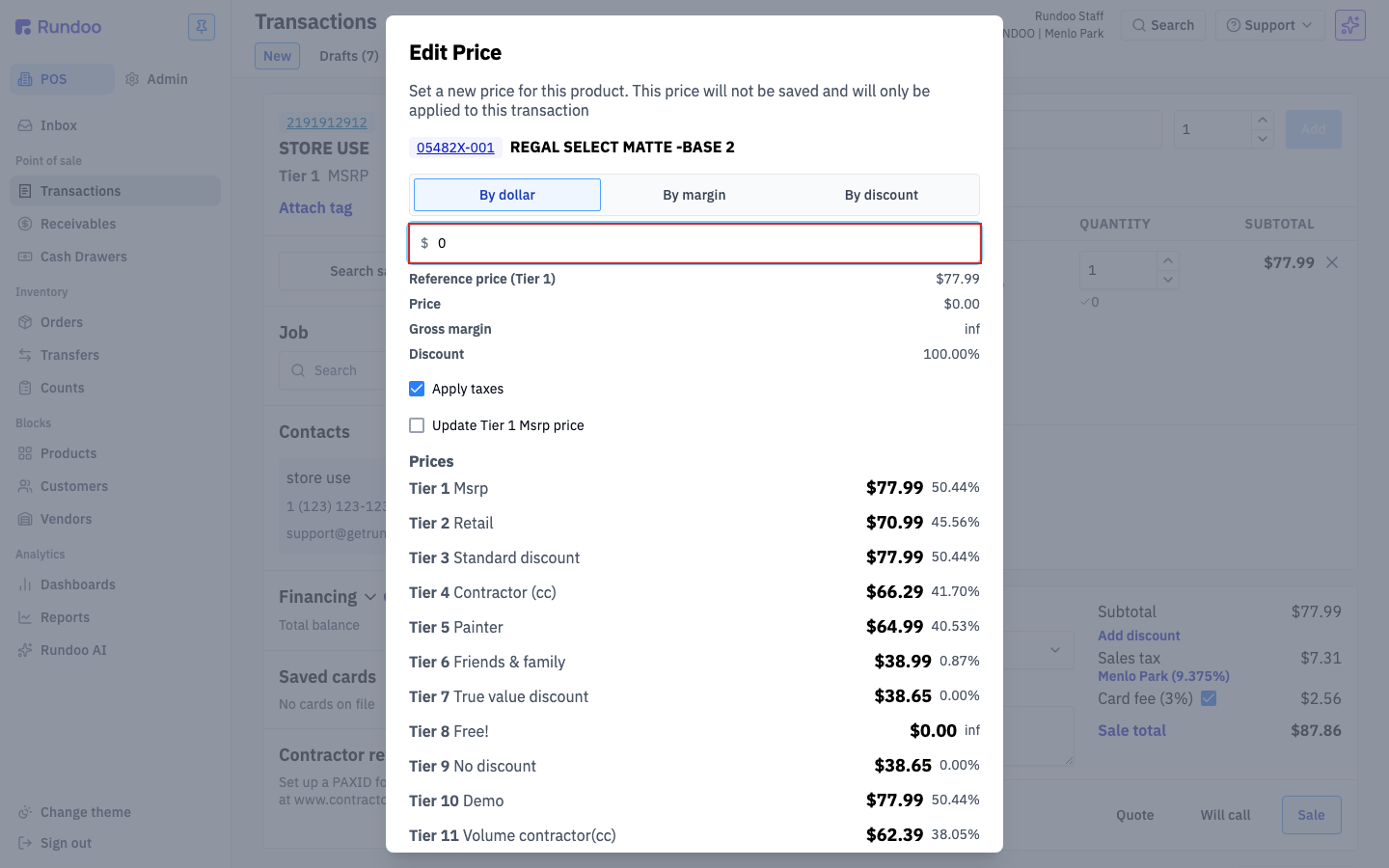
On the line item, click Edit price, keep it on By dollar, and set the price to $0.00. Hit Save. The line now reads $0.00 non-taxable and the cart total collapses to zero.
Drop an optional note in Internal notes so the reason is filterable later ("mistint, wanted OC-117, got 2143-70"), then click Complete sale. Because you set that finance term, the tender defaults to Charge account, and Rundoo settles the zero-dollar invoice automatically. No card, no cash. Your inventory is now corrected.
Come tax time, open Transactions > Completed and search the store-use account by name. If you run more than one store, set the location pill to All locations so every store's usage lands in one view. Click Download top-right, pick a range like Last year, and Rundoo exports a CSV with the product, cost, date, and note on every row. Hand it straight to your accountant.
What it is
A store-use account
A charge-account customer that stands in for your store.
The switch
Net 1 Statement
A statement finance term is what makes it a charge account.
Ring it up
Edit price → $0.00
Tender defaults to Charge account and settles itself.
Year-end
Completed → Download
A CSV of every write-off, ready for the accountant.
Good to know