Where
Admin → Customer → Pricing tiers
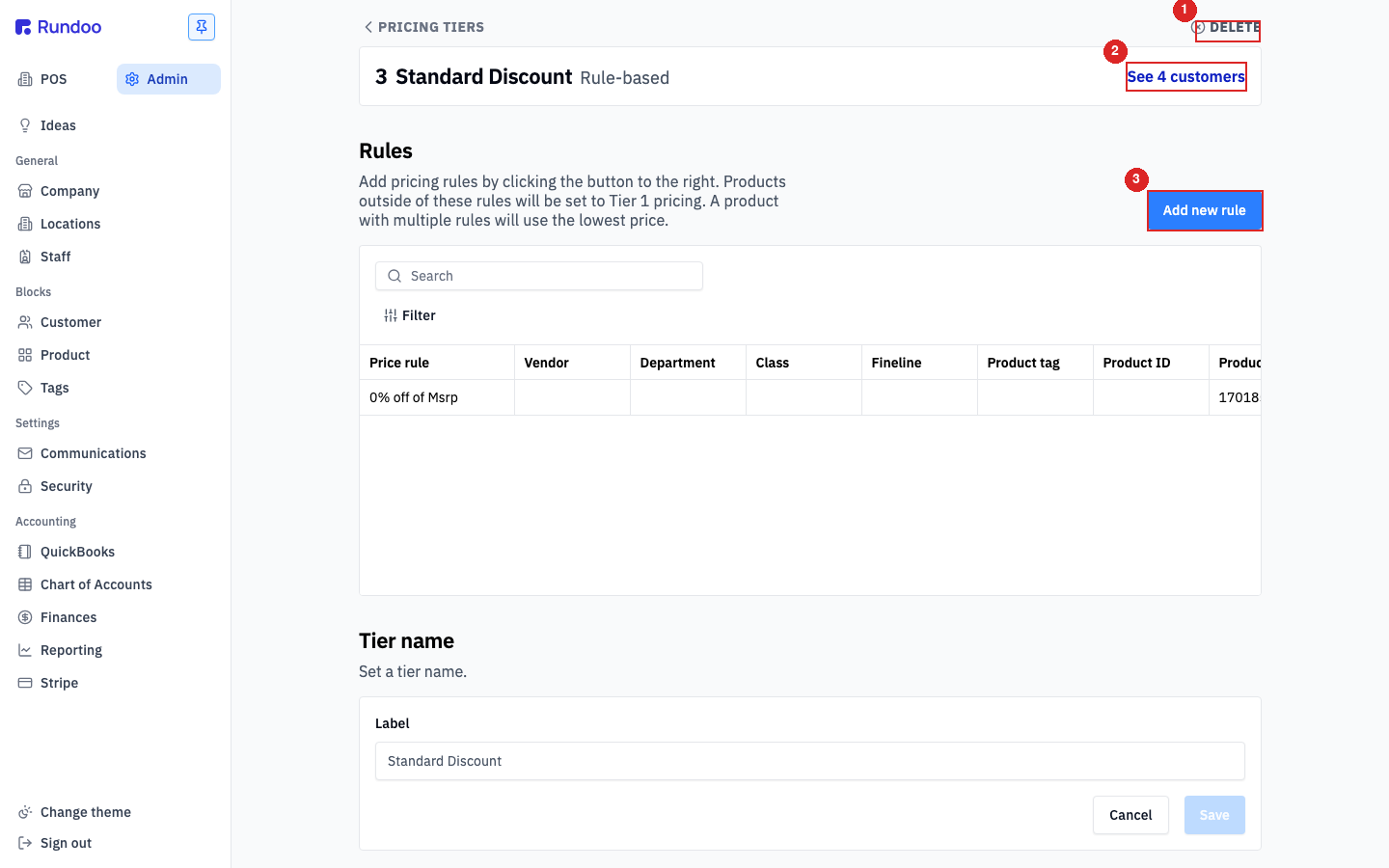
Open a rule-based tier to reach its Rules.

Getting Started with Rundoo · Setup
Set one rule, and every product with that tag gets the discount automatically.
You know exactly which customers deserve a break on a certain line of products, maybe your contractors on everything pro-grade. The catch is that a product line can cross a handful of vendors and a few departments, so pricing it by hand means hunting item by item. A product tag is the clean way around it. Tag those products once, write a single rule on a pricing tier, and every item carrying that tag prices itself for that group. Nothing to remember at the register, and no page-by-page editing.
In Admin mode, click Customer in the left sidebar. The Pricing tiers section sits at the top of the page. Each customer is on exactly one tier, and that tier is the price list they see at the counter. Tiers come in two types: Manual (you type a price per product) and Rule-based (prices are derived from a reference tier plus rules). Tag pricing lives on a rule-based tier.
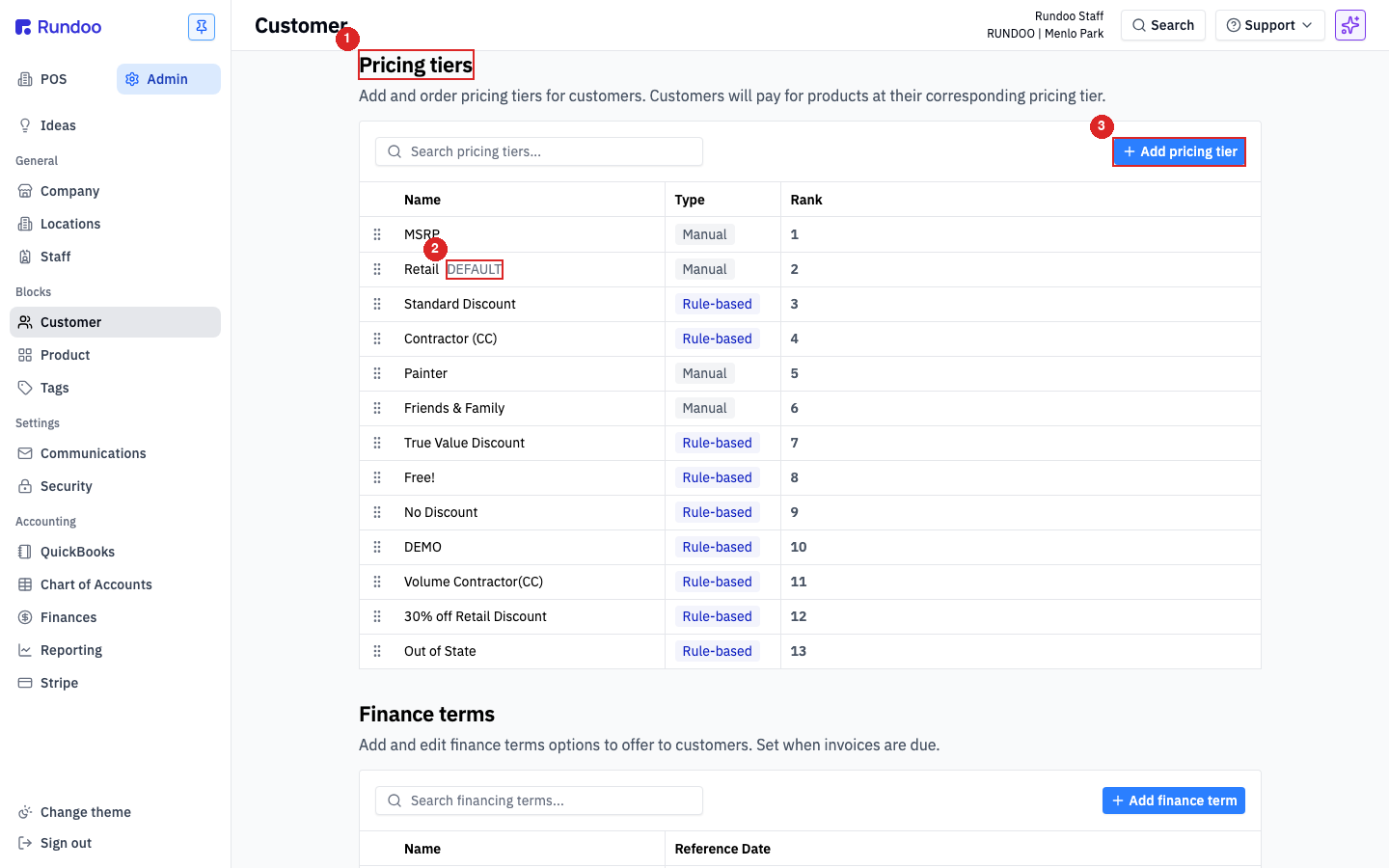
Click the row of the tier you want to discount, for example your Contractor tier. Only rule-based tiers have rules; a manual tier just holds typed-in prices, so its type has to be Rule-based for this to work.
On the tier's detail page, find the Rules section and click Add new rule. Read the note above the table while you are here: products that no rule touches fall back to the Tier 1 price, and a product caught by more than one rule takes the lowest price.
In the “Apply rule by” dropdown, choose Product tag. A rule can also key off Vendor, Department, Class, Fineline, Product ID, or a single Product, but a tag is what lets one rule span a whole line. Then pick your tag, say All-Pro. Rundoo shows how many products carry it, and you can click view the products to double-check you are grabbing the right items.
Choose Discount as the strategy, enter 30 for the percentage, and leave the reference tier on Tier 1. Click Save. One quick tip: give the page a refresh after saving and the new rule drops into the Rules table.
Head to Products. Open a simple untagged item, like a single bolt, and its Contractor price just matches the Tier 1 price. Now filter by the All-Pro tag and open one of those items: its Contractor price is exactly 30% below Tier 1, applied automatically with no extra work at the counter.
Where
Admin → Customer → Pricing tiers
Open a rule-based tier to reach its Rules.
Rule scope
Product tag
One rule spans vendors and departments.
Untagged items
Fall back to Tier 1
No rule touches them, so Tier 1 price stands.
Two rules on one item
Lowest price wins
Rundoo picks the cheaper of the two.
Good to know