by dollar
Type the price. $8.99
What you type is what rings.

Getting Started with Rundoo · Setup
Set each tier by dollar, margin, or discount, and add volume breaks.
You already know what every item on your shelves ought to sell for. The trick is telling Rundoo once, so the register rings up that exact number every time, for the right customer. The nice part is you get to set a price the way you already think about it, whether that's a flat dollar amount, a margin off your cost, or a discount off your list. Here's how to do it, one product at a time, on the Pricing tab.
In POS mode, click Products in the left sidebar, find your item, and open the Pricing tab up top. The Price card shows what this item rings up at for every one of your pricing tiers, with each tier's margin or discount right beside it so you can eyeball your profit at a glance.
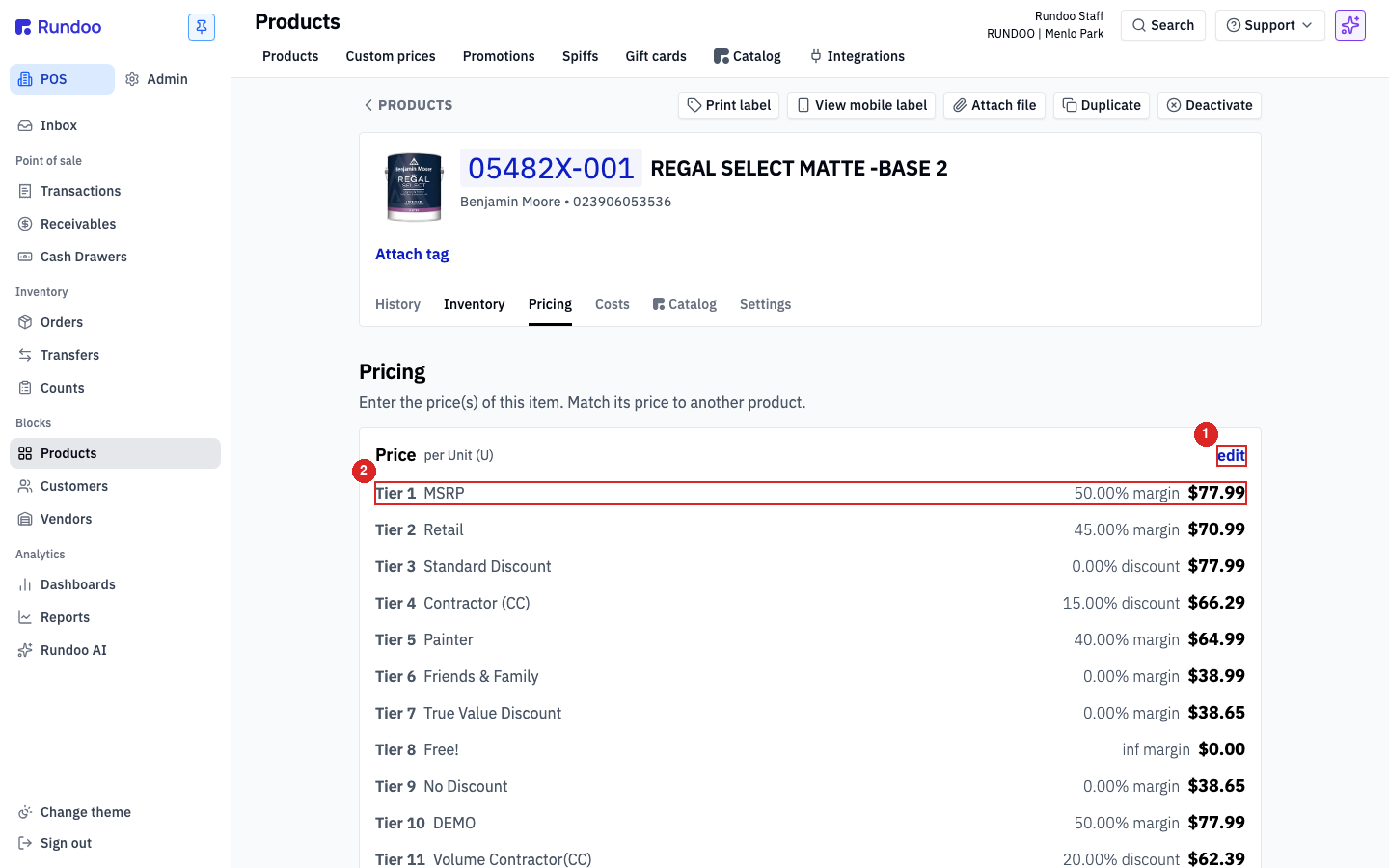
Click edit in the top-right of the Price card. Every tier's price becomes editable, and a small set of controls appears: a three-way mode toggle, Unit of measure, Price rounding, Match price, and Save.
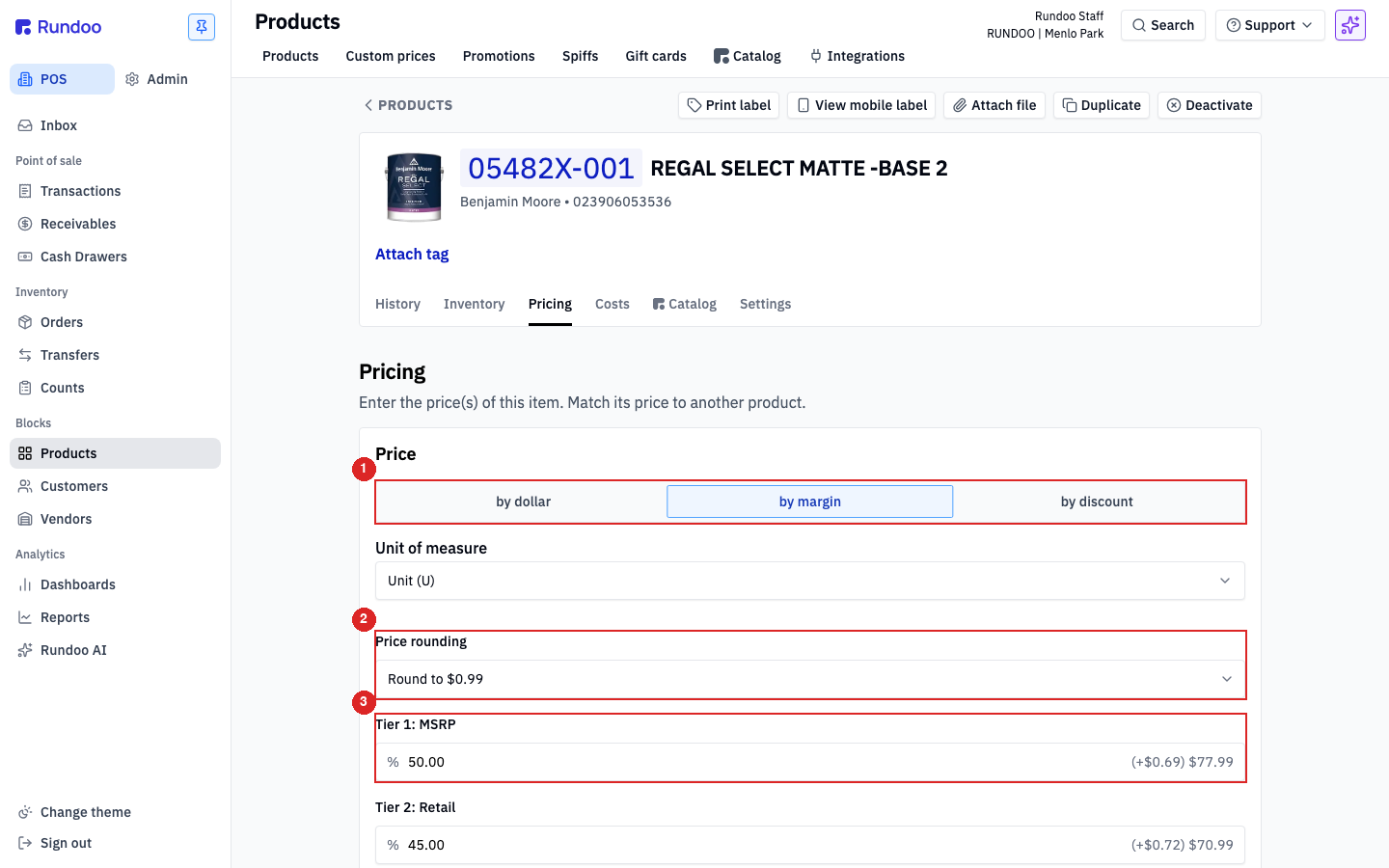
Leave the toggle on by dollar and just type the price you want, say 8.99, straight into the tier. What you type is what it rings. Nice and plain.
Rather work up from your cost? Switch the toggle to by margin and type the margin you're after, say 40. Rundoo does the math off the item's Standard cost (the one on the Costs tab) and fills in the price for you. Better still, if a vendor bumps your cost next quarter, you update Standard cost once and every by-margin tier recomputes on its own.
The third option, by discount, works off your Tier 1 price instead of your cost. Type 15 and that tier rings at 15% off Tier 1. Handy for a tier you think of as "so many points off list."
Set Price rounding to land on clean numbers. Round to $0.99 is the default, so a computed $64.62 becomes $64.99. When it all looks right, click Save. One Save commits every tier on the card at once. There's no per-tier save, it's all together.
You'll notice some tiers, like Contractor, sit grayed out with a See tier rules link. That's a good thing. Those prices are set automatically, store-wide, by your pricing tiers, so you don't touch them here. Building those store-wide tiers is its own job, and it's covered in the Pricing Tiers video. (You can type an override on a grayed tier when one product needs an exception, but that quietly stops that product from following the rule. Clear the box and save to hand it back.)
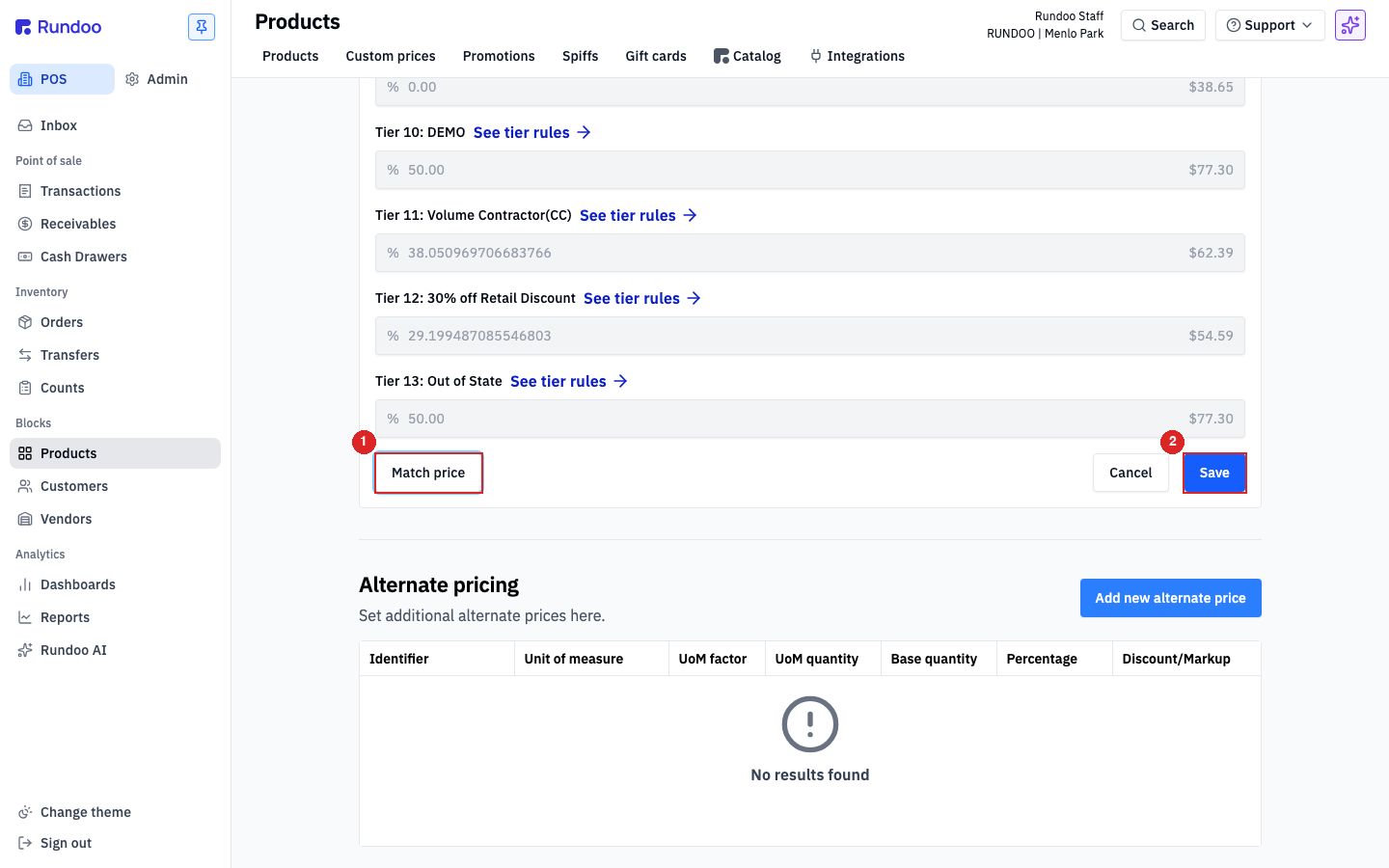
Say a contractor buys a full case of roller covers. Scroll down to Alternate pricing and click Add new alternate price. Set Quantity to the case size, say 12, leave the adjustment on Discount, and enter 10 for 10% off. Now anytime someone rings up 12 or more, that discount applies on its own. This is the tidy way to give a case a break: add a quantity break here and leave your everyday unit pricing exactly where it is.
One thing to remember: breaks don't stack. Rundoo always applies the single best break the quantity qualifies for, not several piled on top of each other. Buy 12 and you get the 12-up break; buy 60 and you get the 60-up break instead, not both.
Further down you'll see Custom prices. That's just a read-only list of any one-off prices you've set for a specific customer on this item. You can't add them from this screen, those live on the customer's profile, but it's handy to see them all gathered in one place.
by dollar
Type the price. $8.99
What you type is what rings.
by margin
Type a %, off Standard cost
40 gives you the price from cost. Needs a real cost.
by discount
Type a %, off Tier 1
15 rings at 15% off your list price.
Volume break
Alternate pricing → Add new alternate price
Quantity plus a Discount %. Breaks don't stack.
Good to know