On-hand count
Inventory tab
In the ballpark is fine. Exact count comes over on the go-live sync.

Getting Started with Rundoo · Go-Live Data Check
Check your products' costs, prices, and on-hand counts came over clean.
Your products are the heart of your business, and nobody knows them like you do. That is exactly why you are the right person for this check. Before you go live, we bring your catalog over from your old system, and this is your chance to spot-check that the key numbers landed clean. The goal is not to audit every single item. Pull up a few of your best sellers, the ones you could price in your sleep, and make sure the on-hand count, the cost, and the price levels look right. Anything that looks off, you flag to your Rundoo guide, and they fix it on their side before your final data comes over.
Head to Products in the left sidebar to bring up your whole catalog, then click an everyday item you sell all the time to open its detail page. Every product opens on the History tab, and across the top you will see six tabs: History, Inventory, Pricing, Costs, Catalog, and Settings. For this spot-check you only need three of them: Inventory, Costs, and Pricing.
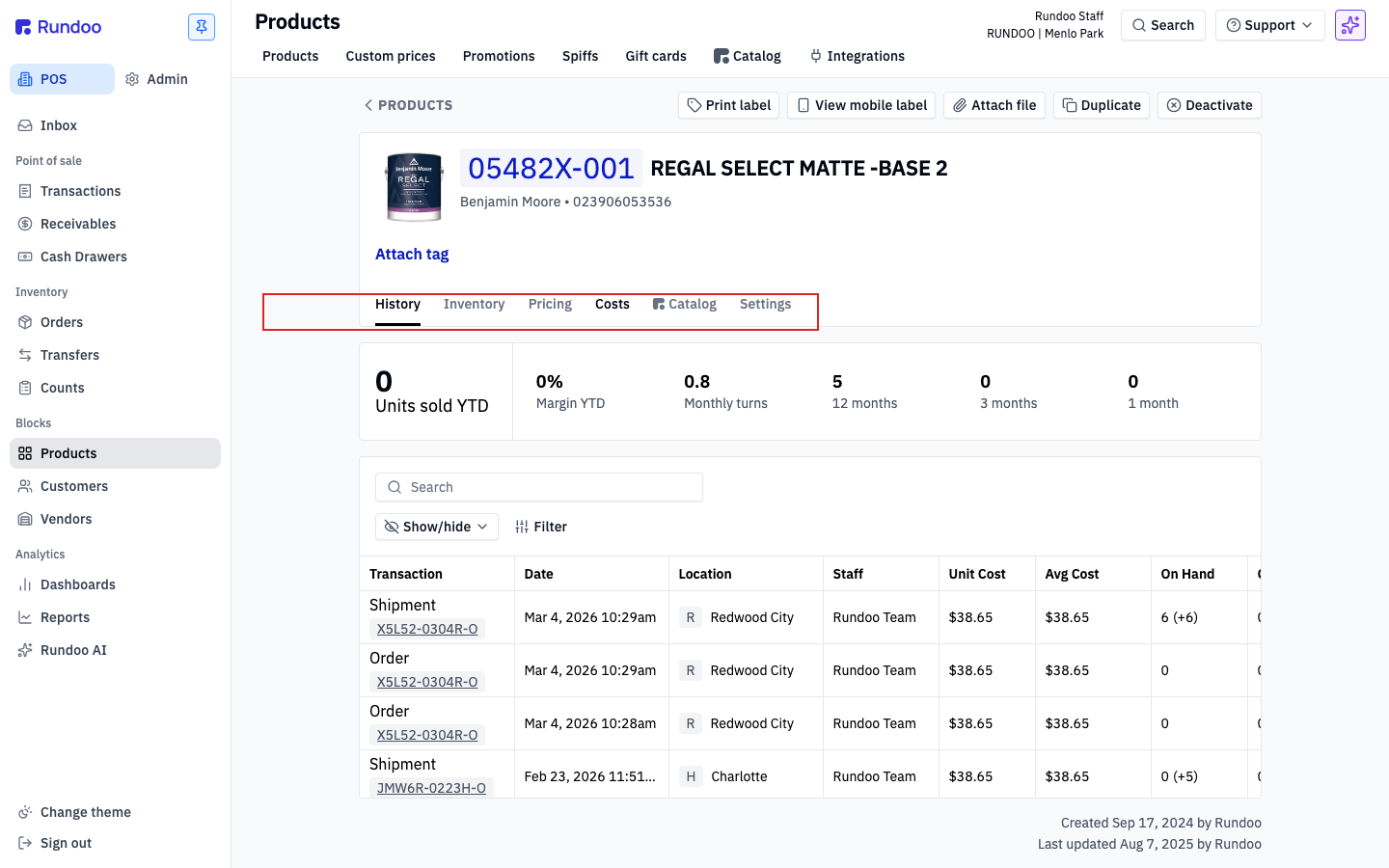
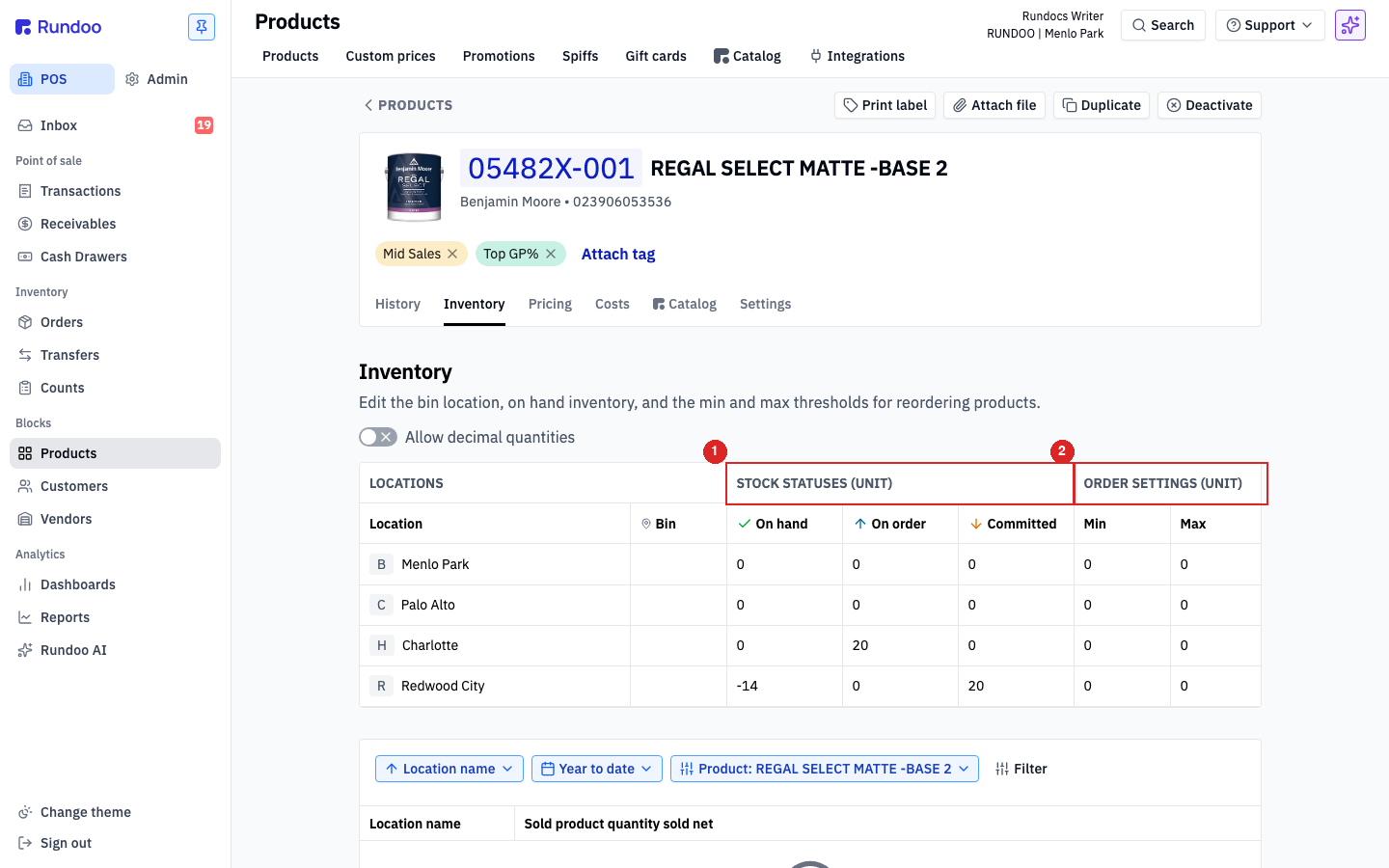
Click the Inventory tab. You will see the on-hand quantity for this product at each location. One thing to keep in mind: today's number is a snapshot, not the final word. Your accurate count comes over the night you go live, so right now you are just confirming it is in the right ballpark, not perfect to the piece.
If you run more than one location, glance down the list and make sure the split across your stores looks about right too.
Click the Costs tab. This is one of the most important checks, because Rundoo uses cost to calculate your margins. Here is your first red flag: a product showing a cost of zero dollars. If you see one, make a note of the item.
A quick nuance: a few items are meant to be zero, like a special-order product you price at the counter, or a non-sellable placeholder. So a zero is not always a mistake. Flag the ones that should have a real cost and let your guide sort them out.
Click the Pricing tab. Here you will see every price level for this item: your standard retail price, plus any contractor or volume tiers you use (they run from Tier 1 Msrp up to Tier 11 Volume contractor). Just confirm the prices you expect to see are there, and that no tier looks off.
While the product is open, glance at its department and class. When we bring your catalog over we do our best to sort every item into the right category, but it is an educated guess and sometimes an item lands in the wrong spot. Your sales and margin reports lean on those categories later, so if something is filed wrong, do not re-file it yourself. Flag it and your guide will re-map it.
There is one more red flag, and you catch it from the Products list rather than inside a single item. As you scroll your catalog, if you spot the exact same item listed twice, that is a duplicate. Make a note of it, same as a zero-dollar cost. Rundoo does not merge products, so your guide fixes a duplicate by keeping one and retiring the other. That is their job, not yours.
For your top sellers where the cost looks right, the on-hand count is in the ballpark, and the price levels are all there, that is the happy path. You breeze past. For anything that does not look right, do not fix it yourself. Note the product's Primary ID from the top of its detail page, then send it to your Rundoo guide with exactly what you see, for example the product name and that its cost came over as zero. It lands on their list of things to fix before you go live, and the correction comes over with your final data.
On-hand count
Inventory tab
In the ballpark is fine. Exact count comes over on the go-live sync.
Cost
Costs tab
Red flag: a $0 cost on an item that should have a real one.
Price levels
Pricing tab
Your retail price plus any contractor or volume tiers you use.
Duplicates
Products list
Same item listed twice? Flag it. Rundoo has no product merge.
Good to know