Where it lives
Admin, Customer
Look for the Rundoo Rewards section

Getting Started with Rundoo · Setup
Built into your point of sale. Set your rules once, then customers earn and redeem right at the register.
Every store has regulars who will always come back. A loyalty program gives everyone else a reason to. Rundoo's is built right into your point of sale, so there is no separate app, no extra monthly fee, and nothing to reconcile at the end of the month. You set the rules once, and the register does the rest.
One naming note
Switch to Admin, open Customer, and scroll to the Rundoo Rewards section. Turn on Enable Rundoo Rewards.
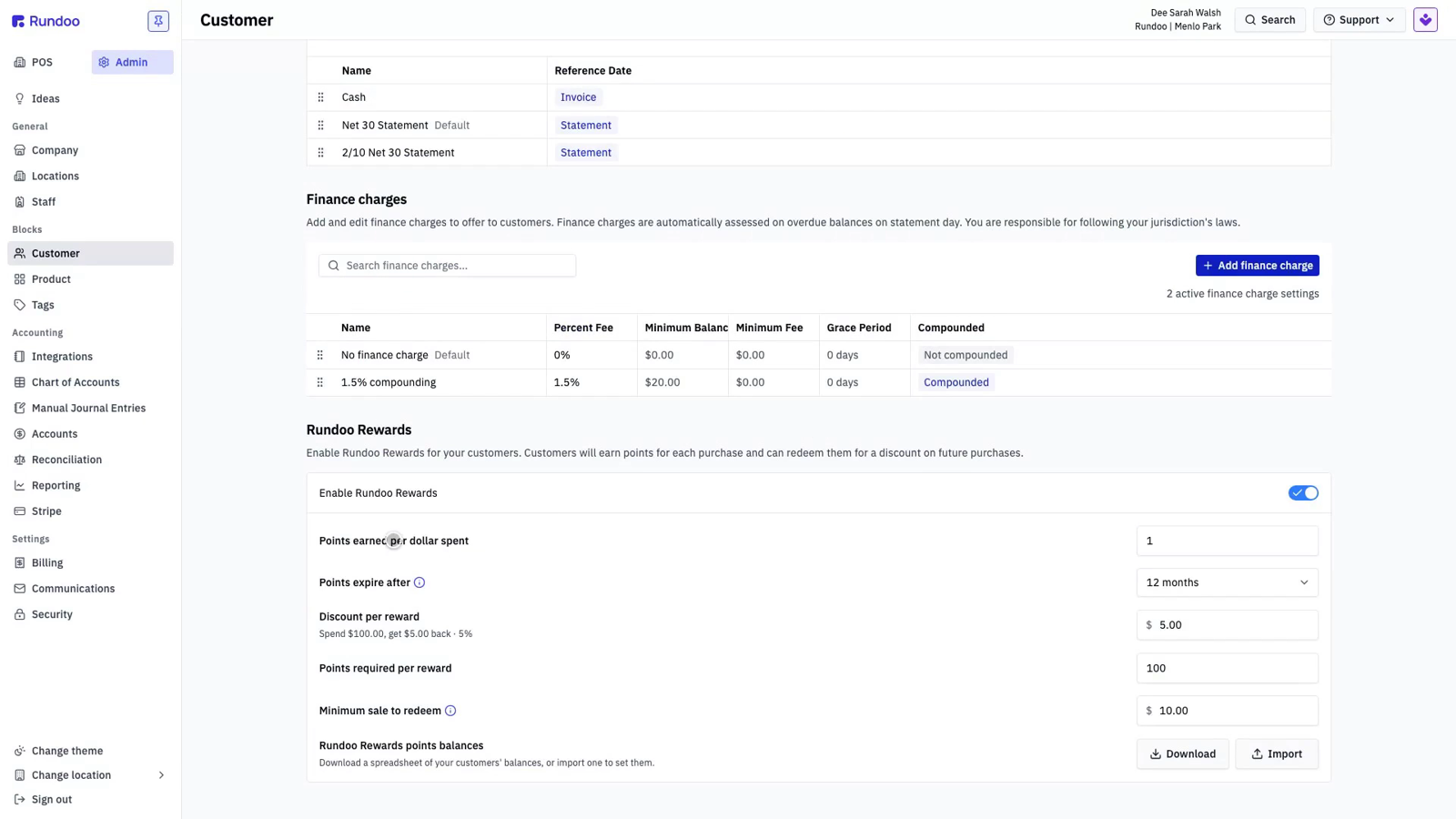
Fill in the fields under the toggle. Points earned per dollar spent starts at 1. Discount per reward and Points required per reward decide what a reward is worth, for example 100 points for $5.00 off, taken before tax. Rundoo spells out the math right there (Spend $100.00, get $5.00 back, 5%), so you always know what you are giving away.
Then set a Minimum sale to redeem and pick Points expire after: anywhere from 3 months to 2 years after the customer's last purchase, or never.
There is no Save button. Changes save on their own, so once the toggle is on and your rules are set, customers start earning.
Two reasons to use this: you are switching from another loyalty program and don't want customers starting back at zero, or you want to change many balances at once (say, 100 thank-you points for everyone at Thanksgiving). Both use the same download, edit, import rhythm.
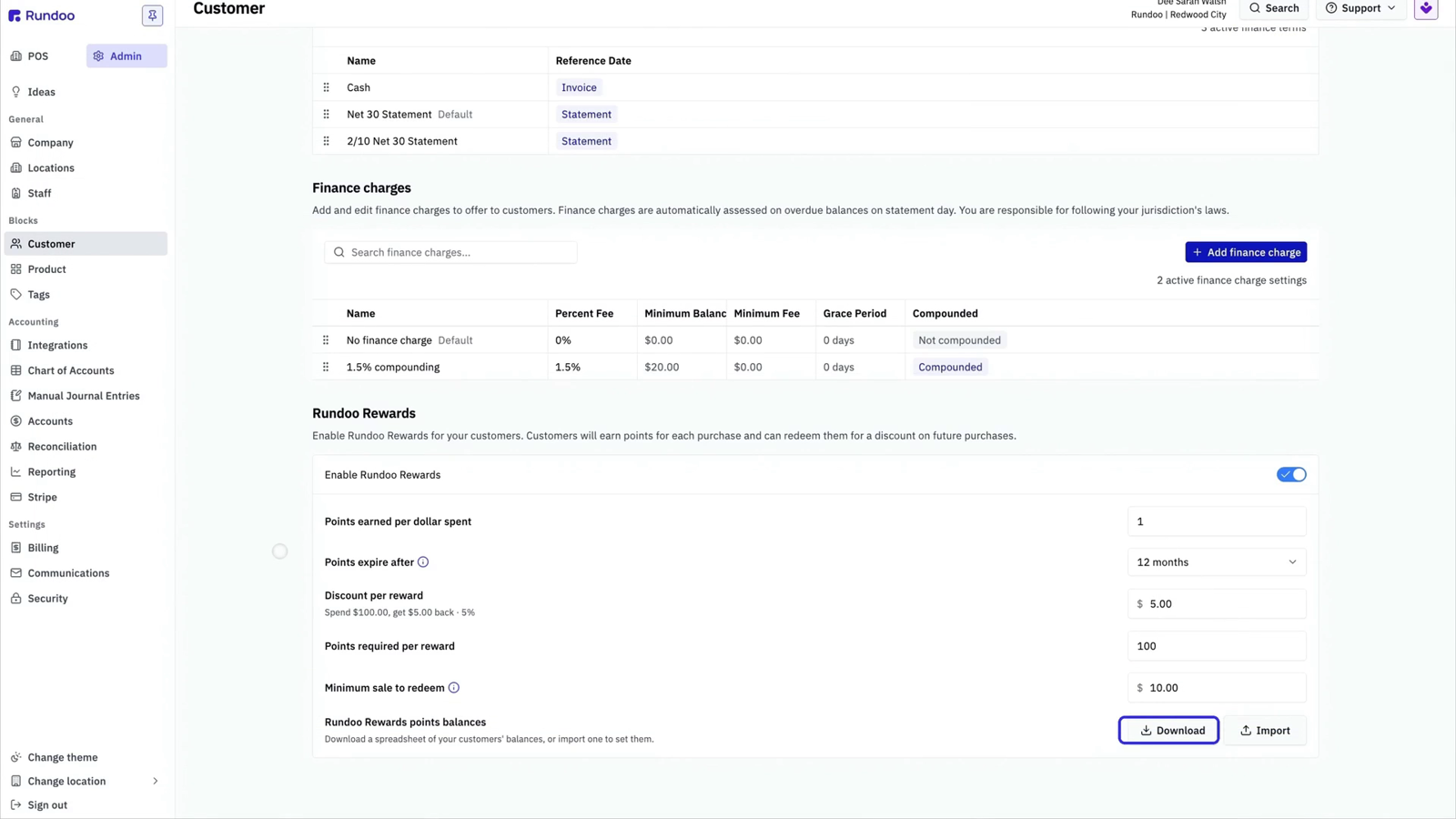
At the bottom of the same section, on the Rundoo Rewards points balances row, click Download and open the spreadsheet.
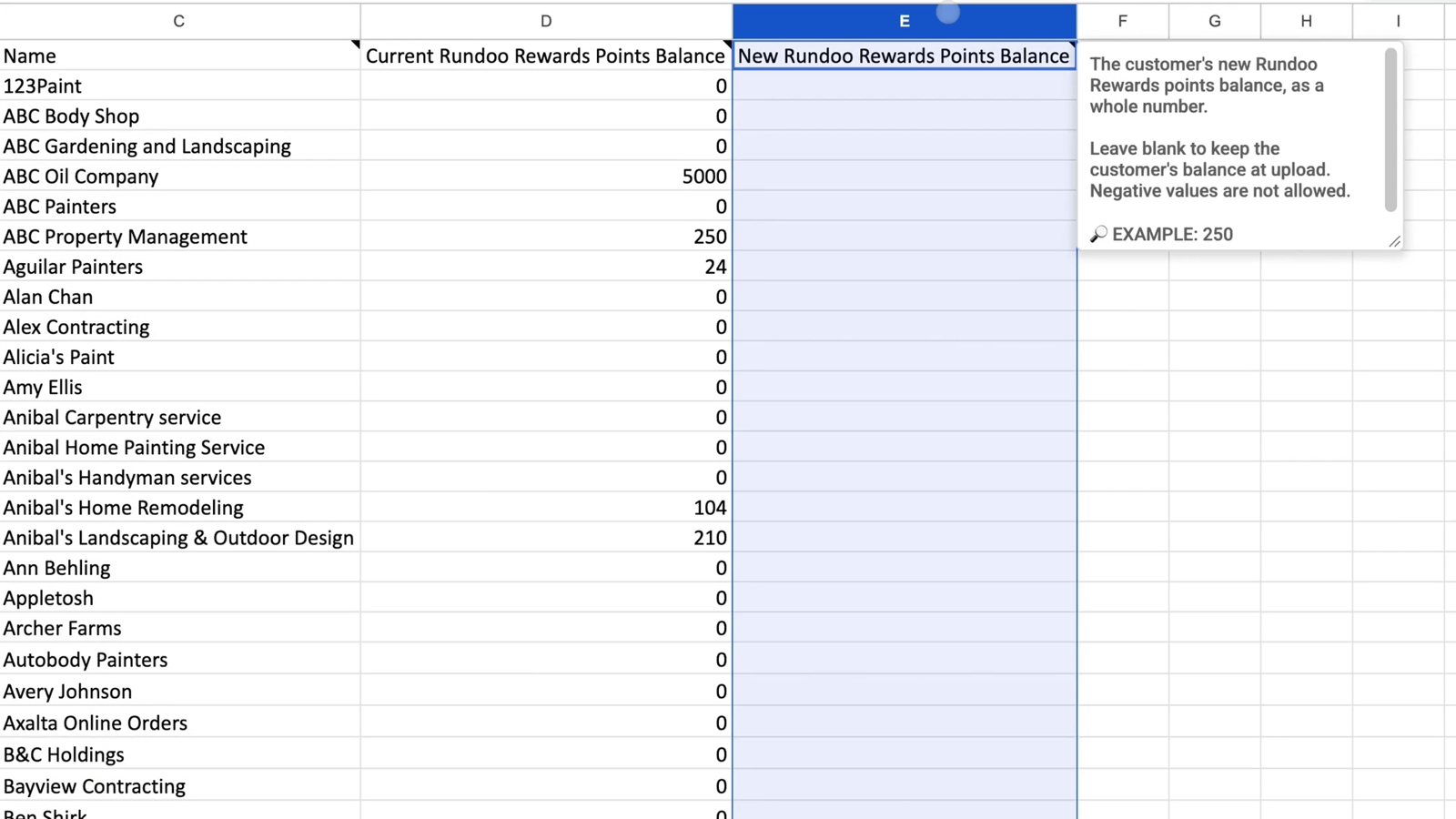
Columns A through D (the token, customer ID, name, and current balance) tell Rundoo who is who. Leave them alone. Type each customer's new balance into column E as a whole number. Leave a cell blank to keep that customer's balance as it is.
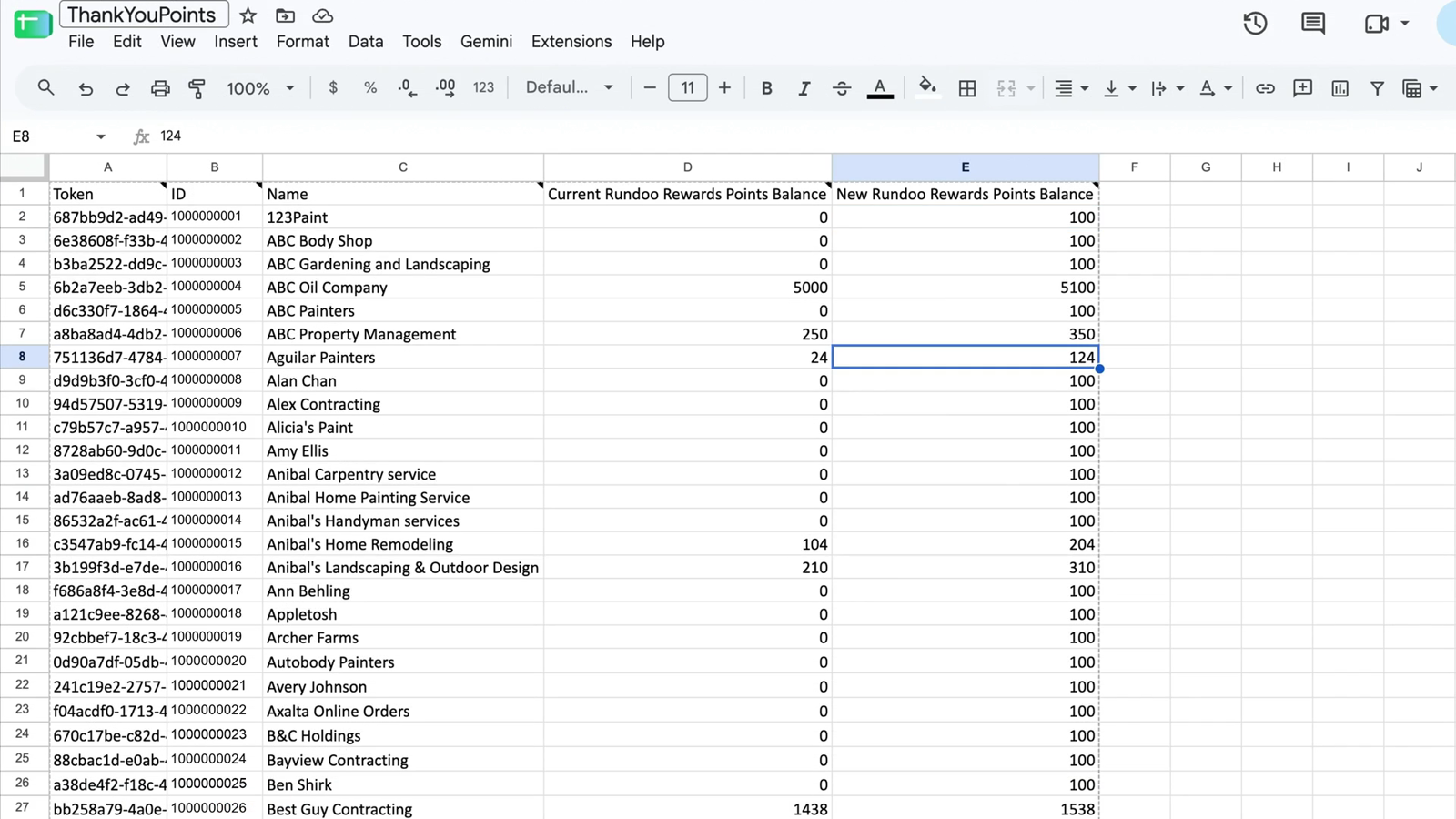
Use a formula in column E that adds to column D (for example, D2 plus 100) and fill it down. Then copy the column and use Paste special, Values only, so the file holds plain numbers instead of formulas. Save the file.
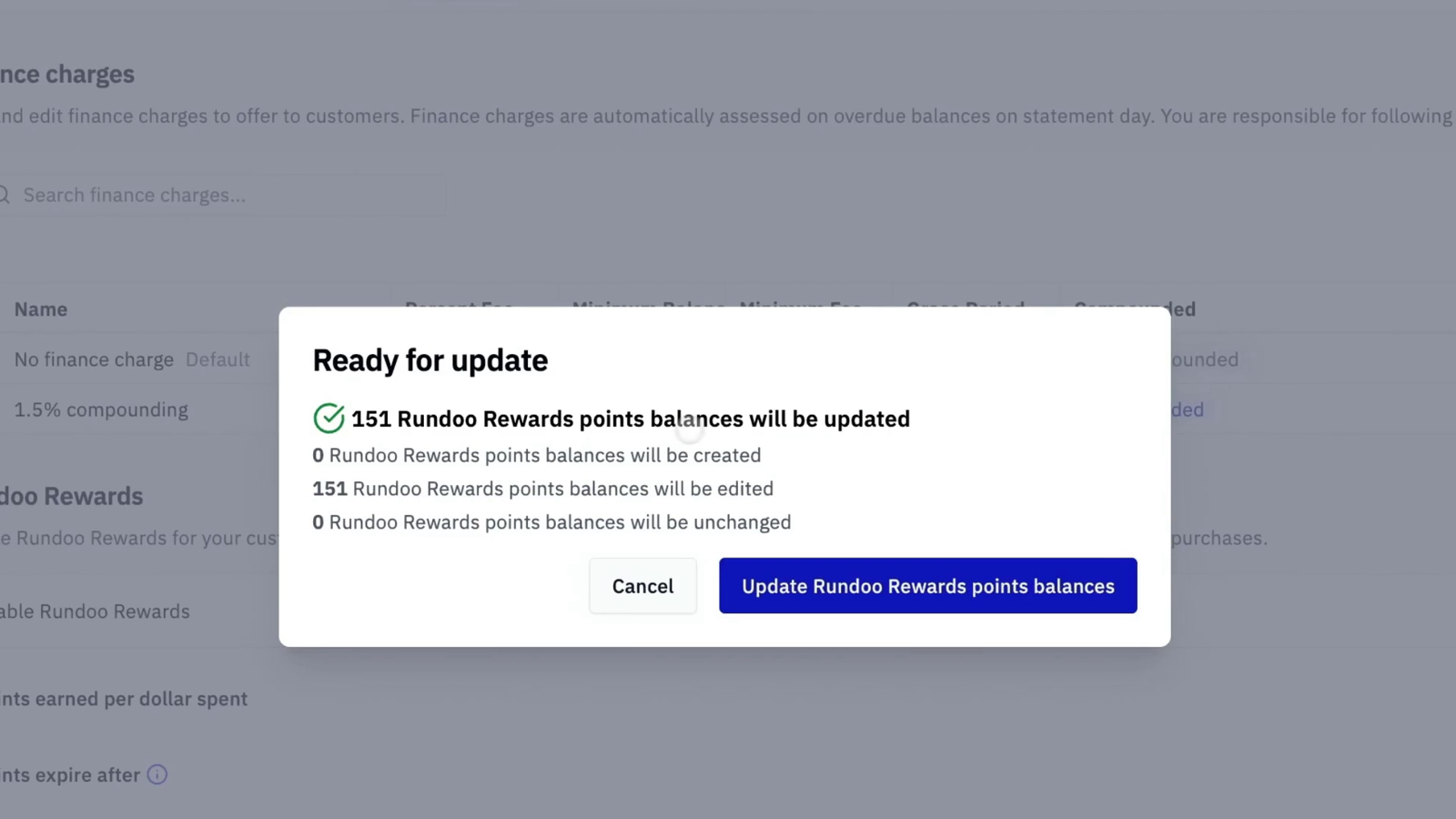
Back in Rundoo, click Import on the same row and pick your file. Rundoo shows you how many balances will be created, edited, or left unchanged. If it looks right, click Update Rundoo Rewards points balances.
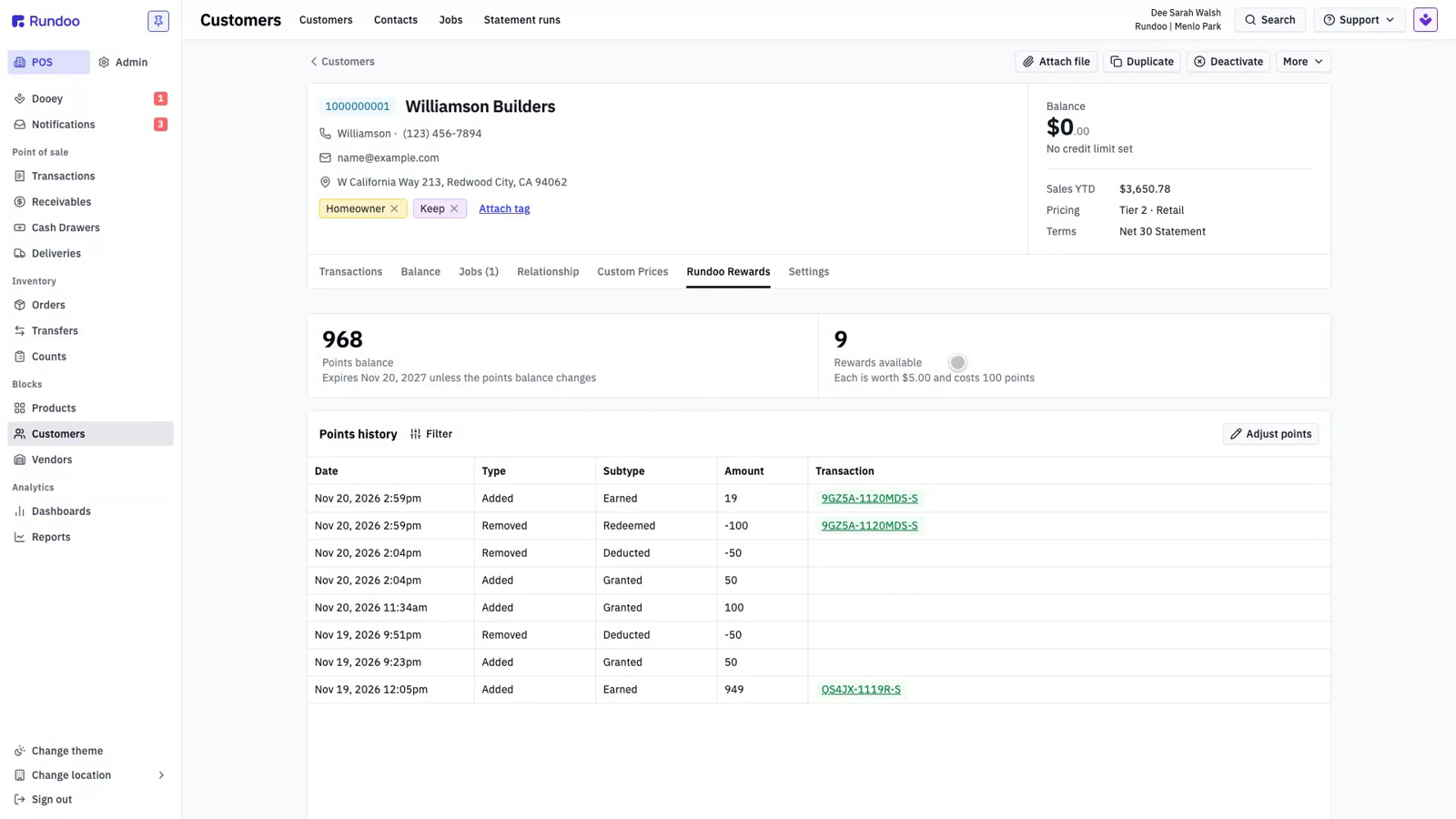
Changes can take up to 30 minutes to show. To check one, open the customer in POS, Customers, and click their Rundoo Rewards tab. An imported change shows in the history as Added, Granted (not Earned).
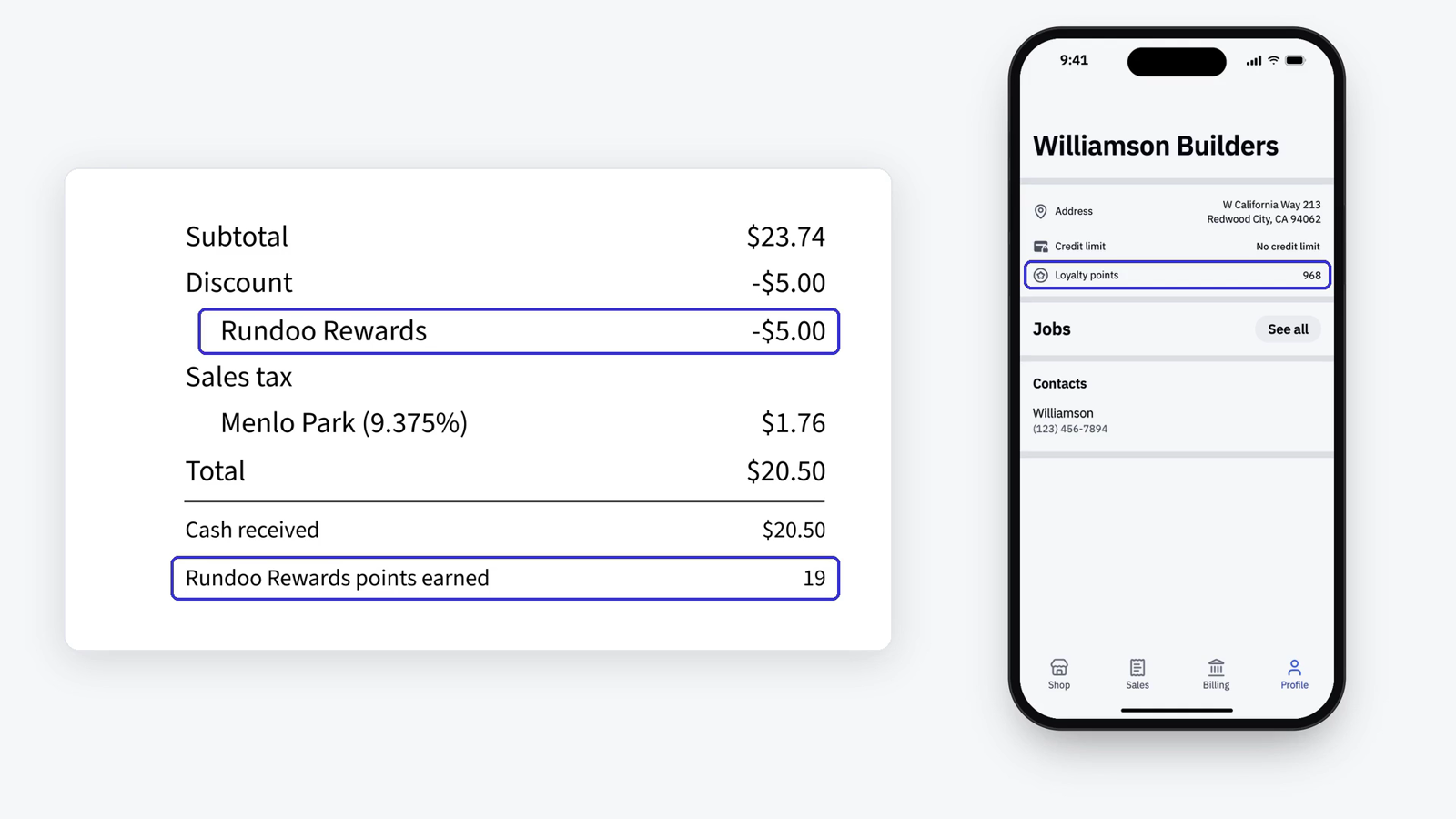
In Transactions, start a sale and attach the customer. Points earn on their own. If they have a reward waiting, Rundoo tells you under Loyalty, for example $5.00 ready, along with their point total.
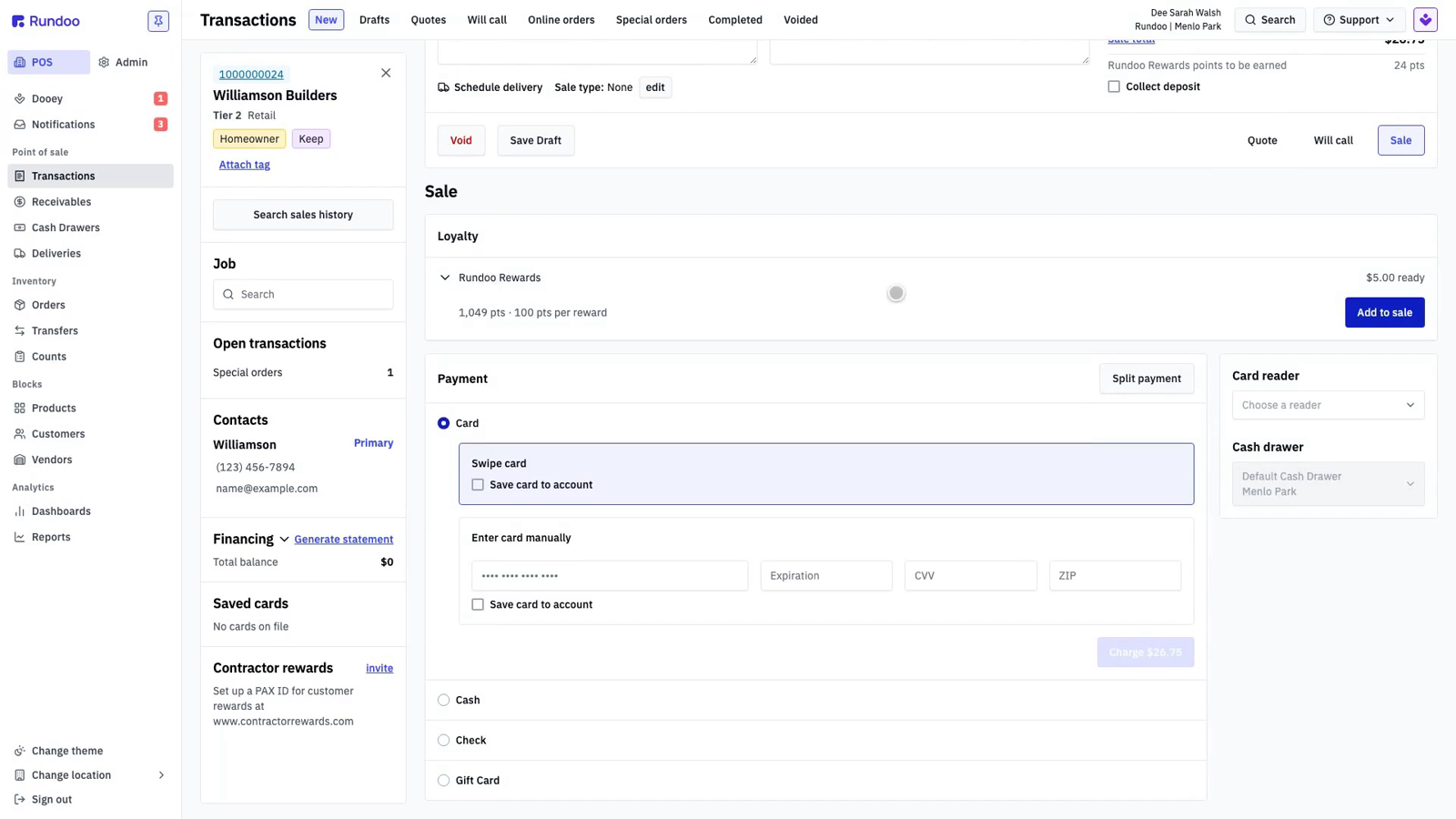
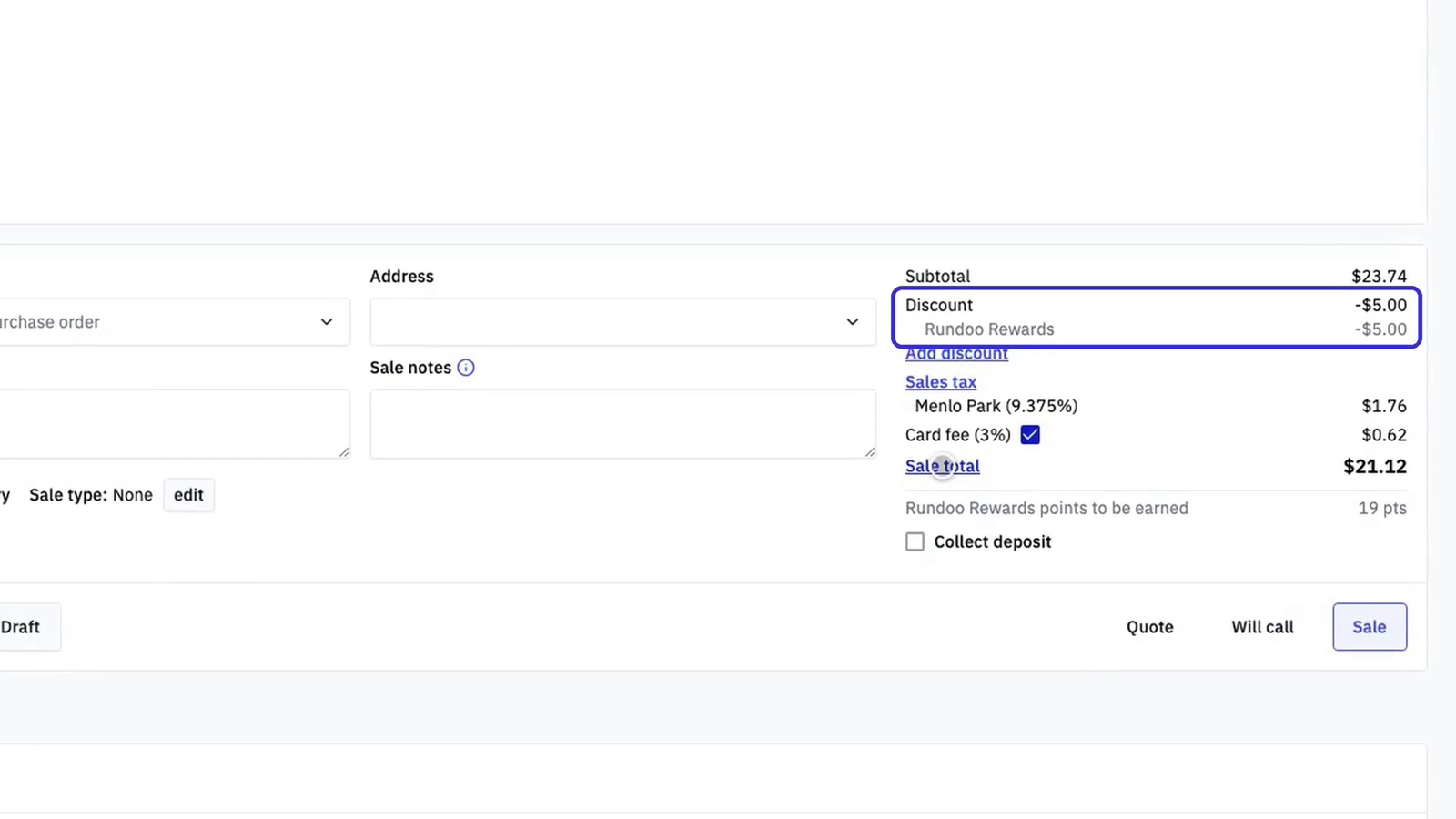
Click Add to sale. The reward drops onto the sale as a discount before tax, and the sale shows the points this purchase will earn.
Click into the customer and open their Rundoo Rewards tab for their points balance, rewards available, and a history of every point earned, redeemed, granted, or deducted.
Points print right on the receipt, and the balance shows in the Rundoo customer app, so they always know how close they are to the next reward.
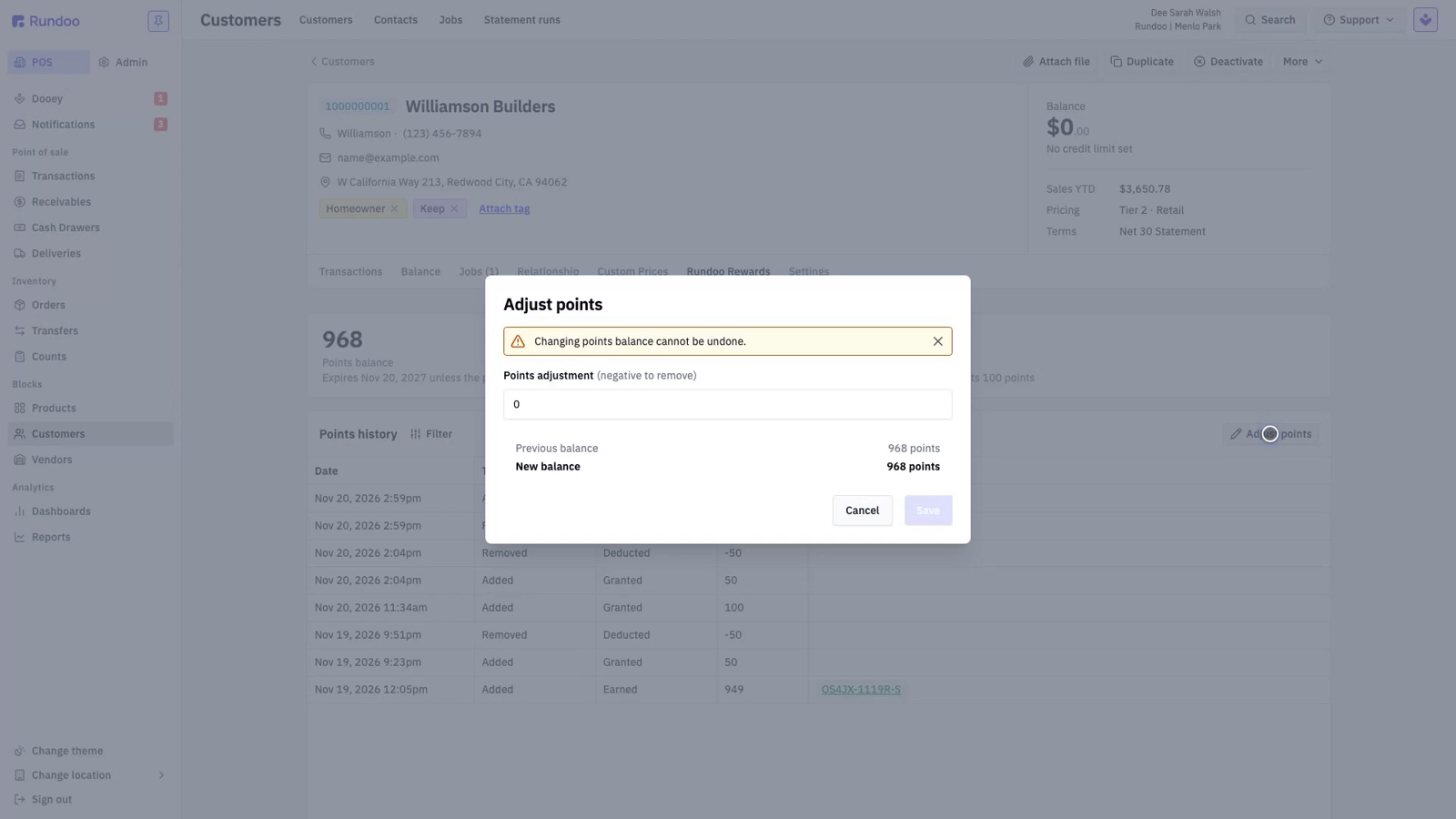
For goodwill points, a sale a clerk forgot to attach, merging two accounts, or clearing a balance: on the customer's Rundoo Rewards tab, click Adjust points, enter the change (negative to remove, positive to add), and Save. Rundoo shows the previous and new balance before you save.
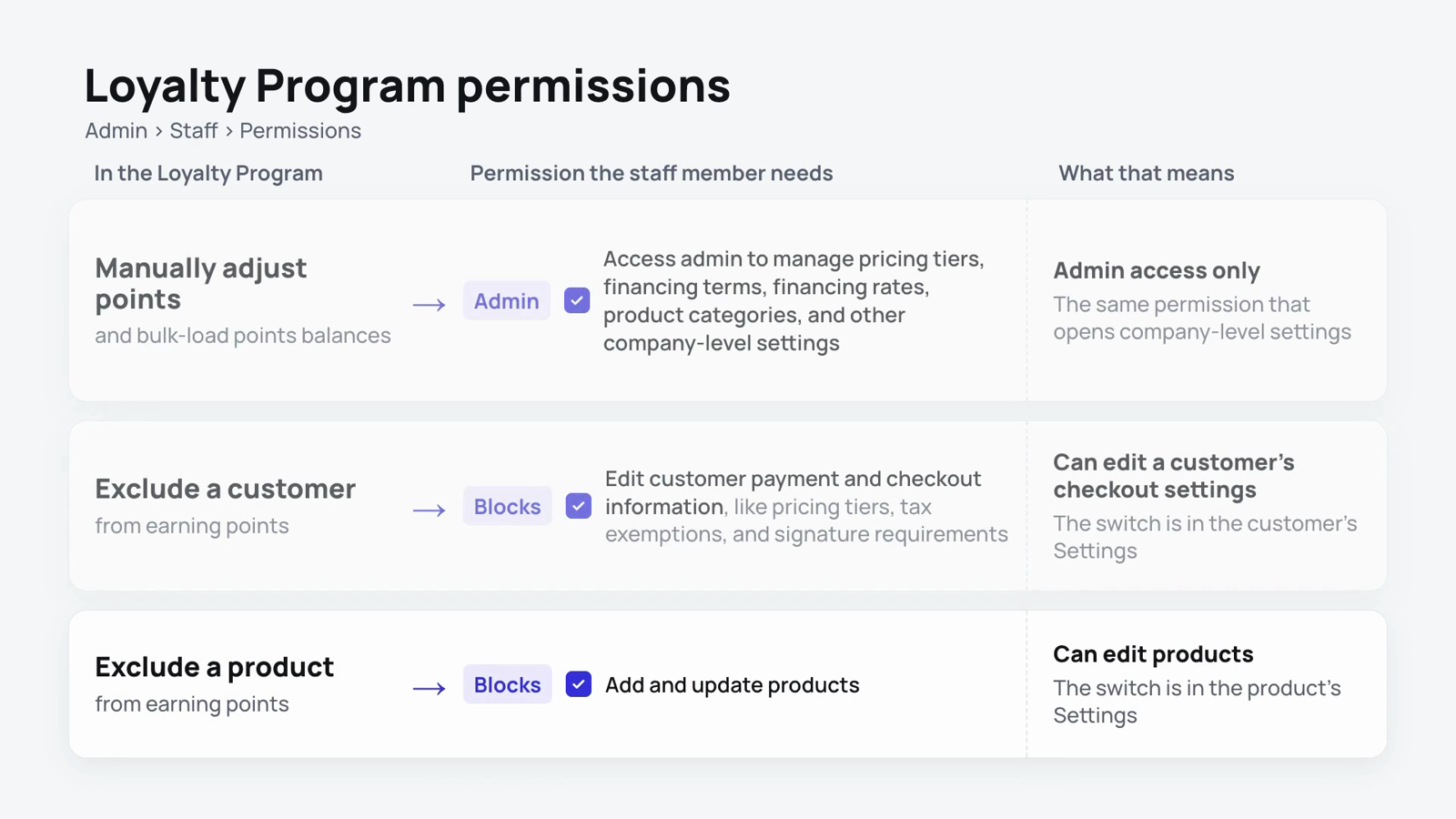
Points are real money to your store, so each action has its own permission under Admin, Staff, Permissions.
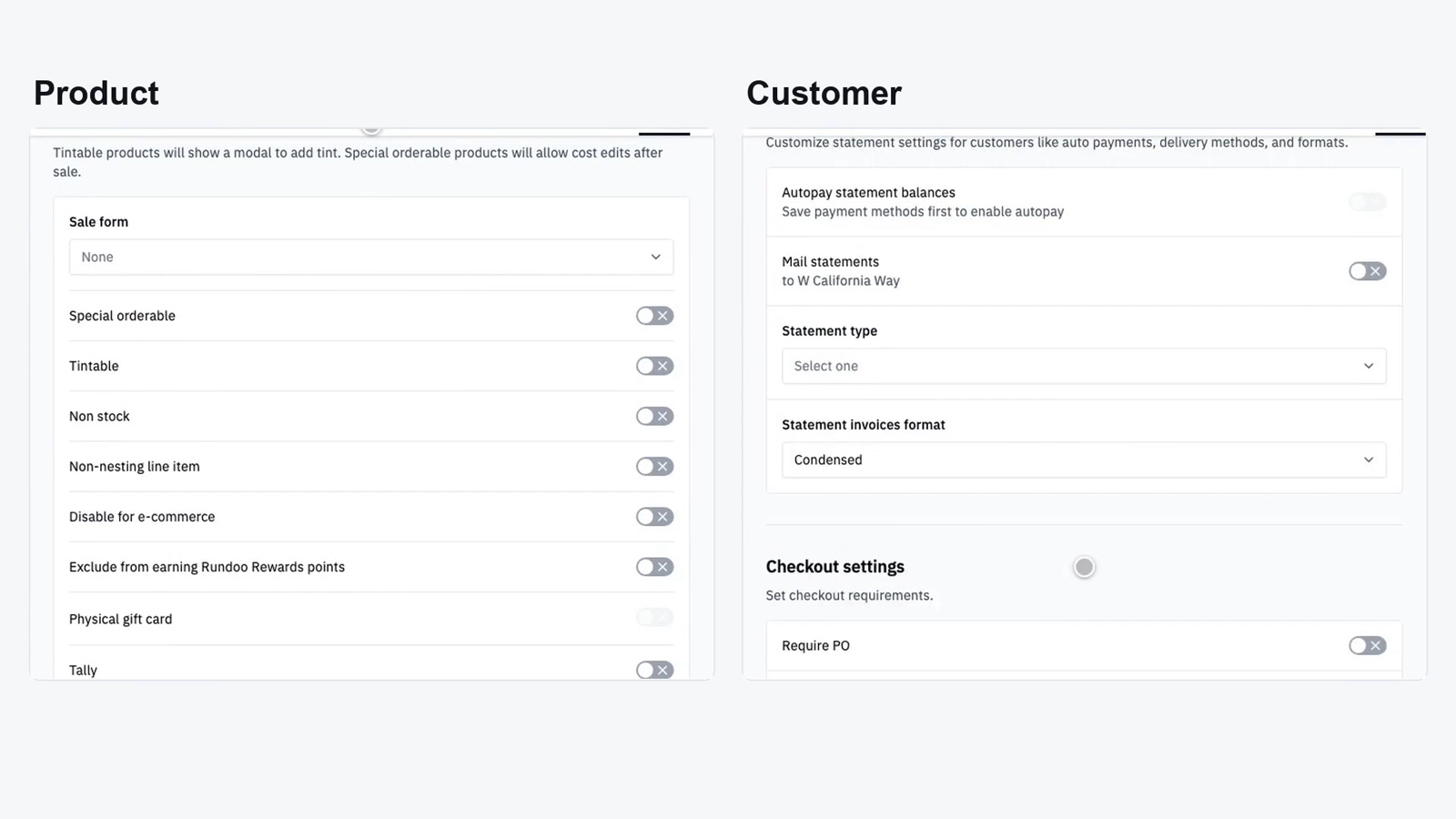
Once the program is on, every product and every customer is in it. To make an exception, open the product's or the customer's settings, find the checkout settings, and turn on Exclude from earning Rundoo Rewards points.
Dooey can set exclusions for you in plain English, for example "Exclude all of Chadwicks' products from earning points" while a promotion runs. When the promotion ends, ask Dooey to remove the exclusion. Exclusions only affect future sales. Points already earned stay.
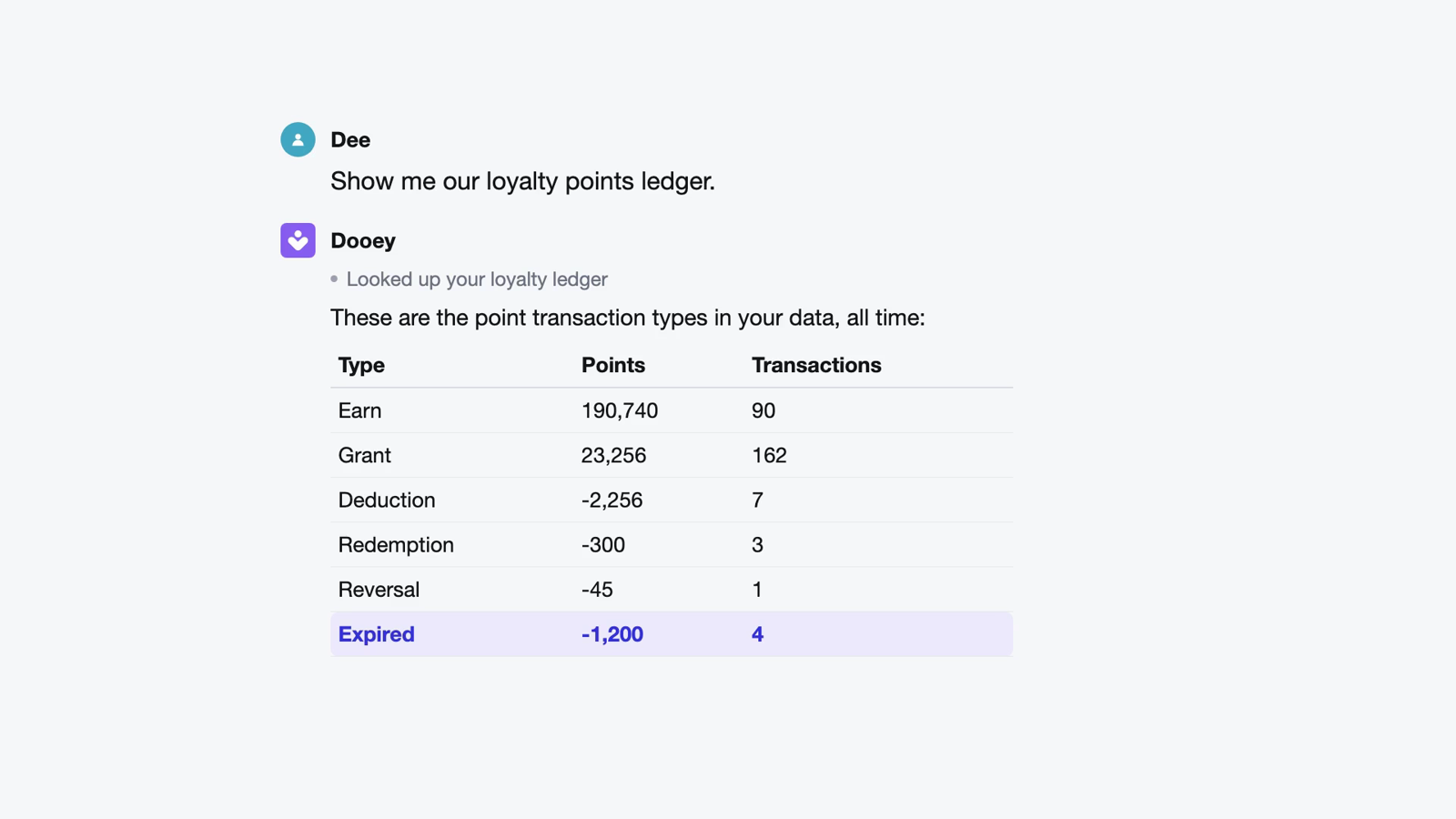
Ask Dooey for your loyalty points ledger to see what has been earned, granted, redeemed, and expired, and how many points are outstanding. No spreadsheet required. For your accountant or bookkeeper, outstanding points are tracked as a liability.
Where it lives
Admin, Customer
Look for the Rundoo Rewards section
Starting rules
1 point per $1
100 points = $5.00 off, $10.00 minimum sale. All yours to change.
Points expire
3 months to 2 years, or never
Counted from the customer's last purchase
Bulk import
Up to 30 minutes
Edit column E only, whole numbers
Good to know