Where
Transactions → Completed
Then Void, top-right action row.

Getting Started with Rundoo · Transactions
Cancel an unpaid charge-account sale before any money changes hands.
It happens. A contractor puts an order on their house account, then calls a few minutes later to cancel before the items ever leave the store. No money has changed hands, but you've still got an open invoice sitting on their balance. Voiding is how you clear it off clean. It's built for exactly this: an unpaid charge sale that shouldn't have gone through.
Rundoo keeps your audit trail intact, so a voided sale doesn't vanish. It gets marked canceled, comes off the customer's balance, and moves to your Voided tab where you can still find it later. The one rule to remember: you can only void an unpaid charge-account sale. Cash, card, and check sales are finalized the moment payment lands, so those take a Return instead. More on that below.
In POS, click Transactions in the left menu, then the Completed tab across the top. That's every finished sale, ready to search.
Use the search bar to pull it up by customer name, invoice total, or even a product that was on it. Open it and check the payment line. You're looking for Charged to account. If it reads cash, card, or check, it can't be voided, and you'll want a Return.
With the sale open, click Void up in the action row at the top right. If that button is greyed out, hover over it. The tooltip tells you why, usually because the sale was already paid.
The Void Completed Sale box opens. If your store requires a reason, type a quick note, like "customer canceled order." The Void Sale button stays greyed out until that's filled in. Then check Return inventory to stock. It's on by default, which is what you want when the goods never left. Click Void Sale.
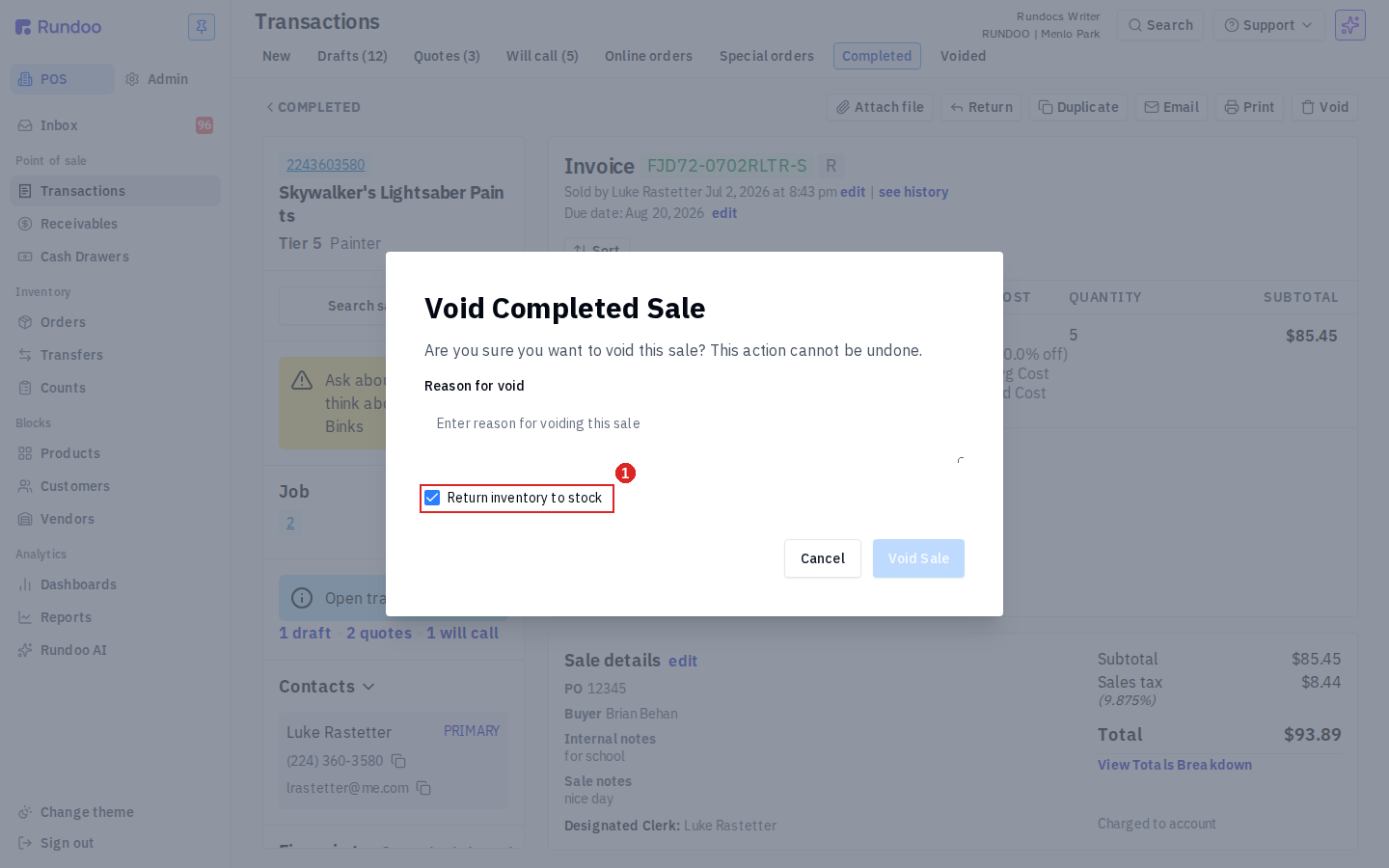
The sale drops off your Completed list and the invoice comes off the customer's balance. Click over to the Voided tab and you'll see it logged there for your records. Clean.
One line to keep straight
Void is for a charge sale that hasn't been paid yet. Nothing has settled, so Rundoo just reverses the open invoice.
Return is for anything already paid: cash, card, check, or a charge that's since been paid down. Money moved, so you give it back with a Return or Refund rather than a void.
Where
Transactions → Completed
Then Void, top-right action row.
What's voidable
Unpaid charge sales
Cash, card, and check take a Return.
Reason for void
Required to continue
Void Sale stays greyed until you fill it in.
Where it lands
The Voided tab
Still searchable, off the balance.
Good to know