
Rundocs › Admin & Settings
Communications
Last updated 2026-09-15
Communications is the page that decides what your printed and customer-facing paperwork says (receipts, packing slips, invoices, transfer printouts, statements), plus a handful of counter behaviors that didn't have anywhere better to live. It's one long page of company-wide switches, and this Rundoc is the map of it.
In the Admin mode, open Communications under Settings in the left sidebar. Six sections, top to bottom: General, Printing, Quick print, Statements, Card payment surcharge, and Loyalty points.
Toggles save themselves; fields need Save. Flipping a toggle applies immediately, store-wide. The typed inputs (Default quote expiration, Return policy, the statement settings, the surcharge percent) belong to a form with Cancel and Save buttons. Nothing you type there counts until you click Save.
General
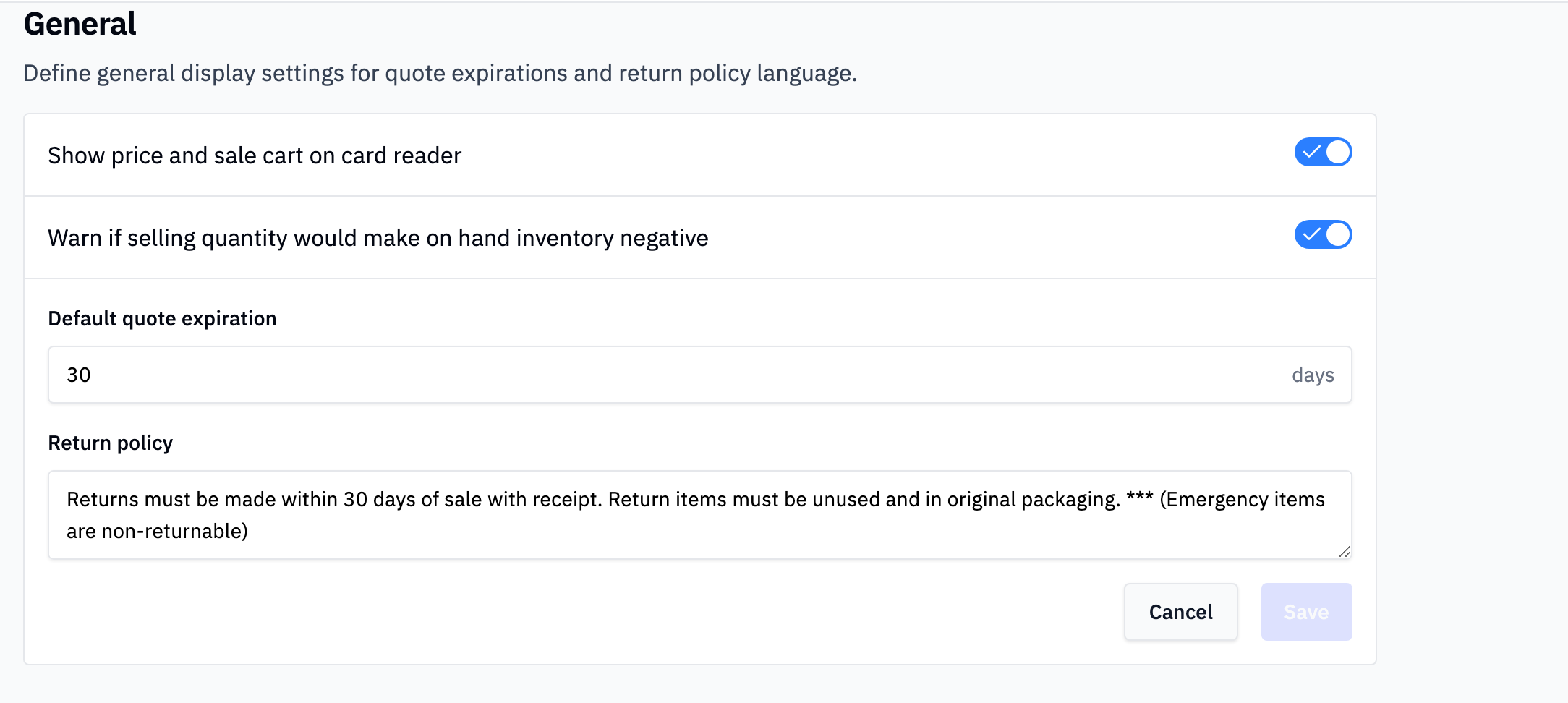
Two toggles and two fields, none of which have much to do with each other.
-
Show price and sale cart on card reader. Mirrors the cart and the running total onto the customer-facing card reader screen as the cashier rings items. Turn it off if you'd rather the reader stay blank until it's time to pay. -
Warn if selling quantity would make on hand inventory negative(flags a cart line whose quantity exceeds what's on hand, and adds a confirmation step at payment). It warns; it doesn't block. See Selling more than you have on hand for what the cashier sees. -
Default quote expiration(how many days a new quote stays valid). See Drafts, quotes, and will calls. -
Return policy(the free-text policy that prints on receipts). Write it however your store wants; see Return policy.
Looking for the will-call "order ready for pick up" text and email? Those aren't controlled on this page, they're set per contact on the customer record. Open the customer, click the Settings tab, click the contact, and in the Notify contact about grid uncheck Order ready for pickup under Email, SMS, or both. See Drafts, quotes, and will calls for the full walkthrough.
Printing
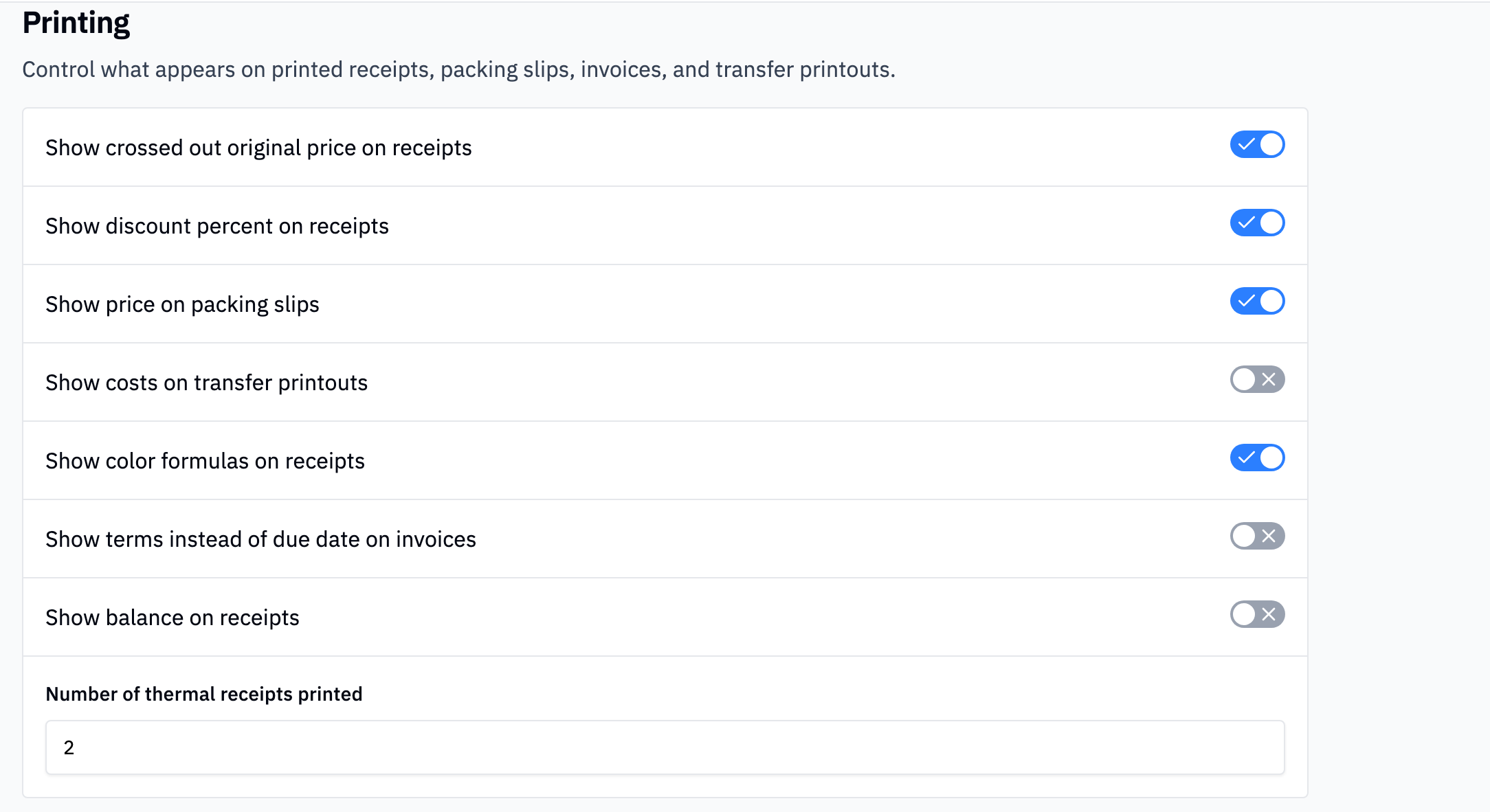
Everything about what appears on printed receipts, packing slips, invoices, and transfer printouts.
-
Show crossed out original price on receipts(prints the pre-discount price struck through next to what the customer paid). -
Show discount percent on receipts(prints the(% off)alongside the price). Turn both of these off if you'd rather customers only see the net price. See Receipt formats. -
Show price on packing slips, whether the will-call and packing-slip printout carries prices. Off makes it a pick list. See Drafts, quotes, and will calls. -
Show costs on transfer printouts. Puts your cost on the paperwork that moves stock between locations. Most stores leave this off so cost doesn't travel with the shipment. See Transfers. -
Show color formulas on receipts(prints the tint formula on the customer's receipt for tinted paint). -
Show terms instead of due date on invoices, prints the payment terms (Net 30) in place of a calendar due date. See Finance terms. -
Show balance on receipts(prints the customer's account balance at the bottom of their receipt). -
Number of thermal receipts printed, how many copies print for a completed sale. Two is common (one for the customer, one for the store). The callout below spells out exactly which receipts this count governs.
Which receipts this count actually governs. It sets the copies for sales (in progress, quotes, will calls, completed, and special orders), bill payments, and receivable credits. It does not apply to finance charges, which always print a single full page no matter what this is set to. Completing a new sale or taking a new bill payment behaves the same way: the print receipt dialog always opens, prefilled with your Number of thermal receipts printed count, so the quantity is right there to adjust before you print. For the other manual receivables dialogs (payment accepted from history, credit history), with Quick print on that many copies print on their own, but with quick print off they start at 1, so set the number you want there before printing.
Looking for these under General? They used to be described that way in a few places. They're in the Printing section, one card down.
Quick print
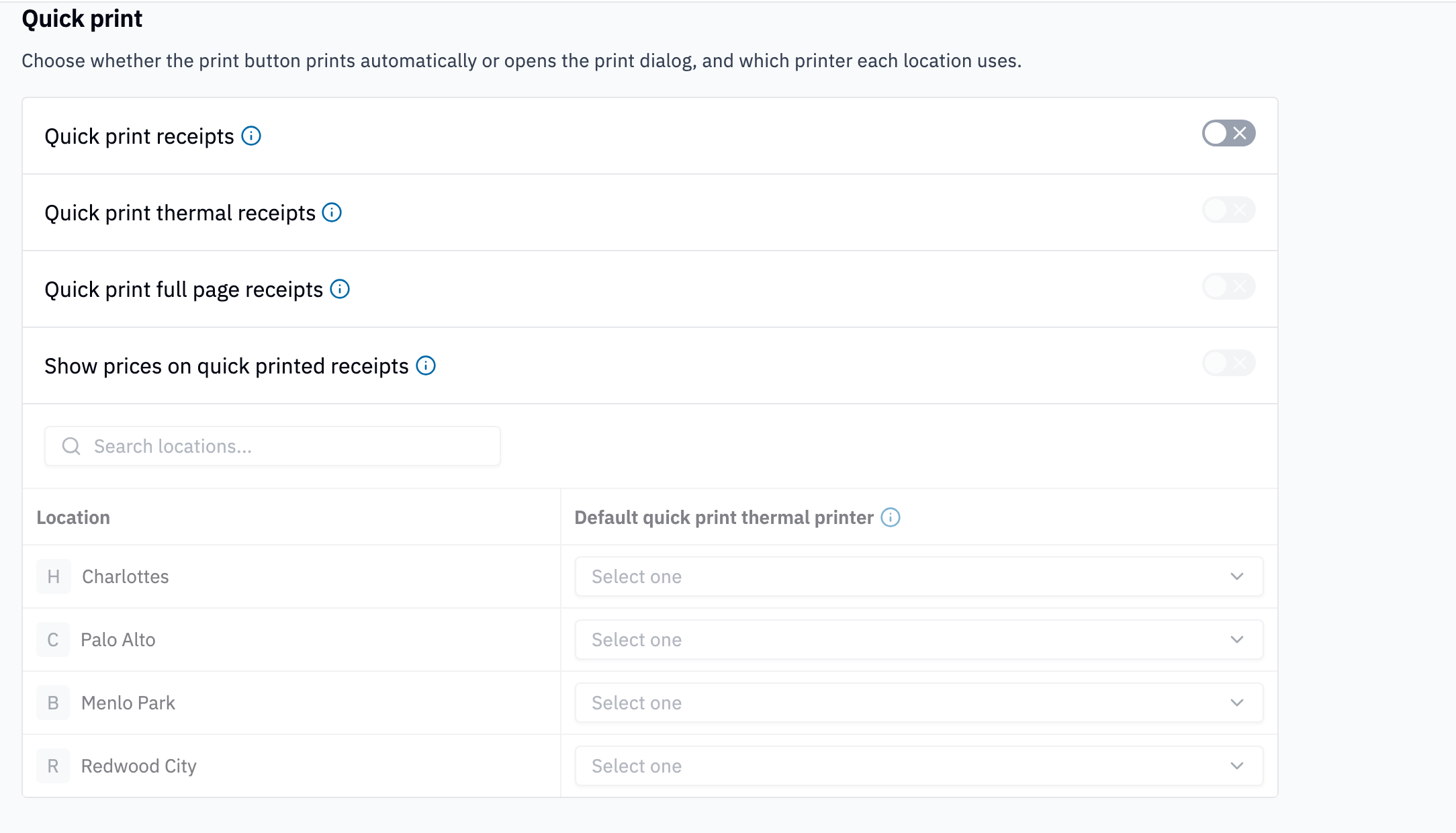
By default, the print action opens your browser's print dialog and the cashier confirms. Quick print takes that click away: the receipt just prints.
-
Quick print receipts, the master switch. With it off, the other three grey out. -
Quick print thermal receipts(prints a thermal slip to the printer assigned to that location), below. -
Quick print full page receipts(opens the print dialog automatically for the full-sheet version). -
Show prices on quick printed receipts, whether prices appear on the receipts that print automatically. Off gives you a pick-slip style printout.
Under the toggles, a searchable table lists every location with a Default quick print thermal printer picker. A location left on Select one has no printer to quick print to, so set it for each store that prints thermal.
One of the two format toggles always stays on. With quick print enabled, Rundoo won't let you switch off both thermal and full page, whichever is the last one on greys out, because quick print with neither format selected would have nothing to print. To stop auto-printing altogether, use the Quick print receipts master toggle.
Statements
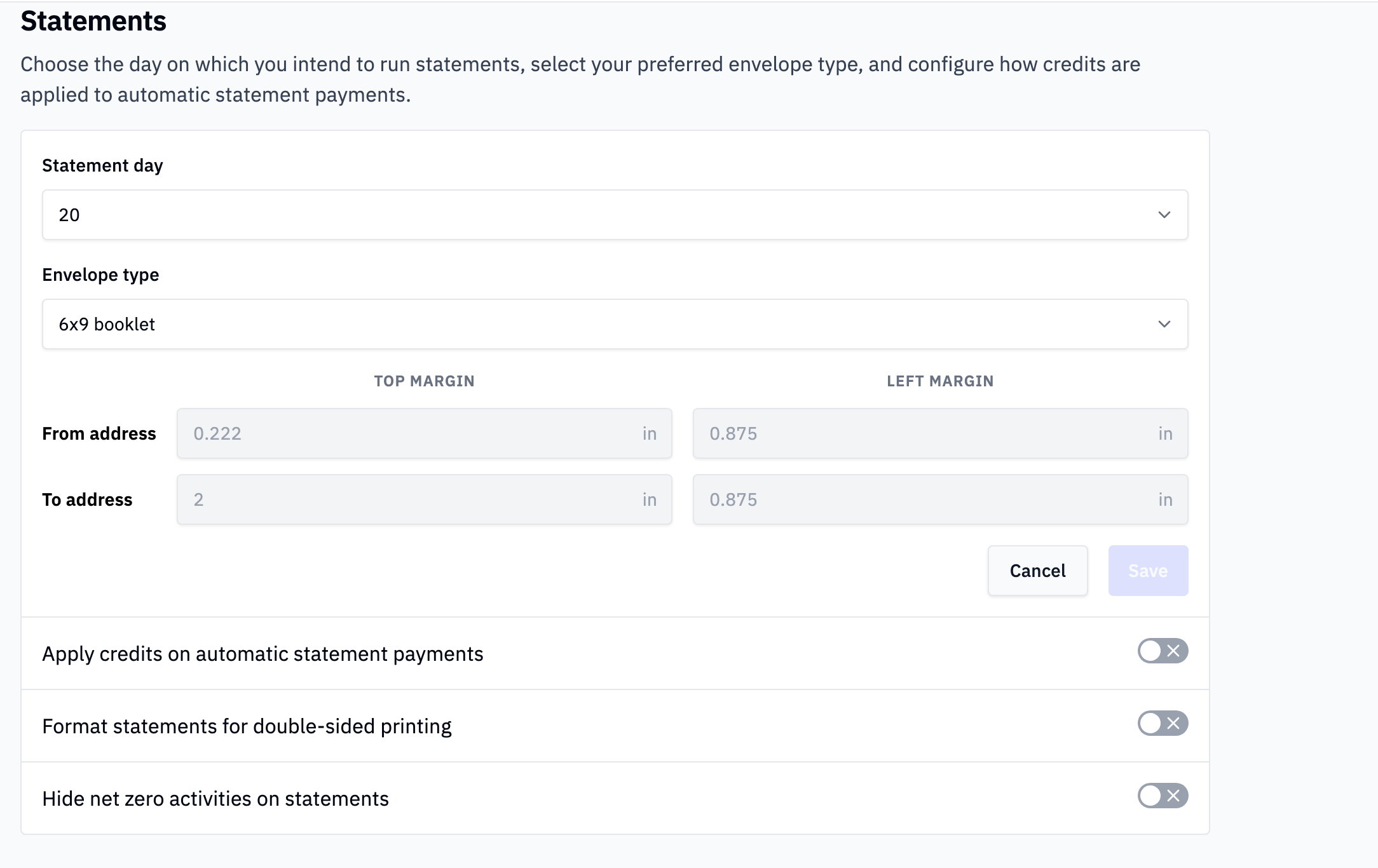
The defaults every statement run inherits. The run day, the envelope you stuff them into, and how the addresses sit on the page.
-
Statement day(the day of the month you intend to run statements). -
Envelope type. The window envelope you're mailing in, which is what the address margins are aligned to. -
From addressandTo addressmargins (top and left offsets in inches, for nudging each address block until it lines up in the window). -
Apply credits on automatic statement payments, whether available customer credit gets applied when statements auto-charge. -
Format statements for double-sided printing(lays statements out) for duplex printing. -
Hide net zero activities on statements(drops lines that net to zero), so a statement isn't cluttered with wash entries.
Running statements, and what a customer receives, is its own job: see Statements.
Card payment surcharge
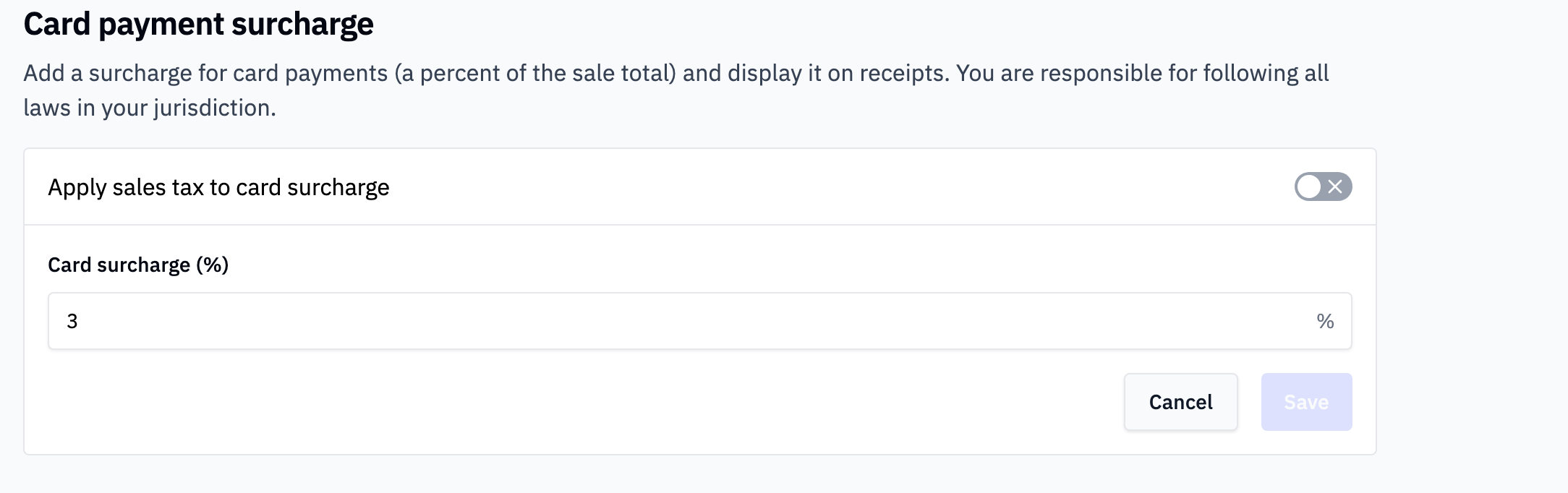
Adds a percentage of the sale total to card payments and shows it on the receipt.
-
Card surcharge (%)(the percentage to add). -
Apply sales tax to card surcharge(whether the surcharge itself gets taxed)
As the page says on screen, you're responsible for following the surcharging laws in your jurisdiction. They vary by state and by card network agreement. Card surcharges covers the details and how it prints.
Loyalty points
-
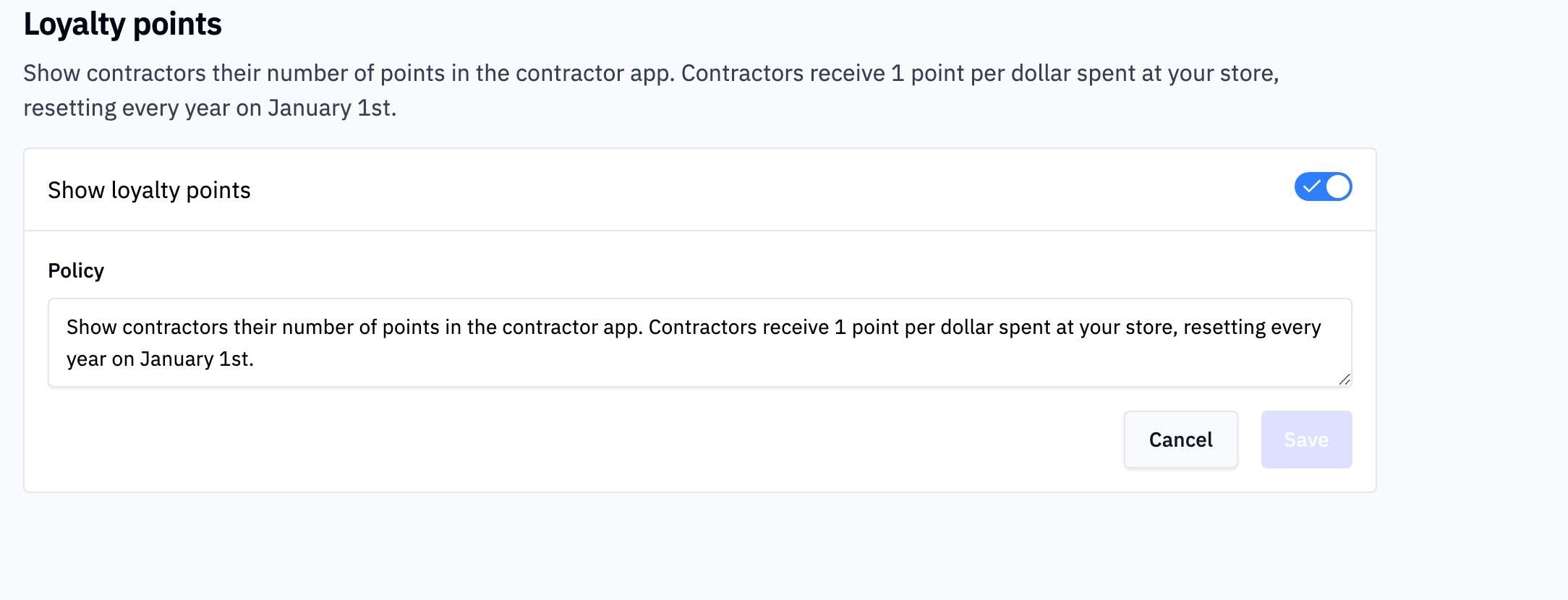
Show loyalty points, shows contractors their point balance in the customer app. Points accrue at 1 per dollar spent and reset every January 1. -
Policy, the free-text policy shown alongside the balance, for spelling out what points are worth and how to redeem them.
See Loyalty points for the full program.
Everything here is company-wide, with one exception. Every toggle and field on this page applies to every location and every cashier. The only per-location setting is the quick-print thermal printer, which is per-location by definition.
Recommended Rundocs
-
POS security (the neighboring Settings page): inactivity timeout, void reasons, requiring a customer, hiding the category browser.
-
Receipt formats (thermal versus full-sheet, and what prints on each).
-
Return policy (writing the policy text this page prints).
-
Statements, running statements and what customers receive.
-
Card surcharges (surcharging in depth).
-
Loyalty points (the contractor points program).