
Rundocs › Inventory
Mistints & store-use accounts
Last updated 2026-09-10
A store-use account is a charge-account customer that represents your store itself. You ring up mistints, colorant, break-room cleaning supplies, and anything else consumed internally against this account instead of a real customer. Every store-use sale removes the inventory from the books, posts a $0 charge-account invoice, and leaves a paper trail for your accountant at year-end.
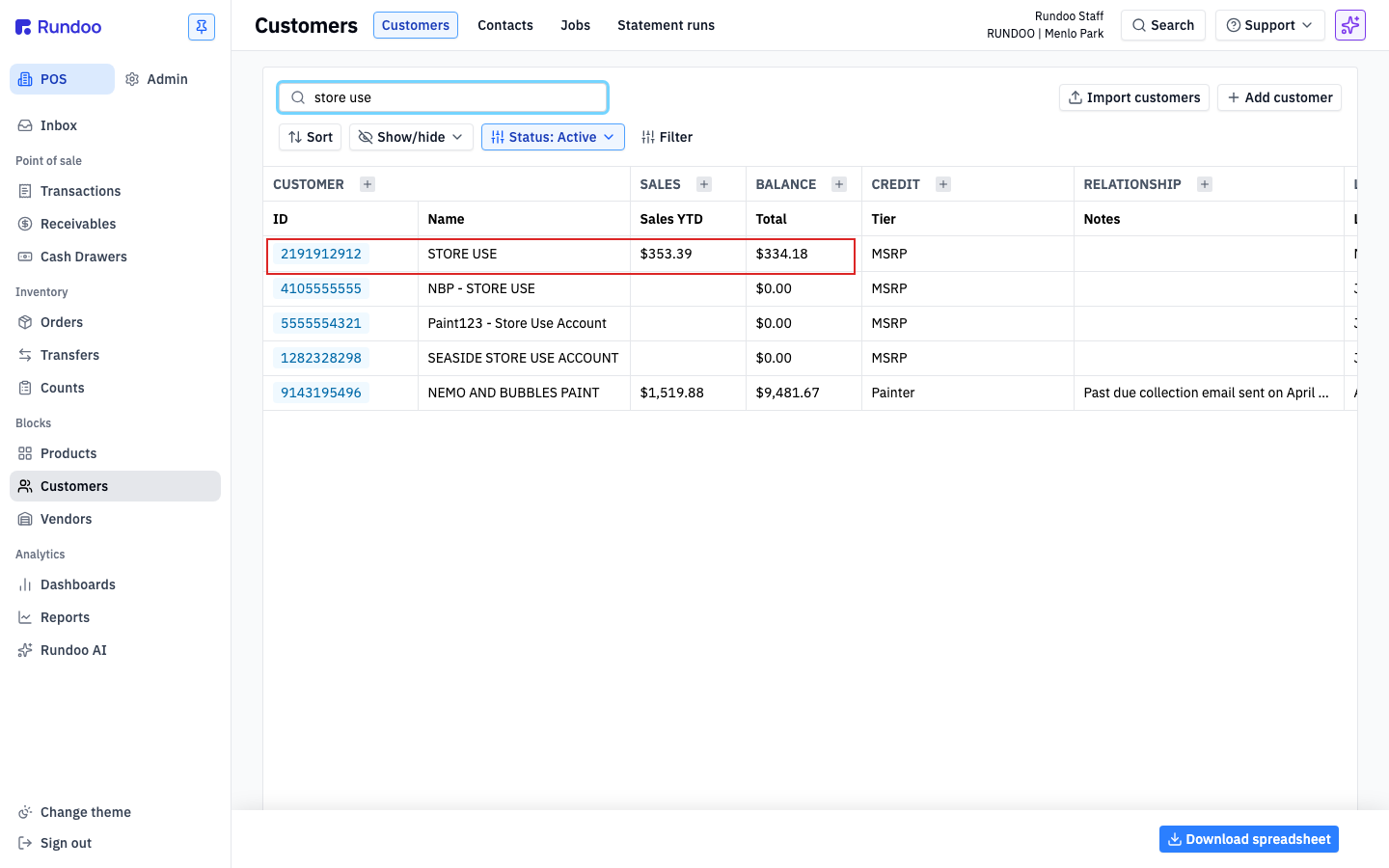
In the POS mode, open Customers in the left sidebar.
Why use a store-use account
Mistints, colorant waste, and break-room supplies all pull from the same inventory your customers buy from. Without a place to record that usage, your on-hand counts drift (the paint is gone but Rundoo thinks it's still on the shelf) and you lose the tax write-off that internal-consumption inventory qualifies for.
A store-use account fixes both:
-
Inventory stays accurate. Ringing up a mistint against a store-use account decrements stock the same way a retail sale does.
-
Internal usage is separate from customer sales. At year-end, filtering Completed transactions by the store-use account gives you a clean list of everything the store consumed. Straight to your accountant.
-
Mistint paper trail. When a tint goes wrong, the record of what was mistinted, when, and how much it cost lives on the store-use account's transaction history, not lost in a drawer.
Step 1: Create the store-use account
From the Customers list, click Add customer and fill in the modal. A few store-use specifics:
-
Name, make it obvious so staff can find it at POS.
Store Use,{Location} — Store Use,Paint 123 — Mistints,{Location} — Colorant. If you run multiple categories of store consumption (mistints vs. colorant vs. cleaning), one account per category is cleaner than one catch-all. -
Phone. Any unique number the store owns. The customer record needs one, but no one will call it.
-
Email, your store's ops email. Statements generated against the account land here.
-
Pricing tier. Leave on whatever the default is. Prices get overridden to $0 at ring-up anyway.
See Customers for the full Add customer walkthrough.
Once the account exists, open it and click the Settings tab. Scroll to Financing and set a charge-account Finance term (Net 1 Statement is the standard pick for store-use accounts, since the goal is to close the zero-dollar invoices the same month they post (see Finance terms for the full term list)). Set a modest Credit limit ($1,000.00 is typical) to keep the account behaving like a real charge account without blocking anything in practice. Leave Finance charge as No finance charge. You're not paying yourself interest.
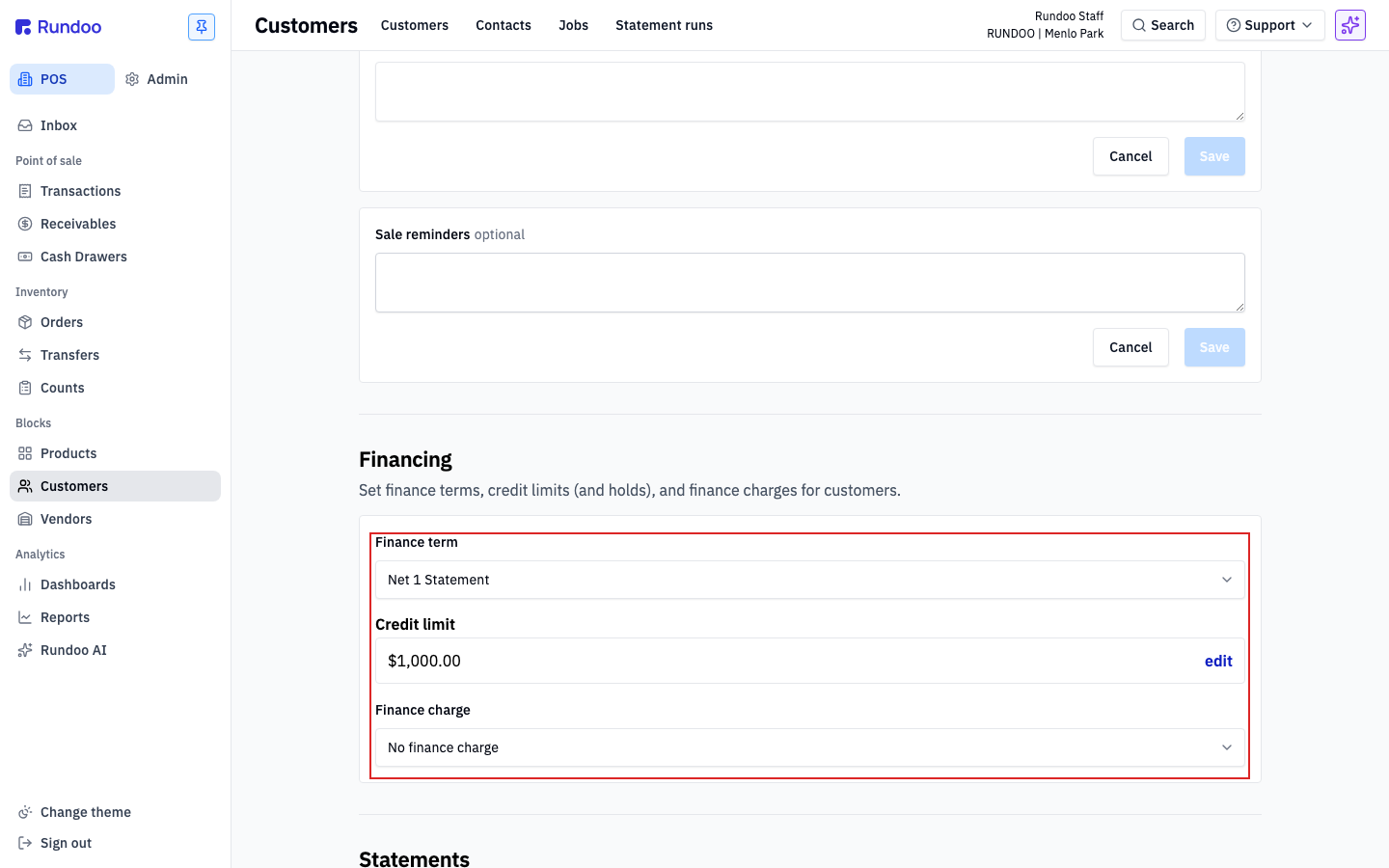
Setting a statement-based Finance term is what turns the account into a charge account. Without it, the Charge account tender won't unlock at POS. See Finance terms for how the terms themselves work.
Step 2: Ring up a mistint (or anything else for store use)
A store-use sale looks exactly like a regular charge-account sale (same builder, same tender, same flow) except the prices are zeroed out and you charge it to the store-use account instead of a customer.
In the POS mode, open Transactions in the left sidebar. On the New tab:
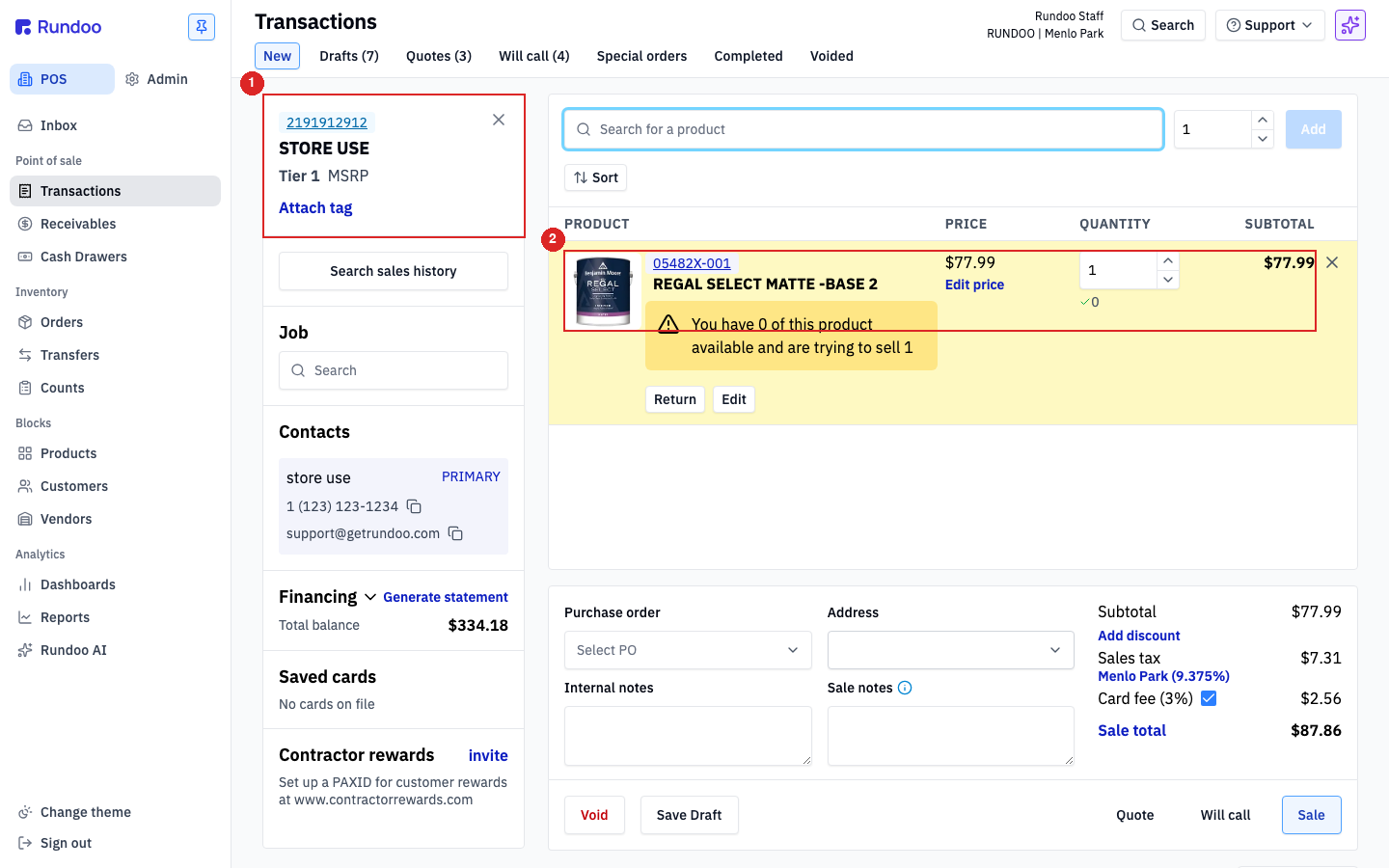
1. Attach the store-use account in the left panel (Search accounts → type Store Use).
2. Add the product you're consuming. For a mistint, that's the paint, REGAL SELECT MATTE -BASE 2 in this example, tinted to the color you ended up with rather than the color the customer wanted. The tint modal behaves exactly as it does on a customer sale, so the final color is recorded on the line.
3. Click the line's price, switch to By dollar (default), and set the price to $0.00.
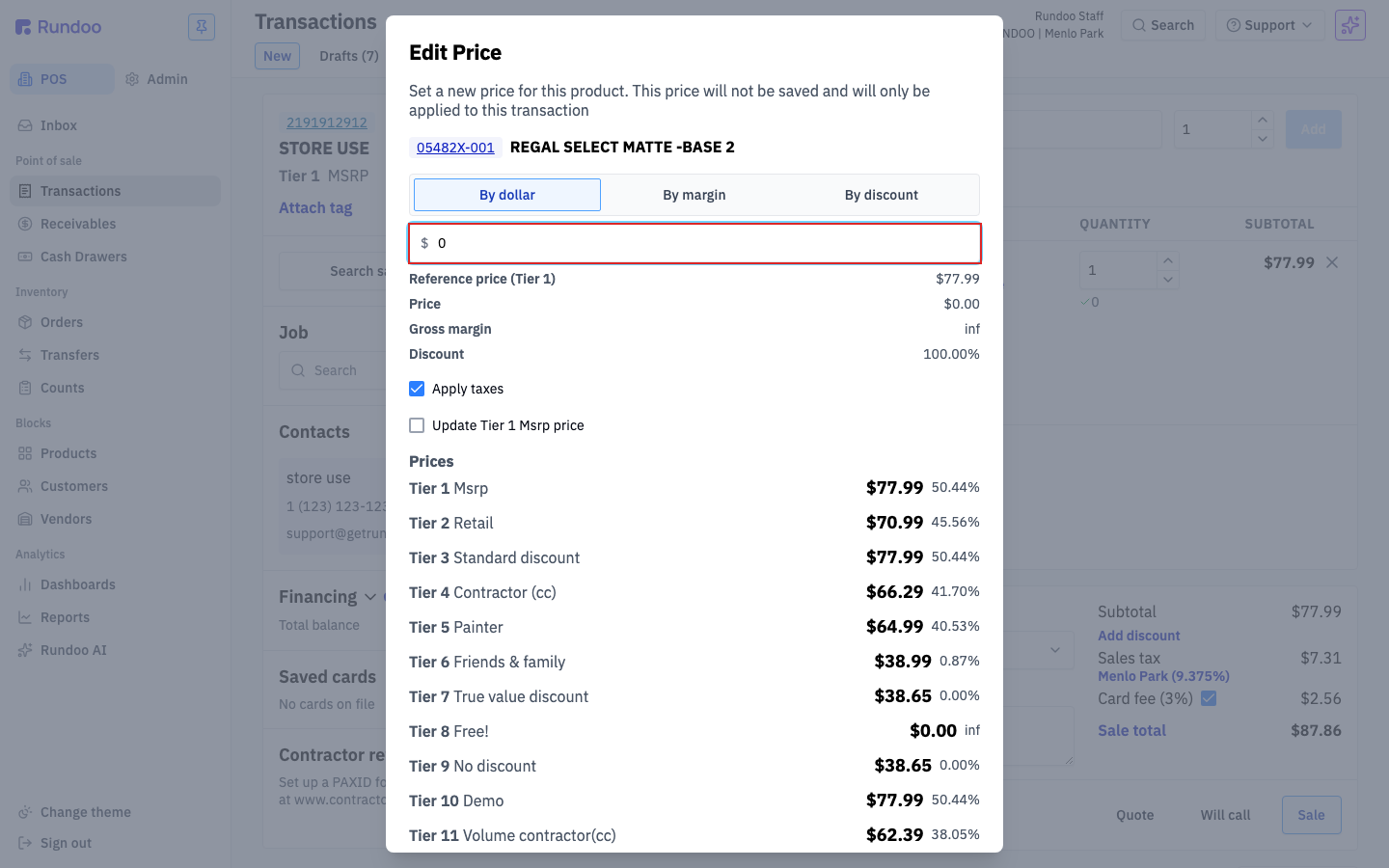
Hit Save to close the modal. The line now reads $0.00 non-taxable and the cart totals collapse to zero.
4. (Optional) Drop a note in Internal notes or set a Purchase order value so the reason is filterable later ("mistint — customer wanted OC-117, got 2143-70", "break room — paint touch-up", "colorant — quarterly top-off").
5. Click Complete sale. The tender is Charge account by default for a charge-account customer (no card, no cash).
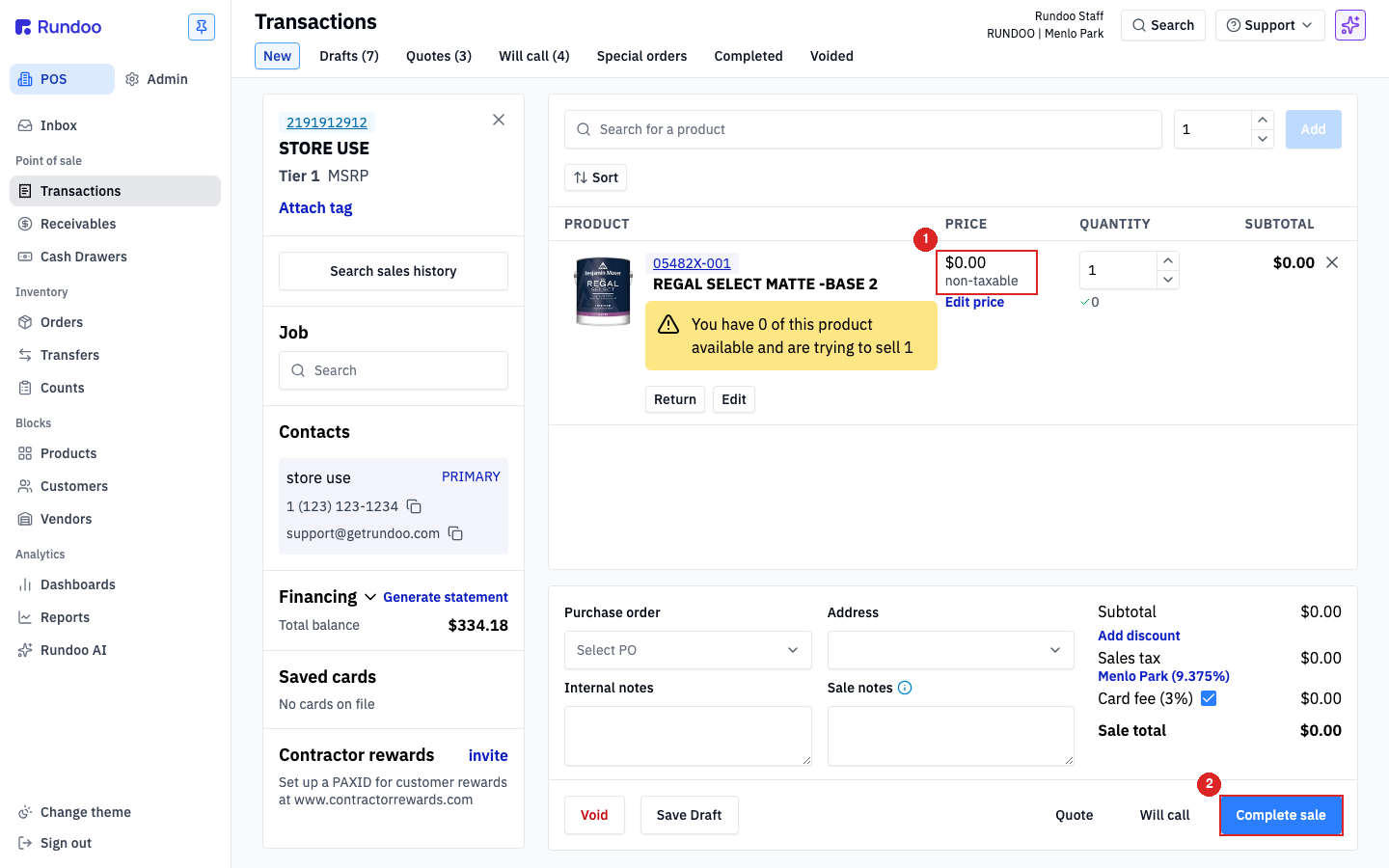
The You have 0 of this product available banner appears when on-hand stock is depleted; you can still complete the sale and let inventory go negative. If you're writing off a mistint you still physically have, that's the right behavior. The paint exists on the shelf, marked as unsellable.
Mistints you re-sell at a discount
If the mistint is salvageable and a retail customer walks in willing to buy it for half price, skip the store-use account entirely. Attach the actual customer, add the tinted product, click the line's price to set the discounted price, and complete the sale normally. The store-use account is only for stock you're writing off, not stock you're still selling, just at a lower number.
Tip: a Store Use pricing tier
If you're creating store-use sales often enough that zeroing out every line gets tedious, create a Store Use pricing tier that prices every product at $0.00, and assign it to the store-use account. After that, the products drop in at $0.00 automatically, no per-line edit needed. See Pricing tiers for the setup.
Step 3: Pull the year-end report
Every store-use transaction is a completed charge-account sale, so it lives in the same place as your regular completed sales. To pull a clean list for your accountant:
-
In the POS mode, open Transactions > Completed and search for the store-use account by name.
-
If you run multiple locations, change the location pill to
All locationsso you get every store's usage in one view. -
Click Download top-right and pick a timeframe (
Last year, or a custom year range). Rundoo exports the filtered list as a CSV.
Hand the CSV to your accountant. Each row is one internal-consumption event with product, cost, date, and optional internal notes, ready for the tax write-off.
Store-use sales post at $0 revenue but still remove inventory at cost, so they show up in COGS without a matching sale. That delta is the tax-deductible portion, ask your accountant how to apply it.
Recommended Rundocs
-
Customers, creating customer records and configuring charge accounts.
-
Finance terms. How
Net 1 Statement,Net 30 Statement, and other terms behave. -
Pricing tiers, creating a dedicated
Store Usetier that prices everything at $0. -
Returns (when a customer brings back a mistint you previously sold them).
-
Sales, the full sale builder, tenders, and line-item editing.