
Rundocs › Getting Started
Navigation
Last updated 2026-08-27
Rundoo has two modes (POS for day-to-day selling and Admin for setup and settings) and each mode has its own left sidebar.
Every page has the same three zones: the header across the top, the Mode switcher and left sidebar down the left edge, and the page content in the middle.
The header
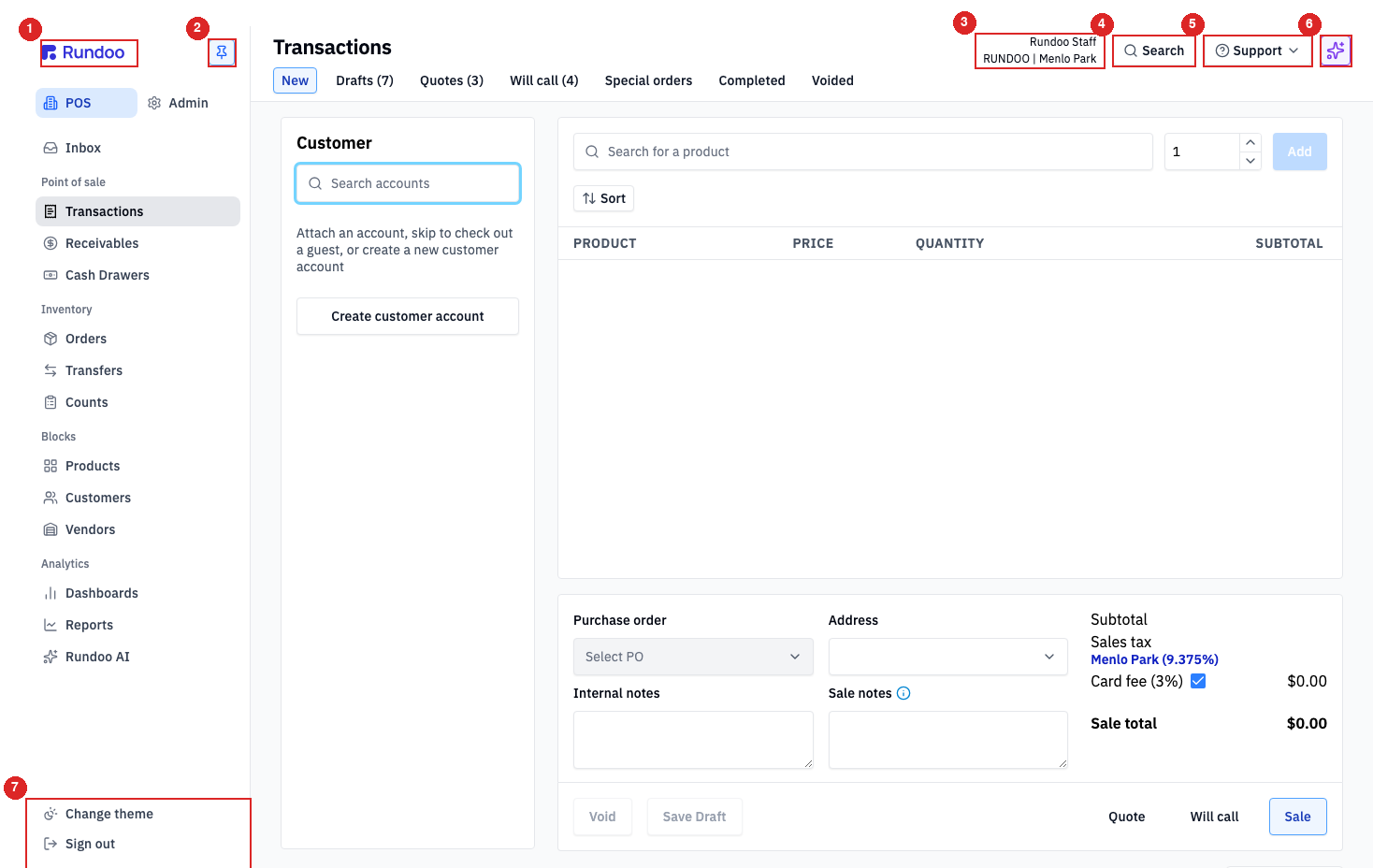
The header runs across the top of every authenticated page. Left to right:
-
Rundoo logo (takes you back to the POS home (New Sale)).
-
Pin / unpin button. The pushpin immediately right of the logo collapses the sidebar to icons when you need more room on screen. Click it again to pin it back open.
-
Your name and current location (top-right, two lines). The top line is you (e.g. "Rundoo Staff"); the bottom is your company and the location you're currently signed into ("RUNDOO | Menlo Park"). Location determines which register, inventory, and tax rate this session is acting against. See Sign-in for how to switch.
-
Search (the magnifier-icon button). Opens a global search overlay that looks across products, customers, sales, and more. See Search below.
-
Support (the question-mark dropdown). Links into Rundoo Support and documentation.
-
Dooey, the purple sparkle icon at the far right. Opens Dooey, your built-in assistant for asking questions about your store's data.
The "user menu" lives at the bottom of the left sidebar rather than the top-right: Change theme (light / dark) and Sign out.
POS mode vs Admin mode
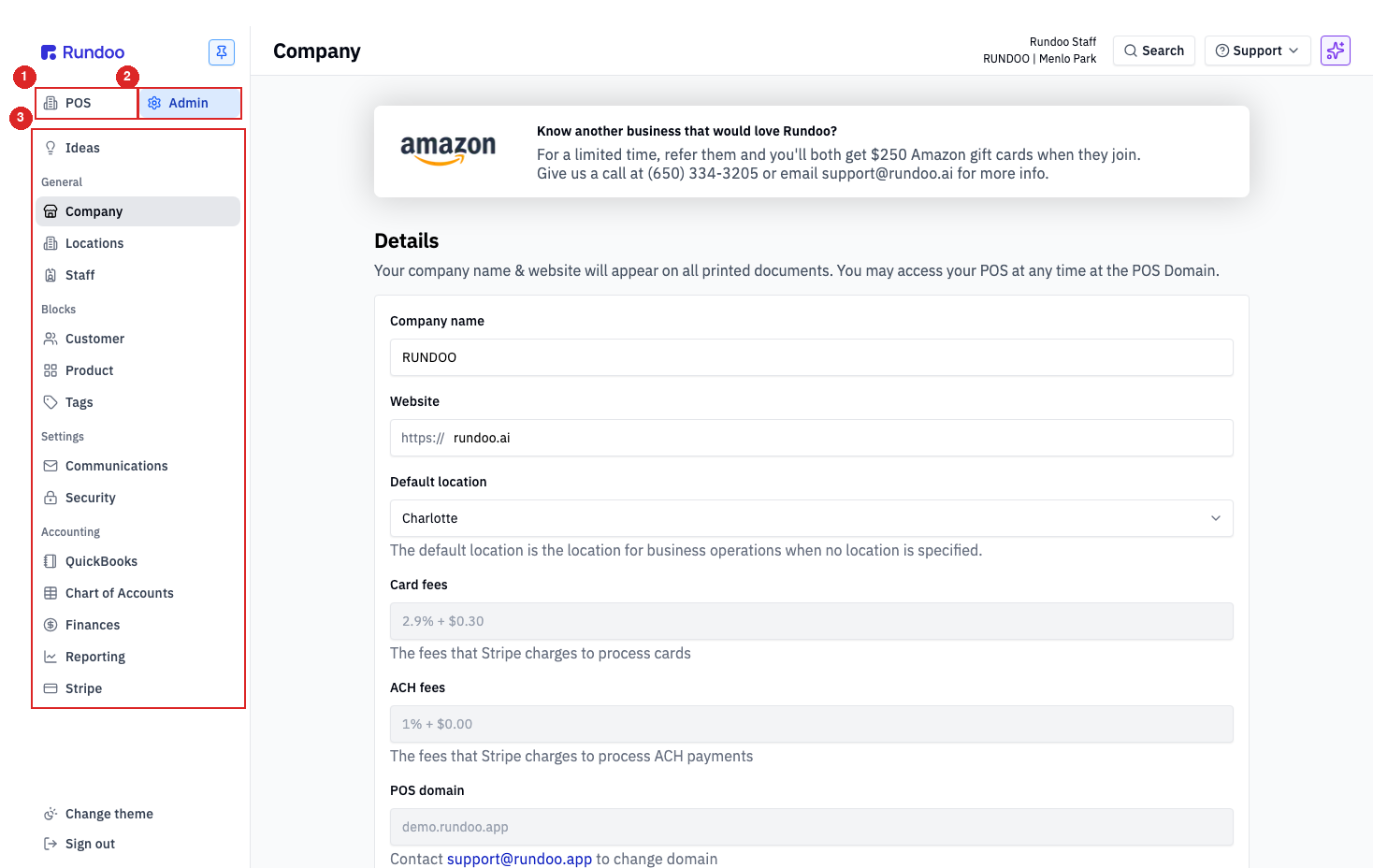
The two tabs at the top of the left sidebar (POS and Admin) flip the whole app between two workspaces:
-
POS mode is the day-to-day register. Transactions, Receivables, Cash Drawers, Orders, Transfers, Counts, Products, Customers, Vendors, Dashboards, Reports, Dooey. This is where a cashier, counter rep, or manager spends most of their day.
-
Admin mode is setup and back-office. Company settings, Locations, Staff, Customer / Product / Tag settings, Billing, Communications, Security, Integrations, Chart of Accounts, Finances, Reporting, Stripe. This is where an owner, admin, or implementation lead configures how Rundoo runs.
Clicking either tab swaps the left sidebar to that mode's items. The header stays put; your current location stays put; only the sidebar changes. Which items you can see in each mode depends on your permissions, if you don't see something a coworker has, that's a permissions question, not a missing feature.
The left sidebar
The left sidebar is your primary nav. Items are grouped under faint uppercase labels (Point of sale, Inventory, Blocks, Analytics in POS; General, Blocks, Settings, Accounting in Admin). The labels are there to help you find things, not to click. The item you're currently on gets a filled grey background.
POS mode sidebar (top to bottom):
-
Inbox(system notifications for you). -
Point of sale (
Transactions,Receivables,Cash Drawers). -
Inventory (
Orders,Transfers,Counts). -
Blocks (
Products,Customers,Vendors). -
Analytics,
Dashboards,Reports,Dooey.
Admin mode sidebar (top to bottom):
-
Ideas(the customer idea board). -
General,
Company,Locations,Staff. -
Blocks (
Customer,Product,Tags). -
Settings (
Billing,Communications,Security). -
Accounting (
Integrations,Chart of Accounts,Finances,Reporting,Stripe).
Looking for QuickBooks? It moved. The QuickBooks accounting sync used to have its own QuickBooks item in the Admin sidebar. It's now under Admin > Integrations (in the Accounting group), with the same Journal Entries and Settings tabs inside it. See QuickBooks.
Most sidebar items open a page with a row of tabs across the top (Transactions has New, Drafts, Quotes, Will call, Special orders, Completed, Voided; Products has Products, Custom prices, Promotions, and so on). Those are the top tabs, and they're the second half of how we describe a location in Rundoo.
How we refer to places in the app
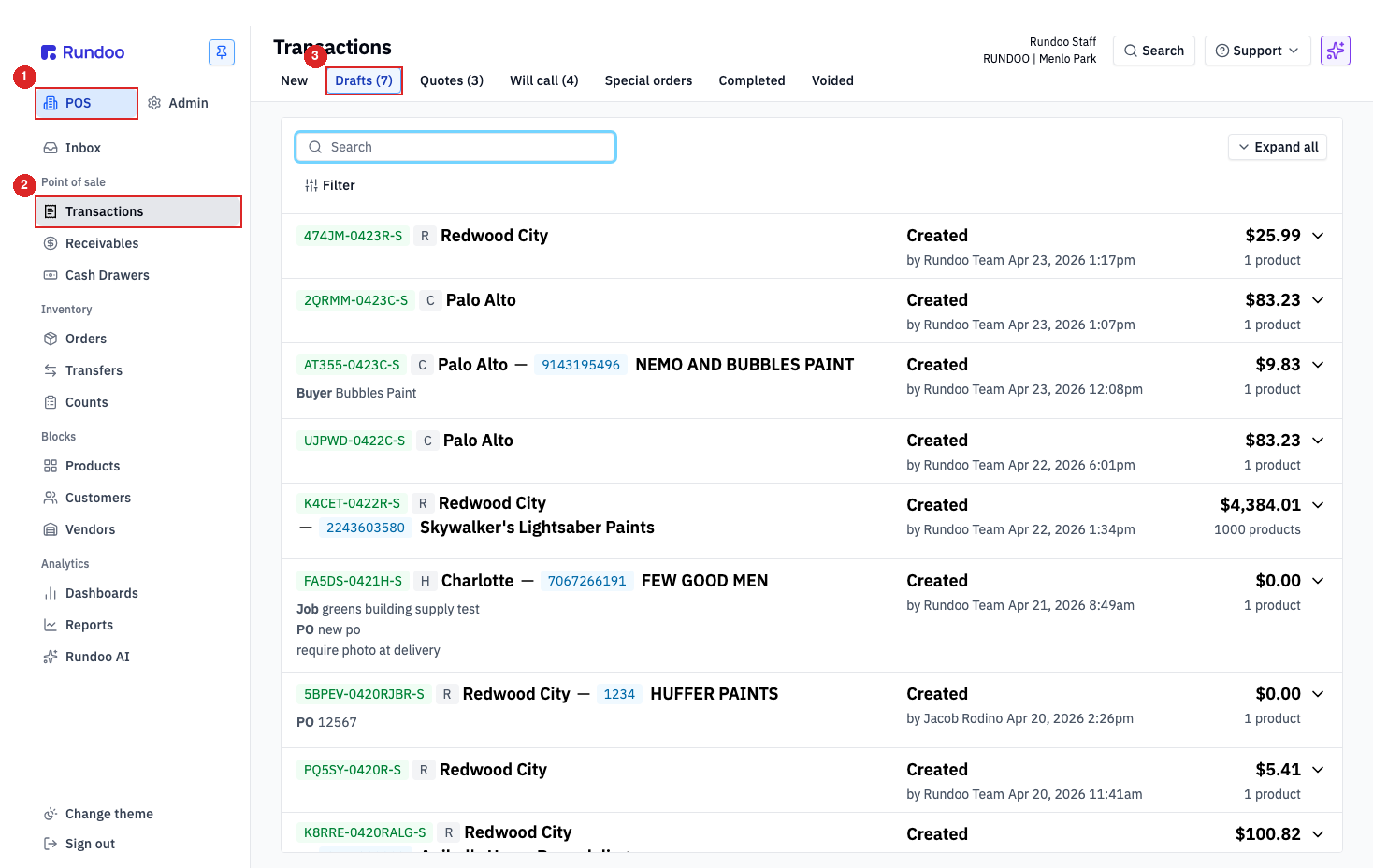
Every Rundoc anchors to a location using this format:
In the {Mode} > {Left tab} > {Top tab} tab, …
Where:
-
Mode is
POSorAdmin, the tab at the top of the sidebar. -
Left tab is the sidebar item (
Transactions,Products,Company, etc.). -
Top tab is the tab across the top of that page,
Drafts,Quotes,Profit & loss, etc. If the page has no top tabs, leave this part off.
A few examples:
-
In the POS > Transactions > Drafts tab, …(you're on the Drafts list for sales). -
In the POS > Inbox tab, …(Inbox has no top tabs), so stop after the left tab. -
In the Admin > Reporting > Profit & loss tab, …, the P&L in the Accounting reporting section. -
In the Admin > Company tab, the Tender methods section, …(settings pages scroll through named sections like Details, Cost management, Tender methods); chain with, the {Section name} sectionto point to one.
When a Rundoc says "open the New tab," we mean the top tab. When it says "open Transactions," we mean the left tab. Counts in parentheses, Drafts (7), Will call (4), are live counts of what's sitting in that lane right now, so they change as your store works; don't read them as part of the tab's name.
Search
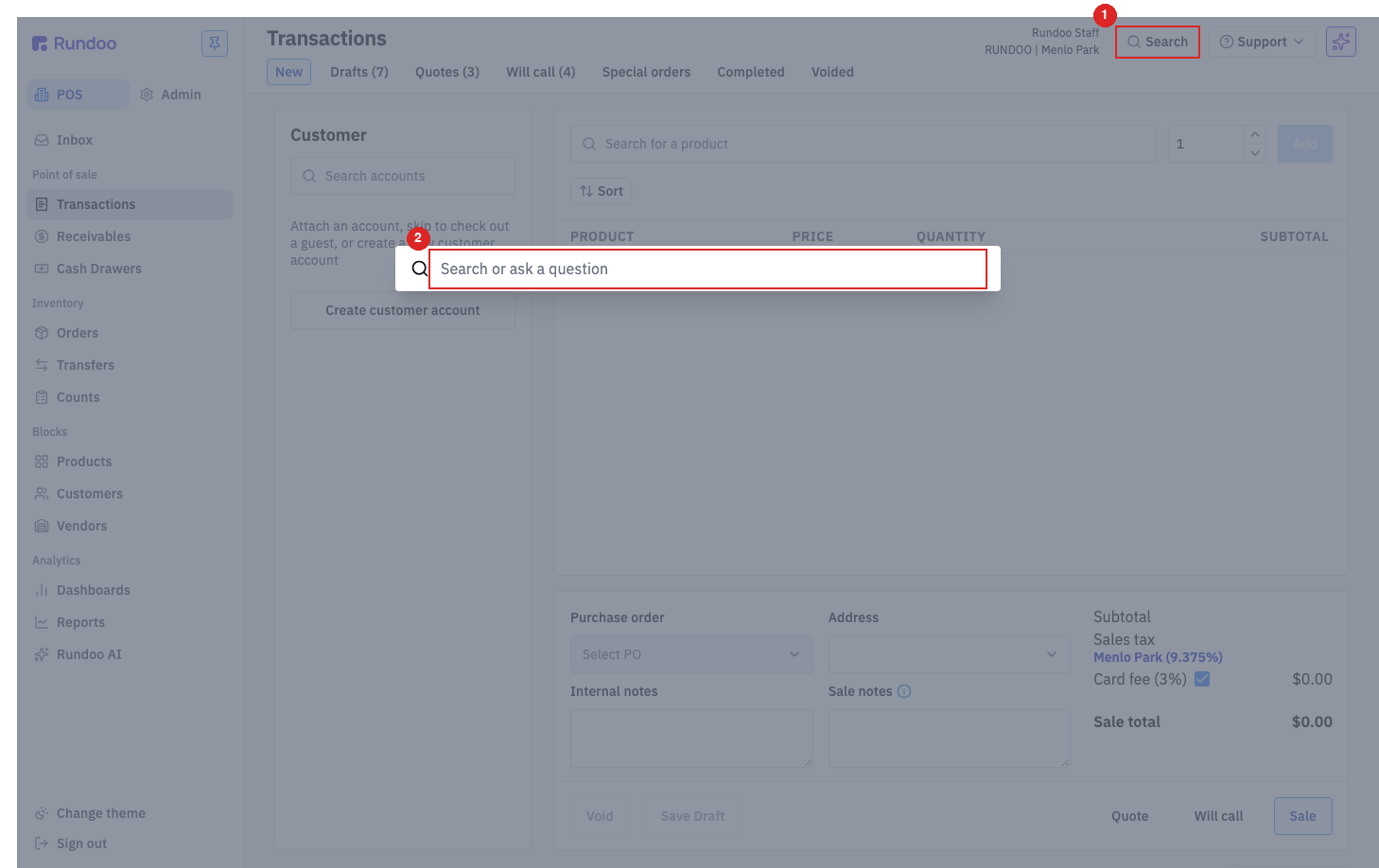
Search in the header opens a global overlay that looks across everything in your store (products, customers, sales, orders, jobs). Type to filter; tap a result to jump straight to it. It's the fastest way to find a specific thing when you know what you're looking for; the sidebar is the fastest way when you're browsing.
A full write-up of what Search covers and how to use it lives in Search.
Set up fast access to Rundoo
Rundoo lives behind your store's URL (www.{yourstore}.rundoo.app). Since most people open Rundoo first thing every morning, it's worth getting to it in one click.
Bookmark it
In Chrome or Edge, click the ☆ star on the right side of the address bar and pick Bookmarks bar as the folder. Rundoo will show up on your browser's bookmark strip from then on.
Pin to your desktop or taskbar
Both Chrome and Edge let you install Rundoo as a desktop app, look for Install app or Create shortcut in the browser's menu (three dots in the top-right corner). Once installed, Rundoo opens in its own window and lives on your Windows taskbar or Mac Dock like any other app. Check your browser's help center for the exact menu path, Chrome and Edge update their menus every few releases.
On your phone or tablet
For the mobile apps (Rundoo POS + Rundoo Customer), see Mobile apps. For tablet browser use, the same bookmark trick works, or use your iOS/Android Add to Home Screen option from the browser menu.
Recommended Rundocs
-
Sign-in, signing into Rundoo and picking the right location for your session.
-
Welcome to Rundoo, the broader orientation to Rundoo's day-to-day flow.
-
Search (the global search overlay in the header, end to end).