
Rundocs › Pricing
Additional fees
Last updated 2026-09-07
Additional fees are configurable charges (what many stores call a service charge or service fee) that Rundoo adds alongside a product's price on sales, orders, and transfers. Things like delivery fees, paint-care surcharges, hazardous-material fees, or environmental fees mandated by state. To add a delivery fee, set up an Additional fee named Delivery (flat-amount or percent) and attach it to the products that ship. Rundoo applies it automatically at checkout.
In the Admin > Product tab, scroll to the Additional fees section (it's the first section on the page).
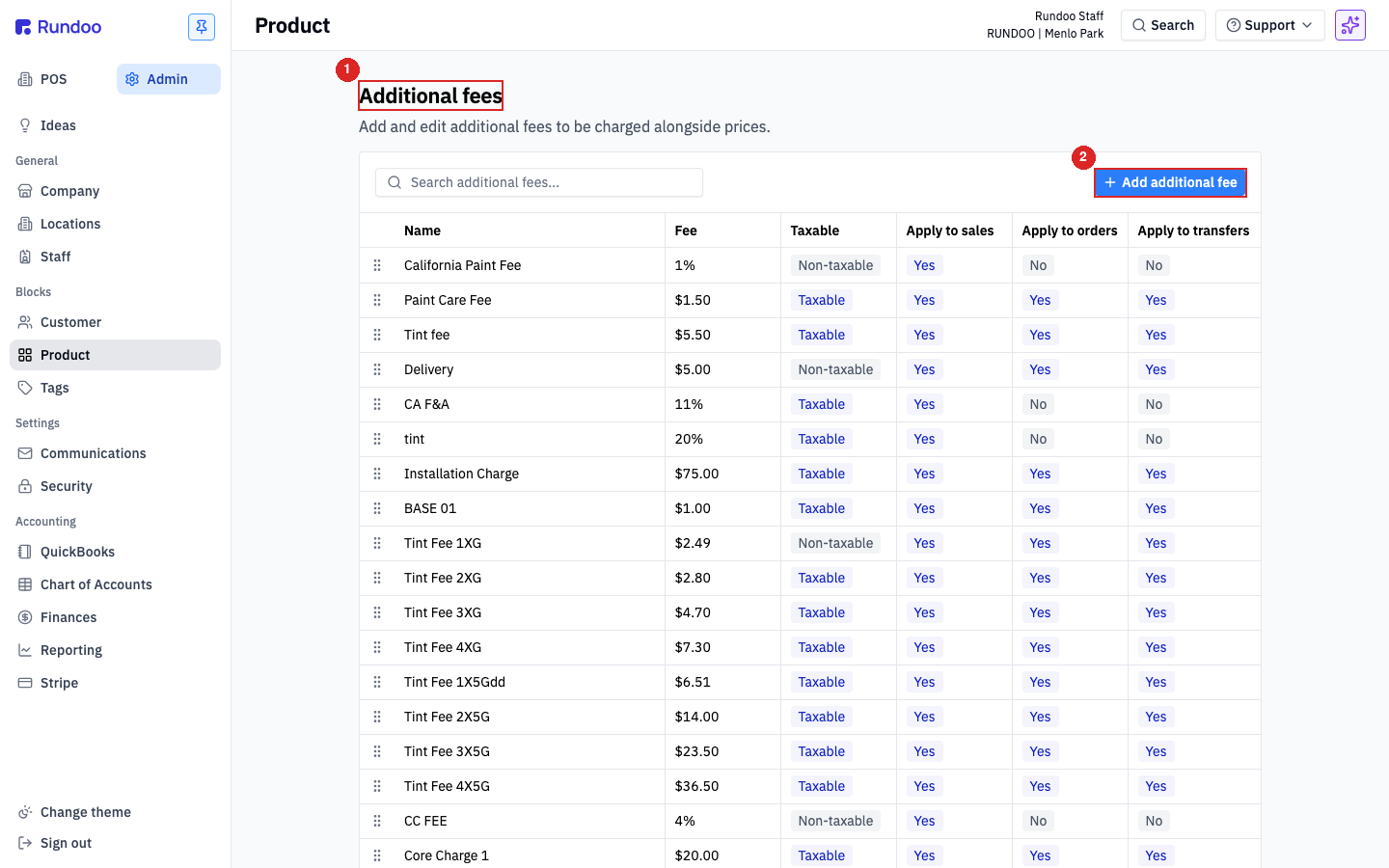
How additional fees work
Each additional fee is either a flat dollar amount ($5.00 delivery) or a percent of the subtotal (11% CA F&A). When a fee is active for a location, Rundoo applies it automatically to every qualifying transaction there. No cashier action required.
A fee has three independent scopes, each a toggle:
-
Apply to sales. Fee shows on POS sales at checkout.
-
Apply to orders (fee shows on purchase orders to vendors).
-
Apply to transfers (fee shows on inter-location transfers).
Turn on the ones that apply. Most real-world fees apply to sales only (delivery, paint care), but a few cover all three (installation, core charges). Both flat-dollar and percent-of-subtotal fees work for all three scopes, a Benjamin Moore vendor surcharge entered as a percent can attach to sales, orders, and transfers together.
Fees can be taxable or non-taxable (the Sales taxable toggle controls whether sales tax is calculated on top of the fee). Regulated environmental fees (California Paint Fee, most state core charges) are typically non-taxable; service fees like delivery and installation are typically taxable.
Stacking fees on one product. You can attach more than one additional fee to a single product, for example, an Eco Fee plus a Benjamin Moore vendor surcharge on a gallon of Regal Select. Each fee posts to its own GL line and itemizes separately on the customer's receipt, so the math stays auditable.
Adding a fee
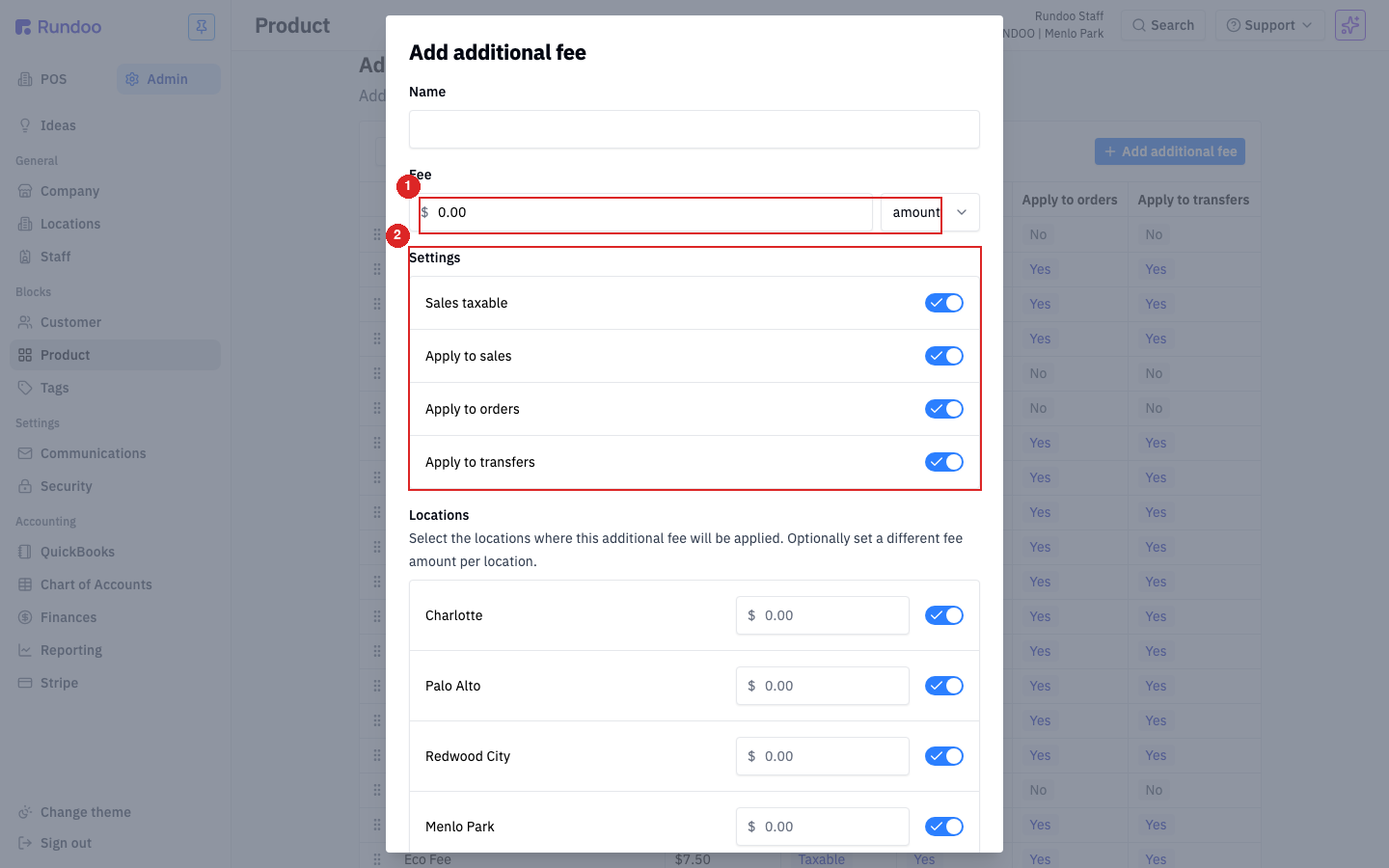
Click Add additional fee at the top right of the section. The Add additional fee modal has five areas (a name, a fee amount, a Type (Eco fee or Other), the scope toggles, and per-location overrides).
-
Name (what appears on receipts and in the cart totals). Keep it short and customer-readable (
Delivery,Paint Care Fee,Core Charge). -
Fee. The amount, plus a dropdown next to the field that toggles between
amount(flat dollar) andpercent(% of subtotal). Pick one and enter the value. -
Type (
Eco feeorOther). PickEco feefor PaintCare-style state-mandated environmental surcharges; pickOtherfor everything else (delivery, vendor surcharge, core charge, installation). -
Settings, the four toggles:
Sales taxable,Apply to sales,Apply to orders,Apply to transfers. Leave any you don't need off. -
Locations (one row per location). Each row has a toggle (apply here or not) and its own fee amount override. Leave the override blank to use the top-level fee; fill it in to charge a different rate at that location (e.g. a higher delivery fee at a remote store).
Save when you're done. The fee is live on the next qualifying transaction.
Adding a delivery fee
Delivery is a regular Additional fee with the Name set to Delivery. In the Add additional fee modal:
-
Name,
Delivery(this is what prints on the receipt). -
Fee, the amount, e.g.
5.00with theamountdropdown for a flat $5 delivery charge, or switch topercentfor a percent-of-subtotal rate. -
Type,
Other(theEco feetype is reserved for PaintCare-style state-mandated environmental surcharges). -
Settings. Turn
Sales taxableon if your state taxes delivery service; turnApply to saleson; leaveApply to ordersandApply to transfersoff unless you charge yourself for inter-location deliveries. -
Locations. Leave the top-level Fee blank and fill the per-location override to charge different rates at different stores (e.g. higher delivery from a remote store).
Save the fee, then attach it to the products that ship (see Attaching fees to a product below). Delivery fires automatically when any of those products land in a cart (no cashier action).
Per-customer delivery fees. A delivery fee in Rundoo is attached to products, not customers. If only some customers should be charged delivery, attach the fee to a duplicate (Delivery) variant of the SKUs that ship, and use the plain variant for in-store pickup. Or remove the fee at the cart level (see How fees appear at POS below).
Attaching fees to a product
Fees are configured once in Admin, then attached to the products they apply to. In the POS > Products tab, open a product and click the Settings sub-tab, then scroll to the Additional charges section.
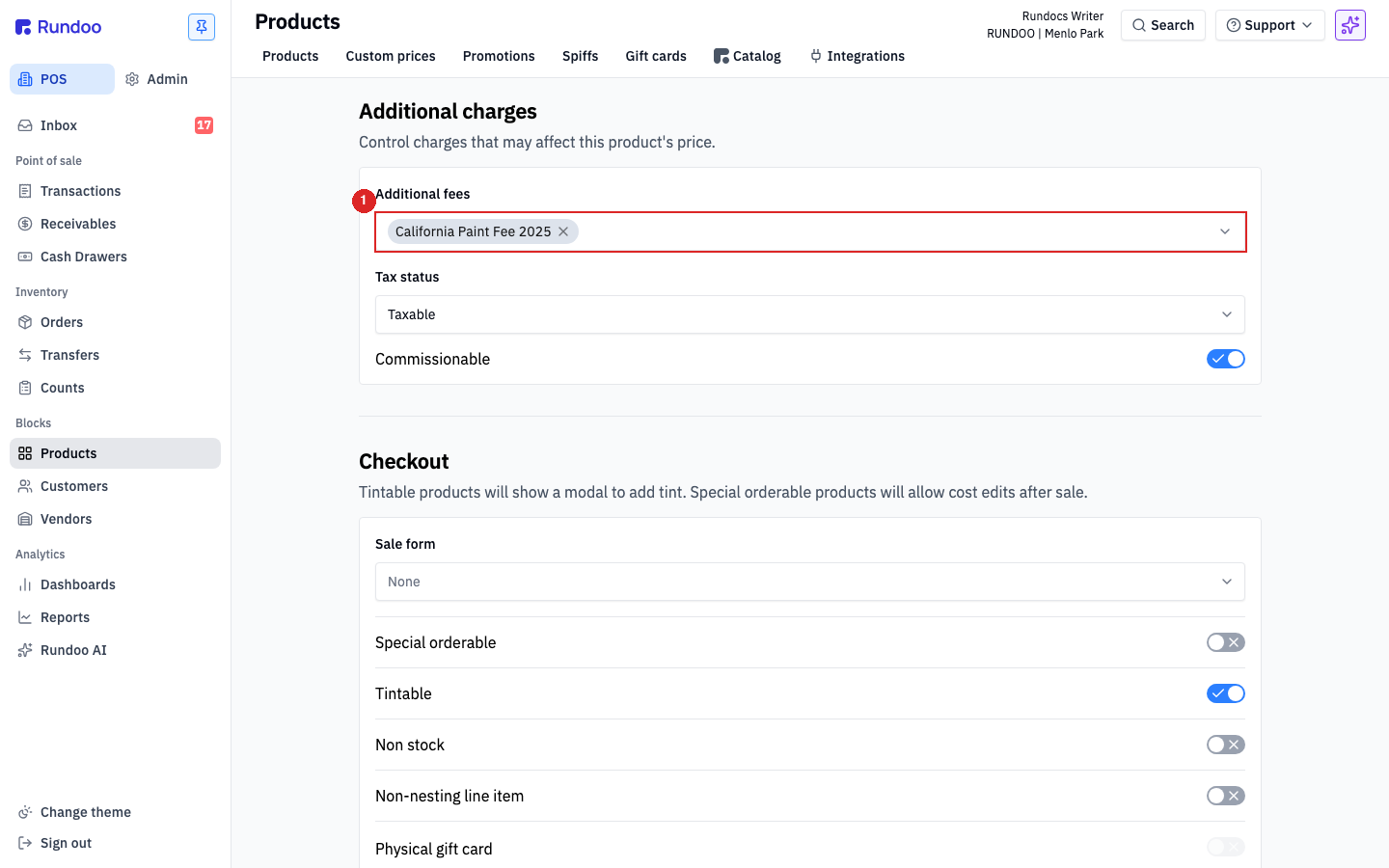
The Additional fees field is a multi-select. Click the field to open the picker, search by name, and click a row to add it as a chip. To remove a fee, click the × on its chip. There's no cap. Attach as many as the product genuinely carries (eco fee, vendor surcharge, state-mandated paint fee, core charge. Combine freely).
A fee only fires when both conditions are met: the product has it attached and the fee's scope toggles include the transaction type. So a fee scoped to Apply to sales only will sit dormant on the product during an order or transfer.
Editing or removing a fee
Click any row in the Additional fees table to open the Edit additional fee modal.
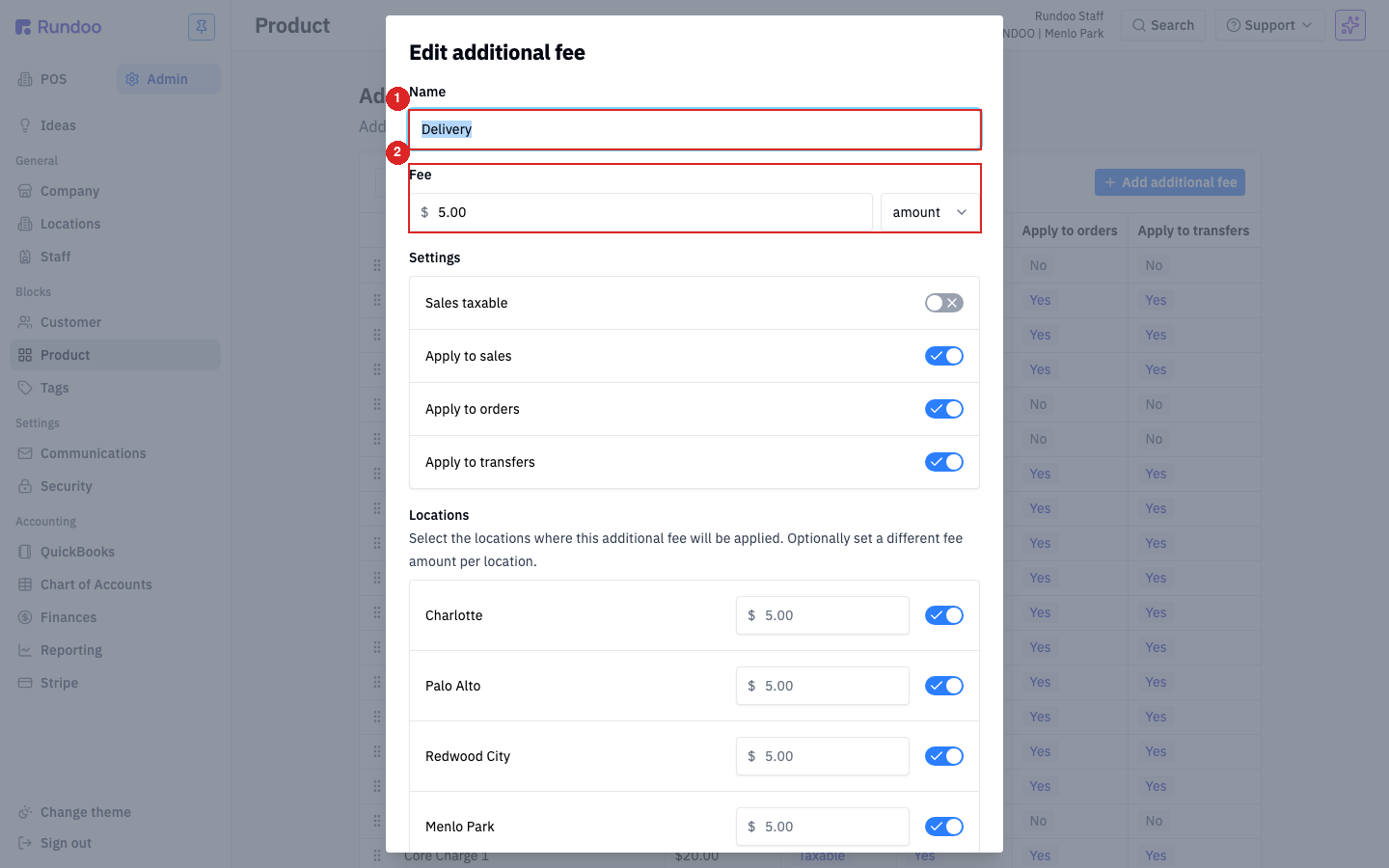
The form is the same as Add. Change the fee amount, flip a scope toggle, or turn off individual locations. Changes take effect on new transactions immediately; they don't backfill fees already applied to completed sales.
To stop charging a fee without deleting it, turn off every Apply to … toggle (or toggle off every location). To remove it permanently, delete the row.
"How do I remove a service charge?" If you mean a fee on one sale in progress (a delivery, eco, or surcharge line the customer shouldn't pay this time), take it off at the cart line instead of deleting the fee, see Overriding a fee at checkout below. If you mean the late or interest charge on a past-due statement balance, that is a finance charge, a separate thing from an additional fee.
How fees appear at POS
In the POS > Transactions tab, when you ring up a sale that qualifies for an additional fee, the fee shows up automatically in the totals panel on the right (between Subtotal and Sale total, next to the sales-tax line).
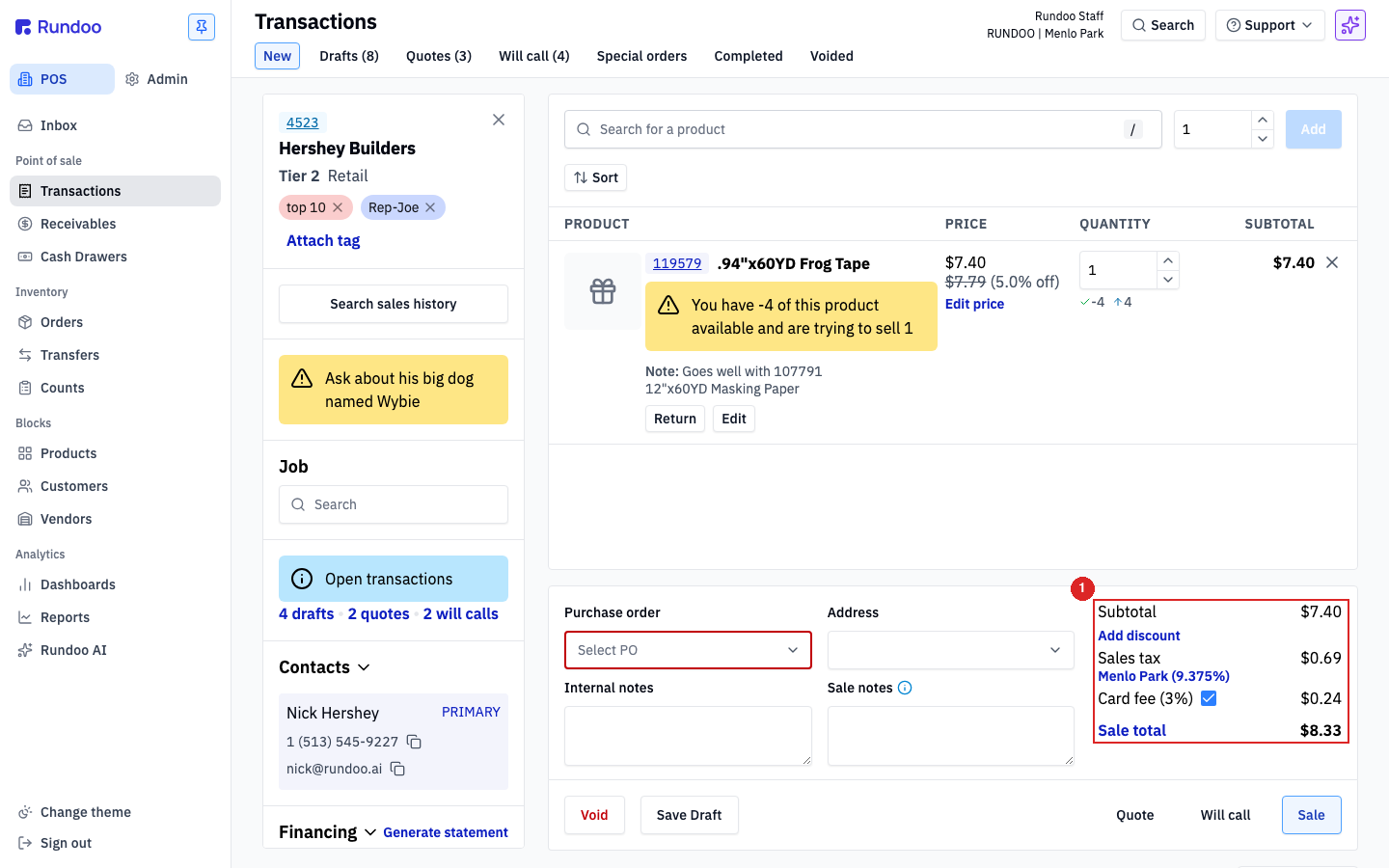
The cashier doesn't need to pick or add the fee. It's driven entirely by the fee's location + scope configuration and the products on the sale. Fees are itemized on the customer's receipt so there's no ambiguity about what each line represents.
Tax-exempt customers and the fee. For flat-amount fees, a tax-exempt customer still pays the fee. Only the sales tax on the fee is exempt. Behavior on percent-based fees applied to tax-exempt customers can vary; if you charge percentage fees and have tax-exempt accounts, ring a test sale to confirm the fee posts the way you expect, and reach out to Rundoo Support if it doesn't. See Tax for how tax-exempt is applied per-sale.
If a sale shouldn't carry a particular fee (a contractual price for a Benjamin Moore customer who shouldn't pay the BM surcharge, a wholesale transfer, a charity order, a staff purchase), staff with the right permissions can disable it per cart line. See Overriding a fee at checkout below. For fees that should never apply in the first place, adjust the fee's scope in Admin instead of removing it per-sale.
Overriding a fee at checkout
To take a service charge off a single sale (a delivery fee, eco fee, or surcharge a particular customer shouldn't pay this time), you drop it at the cart line rather than deleting the fee itself. When a product in the cart carries one or more additional fees, the total fee amount renders as a clickable chip on that line. For example, + $2.95 on a gallon of Regal Select carrying a $1.45 BM Surcharge plus a $1.50 Paint Care Fee. Click the chip to open the Edit additional fees modal.
The modal lists every fee attached to the product, each with a checkbox. Uncheck a row to drop that fee from this cart line; the Total recalculates as you toggle. Click Save to apply the override, or Cancel to discard.
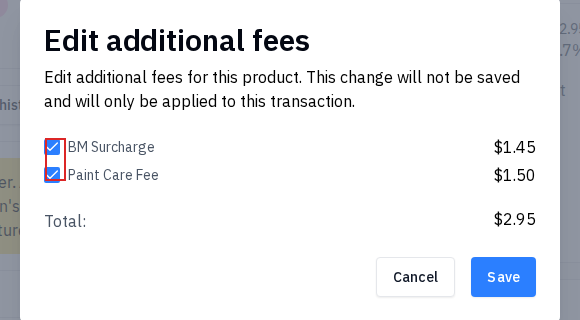
Overrides are per-transaction, not per-product. The modal labels itself with This change will not be saved and will only be applied to this transaction. Use it for one-off exceptions, a contractor with a contractual price that excludes the BM surcharge, a charity sale that shouldn't carry a delivery fee. For products that should never carry a given fee, remove the fee from the product's Additional charges field in Admin (see Attaching fees to a product) instead, that change persists across all future sales.
PaintCare fees by state
PaintCare is the industry-funded recycling program for architectural paint, with state-mandated per-container fees that retailers collect at point of sale. The fee is set up as a regular Additional fee in Rundoo (typically scoped Apply to sales only, non-taxable), with the per-container amount driven by the state where the location operates.
The schedule below covers the states where PaintCare currently runs a program. Cross-check the current rate at paintcare.org before configuring (these change over time as states adjust the program).
| State | Half-pint to <2 gal | 2 gal | >2 gal to 5 gal |
|---|---|---|---|
| California | $0.95 | $1.65 | $1.65 |
| Colorado | $0.75 | $1.60 | $1.60 |
| Connecticut | $0.75 | $1.60 | $1.60 |
| District of Columbia | $0.75 | $1.60 | $1.60 |
| Maine | $0.65 | $1.40 | $1.40 |
| Minnesota | $0.75 | $1.60 | $1.60 |
| New York | $0.75 | $1.60 | $1.60 |
| Oregon | $0.75 | $1.60 | $1.60 |
| Rhode Island | $0.75 | $1.60 | $1.60 |
| Vermont | $0.75 | $1.60 | $1.60 |
| Washington | $0.75 | $1.60 | $1.60 |
To set this up cleanly in Rundoo, create one Additional fee row per container size (e.g. Paint Care Fee - 1 gal, Paint Care Fee - 5 gal) and attach the matching size to each tintable base SKU. The per-container rate is what the state mandates, so the size has to be baked into which fee you attach. Check the boxes for Apply to sales only; leave Sales taxable off (PaintCare is not subject to sales tax in any program state).
Is the PaintCare fee taxable? No, every state running PaintCare has the fee set up as a non-taxable surcharge. Leave Sales taxable off on every PaintCare-related Additional fee row, regardless of state.
How fees post to your GL
Additional fees on a sale post to the income/expense accounts you've mapped on your Chart of Accounts, typically an Additional Fees revenue account per location. The mapping is set in Admin > Accounting, not on the fee itself; see QuickBooks for the per-location account mapping pattern. The default Additional fees report in POS > Reports > Default reports breaks fees out by name and location, useful for reconciling against your GL each month or for vendor co-op submission. See Running Reports for how to change the date range and download.