
Rundocs › Integrations
CCP & RSD
Last updated 2026-08-27
CCP and RSD are two Benjamin Moore reporting feeds that Rundoo submits for you automatically from your sales data. This page is about how to turn that on and keep it flowing in Rundoo. What the programs are, who qualifies, and how the rebates pay out are Benjamin Moore's to explain, ask your BM rep.
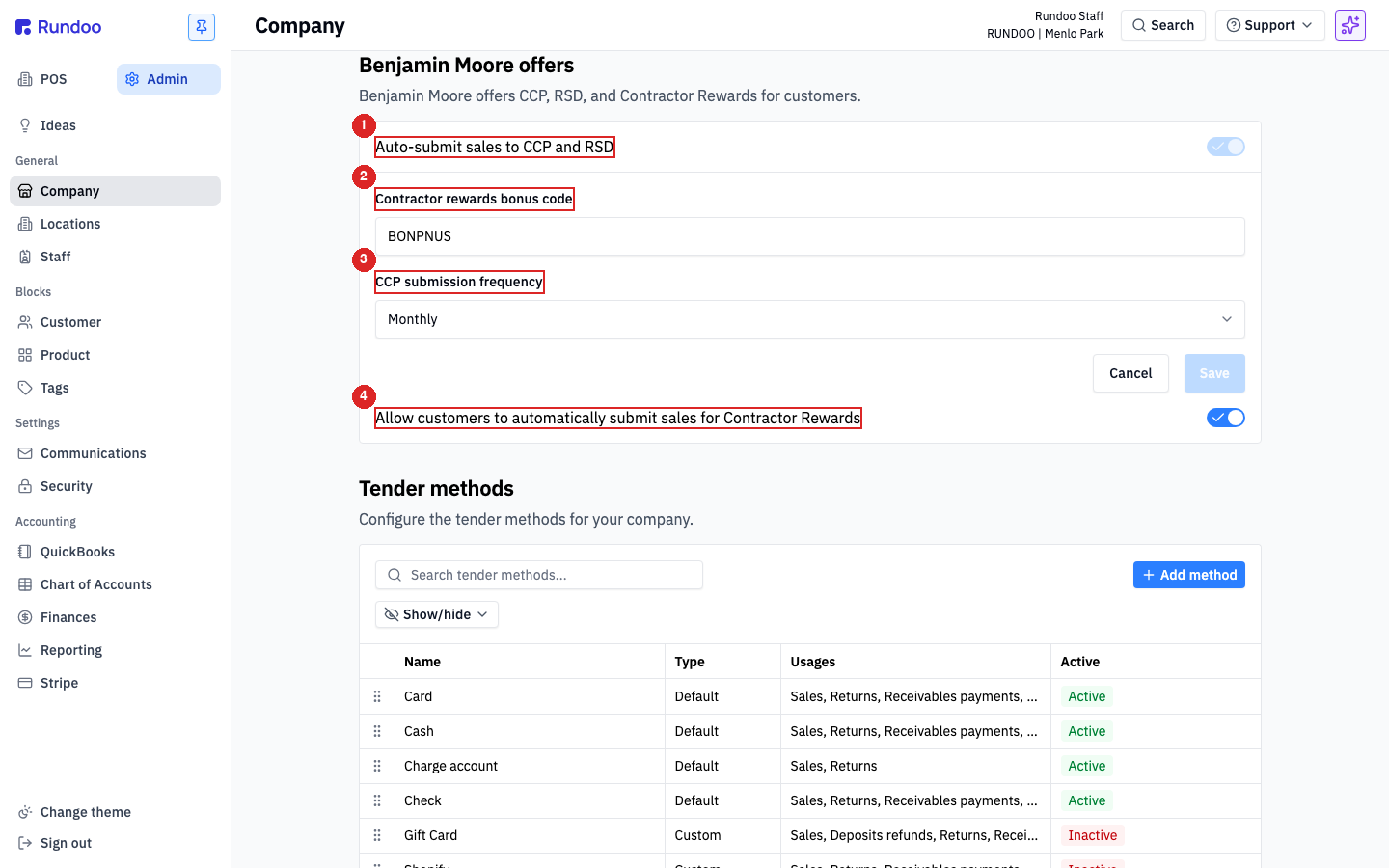
In the Admin mode, open the Company left tab and scroll to the Benjamin Moore offers section. That's where both feeds are configured, on a single shared toggle.
How CCP and RSD work in Rundoo
Both feeds ride the same CCP report Rundoo submits (they don't go out separately); the only difference is which customer the sale is tied to. RSD sales are the ones flagged with a 10-digit RSD number your BM rep issues (see RSD setup below).
Enablement isn't self-serve: Benjamin Moore confirms you on their side, then Rundoo Support enables it internally for your store. Once enabled, the shared auto-submit toggle bundles every qualifying sale and ships it to BM on the cadence Rundoo Support sets (Monthly by default), not a cadence you pick in this section.
Who cares: Benjamin Moore dealers
CCP and RSD only matter if your store is an authorized Benjamin Moore dealer and your BM territory representative has enrolled you in the programs. If you're not sure whether you're enrolled, ask your BM rep, Rundoo Support can help with the plumbing once BM has given you the go-ahead, but enrollment happens on Benjamin Moore's side.
Once you're enrolled, Rundoo handles the reporting: your qualifying BM sales are bundled, flagged RSD jobs are stamped, and the file goes to BM on your schedule.
What Rundoo sends
Each row in the submitted report represents one Benjamin Moore product sold. Rundoo only includes BM products on the report, if a customer buys five items and two of them are BM paint, the file has two rows for that sale and ignores the other three.
A few things to know about what ends up in the report:
-
Walk-in cash sales are excluded. Every other customer type (retail accounts, charge accounts, painter accounts) is included on the CCP report.
-
BM product identifiers drive matching. Rundoo identifies Benjamin Moore products in the file by the BM identifiers stored on each product's
Additional IDs, the Benjamin Moore product code and UPC. A product that isn't showing up on the report is usually missing those identifiers, so the name matching alone isn't enough. If you need help auditing product IDs across your catalog, email support@rundoo.ai and Rundoo will coordinate a data review with BM. -
RSD jobs are flagged by a 10-digit number. That number can come from a Job ID, the sale's
Purchase orderfield, or the customer'sRSD Numberfield. See the RSD setup section below.
Setup in Rundoo
In the Admin mode, Company left tab, scroll to the Benjamin Moore offers section. The Auto-submit sales to CCP and RSD master toggle drives it: with it on, Rundoo bundles qualifying sales and sends them to BM on a set cadence. Leave it on unless BM specifically asks you to pause.
The submission cadence is Monthly (Benjamin Moore's standard) and is set by Rundoo Support, not a customer-facing dropdown in this section. If BM asks for more frequent data while you're working through a rebate issue, email support@rundoo.ai to have the cadence changed.
The other controls in this section (Contractor rewards bonus code and Allow customers to automatically submit sales for Contractor Rewards) belong to Benjamin Moore's separate Contractor Rewards program, not CCP or RSD.
Click Save in the section footer after editing. The Save button is disabled until you've actually changed something.
New to Benjamin Moore on Rundoo? Rundoo coordinates CCP and RSD enablement during your implementation (outlet-number collection, BM-side configuration, the master toggle). If you're already live and aren't seeing the Benjamin Moore offers section controls behave as expected, ping Rundoo Support.
Location outlet numbers
CCP and RSD submissions are keyed by your BM outlet number per location. The outlet number lives on each location record in the Admin mode, Locations left tab. Open a location, go to its Integrations tab, and enter your store's outlet number into the Benjamin Moore outlet number field. Help text reads: "The Benjamin Moore outlet number is used for integrations like CCP." Rundoo's team usually sets these during go-live; you'd only touch them if you opened a new location or changed affiliations with BM.
The same outlet number is a prerequisite for Contractor Rewards: that program's auto-submit toggle stays greyed out until at least one active location has an outlet number, and any location without one is skipped in its nightly submission. Set the outlet number on every BM-enrolled location so both CCP/RSD and Contractor Rewards submit from all of them.
RSD setup: three routes
RSD attaches a 10-digit number to qualifying sales so BM can match them to specific jobs. You have three options for how that number gets onto the sale.
Option 1: Use the 10-digit RSD number as the Job ID
Create a Job under the customer with the RSD number as the Job's ID. From that point, any time a cashier attaches that Job to a sale at checkout, Rundoo automatically sends the transaction and the RSD number to BM. Nothing to type in the Purchase order field.
This is the cleaner option when the job is recurring or the customer is doing multiple sales against the same RSD number.
Option 2: Type the RSD number into Purchase order on the sale
On a sale, enter the 10-digit RSD number in the Purchase order field before completing. On the submitted CCP report, the Purchase order value shows up in the Job column, and BM matches it the same way.
This is the faster option for one-off sales where setting up a Job isn't worth it.
For Options 1 and 2, to help cashiers remember to type the RSD number at checkout, set a Sale reminder on the customer record. In the POS mode, Customers left tab, open the customer's Settings top tab, scroll to Notes, and fill in the Sale reminder field (e.g. "RSD job (enter 10-digit # in Purchase Order)"). The reminder pops up in a banner at checkout any time that customer or one of their Jobs is attached.
Option 3: Set the RSD number on the customer record
Configure the RSD number once at the customer level and every invoice for that customer is associated with it automatically, nothing to attach at checkout. In the POS mode, Customers left tab, open the customer and go to the Settings top tab. Scroll to the Benjamin Moore integration numbers section and enter the 10-digit number in the RSD Number field, then Save.
This is the cleanest option when all of a customer's sales roll up to the same RSD number.
Any of these routes works. Pick one per customer and stick with it. Mixing them across the same customer's sales makes reconciling against BM's return file harder than it needs to be.
Verifying it's working
A few checks to confirm CCP and RSD are flowing cleanly:
-
The toggle is on. In the Admin mode, Company left tab, Benjamin Moore offers section,
Auto-submit sales to CCP and RSDis enabled. -
Your outlet numbers are set. In the Admin mode, Locations left tab, each BM-enrolled location has its
Benjamin Moore outlet numberfilled in on its Integrations tab. -
BM products have their BM identifiers. Products missing their Benjamin Moore product code / UPC in
Additional IDswon't match on BM's side. -
RSD numbers are attached where you expect them. If you rely on the customer-level
RSD Numberfield or a Job/Purchase ordervalue, confirm it's set for the customers whose jobs should be flagged.
If BM tells you a specific sale didn't land, check the items above in order. A missing BM product identifier is the most common reason a row doesn't appear on BM's end.
FAQ
Does the rebate get applied to my general ledger automatically? No. Rundoo doesn't automatically book CCP or RSD rebates. When a rebate comes back to your store, you can manually adjust the cost of the sold products to reflect it, or handle it in Rundoo Accounting.
When does my CCP report actually get sent, and can I see when it last went out? Rundoo doesn't display a last-sent timestamp or a next-scheduled date anywhere in the app. The submission cadence is set by Rundoo Support (Monthly is the standard, so submissions go out on the 1st of each month) and isn't a customer-facing setting, so there's no in-app way to change it or to look up a last-sent or next-send date. To confirm a specific submission actually landed at Benjamin Moore, or to get a copy of a past report, email support@rundoo.ai, Rundoo Support can look it up and forward it.
Recommended Rundocs
-
Benjamin Moore, the broader BM integration: direct ordering, catalog sync, and the
Bbadge. -
Contractor Rewards, BM's separate contractor loyalty program (the bonus code, PaxIDs, and per-customer forwarding controls that share the Benjamin Moore offers section).
-
Company details (the Admin > Company page where the Benjamin Moore offers section lives).
-
Customers, where the customer-level
RSD Numberfield and Sale reminders are set.