
Rundocs › Integrations
Sage 100
Last updated 2026-09-29
If you keep your books in Sage 100, Rundoo builds your daily journal entries (sales and purchases) and hands you a Sage 100–formatted file to import, so your ledger stays current without re-keying a day of sales by hand.
In the Admin > Integrations > Settings tab, set your Accounting system to Sage 100. Rundoo then generates a journal entry for each business day on the Journal Entries tab, and each one carries a Download Sage 100 CSV button that gives you the file to import into Sage.
Selecting Sage 100 as your accounting system
Rundoo supports three accounting systems, and the first thing you pick on the Settings tab is which one you use.
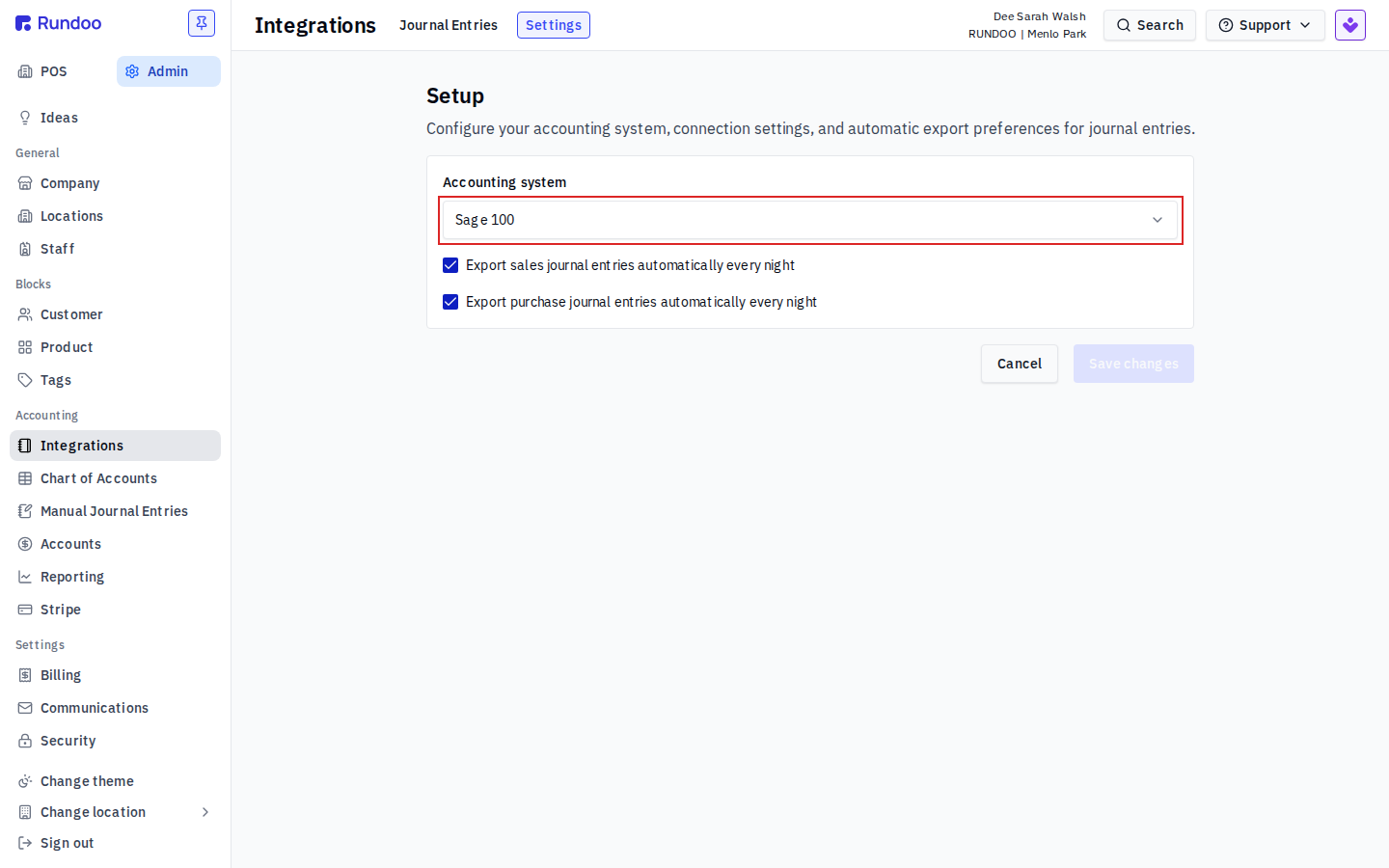
In the Admin > Integrations > Settings tab, open the Accounting system dropdown at the top of the Setup card. Three options appear:
QuickBooks Online (QBO)— cloud QuickBooks, connected live over OAuth. See the QuickBooks Rundoc.QuickBooks Desktop (QBD)— installed QuickBooks, file-based import. Also covered in the QuickBooks Rundoc.Sage 100— Sage's installed accounting/ERP system, file-based import (this page).
Pick Sage 100, then hit Save changes.
Sage 100 works like QuickBooks Desktop, not QuickBooks Online. There's no live connection to Sage. Rundoo doesn't post into Sage on its own and there's no Connect button on the Settings card. What you're setting up is the daily export and the file format, so the numbers Rundoo generates line up with your Sage chart of accounts when you import them.
What Rundoo exports
Rundoo builds two kinds of journal entry on the schedule you turn on in Settings, exactly the same entries it would build for QuickBooks:
- Sales journal — everything that happens at POS during the day. Cash sales, on-account invoices, card payments, bill payments from charge-account customers, customer credits, refunds, taxes collected. Debits and credits are aggregated per account so you get one clean journal entry per day per location, not hundreds of per-transaction lines.
- Purchase journal — the inbound side. Received purchase orders, vendor invoices, and vouchers, with vendor-level detail so your AP stays accurate.
The two toggles on the Settings card control what the nightly job does:
Export sales journal entries automatically every nightExport purchase journal entries automatically every night
Leave both on and Rundoo generates each day's entries for you. Turn one off if you want to handle that side of the ledger another way (for example, export sales automatically but enter purchases into Sage by hand).
Rundoo posts aggregated journal entries, not per-transaction detail. If you need customer-level AR detail, keep that in Rundoo. The POS > Customers tab shows each customer's full transaction history and open balance. Rundoo is the book of record for operational detail; Sage 100 is the book of record for the general ledger.
Downloading the Sage 100 file
Because Sage 100 is a file-based import, the daily step is downloading the entry Rundoo generated and importing it into Sage.
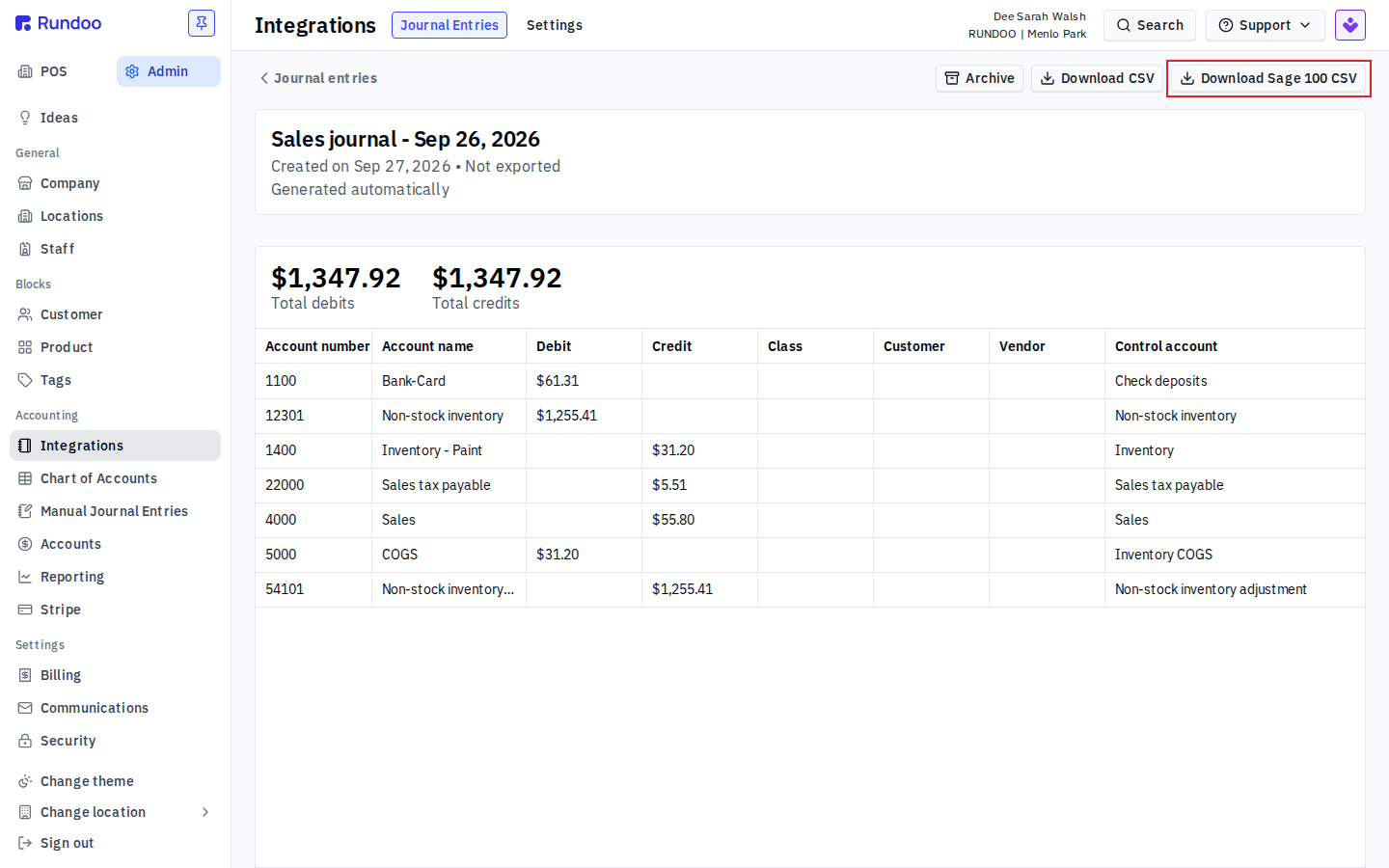
In the Admin > Integrations > Journal Entries tab, click an entry to open it. The detail view shows the total debits and total credits (they should always match) and an itemized table of every account the entry touches: Account number, Account name, Debit, Credit, Class, Customer, Vendor, and Control account. That's the same data the export file carries. The three buttons in the top-right are:
Download Sage 100 CSV— the file formatted for import into Sage 100. This is the one your bookkeeper hands to Sage.Download CSV— a plain spreadsheet of the entry, handy for eyeballing an entry before you import it.Archive— pull an entry out of the active view without deleting it (the original stays reachable by flipping the archive filter on the list).
Need to regenerate an entry off-cycle? After fixing a mapping, or to cover a multi-day window, use the Select type, Date, and Generate controls at the top-right of the Journal Entries list. Pick Sales journal or Purchase journal and a date (or a range), then Generate; the new entry lands at the top of the list with the same download buttons. It's the same manual-export flow as QuickBooks.
Mapping your Rundoo accounts to Sage
The translation layer between "Rundoo rang up a sale" and "debit this account, credit that one" lives on the Mapping tab inside Chart of Accounts, not on the Integrations page. Every kind of transaction (cash sale, card sale, AR invoice, bill payment, PO receipt, inventory variance) has a mapping row that says which account to debit and which to credit, and mapping is scoped by location.
Set up your Rundoo Chart of Accounts to mirror the accounts your bookkeeper already uses in Sage 100, matching account names and numbers, so the file imports cleanly against the right general-ledger buckets. See Account mapping for the full walkthrough of which transaction types route where.
Setting up Sage 100 for the first time? Tell your Rundoo onboarding team the chart of accounts your bookkeeper uses in Sage and they'll help mirror it inside Rundoo. Matching account names and numbers up front is much cheaper than fixing a month of misrouted journal entries later.
Switching accounting systems
The Accounting system dropdown is what decides the export format. Switch it between QuickBooks Online (QBO), QuickBooks Desktop (QBD), and Sage 100 and the download button on each journal entry changes to match (with Sage 100 selected, each entry offers Download Sage 100 CSV). Your account mapping stays in place through the switch, so if you move from QuickBooks to Sage you don't rebuild your chart of accounts, you just change where the export lands.